In LawnPro, customers are the foundation of your business. Jobs, visits, estimates, and invoices all connect to customers. Before you can schedule work or create invoices, you’ll need to add customers to your account.
This guide will walk you through adding a new customer and setting up their information.
Help Video
Here’s a video on how to add new customers.
Below, you can also read how to add a customer, step by step.
How to Add a New Customer
From the main menu, click Customers > Customers

Click the + New Customer button
Select Enter New Customer

Customer Information
Fill out the customer form with their details. Required fields are marked with an asterisk (*). Here’s what you’ll need:
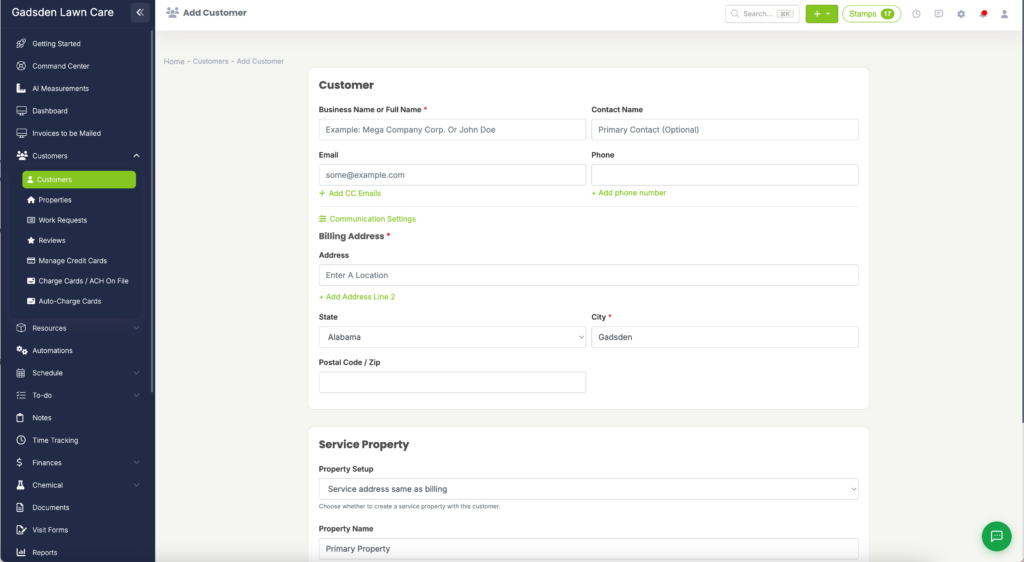
Basic Details
- Business Name or Full Name (required): The name that will appear throughout the software
- Contact Name: First and last name of the primary contact
Contact Information
- Phone (turn on Can Receive Text Messages if it’s a mobile) and Alternate phone
- Email Address: Primary email for invoices and communications
- + Add CC Emails: send copies to up to 3 more addresses
- Billing Address: this address appears on estimates and invoices (only City is required)
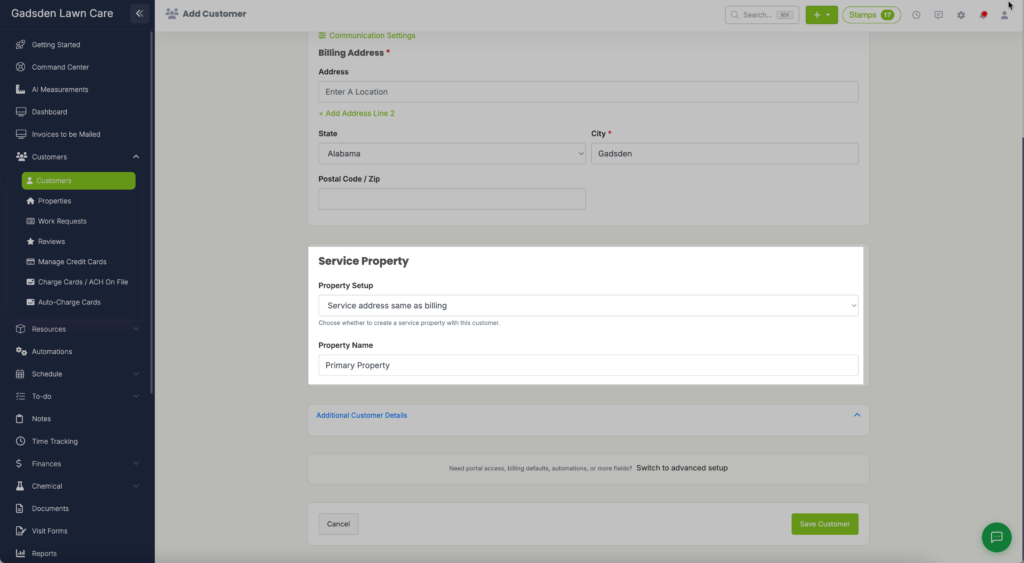
Service Property
Here you can choose whether the service property will be at the same address as billing, or whether you would like to create a property with a different service address, or choose No property — save as lead.
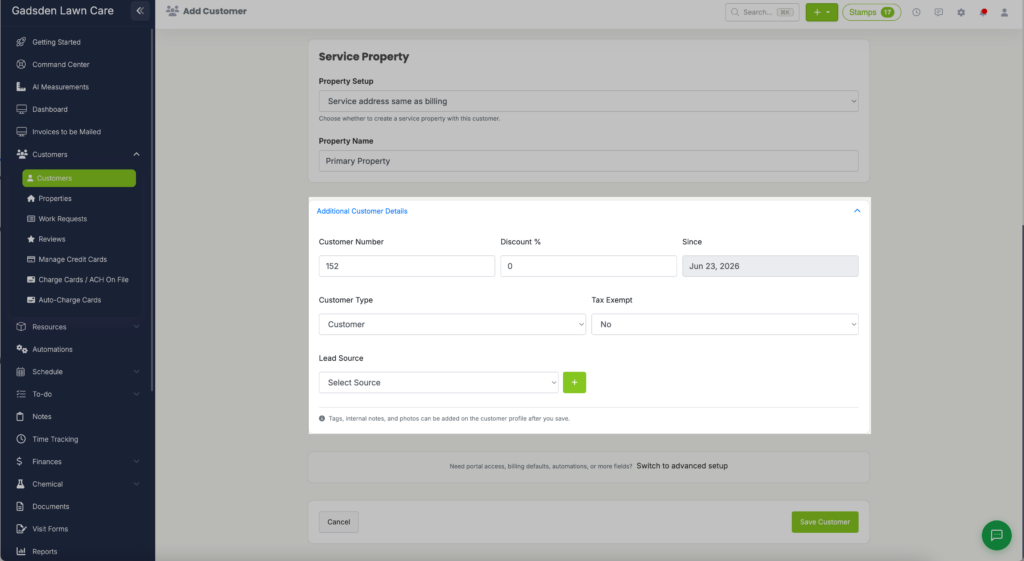
Additonal Customer Details
- Customer Number
- Discount
- Since
- Customer Type
- Tax Exempt
- How This Customer Found Out About Us, Referred By and any custom fields
Click Save Customer. A Setup complete panel then lets you Schedule Visit, Create Estimate, Create Invoice, Create Level Billing, Add Another Property or View Customer. If the name matches an existing customer, LawnPro warns you before you save.
Please note: It is possible to add multiple properties to the same customer.
Also Note: It is not currently possible to merge two customer profiles into one. You will either need to manually move the data over into one profile and delete the duplicate, or keep both customers, but rename one of the clients that you won’t be using to include “do not use” in the customer/business name.