Table of Contents
- Overview
- Step 1: Write the message
- Step 2: Text customers who have not been serviced in a while
- Step 3: Remind customers when a service is due again
- Who gets it
- Good to know
Overview
Two automations bring back customers who stopped using you, without anyone keeping a list:
- Customer Has Not Been Serviced In a While texts or emails customers whose last visit was a while ago and who have nothing on the calendar.
- Service is Due Again (Same Time Last Year) reminds customers a few weeks before the date they had a service last year, for example aeration or fall cleanup.
Both are checked once a day at the time you pick. Each customer gets the message once, and it stops as soon as they book again.
Step 1: Write the message
- Go to Automations and click the Text Message Templates tab (or Email Templates).
- Add a new template. For example:
Hi {{CUSTOMER_FIRST_NAME}}, it has been a while since we were out to your property. Want us to get you back on the schedule? Just reply to this text. {{COMPANY_NAME}} - Save it.
See Edit Text Templates for Automations for more on templates.
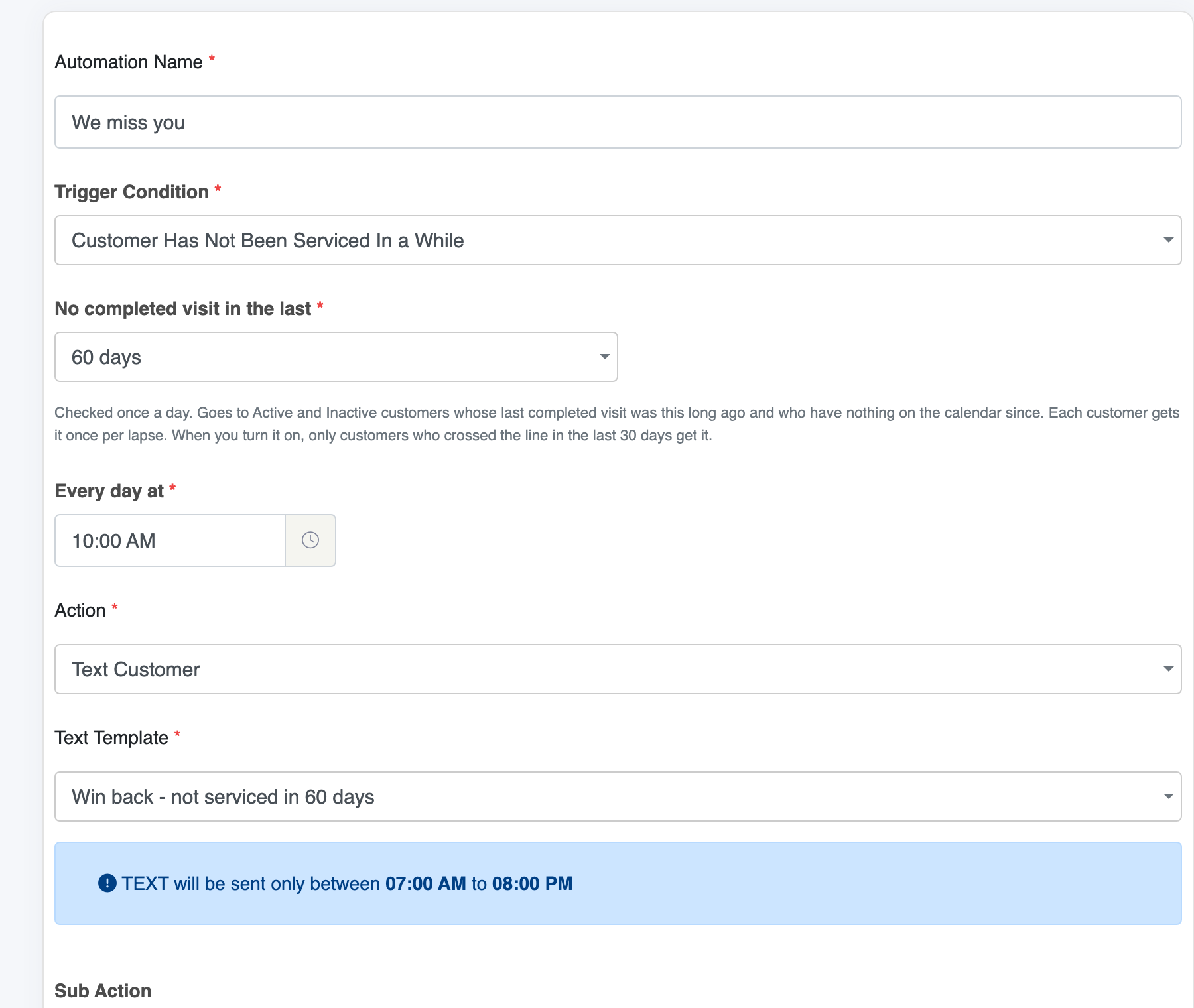
Step 2: Text customers who have not been serviced in a while
- Go to Automations and click + New Automation.
- Give it a name, for example We miss you.
- For Trigger Condition, pick Customer Has Not Been Serviced In a While (under Win Back Customers).
- For No completed visit in the last, pick how long: 30, 45, 60, 90, 120, 180 or 365 days.
- For Every day at, pick the time to check. Texts still go out only during your texting hours.
- For Action, pick Text Customer or Email Customer and the template from Step 1.
- Click Save.
Step 3: Remind customers when a service is due again
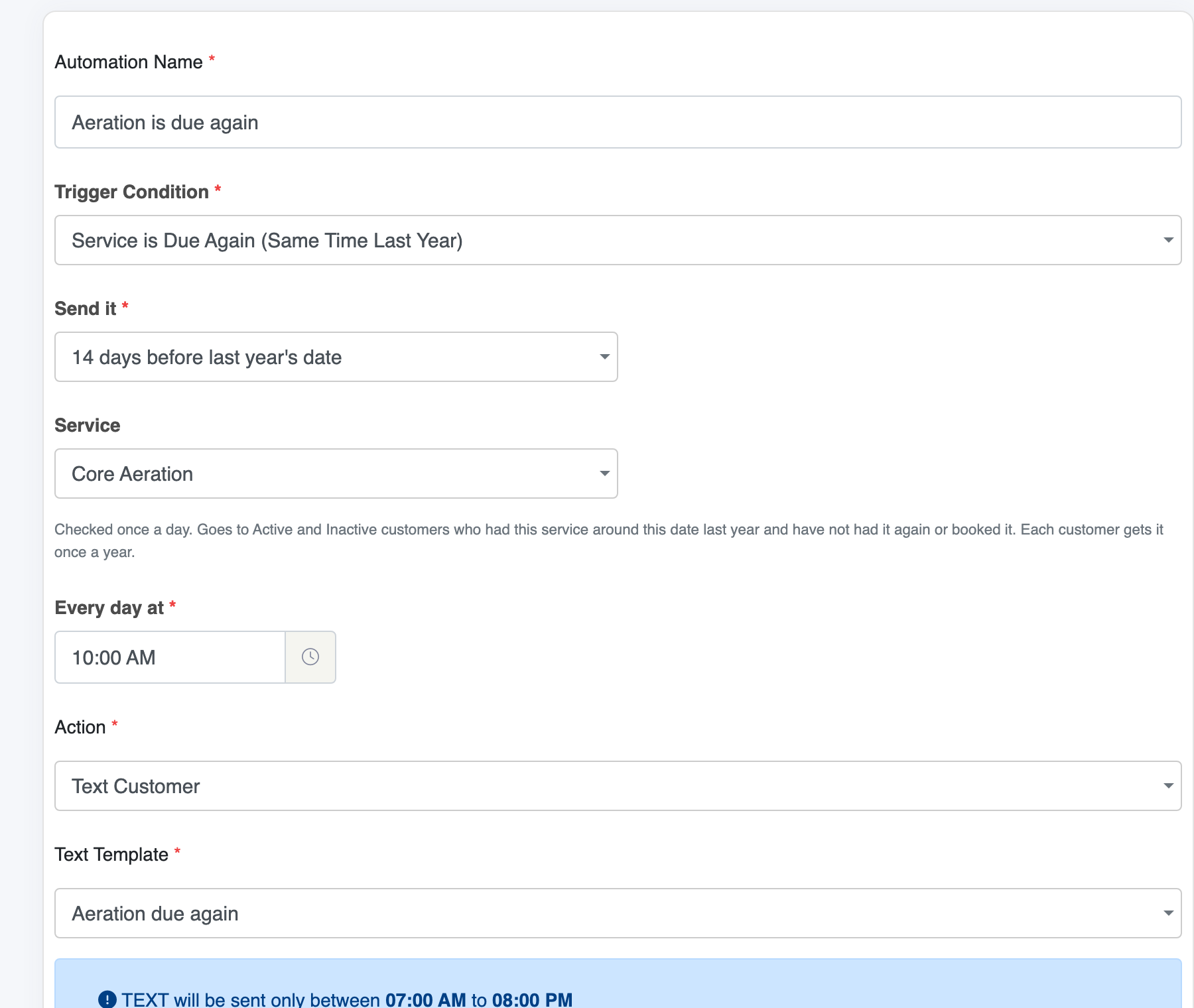
- Go to Automations and click + New Automation.
- Give it a name, for example Aeration is due again.
- For Trigger Condition, pick Service is Due Again (Same Time Last Year).
- For Send it, pick 7, 14, 21 or 30 days before last year’s date.
- For Service, pick the service, for example Core Aeration. Leave it on Any service to remind customers who had any visit around this date last year and none since.
- Pick Every day at, the Action and the template, then click Save.
Make one automation per seasonal service, with its own message.
Who gets it
- Active and Inactive customers. Written-off customers, pending customers and leads never get it.
- Only customers with nothing on the calendar since: no open, waitlist or future visit and no repeating visit. Skipped and cancelled visits don’t count.
- For Service is Due Again, only customers who have not had that service again or booked it.
- Customers you turned the automation off for on their Automations tab are skipped. You can also limit it to the customers you pick.
Good to know
- Once each: a customer gets the message once per lapse. If they come back and stop again later, they get it again.
- Turning it on: only customers who crossed the line in the last 30 days get it, not every customer you ever lost.
- Booked since: if a visit is booked before the message goes out, it is not sent.
- Actions: these automations can text or email the customer or add or remove a tag. Tag them to build a call list.
- History: every message is listed under Automation History.