Table of Contents
- Overview
- Step 1: Write the Text Message
- Step 2: Create the Automation
- When It Sends and When It Doesn’t
- Common Questions
Overview
The Visit is Rescheduled automation texts or emails your customer every time you move one of their visits to a different day. Set it up once and rain-day changes tell your customers for you.
It works no matter how you move the visit: dragging it on the calendar, Move Selected Events, Move All Open Events or changing the date on the visit itself.
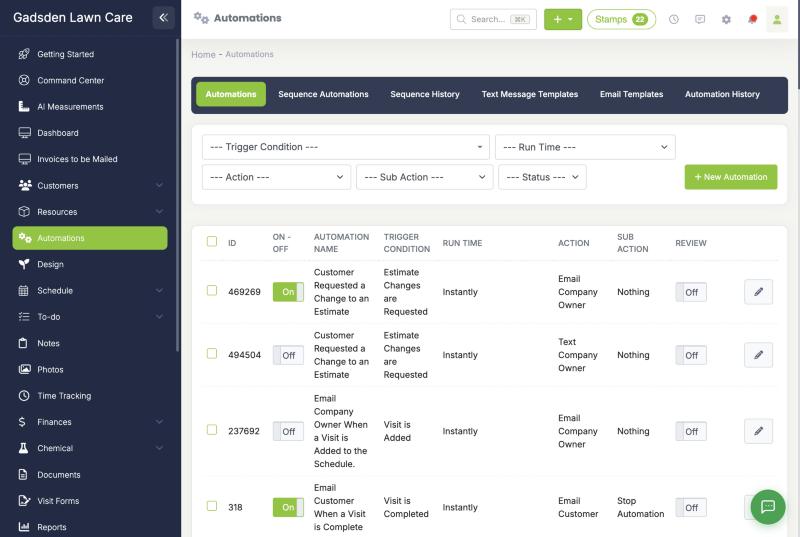
Step 1: Write the Text Message
Create the message first so you can pick it in the automation.
- Go to Automations in the left menu.
- Click the Text Message Templates tab.
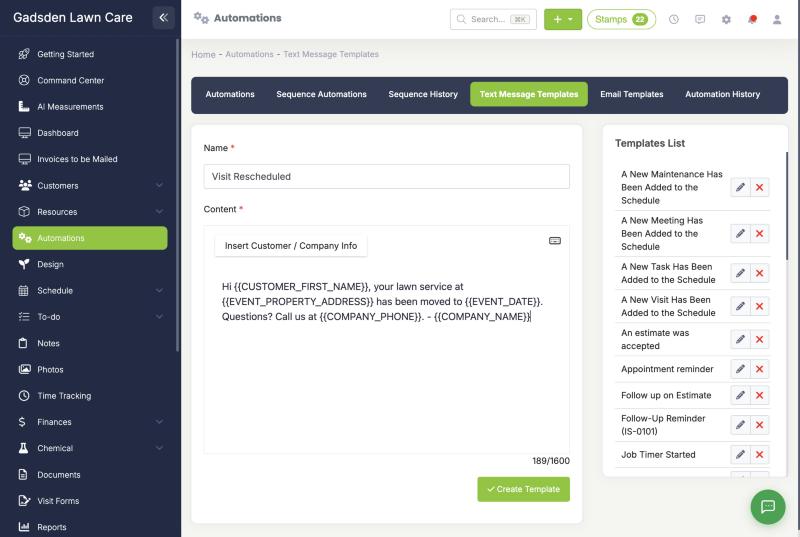
- Type a Name, such as Visit Rescheduled.
- Write your message in Content. Use Insert Customer / Company Info to add details that fill in for each customer.
- Click Create Template.
Here is a message you can copy:
Hi {{CUSTOMER_FIRST_NAME}}, your lawn service at {{EVENT_PROPERTY_ADDRESS}} has been moved to {{EVENT_DATE}}. Questions? Call us at {{COMPANY_PHONE}}. – {{COMPANY_NAME}}
{{EVENT_DATE}} is the visit’s new date. LawnPro reads it when the text sends, so it is always the latest date.
Want an email instead? Make the template under Email Templates and pick Email Customer in Step 2.
Step 2: Create the Automation
- Go to Automations and click + New Automation.
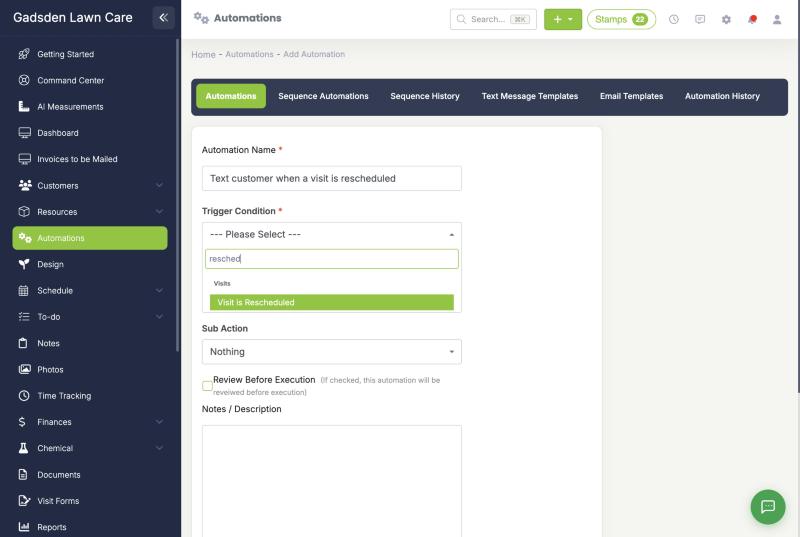
- Type an Automation Name, such as Text customer when a visit is rescheduled.
- In Trigger Condition, choose Visit is Rescheduled. It is in the Visits group. You can type resched to find it.
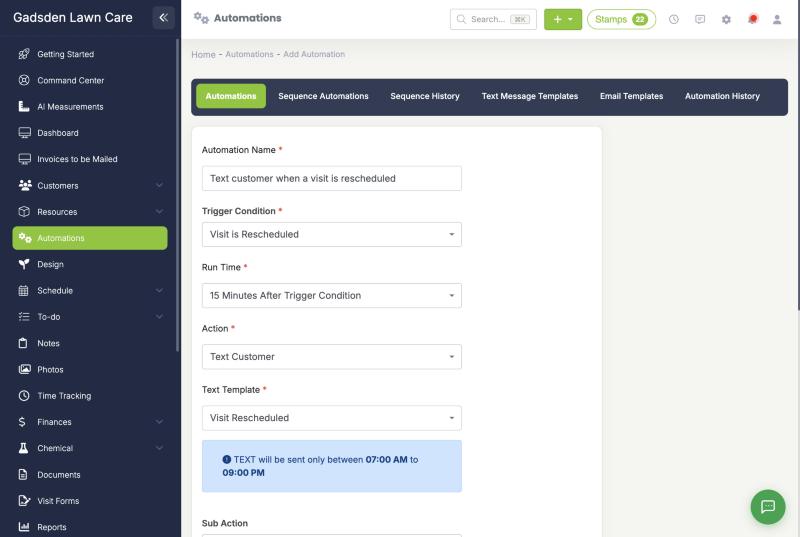
- In Run Time, choose 15 Minutes After Trigger Condition. This gives you time to finish moving visits before anything sends. If you move the same visit again within 15 minutes, your customer still gets just one text with the final date.
- In Action, choose Text Customer.
- In Text Template, choose the template from Step 1.
- Click Add Automation.
Your new automation shows on the Automations list, switched On.
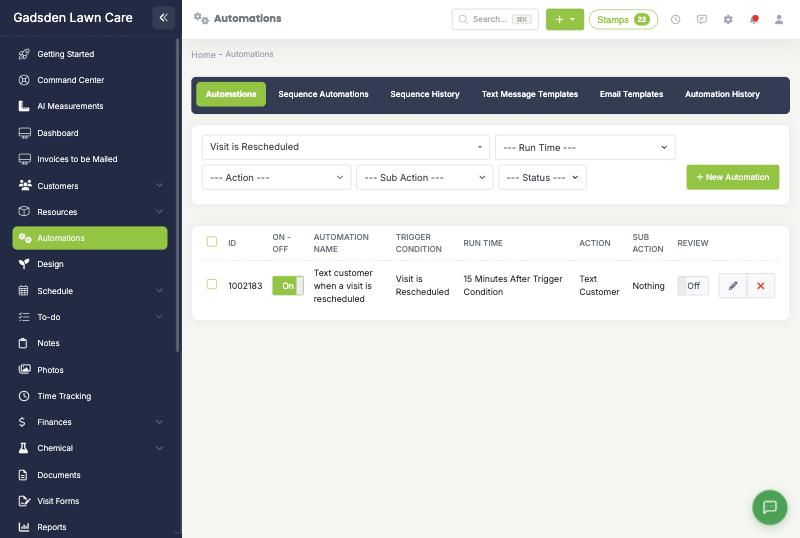
Texts only send between the hours set under Settings > Preferences > Automations Text Message Times, the same as your other automated texts.
When It Sends and When It Doesn’t
| Change | Sends? |
|---|---|
| Visit moved to a different day (today or later) | Yes |
| Visit moved to a different time on the same day | No |
| Visit moved to a day that has already passed | No |
| Visit is completed or skipped | No |
| Visit moved onto or off the waitlist | No |
| To-dos, meetings and equipment maintenance moved | No (customer visits only) |
If the visit is completed, skipped, deleted or moved back to the waitlist before the text goes out, LawnPro cancels the text.
Common Questions
I pushed a customer’s whole weekly schedule back two days. Do they get a text for every visit?
No. Each customer gets one text, about their next visit.
I moved a visit, then moved it again. What does the customer get?
If the second move happens before the first text sends, they get one text with the final date. If the first text already went out, they get a second text with the new date.
Can I text my crew or myself instead?
Yes. Pick Text Employee, Email Employee, Text Company Owner or Email Company Owner as the action.
Can I turn it off for one customer?
Yes. Use the customer’s Automations tab, the same as any other automation.