Table of Contents
Overview
Route Group Selection lets you draw a shape directly on the route map to select just the stops inside it, instead of picking through your stop list one by one. It’s useful for splitting a big route into smaller areas, or quickly focusing on a cluster of stops in one part of town.
Drawing a Selection
On the Schedule > Routes page, look for the small icon in the top-left corner of the map — hovering over it shows “Group Selection.”
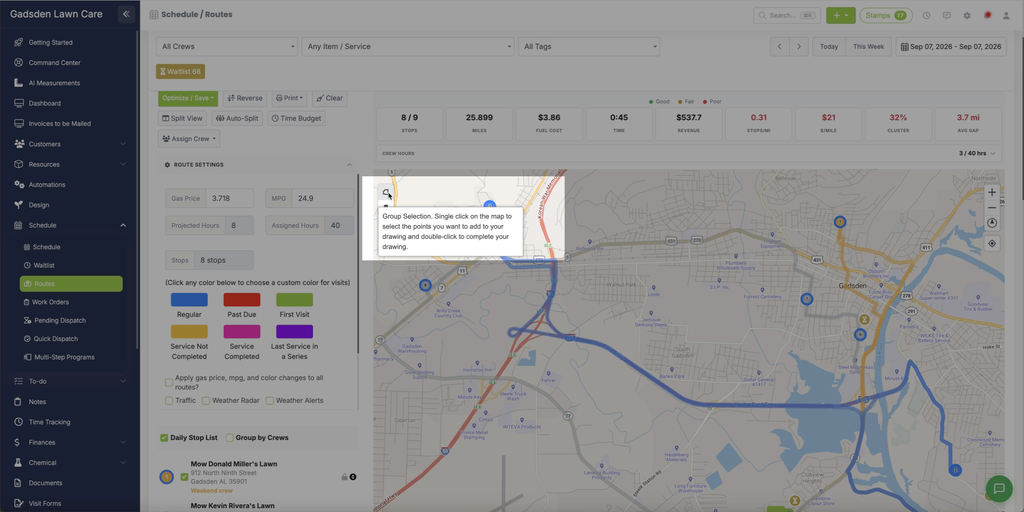
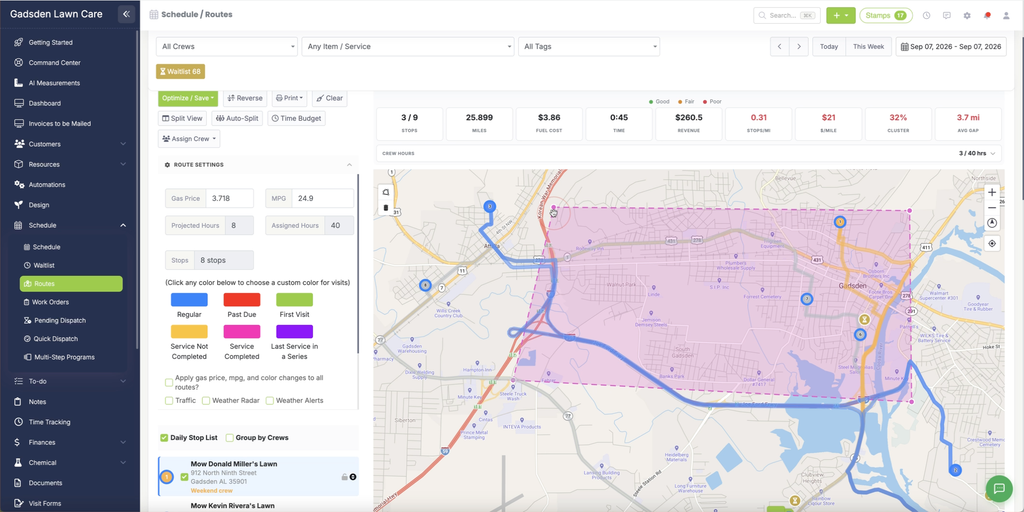
Click the icon, then single-click on the map to place points around the stops you want to select. Double-click to complete the shape.
What Happens After You Draw
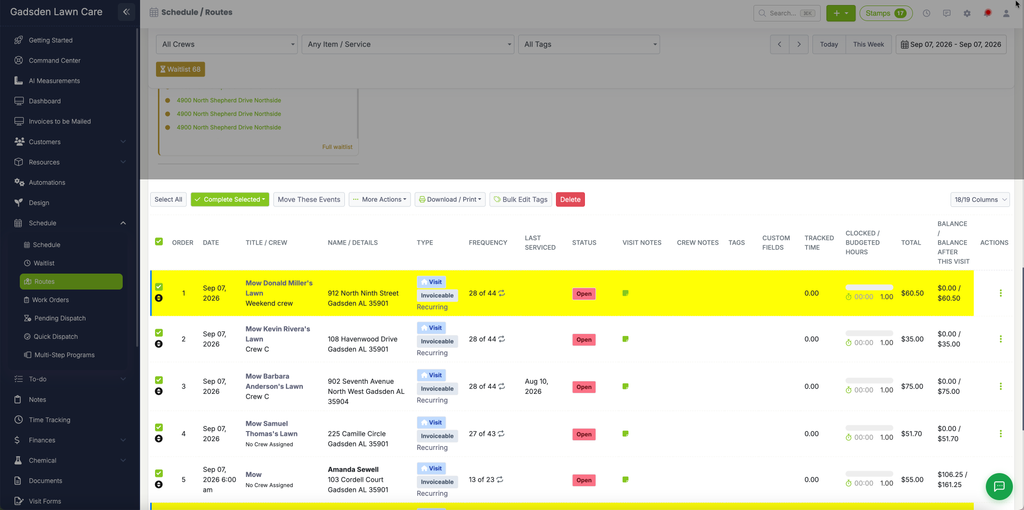
Once you complete the shape, only the stops inside it stay selected — the Stops count and the rest of the route metrics update to reflect just that subset, and the Daily Stop List highlights the matching stops.
Clearing a Selection
Click the trash icon just below the Group Selection icon to clear your drawing and return to the full stop list.