Table of Contents
- Viewing a Receipt
- Saving a Receipt
- Sending a Receipt
- Editing the Receipt Templates for Email and Text
After a payment has been made you can view the receipt by going to Finances > Payments.
Viewing a Receipt
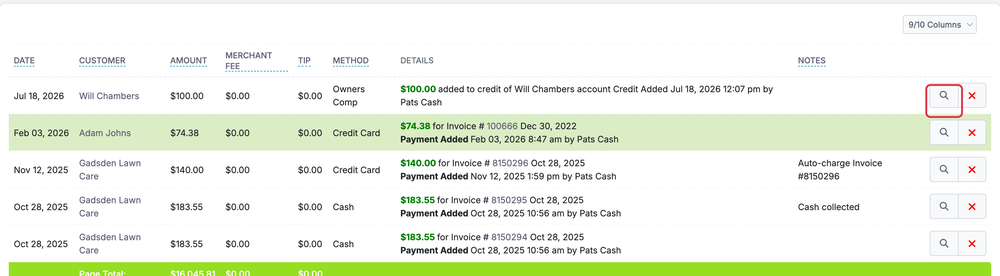
Once on the Payments page, search for the payment you’re wanting to view the receipt for.
Click the magnifying glass picture to view the receipt for that payment.
Once you are on the receipt you will be able to see the Payment Amount on the left.
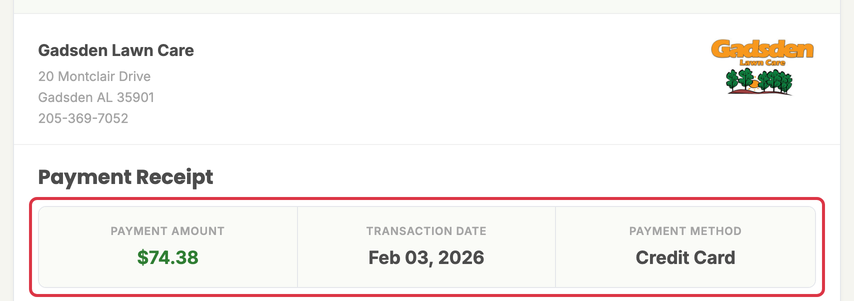
You can see the Transaction Date of this payment in the middle.
On the right you will see the Payment Method used for this payment.
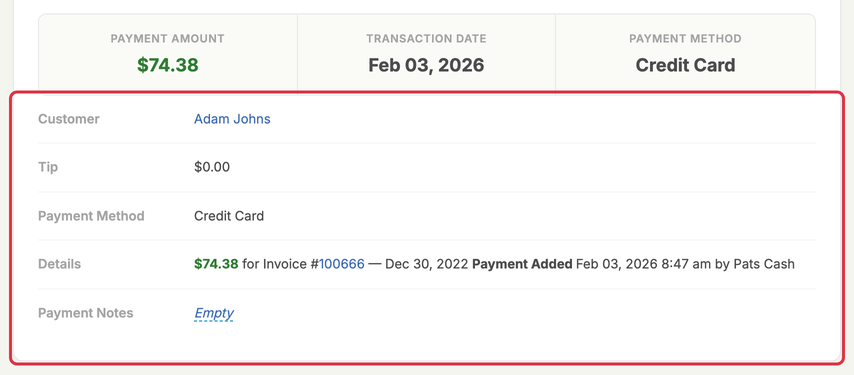
You will also see the Customer, tip amount, details and notes of the payment on this receipt.
Saving a Receipt
To save a PDF of the receipt you will click the Download / Print PDF dropdown and choose Download PDF. Choose Print to print it instead.
This will download the receipt to your device.

Sending a Receipt
To Send a receipt to a customer, click Send Receipt and choose Email or Text Message. Text Message shows only if texting is available in your country. From the receipt you can also Refund an online payment or Convert to Credit. Other payments show Delete Payment instead of Refund if you have permission to delete payments.
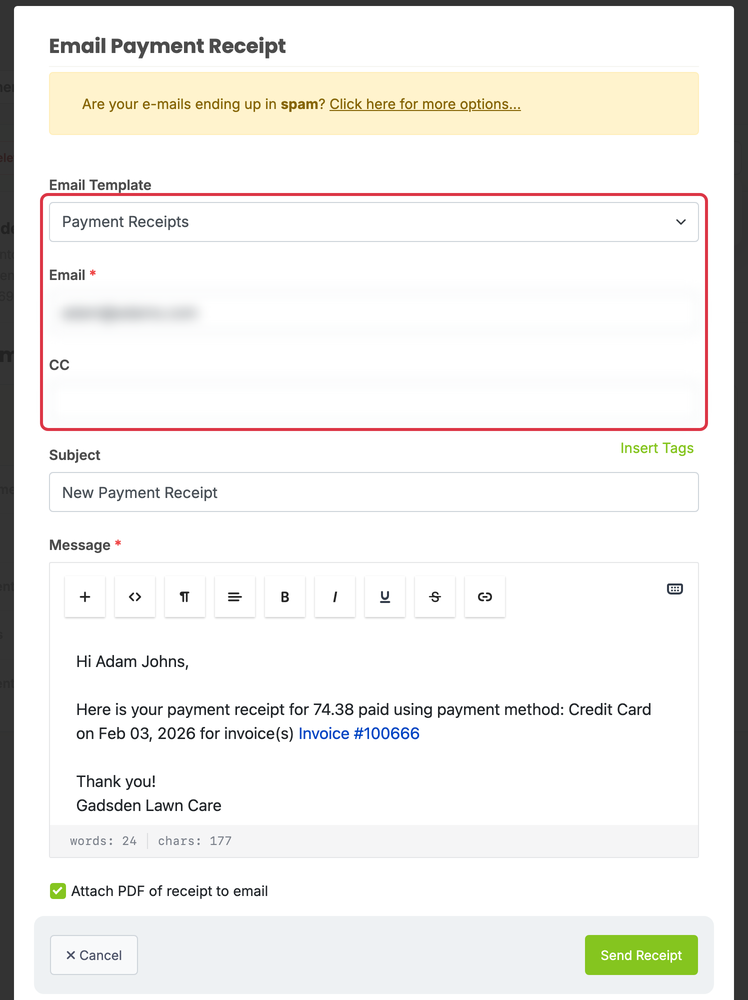
Once you make your selection you will see a popup where you can see a drop down for what template you want to send the receipt with. Keep reading to learn more about the templates.
The default email listed here will be the email you have on file for the customer. You can change this email now if the customer is wanting the receipt emailed to an alternate email address. You can also add a CC email.
Editing the Receipt Templates for Email and Text
When sending your receipts, you will notice there is a drop down where you can choose a template to send the receipt with.
The default templates can be changed in Settings > Invoices, Estimates & Receipts, under Default Receipt Email Template and Default Receipt SMS Message.
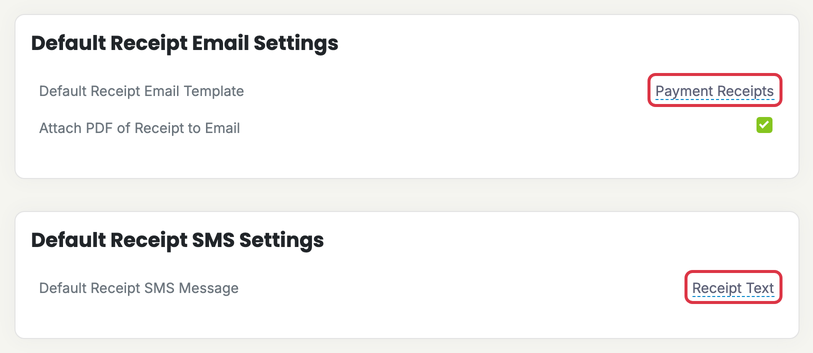
To edit the content of the Payment Receipt email template you will go to the Email Tab and then click “Email Templates”.
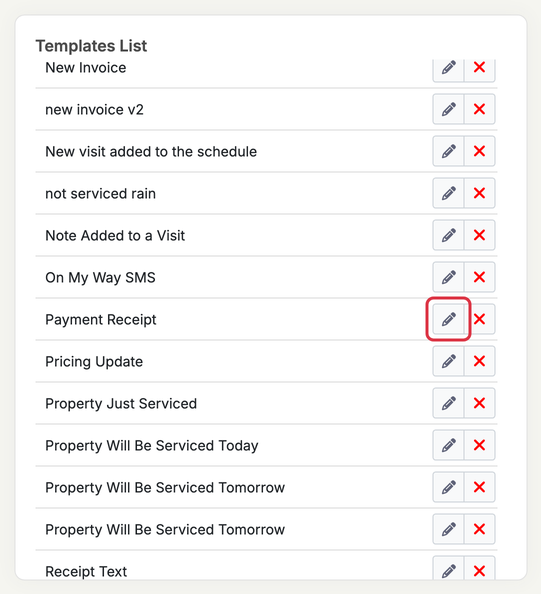
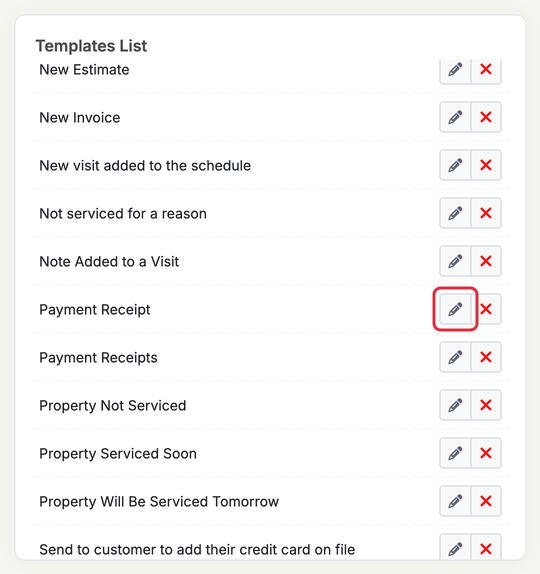
In this example I am selecting the pencil button to edit the “Payment Receipt” email template.
To edit the Payment Receipt text template you will go to the Text Tab and then click “Text Message Templates”
Click the pencil button for the template you would like to edit.