Table of Contents
Overview
Deleting an estimate doesn’t erase it permanently — you can find and restore it later if needed.
Deleting an Estimate
Go to Finances > Estimates. Check the box next to one or more estimates and click the red “Delete” button in the toolbar, or click the red X on an individual estimate’s row.
Finding Deleted Estimates
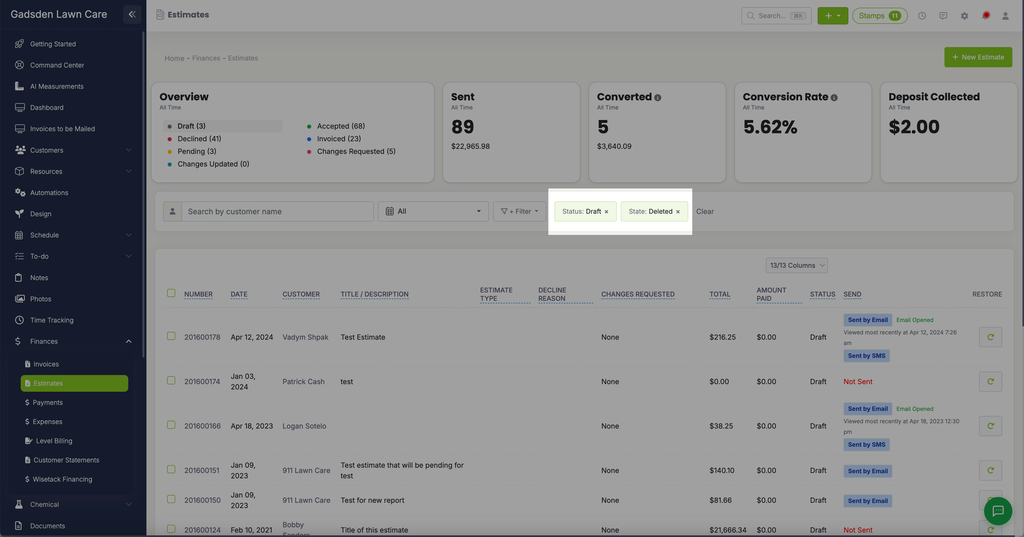
Click “+ Filter,” choose State, and check “Deleted.”
Note: The State filter alone isn’t enough — you also need a Status filter checked (for example, “Draft”) for deleted estimates to actually show in the list.
Restoring an Estimate
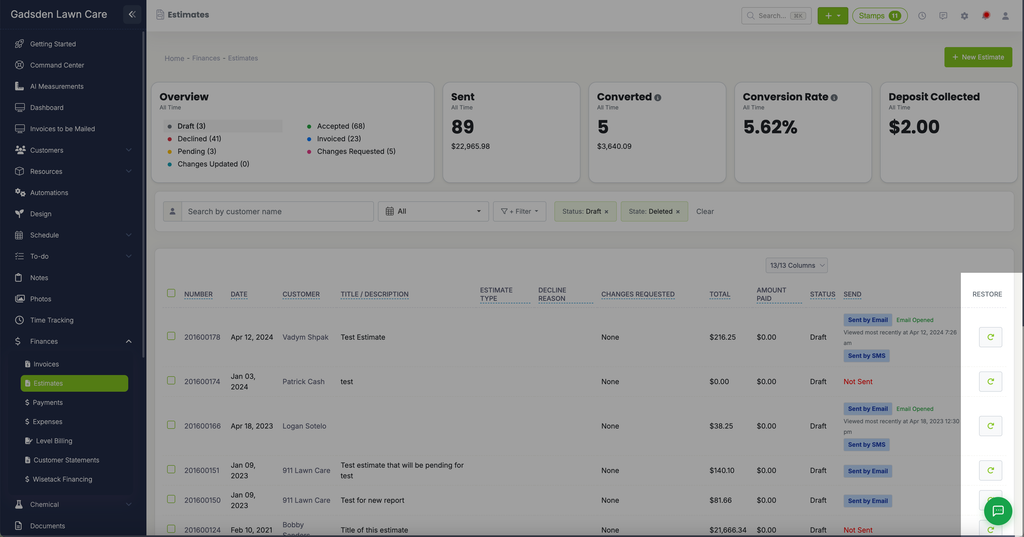
Deleted estimates show a “Restore” column on the far right of the list. Click the circular arrow icon next to an estimate to restore it.
Archived Estimates
You can also filter State to “Archive” to find estimates you’ve archived. Archived estimates show an UnArchive column on the right. Click it to bring an estimate back, or check several estimates and click the UnArchive button above the list.