Table of Contents
- Overview
- Closing a Visit from the Calendar
- Closing Several Visits from the Calendar
- Closing Multiple Visits from Grid View
- Closing Visits from the All Events Page
- What Happens When You Close a Visit
Overview
Closing a visit marks it as complete and moves it off your list of open events. You can close a visit on its own, or close and invoice it in the same step. LawnPro gives you a few different ways to close visits depending on whether you’re working one at a time or in bulk.
Closing a Visit from the Calendar
While on the Schedule screen, click the visit you want to close. This brings up the edit/close visit slide out.
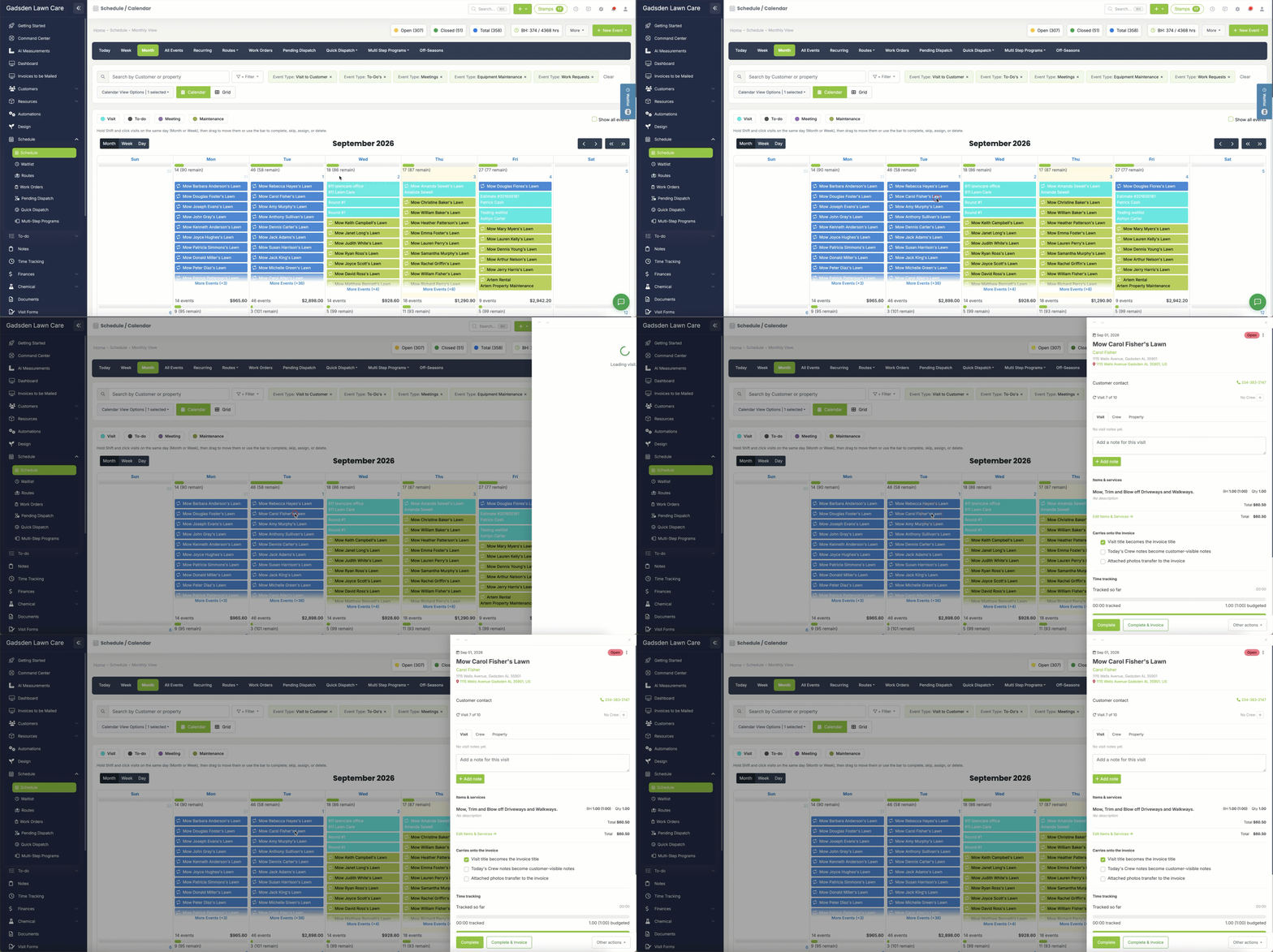
There are two options to close the invoice:
1. At the top right of the slide out there are three dots. When you click the dots more options appear. You will see the options to complete or complete and invoice.
2. At the bottom of the slide out there are buttons to close or close and invoice.
What these options mean:
- Complete — closes the visit without creating an invoice
- Complete & Invoice — closes the visit and adds it to a new or existing invoice for that customer
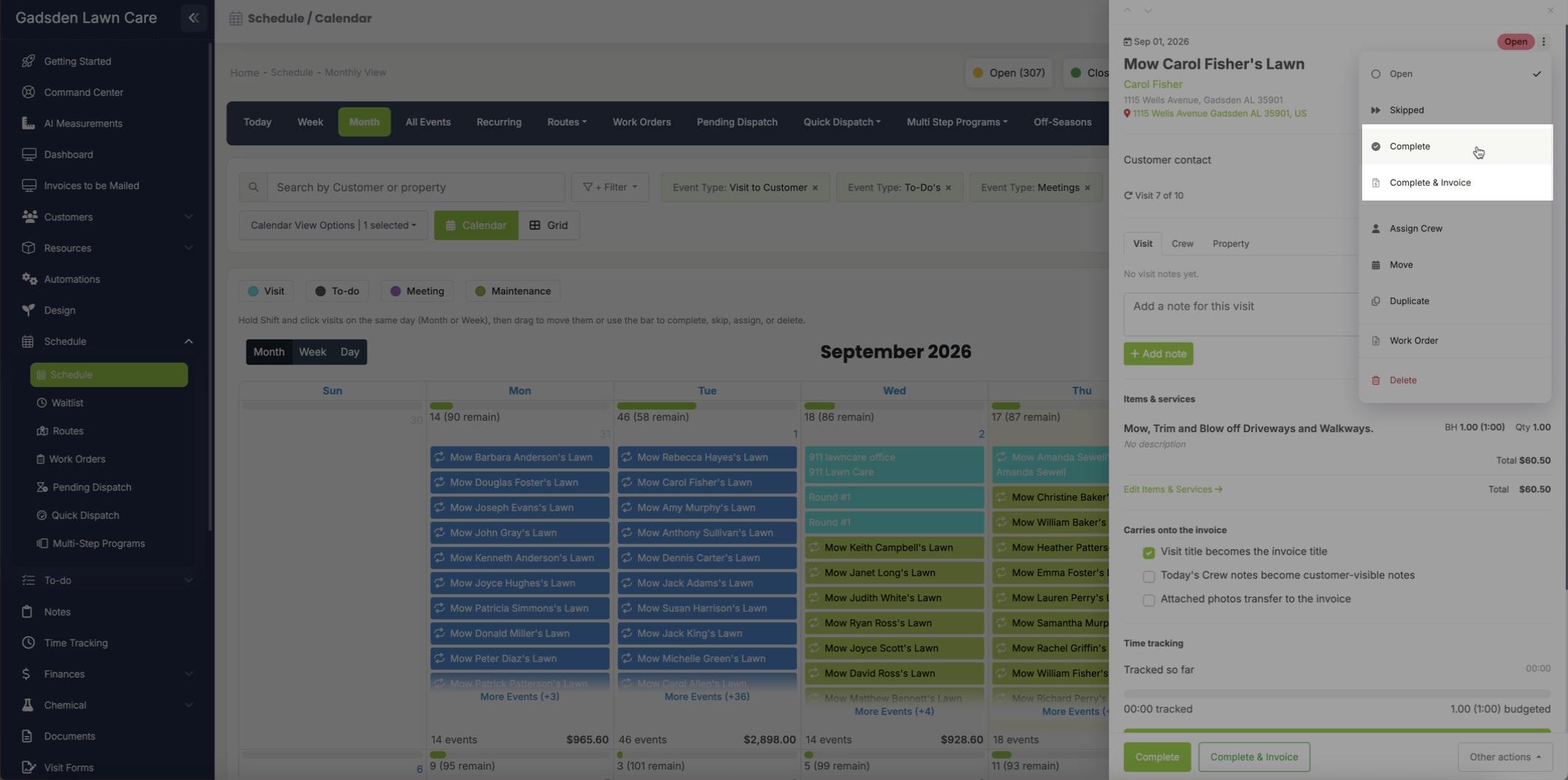
Which option makes sense depends on how you invoice — if you use auto-invoicing or prefer to batch your invoicing later, you may just want to Complete the visit and invoice it another time.
Closing Several Visits From the Calendar
You can also close more than one visit at a time right from the calendar.
In Month or Week view, hold Shift and click each visit you want to close (they must be on the same day). A toolbar appears at the bottom of the screen with quick actions, including “Complete – Invoice Later” and “Complete & Invoice”.
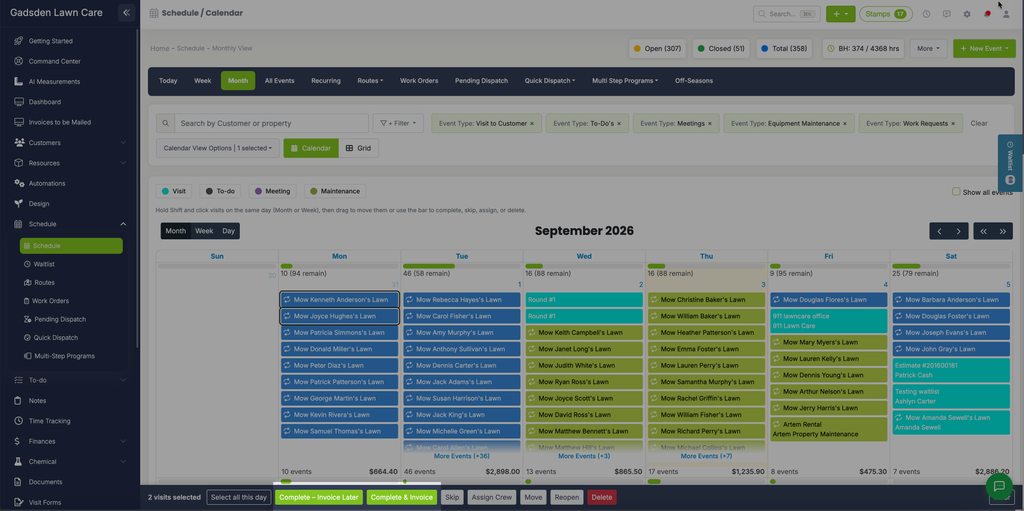
Click “Complete – Invoice Later” to close the selected visits without invoicing, or “Complete & Invoice” to close and invoice them together.
Closing Multiple Visits from Grid View
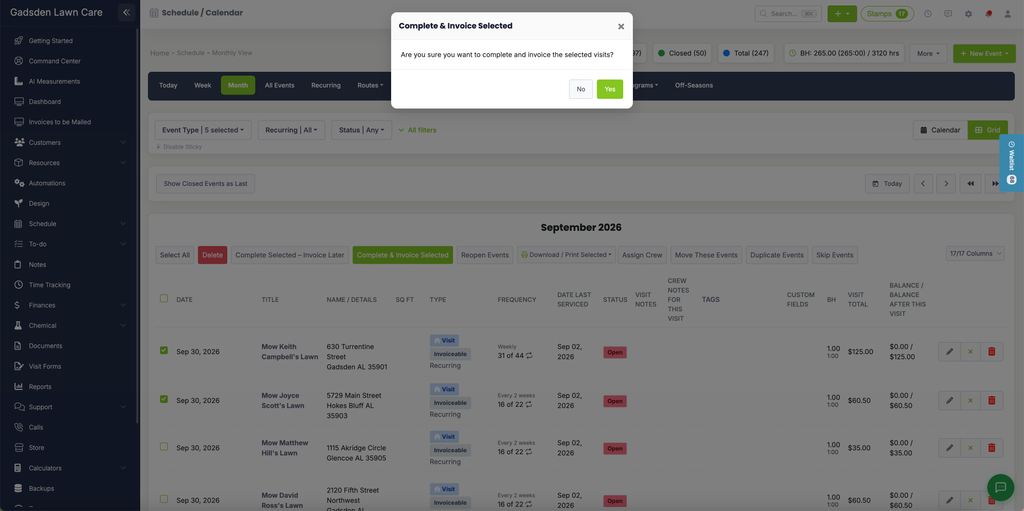
If you have several visits to close at once, go to the Schedule tab and switch to Grid View.
Check the box beside each visit you want to close, then click “Complete and Invoice Selected” to close and invoice them together, or use the close-only option if you don’t want to invoice yet.
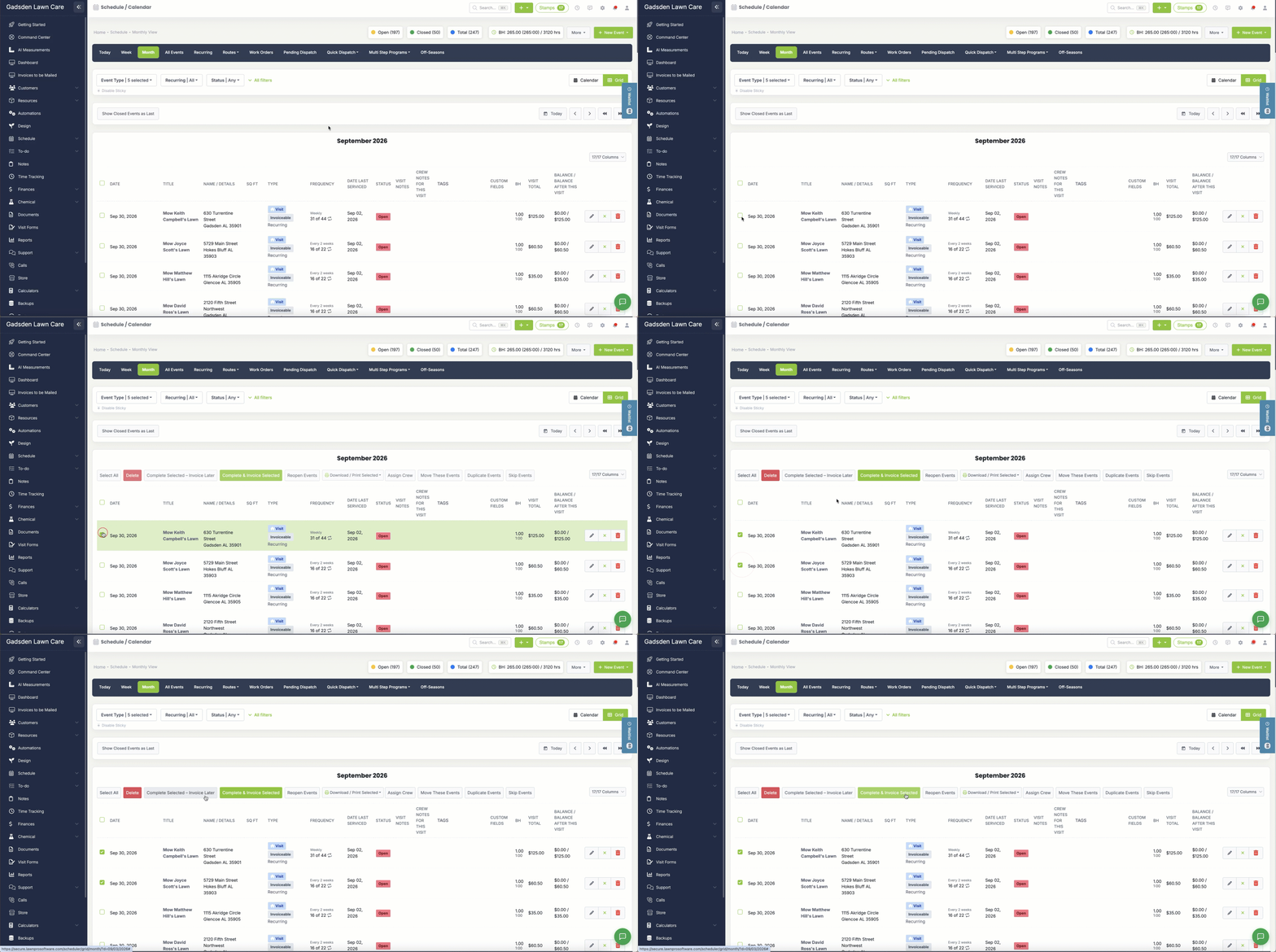
A confirmation popup will appear before the visits are closed.
Closing Visits from the All Events Page
You can also close visits from the All Events page. Set your date range, then check the boxes beside the visits you want to act on. From here you can close, close & invoice, reopen, duplicate, or print the selected visits.
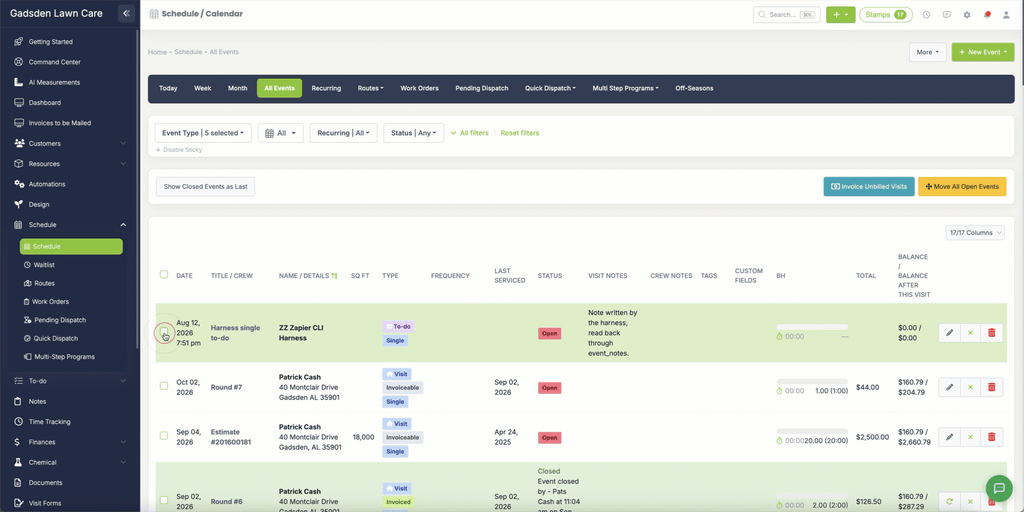
Note: If you close a visit by mistake, use Reopen from this page to move it back to an open event.
What Happens When You Close a Visit
What happens when a visit is closed — and closed & invoiced — depends on your Invoice & Estimate settings. For example, you can choose whether the time a visit was closed is recorded and shown on the invoice, and how the invoice date is determined.
If you have Auto-Invoicing turned on for a customer, closed visits will be picked up and invoiced automatically according to that schedule, so you don’t have to invoice them manually.