A level billing customer pays the same amount every period, but the work you do changes with the season. At the end of the agreement, compare what you billed with what you delivered. Then settle the difference.
How LawnPro works out the balance
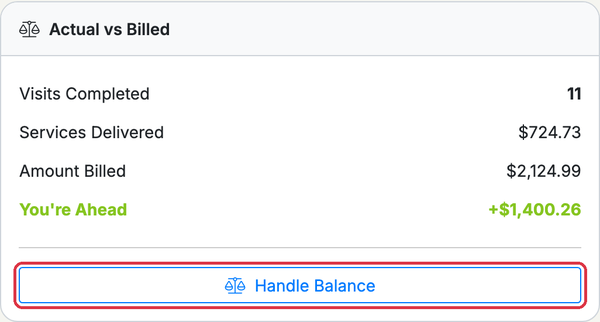
Open the agreement. The Actual vs Billed box on the right shows:
- Visits Completed: completed visits on this agreement. Skipped visits and visits marked not serviced don’t count.
- Services Delivered: the value of those visits, using each service’s price × quantity plus tax.
- Amount Billed: every invoice on the agreement, paid or not.
Billed more than you delivered? You’ll see You’re Ahead. Delivered more than you billed? You’ll see You’re Behind. After you settle the balance, you’ll see Settled. A Credits Issued or Written Off row shows what you settled.
Settle the balance
- Go to Finances > Level Billing.
- Click the agreement’s number, or open its row menu (⋮) and choose View Details.
- In Actual vs Billed, click Handle Balance. It appears once a visit is completed and the balance isn’t settled. You need full Level Billing access to see it.
- Review the Service History and Invoice History on the reconcile page.
- Under Choose an Action, pick one:
- Create Final Invoice (you’re behind): bills the customer for the difference. You can edit the Invoice Description.
- Issue Credit (you’re ahead): adds a credit to the customer’s account for future services. You can lower the Credit Amount, but it can’t be more than the balance. Any amount you don’t credit stays open.
- Write Off Balance: closes it out with no invoice or credit. Add a Reason for Write-Off.
- Do Nothing (for now): leaves the balance so you can decide later.
- Click the button at the bottom. Its label matches your choice, such as Create Invoice. Then click Yes, Continue.
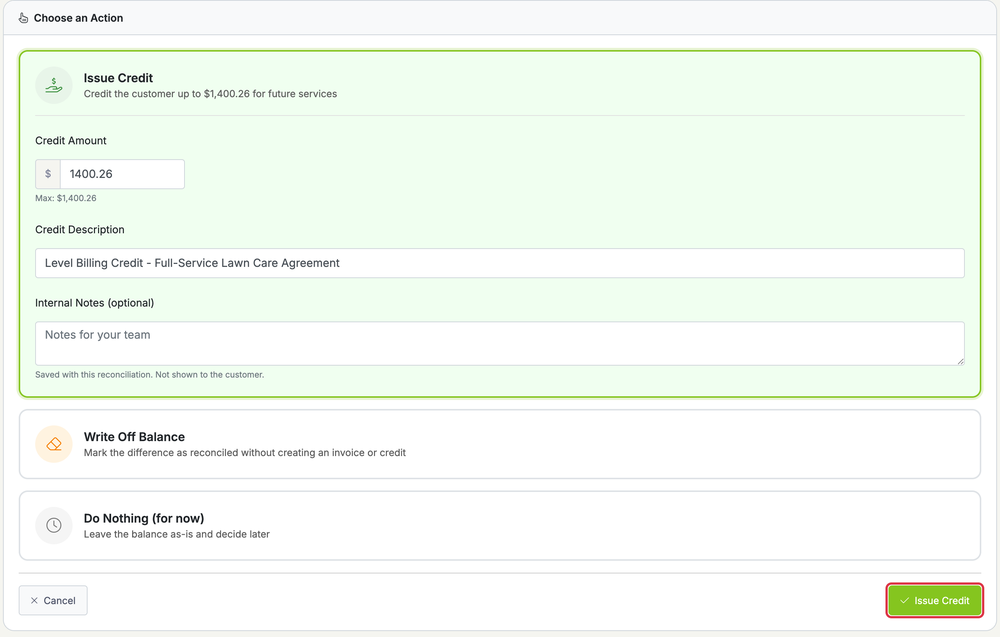
A final invoice opens so you can review and send it. It’s dated today, with one line for the full difference. A credit goes on the customer’s account. To use it, see Apply a Customer’s Credit to an Invoice.
Good to know
- Every choice except Do Nothing settles the balance. A final invoice adds to Amount Billed. A credit adds a Credits Issued row and a write-off adds a Written Off row. The balance then shows Settled and Handle Balance goes away. If more visits are completed later, the balance opens again.
- If part of the balance is still open, Handle Balance shows Previous Reconciliation(s) Found with what you already did. The balance shown already counts it, so you won’t bill or credit twice. An agreement you credited or wrote off before October 2026 may still show its old balance. Check the customer’s credits and invoices before you act again.
- Internal Notes on a final invoice are saved as the invoice’s internal notes. They don’t print on the invoice. Internal Notes on a credit are saved with the reconciliation. The customer doesn’t see either one.
See profitability for every agreement
- Go to Finances > Level Billing.
- Click Profitability Report. It isn’t shown in the mobile app or on a phone.
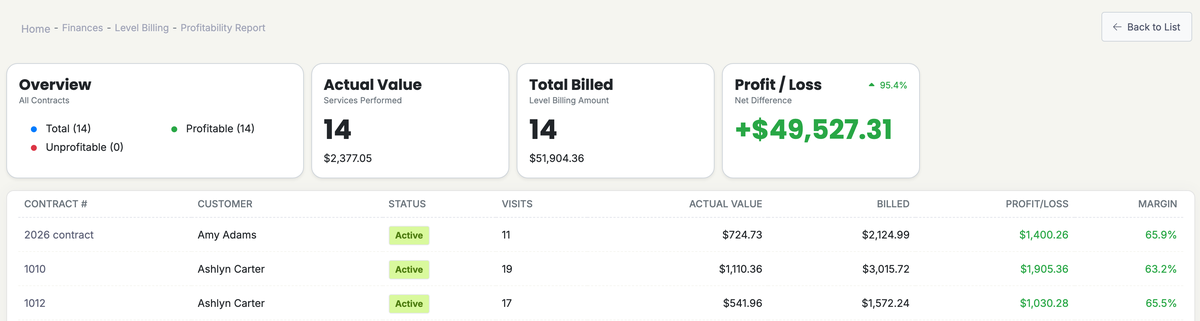
Each agreement shows Visits, Actual Value, Billed, Profit/Loss and Margin. Billed is what you invoiced minus any credits you issued. Profit/Loss is billed minus actual. A write-off settles the balance but doesn’t change Profit/Loss. Settled agreements show a Settled tag. Margin is that profit as a percentage of billed. Green is a profit and red is a loss. Cancelled agreements aren’t listed.
The Overview box counts Profitable and Unprofitable agreements. Profit / Loss shows the net across all of them.
Actual value uses your service prices, not your labor or material costs. Use it at renewal to keep, raise or rescope the rate. To add invoices to an agreement, see Extending a Contract/Level Billing Agreement. To set one up, see Level Billing Agreements.
Who can use this
Level billing is on every plan. Account owners always have access. Employees need Level Billing permission. Only users with full Level Billing access see the Profitability Report and Handle Balance buttons.