Overview
Customers can have several different statuses in LawnPro:
- Active
- Inactive
- Written Off
- Pending Approval
- Lead
- Suspended
- Deleted
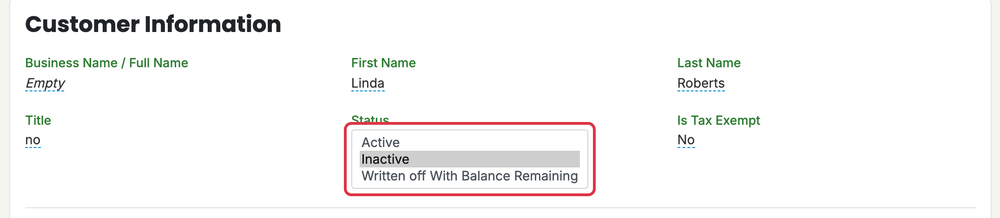
On a customer’s profile, the Status setting lets you pick Active, Inactive or Written off With Balance Remaining. This article explains how to change a customer to inactive and back to active.
There are also articles to learn how to write-off a customer and delete or restore a customer.
Change Customer to Inactive
You are able to mark a customer as inactive if you do not want to delete the customer yet, but also don’t want them to show as an active, current customer.
To change a customer to inactive, click the Customers > Customers
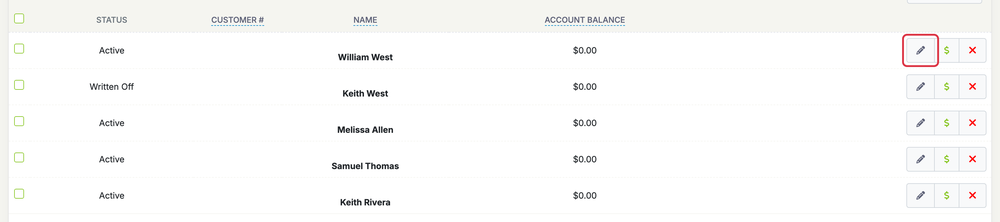
Find the customer you want to change to inactive and click the pencil button for that customer.
On the customer’s profile, click on the Status setting and select Inactive.
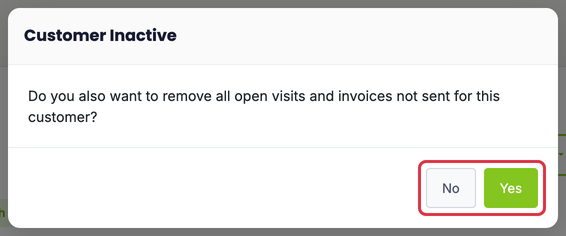
After changing the status to inactive a pop-up will appear asking “Do you also want to remove all open visits and invoices not sent for this customer?“
Select your answer. You will then see the status of the customer has been changed to Inactive. You can also add the reason the customer is inactive. On a computer, you can also change several customers at once: check their boxes on Customers > Customers, click Change Status and choose Active or Inactive.
Change Customer to Active
If you have a customer you have marked as inactive but want to move them back to active status you will follow most of the same steps you took to mark the customer as inactive.
To change an inactive customer back to an active customer go to the Customers > Customers.
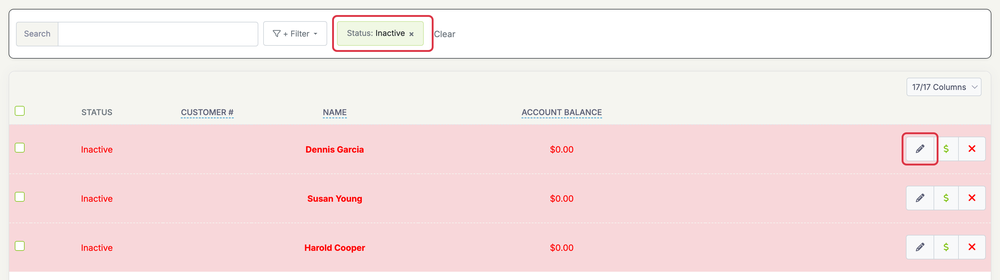
Click + Filter, choose Status and check Inactive.

Locate the customer and click the pencil button for that customer.
Change the status to “Active“
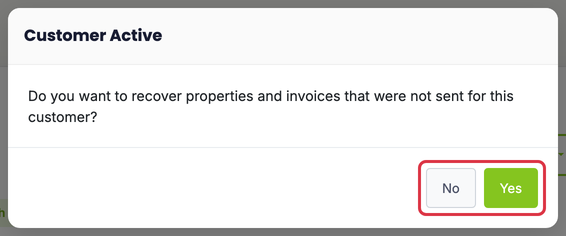
Once you change the status to Active a pop-up will appear and ask “Do you want to recover properties and invoices that were not sent for this customer?” Choose your answer and then you will see the customer’s status is now set to Active.