What Start for crew is
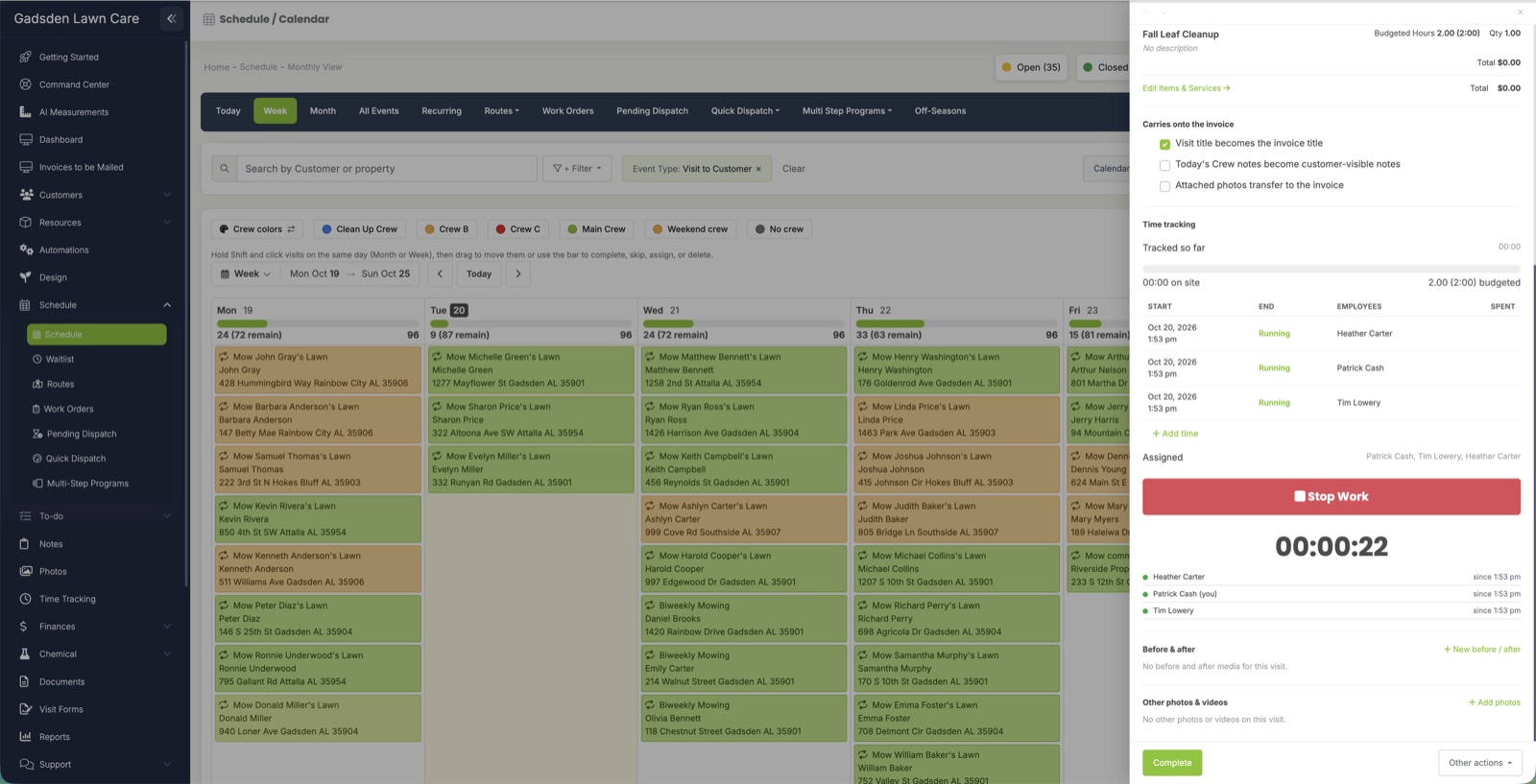
Start for crew lets a crew leader start and stop the visit clock once for everyone on the visit. Your crew members no longer each need to log in and tap Start and Stop.
Each person still gets their own time entry at their own pay rate. Hours, labor cost and payroll stay accurate for every person.
Who can use it
Start for crew shows up when all of these are true:
- Your company uses the Pro timer.
- The visit has 2 or more people on it.
- You are one of these:
- a leader of the visit’s crew who is also on the visit
- an owner
- office staff with Time Tracking set to “Edit for All Users”
Everyone else keeps the normal Start and Stop buttons.
How to set crew leaders
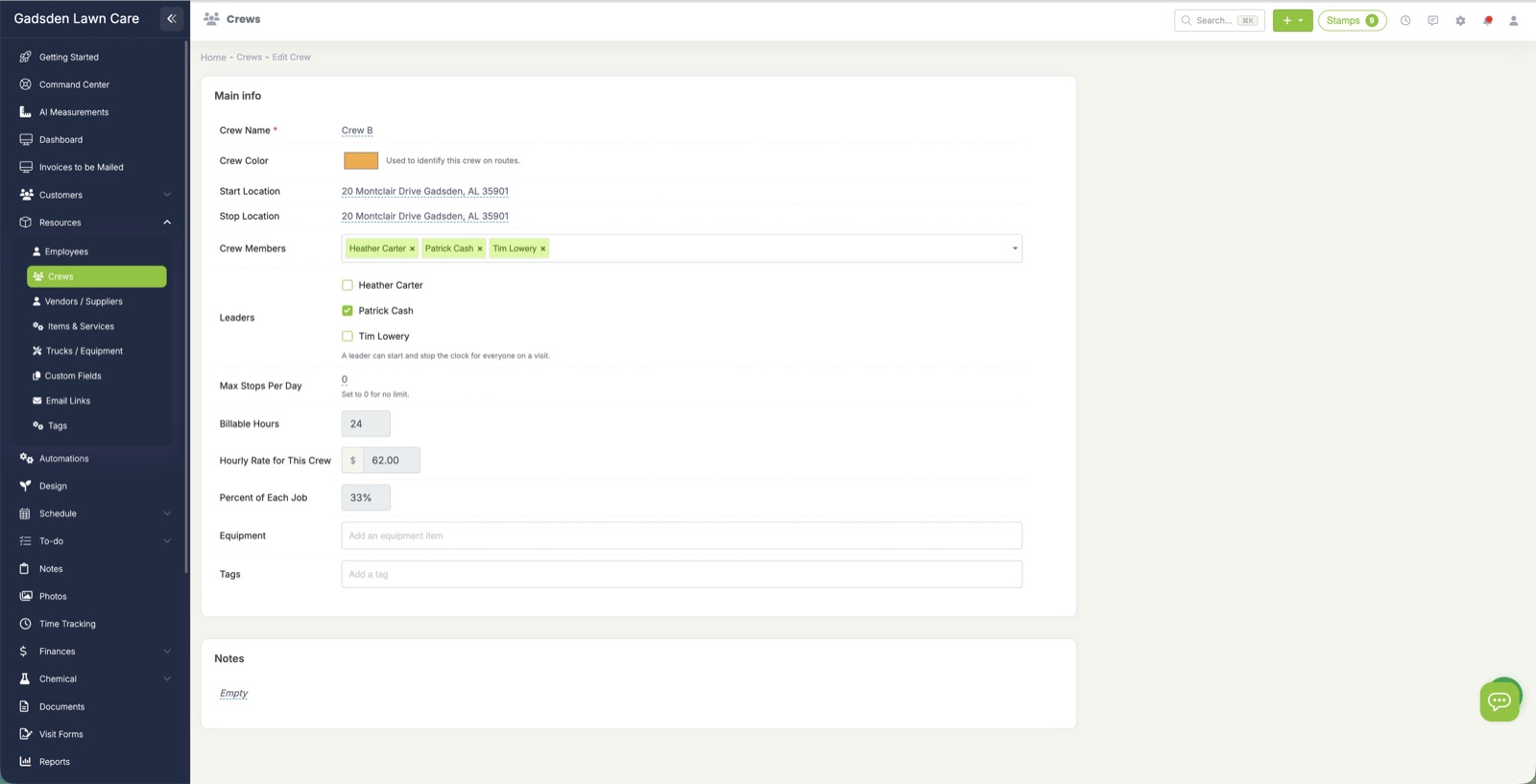
You can set a leader from the crew page or the employee page. It is the same setting, so a change in one place shows in the other.
From the crew page
- Go to Resources > Crews.
- Open the crew.
- In the Leaders row, tick each person who should lead this crew.
From the employee page
- Go to Resources > Employees.
- Open the employee.
- In the Crews card, tick Leader next to each crew they lead.
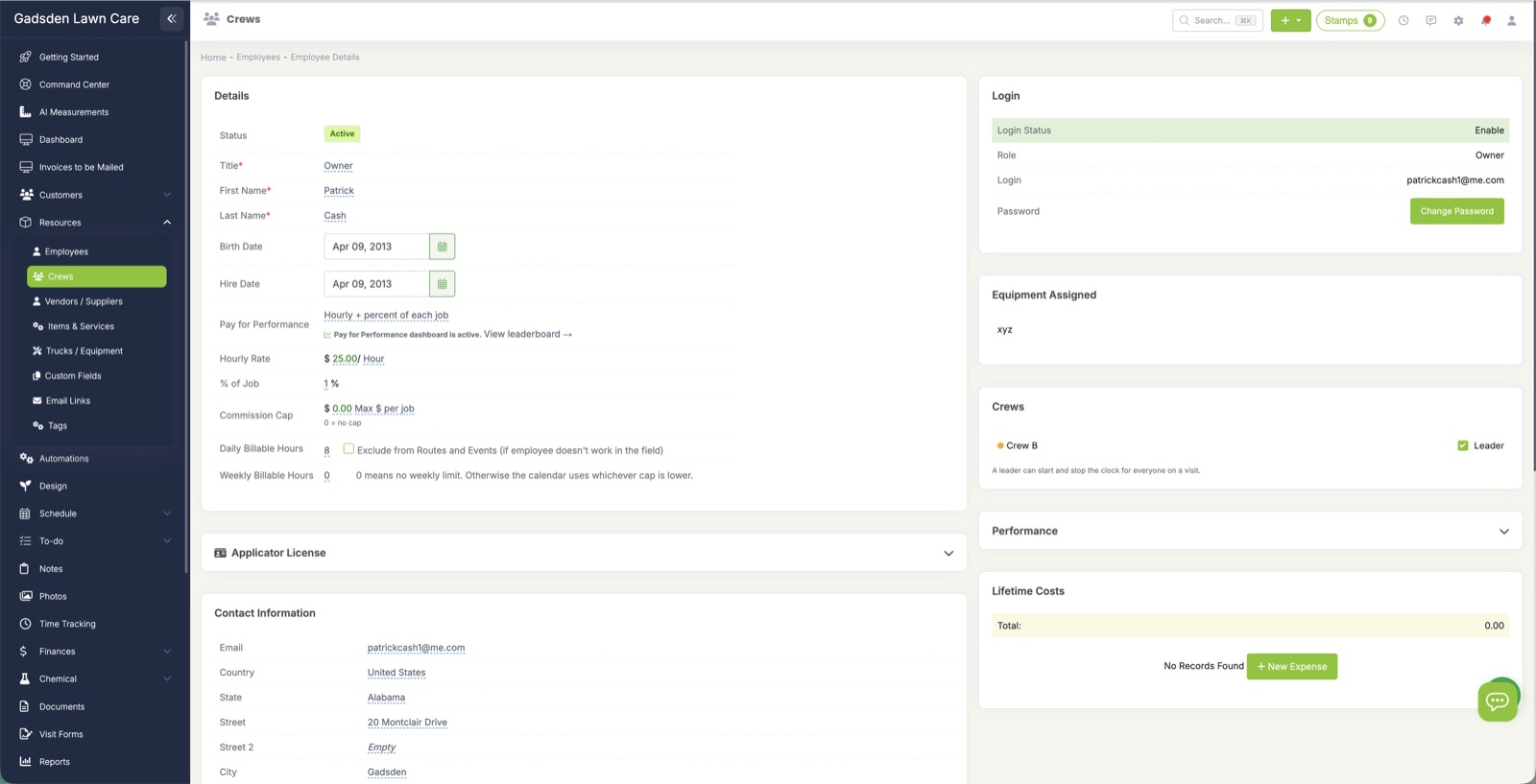
A crew can have more than one leader. Changing a crew’s members keeps the leaders you already set.
Starting and stopping the clock for the crew
Start the clock
- Open the visit.
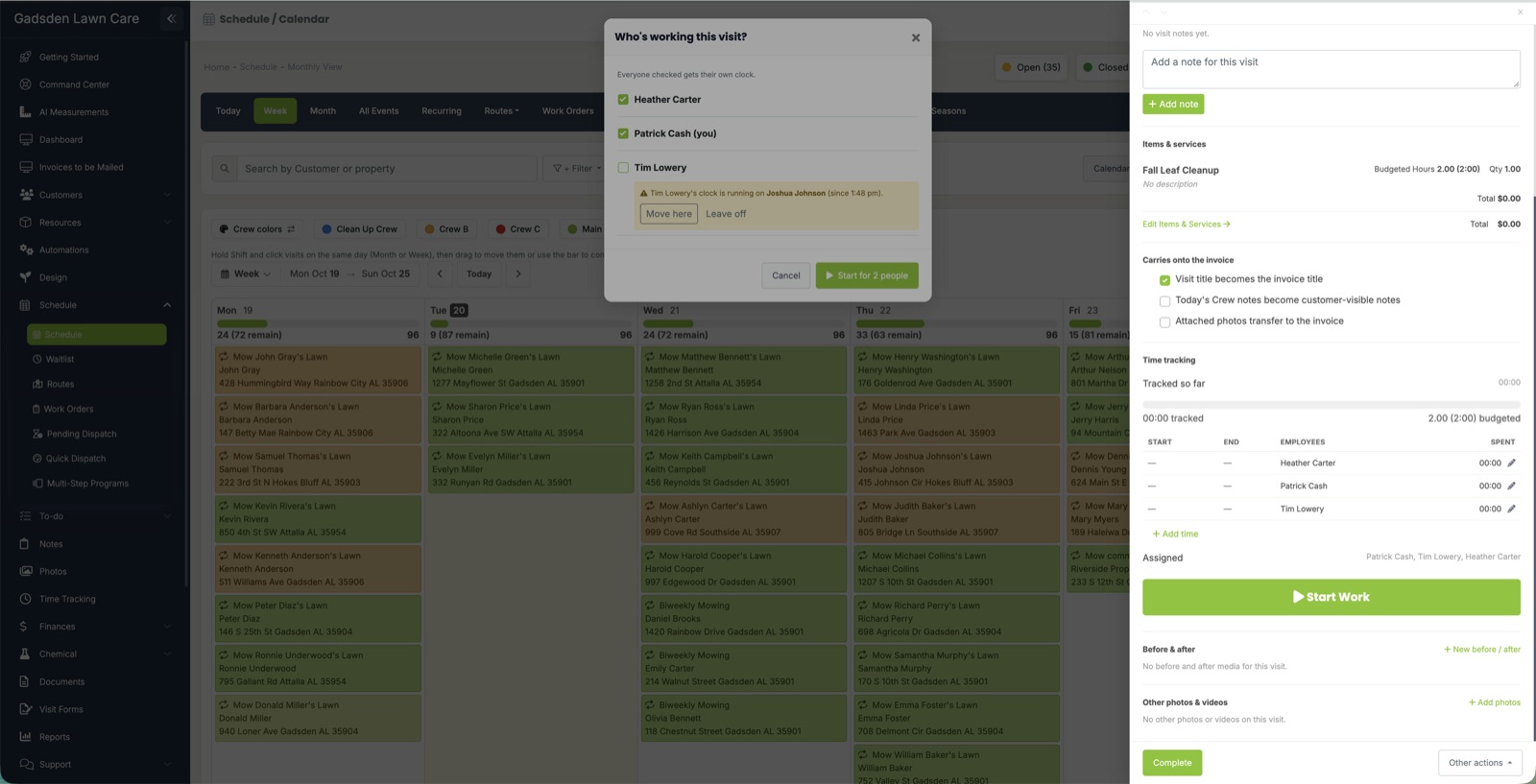
- Tap Start Work. The “Who’s working this visit?” panel opens with everyone on the visit ticked.
- Untick anyone who isn’t there.
- Tap Start for 3 people (the button shows how many people are ticked).
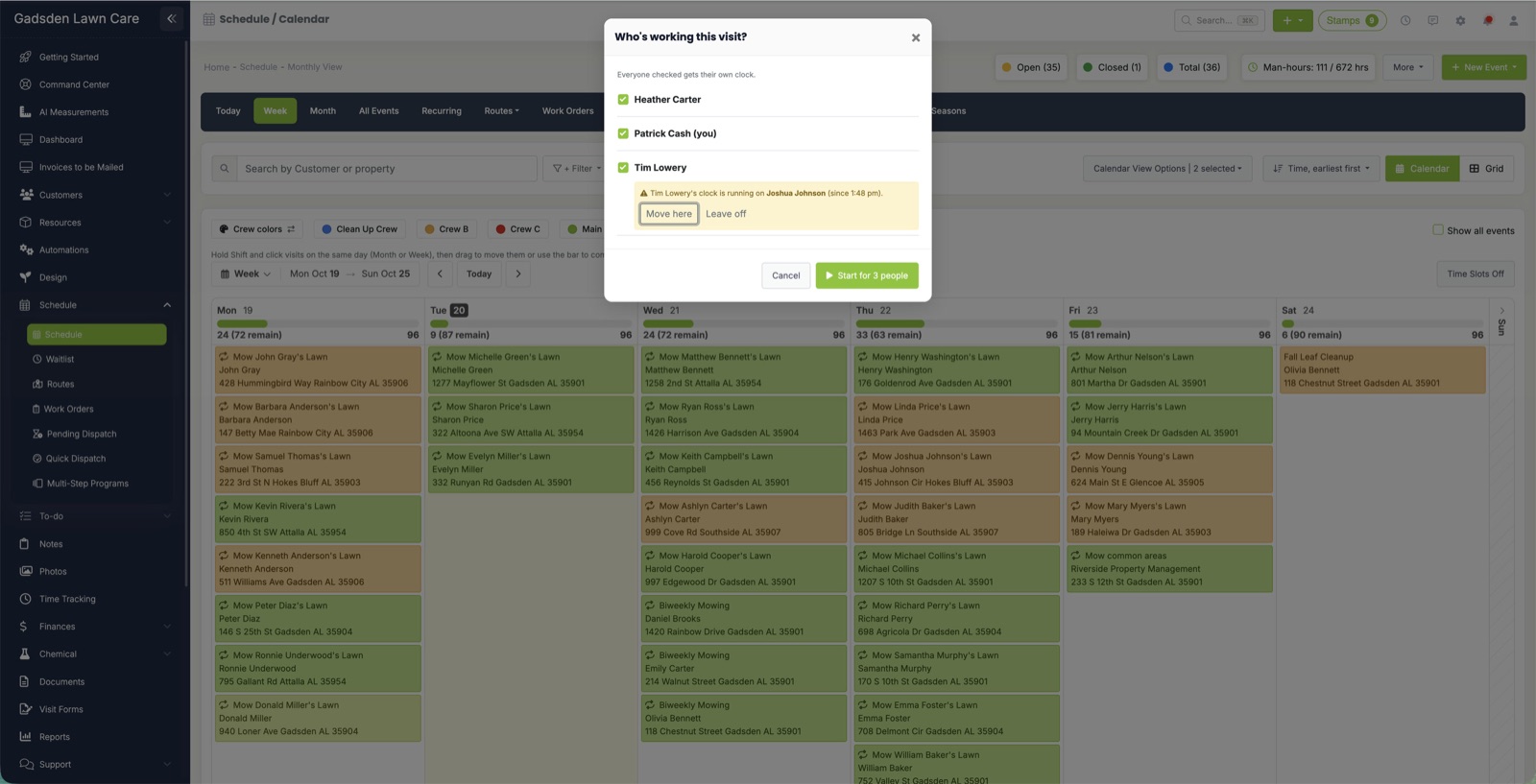
The list under the timer shows each person and the time their clock started.
Stop the clock
- Tap Stop Work. You’ll see “Stop the clock for everyone?”
- Pick one:
- Stop for all stops every clock on the visit.
- Stop just mine stops only your clock. The rest of the crew keeps going.
- Cancel leaves every clock running.
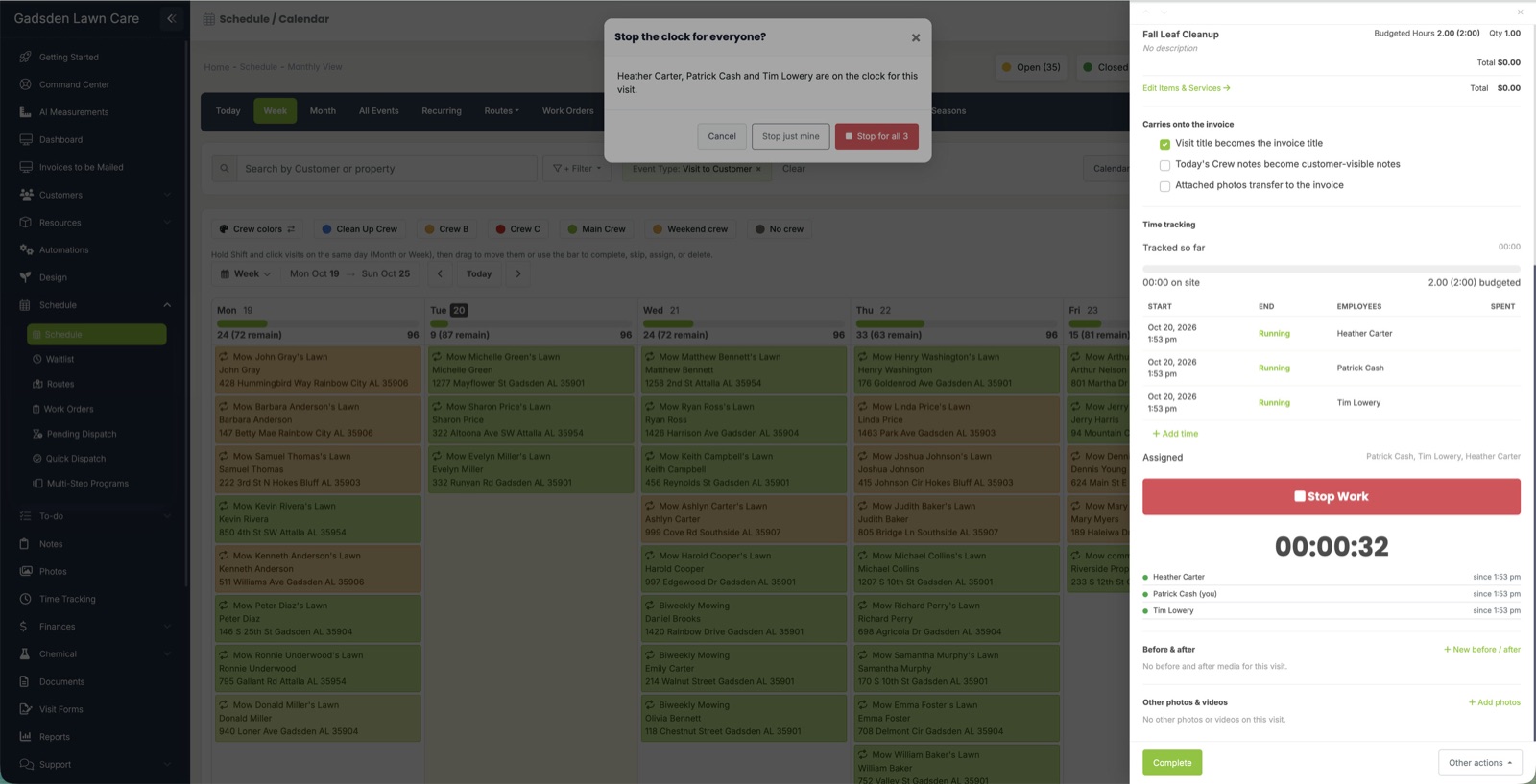
Any crew member can still stop their own clock early, for example when they leave before the rest of the crew.
When someone is on another visit
If a crew member’s clock is running on another visit, they start unticked in the “Who’s working this visit?” panel. A note shows which visit their clock is on and since when.
- Move here ticks them. When you start the clock, their clock on the other visit stops, the same as if they tapped Start themselves.
- Leave off keeps them off this visit. Their other clock keeps running.
FAQ
Does each person still get paid for their own time? Yes. Each person gets their own time entry at their own pay rate.
Do automations send once or once per person? Once per visit. Start and stop automations send one time when the leader starts or stops the clock for the crew.
Does it change past visits? No. It works only from now on.
Can a crew have more than one leader? Yes. Tick as many leaders as you need on the crew page.