What it is
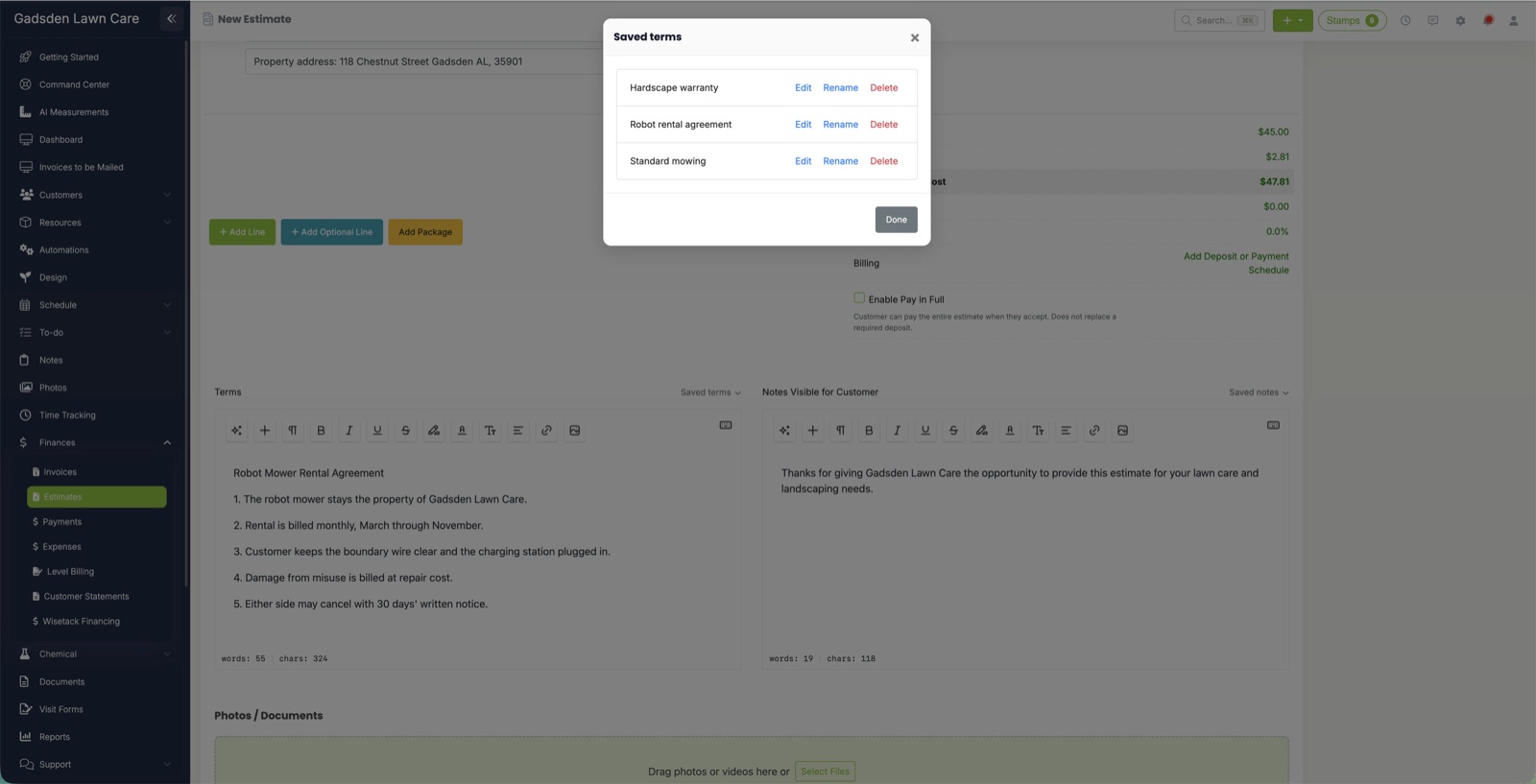
You can save the terms and notes you use most and pick them on any estimate or invoice. For example, keep your standard mowing terms and a separate robot mower rental agreement. No more erasing the terms and pasting from another document.
Look above the Terms box for a small grey Saved terms ▾ link. Above the Notes Visible for Customer box is a Saved notes ▾ link.
One list is shared by estimates and invoices. Notes have their own list.
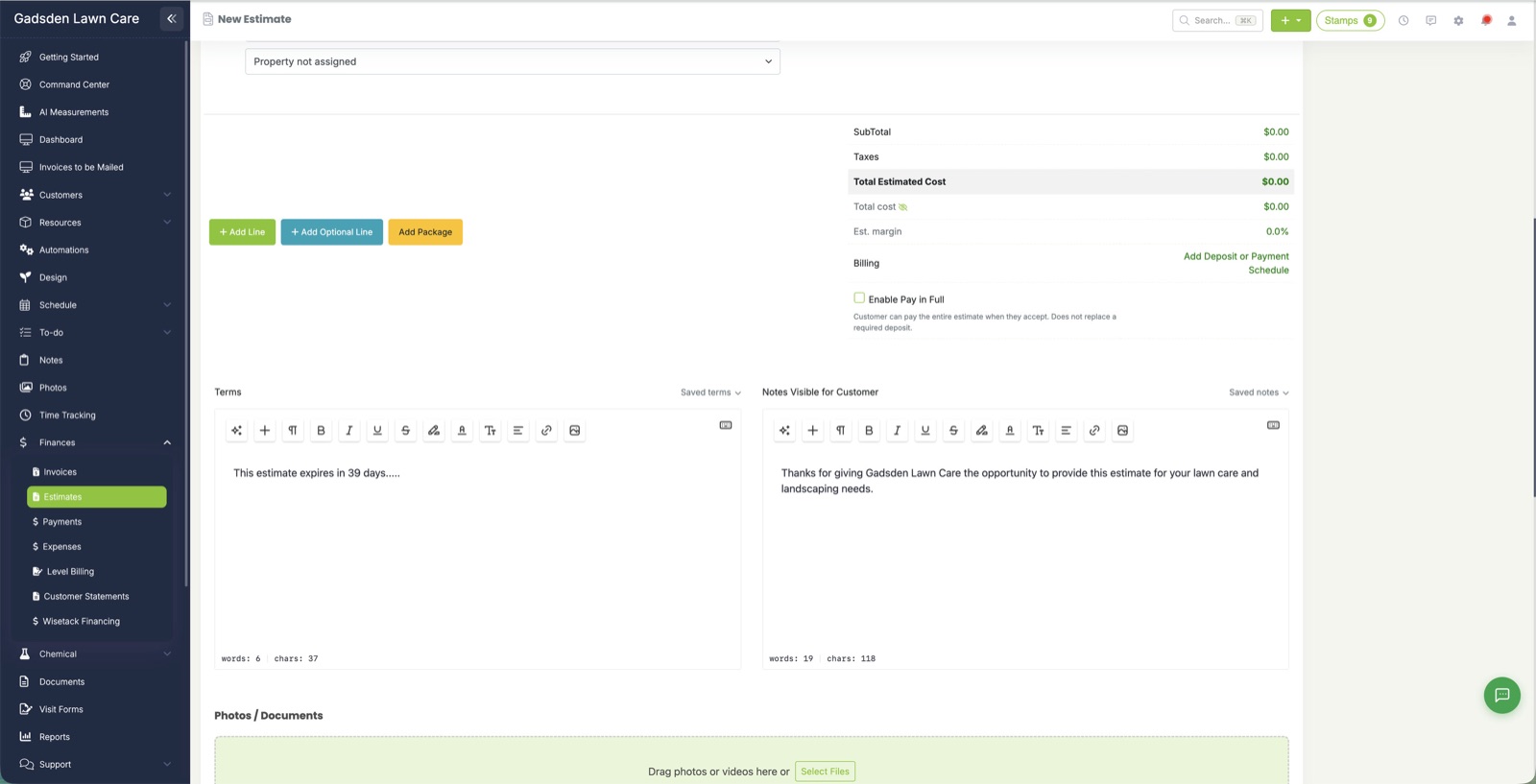
Save terms or notes
- Open an estimate or invoice (new or existing).
- Type or paste your text in the Terms box.
- Click Saved terms ▾.
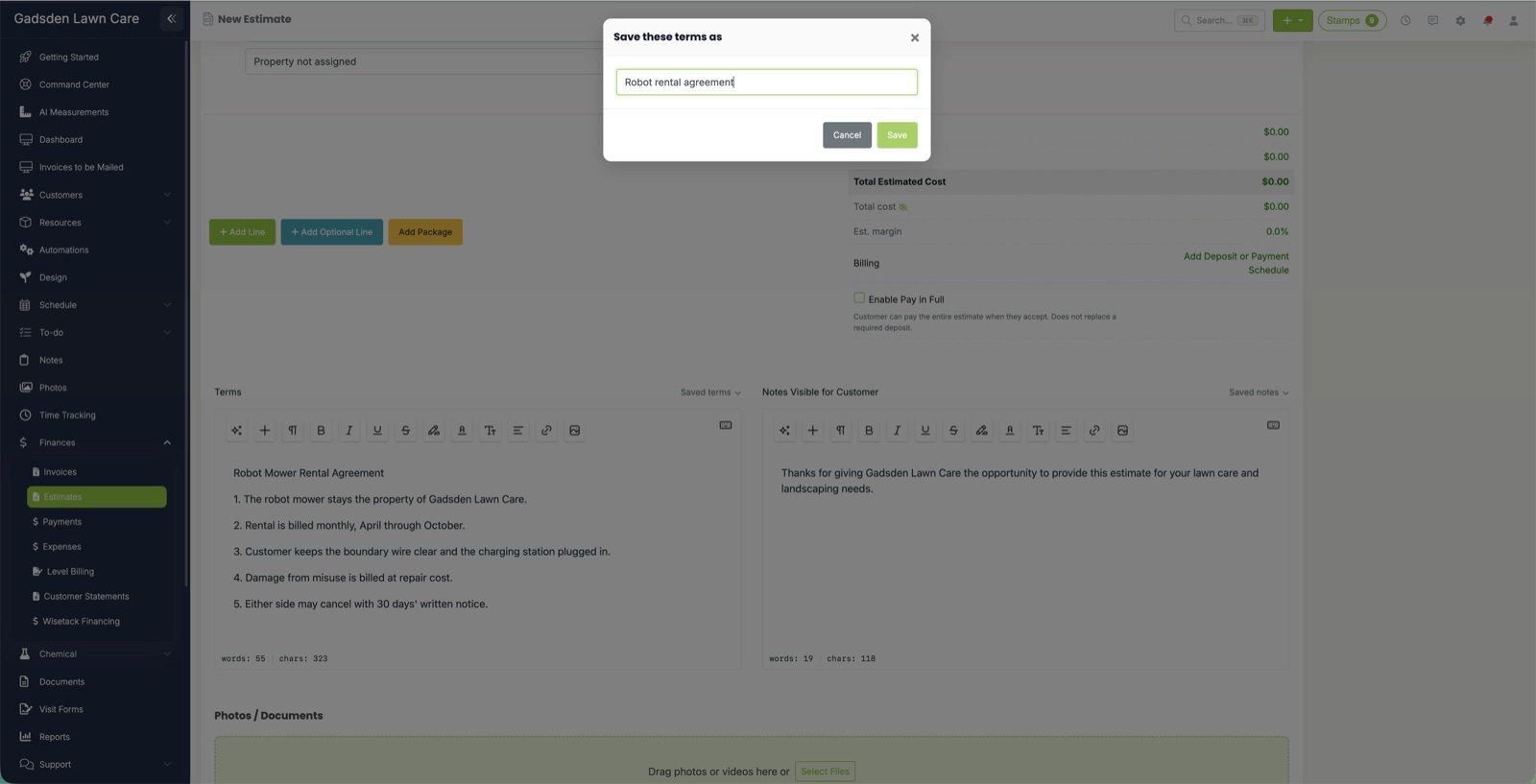
- Click Save current terms as…
- Give it a name, like “Robot rental agreement”, and click Save.
If that name is already used, LawnPro asks before replacing it.
Use saved terms
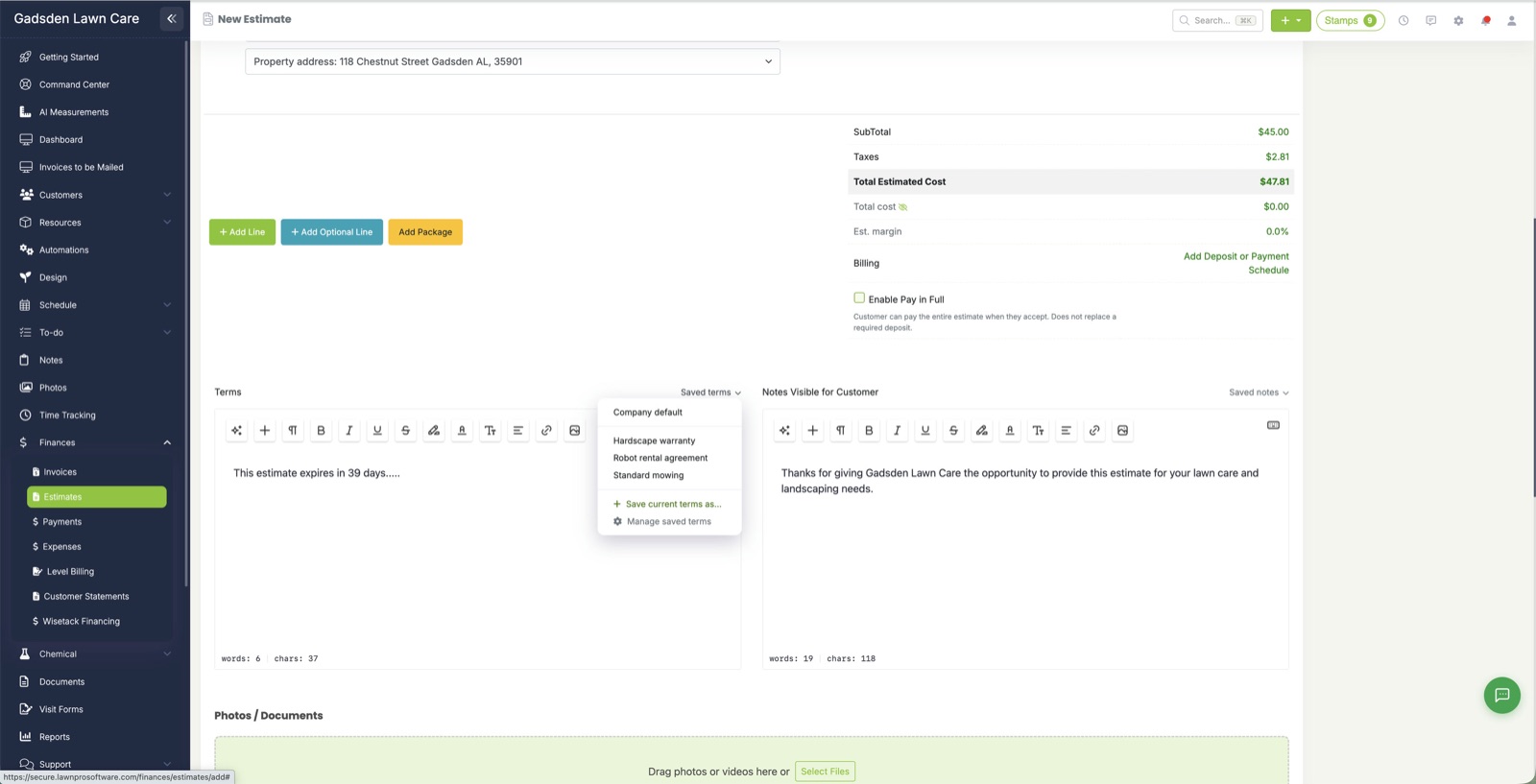
- Click Saved terms ▾.
- Pick an entry. Its text replaces what’s in the Terms box.
The entry in use shows a check mark.
If you already typed in the box, LawnPro asks before replacing your text.
Pick Company default to go back to the terms in Settings → Invoice & Estimate preferences. New estimates and invoices still start with your company default.
Edit or update saved terms
There are two ways.
On an estimate or invoice:
- Pick the entry.
- Change the text in the Terms box.
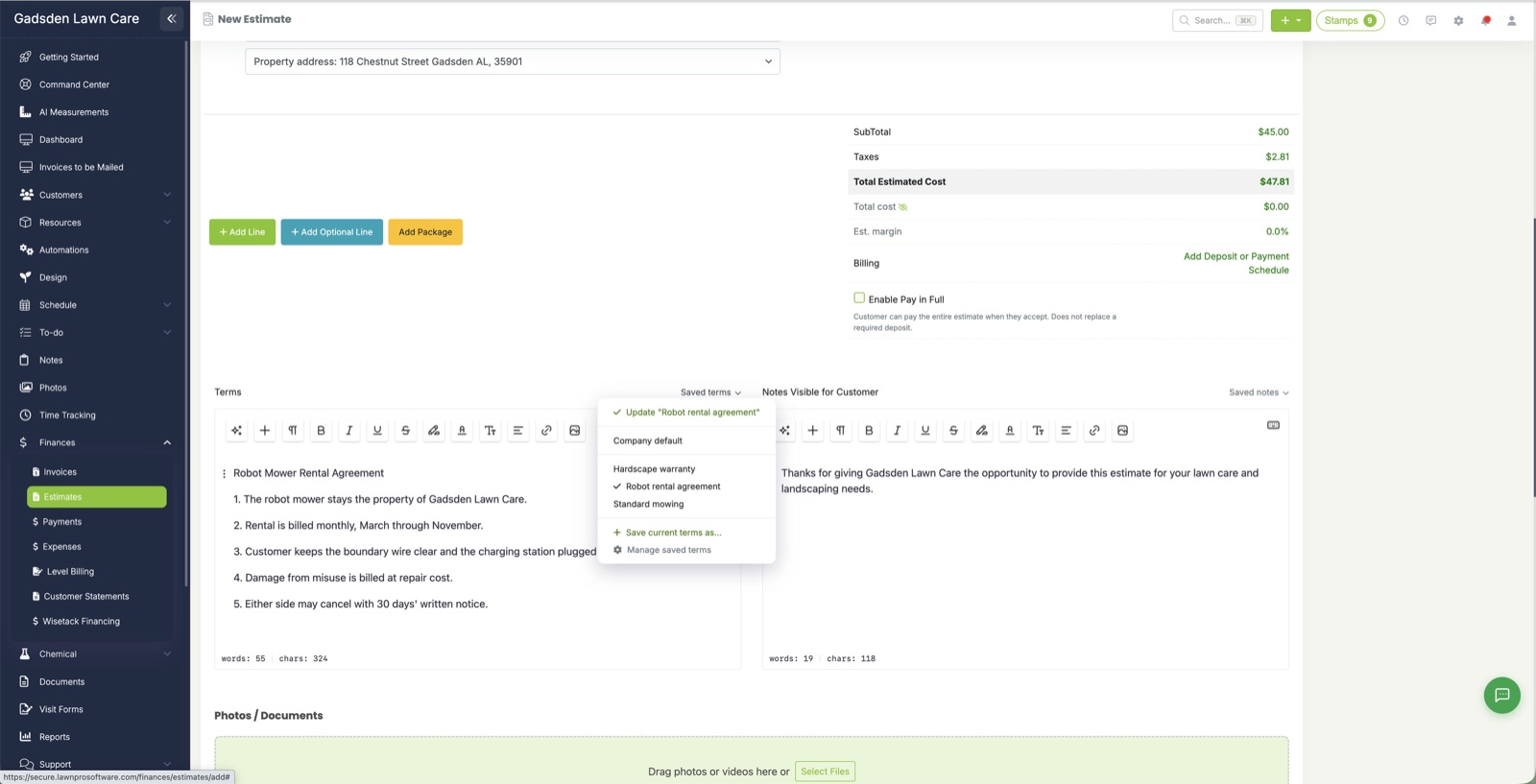
- Click Saved terms ▾, then click Update “Robot rental agreement” at the top.
- Click Save.
From the list:
- Click Saved terms ▾, then Manage saved terms.
- Click Edit next to the entry.
- Change the name or text and click Save.
This doesn’t change the estimate or invoice you’re on.
Editing a saved entry never changes estimates or invoices that already used it.
Rename or delete
- Click Saved terms ▾, then Manage saved terms.
- Click Rename or Delete next to the entry.
Deleting an entry doesn’t change estimates or invoices that already used it.
What happens when an estimate becomes an invoice
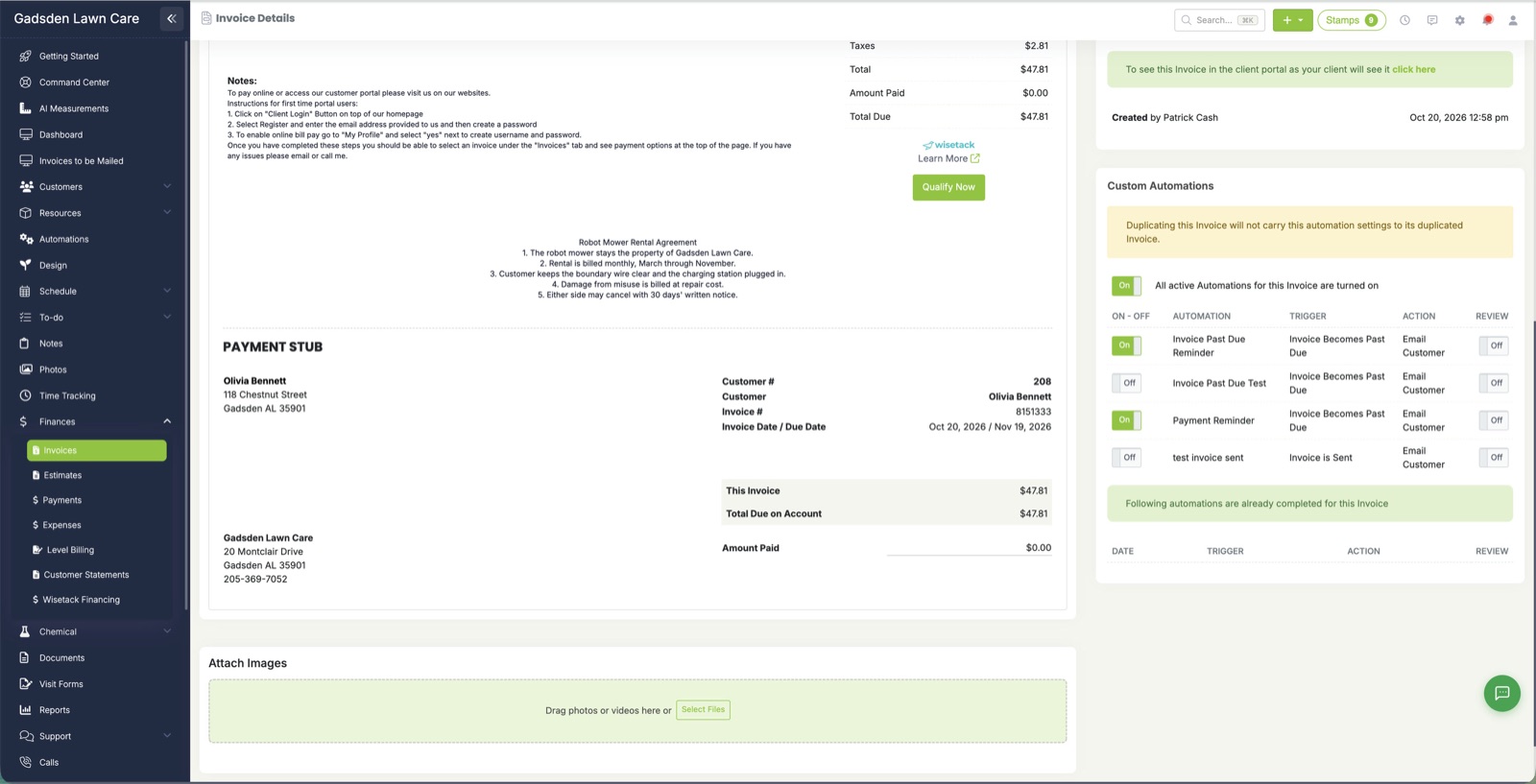
- If the estimate used a saved entry, the invoice gets the same text. This works when you click More Actions → Create Invoice on the estimate, and for payment schedule invoices.
- If it didn’t, the invoice gets the customer’s own invoice terms. If the customer has none, it gets your company default.
- On an invoice, choosing a different customer fills in that customer’s terms. It won’t replace terms you picked or typed yourself.
- Invoices created from visits work the same as before: the customer’s terms, then your company default.
Who can use it
Anyone with access to Estimates or Invoices can pick saved terms and notes.
Saving, editing, renaming and deleting need edit access.