Your company invoice settings apply to every customer. You can change several of them for one customer without affecting anyone else. For the company-wide versions, see Invoices, Estimates & Receipts Settings.
Change a setting for one customer
- Open the customer.
- On the Customer Details tab, scroll to the Invoice Settings card.
- Turn a toggle on or off. It saves as soon as you click it. There’s no Save button.
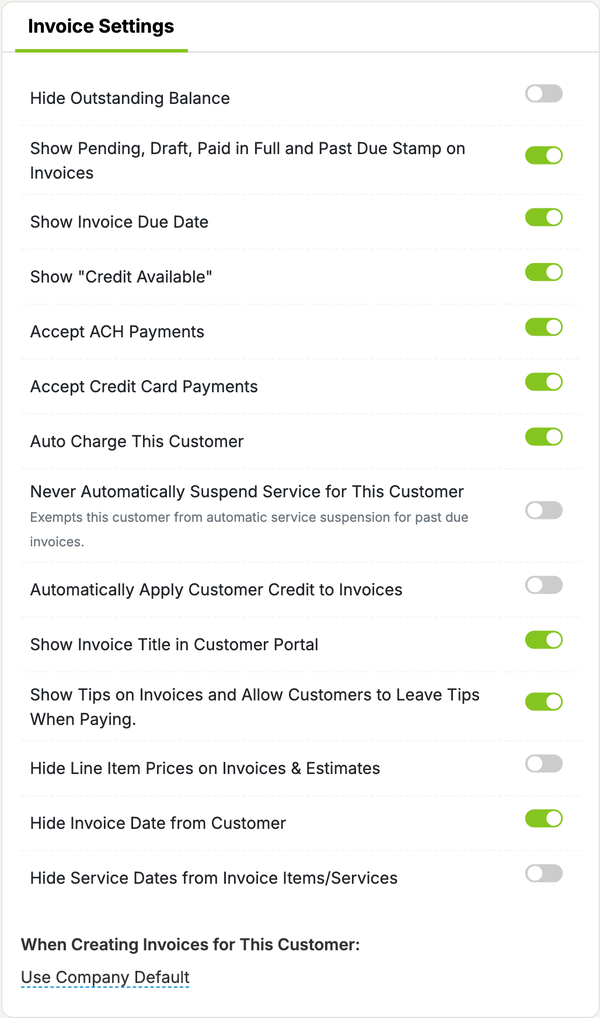
How “follow the company” works
Each toggle starts out following your company setting, so it shows whatever the company setting is right now. If you leave it alone and later change the company setting, this customer changes too.
When you flip a toggle, that customer gets their own setting. They keep it even if you change the company setting later. Flipping it back to match the company still counts as their own setting. There’s no button to make it follow the company again.
What each option does
| Setting | What it does for this customer |
|---|---|
| Hide Outstanding Balance | Hides the outstanding balance on their invoices. |
| Hide Total Due on Account | Hides their total account balance. It’s also hidden when the total is zero. |
| Show Pending, Draft, Paid in Full and Past Due Stamp on Invoices | Shows a status stamp on the invoice PDF. Draft and pending invoices never get a stamp. |
| Show Invoice Due Date | Shows the due date. |
| Show Invoice Time Of Visit | Adds the time each visit was closed to the invoice lines. It doesn’t show in the customer portal. |
| Show “Credit Available” | Shows their available credit. |
| Show Invoice Title in Customer Portal | Shows the invoice title in the portal and on the PDF. |
| Hide Line Item Prices on Invoices & Estimates | Hides item prices on their invoices and estimates. |
| Hide Invoice Date from Customer | Hides the invoice date from them. |
| Hide Service Dates from Invoice Items/Services | Hides the date next to each item on the PDF and in the portal. You still see the dates in LawnPro. |
Hide Line Item Prices and Hide Invoice Date can also be set on a single invoice when you create or edit it. The invoice’s own setting wins over the customer’s.
Don’t see every option?
Hide Total Due on Account and Show Invoice Time Of Visit only show up once the customer has their own invoice settings. Flip any toggle in the card, then reload the page.
Other settings in this card
- Accept ACH Payments and Accept Credit Card Payments. These are greyed out when the company setting is off.
- Auto Charge This Customer
- Never Automatically Suspend Service for This Customer
- Automatically Apply Customer Credit to Invoices. Greyed out when the company setting is off.
- Show Tips on Invoices and Allow Customers to Leave Tips When Paying. Greyed out when the company setting is off.
- When Creating Invoices for This Customer: choose Use Company Default, Create an Invoice for Each Visit, Put All Visits for This Customer on One Invoice or Create an Invoice for Each Property.
To pick a customer’s default invoice email or text, use the Communication Preferences card on the same page: Default Email for Invoices and Default Text Message for Invoices.