Work Orders
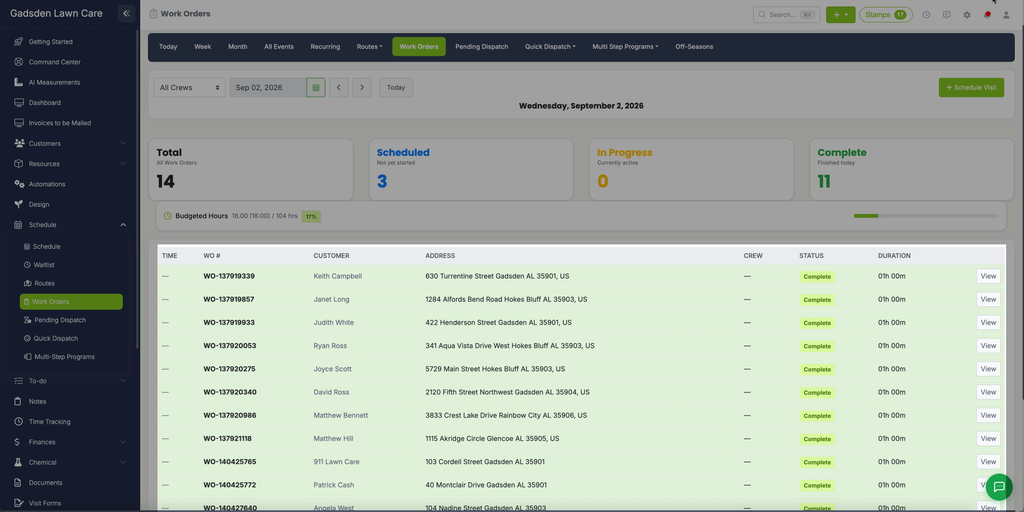
The Work Orders page gives you a real time view of all the jobs scheduled for the day, their status, and how your crews are progressing. It is a great way to monitor your team’s daily workload at a glance.
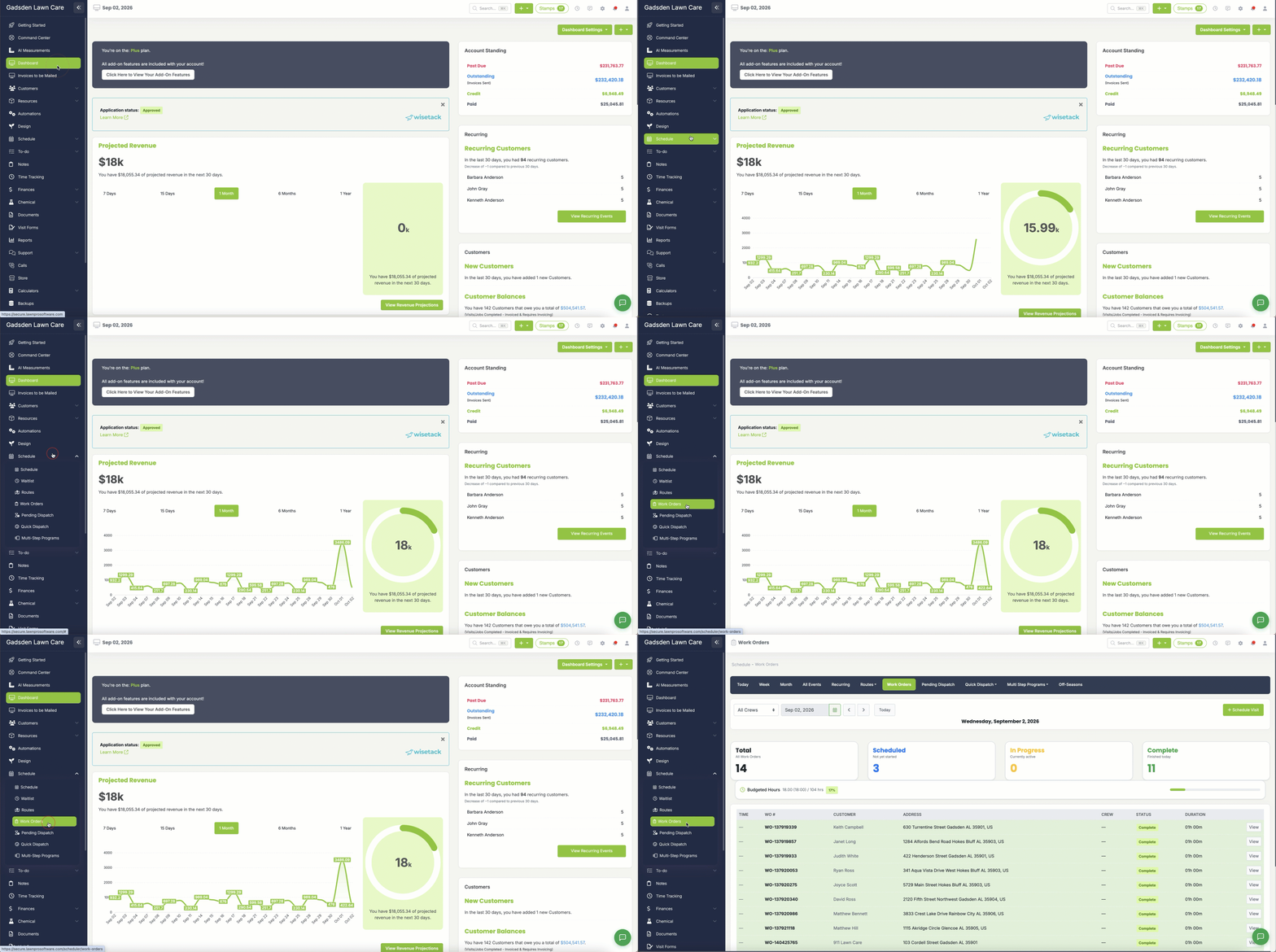
To access it go to Schedule → Work Orders.
Daily Summary
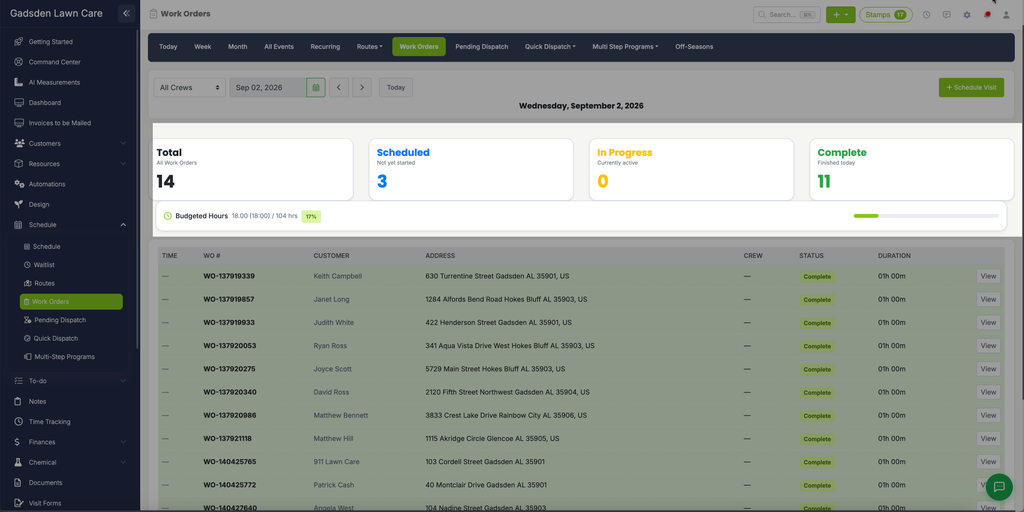
At the top of the page you will see a summary of the day’s work orders:
- Total — The total number of work orders for the day
- Scheduled — Jobs that have not started yet
- In Progress — Jobs that are currently active
- Complete — Jobs that have been finished today
Below the summary you will see your Budgeted Hours — showing how many hours have been used versus the total budgeted hours for the day and a progress bar showing the percentage complete.
Filters
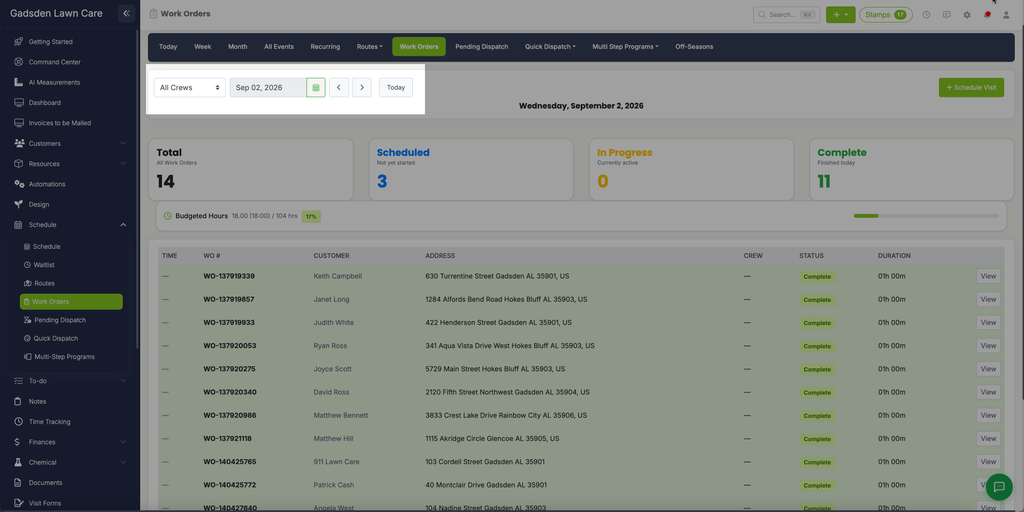
At the top of the page you can filter by:
- Crew — Filter by a specific crew or view all crews at once
- Date — Navigate between days using the date picker and the forward and back arrows, or click Today to jump back to the current day
Work Order List
Each work order in the list shows:
- Time — The scheduled time for the visit
- WO # — The unique work order number
- Customer — The customer name
- Address — The property address
- Crew — The crew assigned to the visit
- Status — The current status of the visit (for example, Open, In Progress, or Complete)
- Duration — How long the visit took
Click View to open the full work order details.
Work Order Detail Page
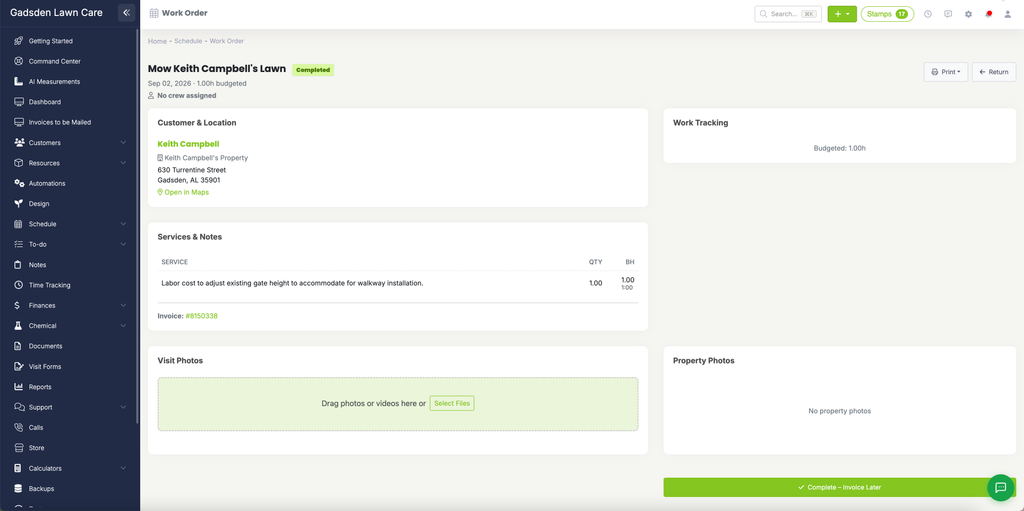
When you click View on a work order you will see the full details including:
- Customer & Location — The customer name, property address, and a link to open the address in Maps
- Services & Notes — The services included in the visit, quantities, budgeted hours, and the linked invoice number
- Work Tracking — Budgeted hours for the visit
- Visit Photos — Upload or view photos and videos for the visit
- Property Photos — View any photos saved to the property
At the bottom of the page you can click Complete — Invoice Later to mark the visit as complete without immediately creating an invoice, to mark the visit complete without creating an invoice. To print, use the Print dropdown at the top of the page, where you can choose whether to include Property Notes and Service Notes.
Scheduling a Visit
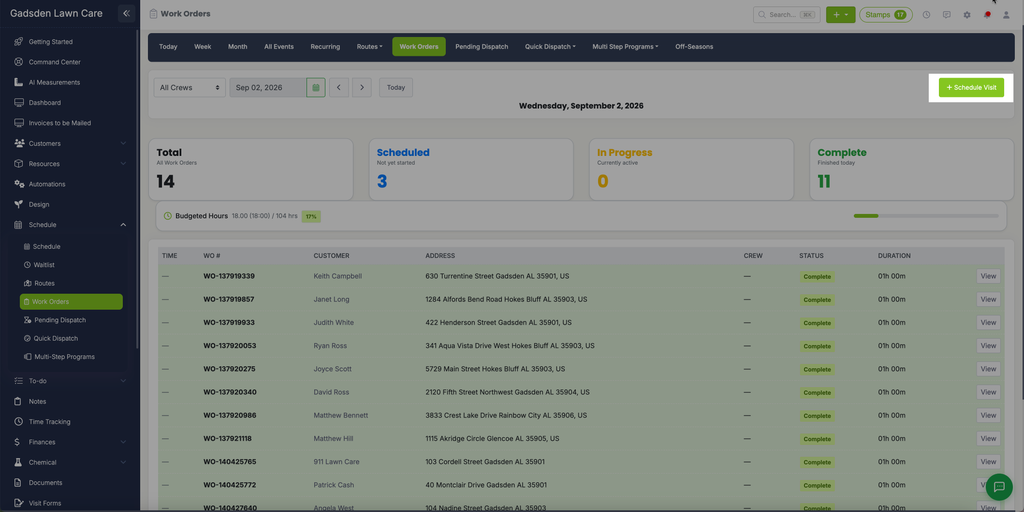
Click the green Schedule Visit button in the top right corner to add a new visit directly from the Work Orders page.