Waitlist
Table of Contents
- Overview
- Accessing the Waitlist
- Summary
- Filters
- Group By and Filter By
- Waitlist Columns
- Scheduling Waitlist Items
Overview
The waitlist is included on Grow and Plus, or is a $10/month add-on. The Waitlist is where you manage jobs that need to be scheduled but don’t have a date yet. Instead of losing track of unscheduled work, you can add it to the Waitlist and schedule it when you’re ready.
Accessing the Waitlist
You can get to the Waitlist two ways:
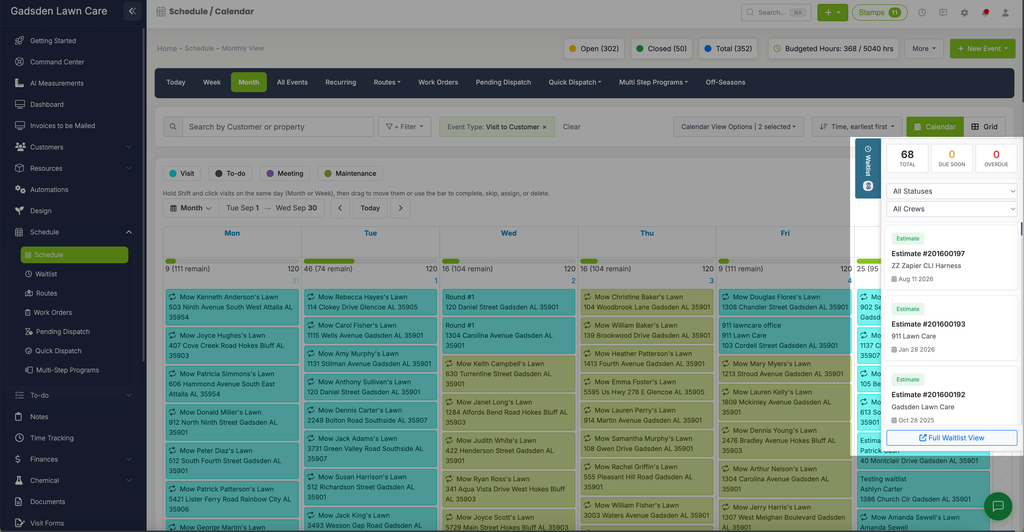
- From the Schedule — click the Waitlist tab on the right side of the calendar screen. It slides out as a panel so you can see your waitlist alongside your calendar. From here you can drag and drop waitlist items directly onto the calendar to schedule them quickly.
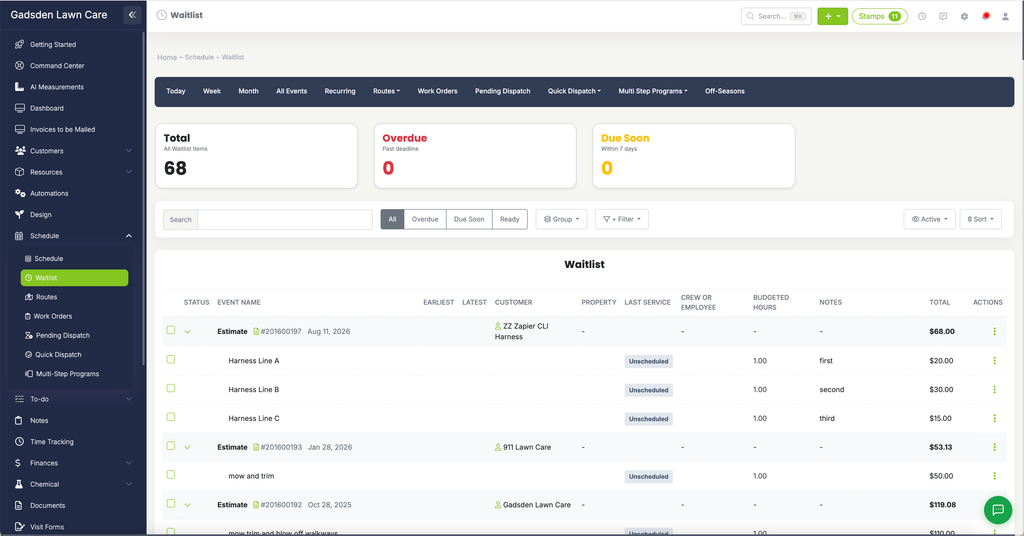
- Full Waitlist Page — click Waitlist in the left side menu under Schedule for the full page view with all filters and options.
Summary
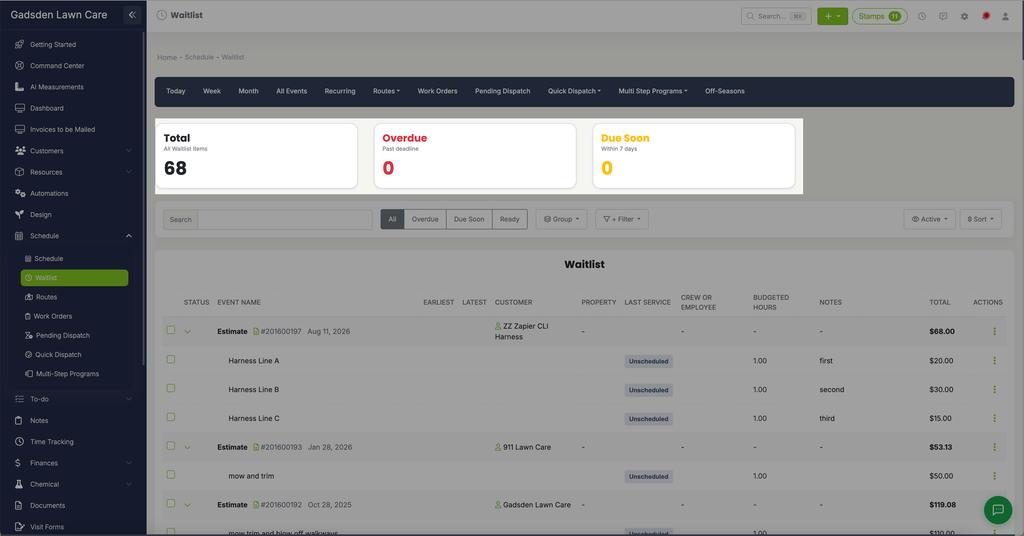
At the top of the page you’ll see three summary cards:
- Total — the total number of items on your waitlist
- Due Soon — items due within the next 7 days
- Overdue — items that are past their deadline
Filters
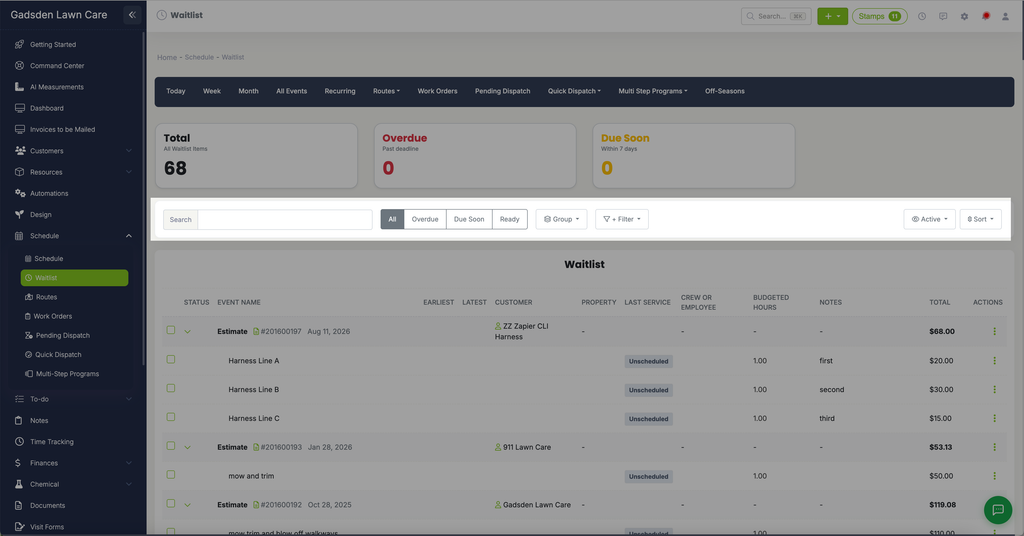
You can filter your waitlist using several options:
- Search — search for a specific item by name
- All — show all waitlist items
- Overdue — show only items past their deadline
- Due Soon — show only items due within 7 days
- Ready — show only items that are ready to be scheduled
- Active / Hidden / All — show active items, hidden items, or both
- Sort — by Deadline, Customer, Total or Budgeted Hours
Group By and Filter By
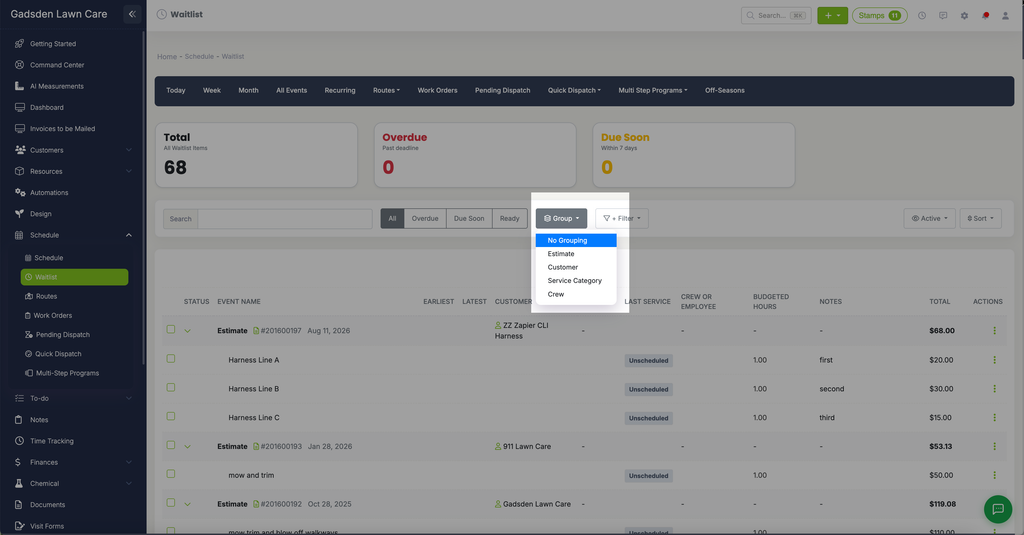
Click “Group” to group your waitlist by:
- No Grouping
- Estimate
- Customer
- Service Category
- Crew
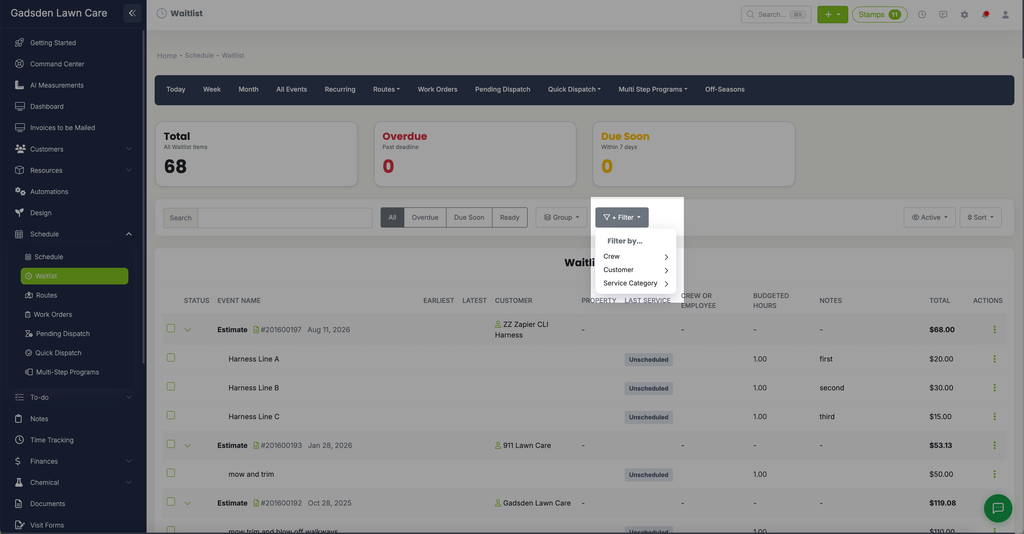
Click “Filter” to filter your waitlist by (the button reads + Filter; the crew filter includes Unassigned):
- Crew
- Customer
- Service Category
Waitlist Columns
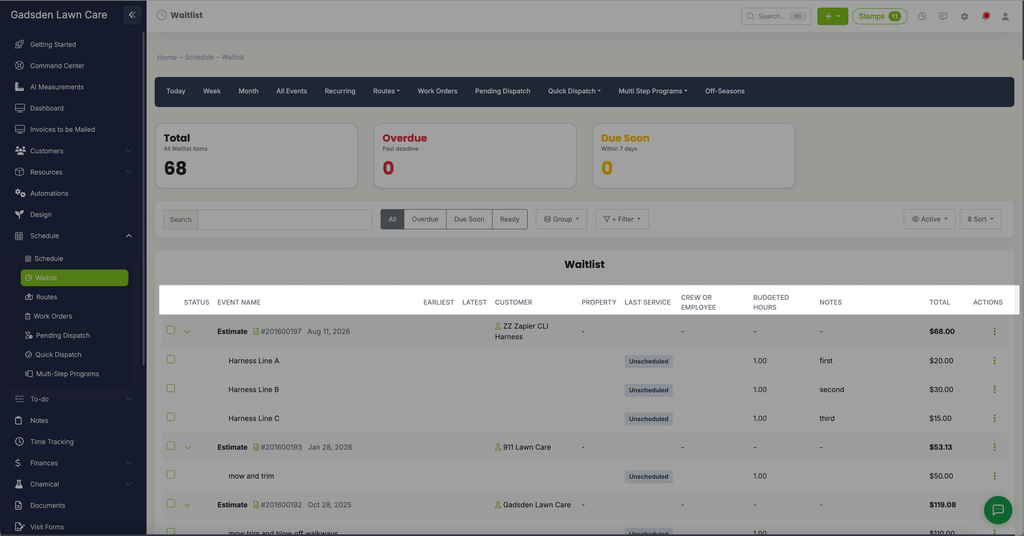
Each item in the waitlist shows:
- Status — whether the item has a date set or not
- Event Name — the name of the job
- Earliest — the earliest date the job can be scheduled
- Latest — the latest date the job should be scheduled
- Customer — the customer name
- Property — the property address
- Last Service — the last time this property was serviced
- Crew or Employee — the crew or employee assigned
- Budgeted Hours — budgeted hours for the job
- Notes — any notes for the job
- Total — the dollar amount for the job
Scheduling Waitlist Items
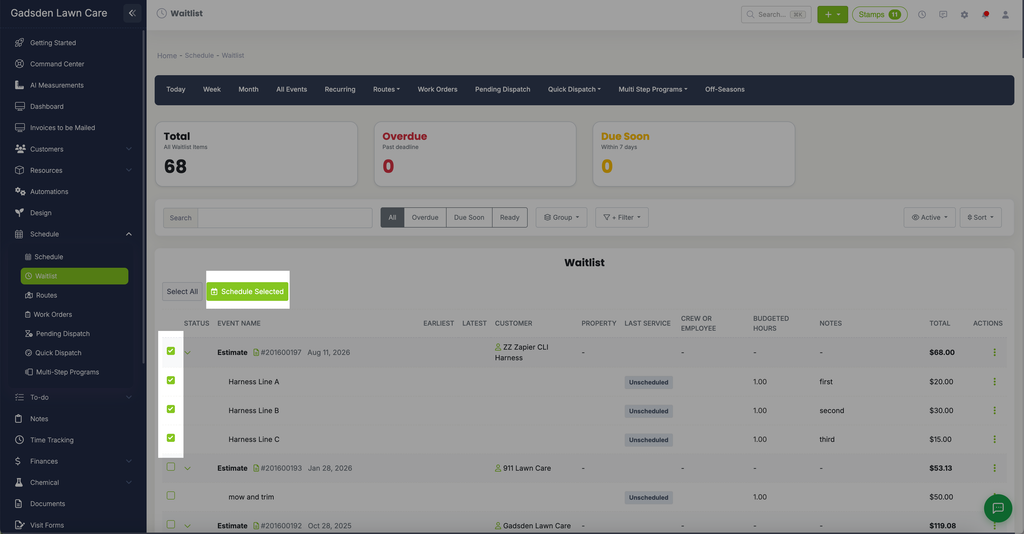
Schedule a Single Item Click the three-dot Actions menu on the right side of any waitlist item and select “Schedule” to schedule that item. You can also select “Hide” to hide the item from the waitlist without deleting it.
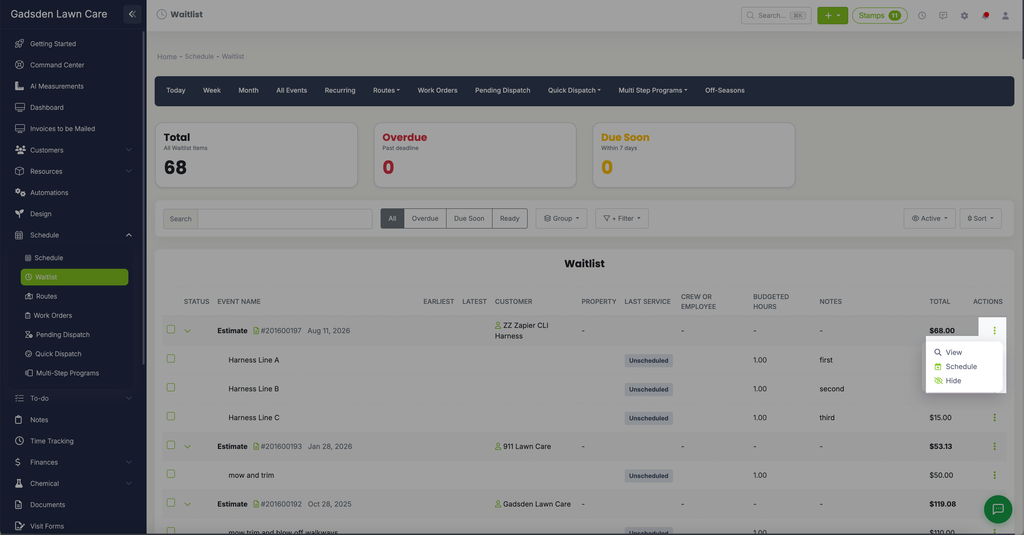
Schedule Multiple Items at Once Check the boxes next to the items you want to schedule, or click “Select All” to select everything. Then click the green “Schedule Selected” button to schedule them all at once.