Combining Invoices
Combining invoices lets you merge multiple unpaid invoices for the same customer into one, so they get a single invoice instead of several. You can also uncombine an invoice later if you combined by mistake — as long as it hasn’t been paid or synced to QuickBooks.
This is available on all plans.
How to Combine Invoices
- Go to Finances → Invoices
- Check the boxes next to 2 or more invoices for the same customer
- Click Combine
- Confirm when asked
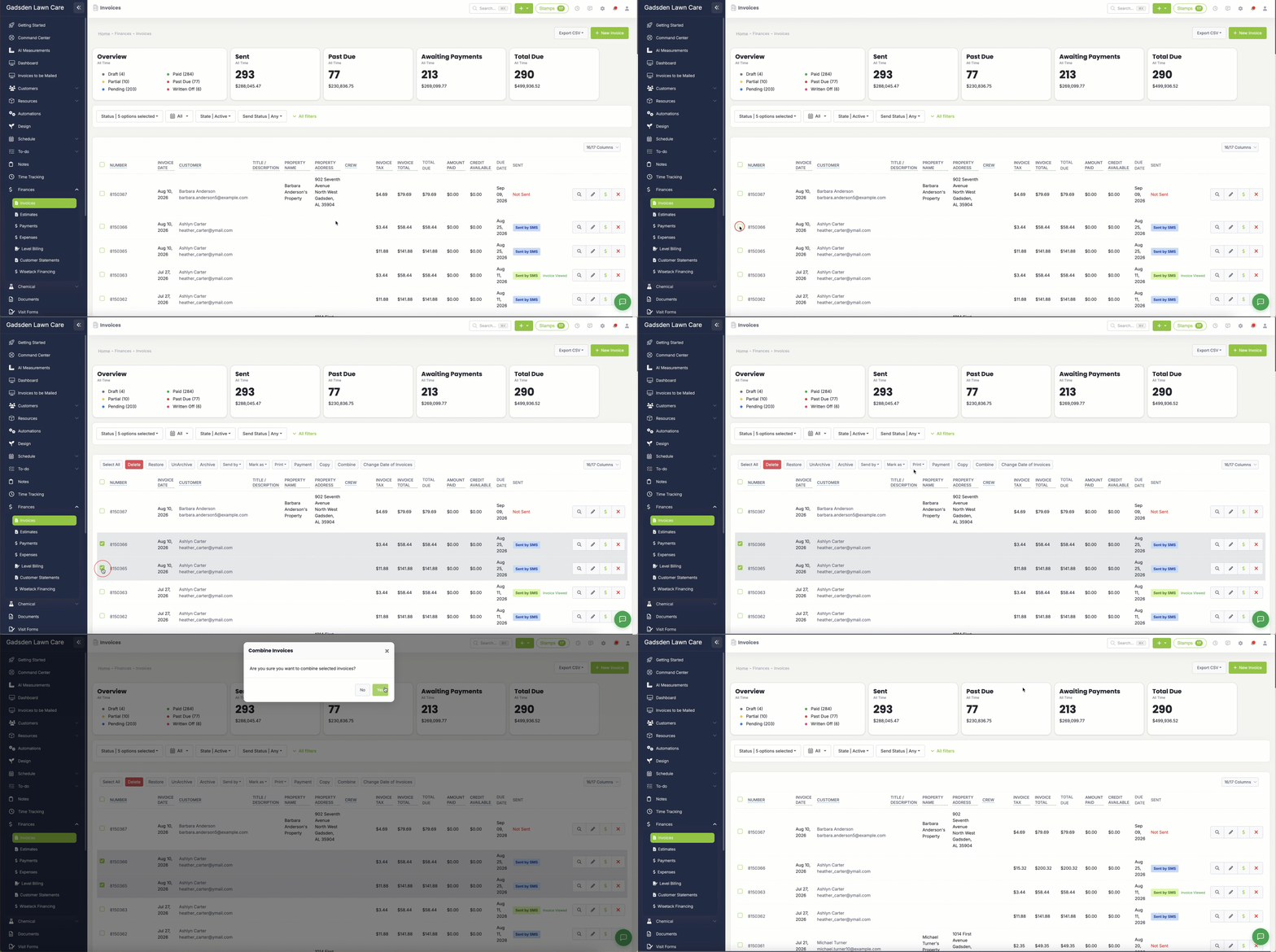
LawnPro keeps the top-most selected invoice and moves the line items from the others onto it. The other invoices are removed from your active list (they are soft-deleted, not permanently erased). The combined invoice’s notes will say which invoice numbers were combined, and visits that were tied to those invoices will point at the combined invoice.
Rules for Combining
You can only combine invoices when:
- You select at least 2 invoices
- They are for the same customer
- They are either all sent or all unsent (don’t mix)
- None are paid or partially paid
- None are progress invoices from an estimate’s payment schedule
If something doesn’t meet those rules you’ll see a message explaining why.
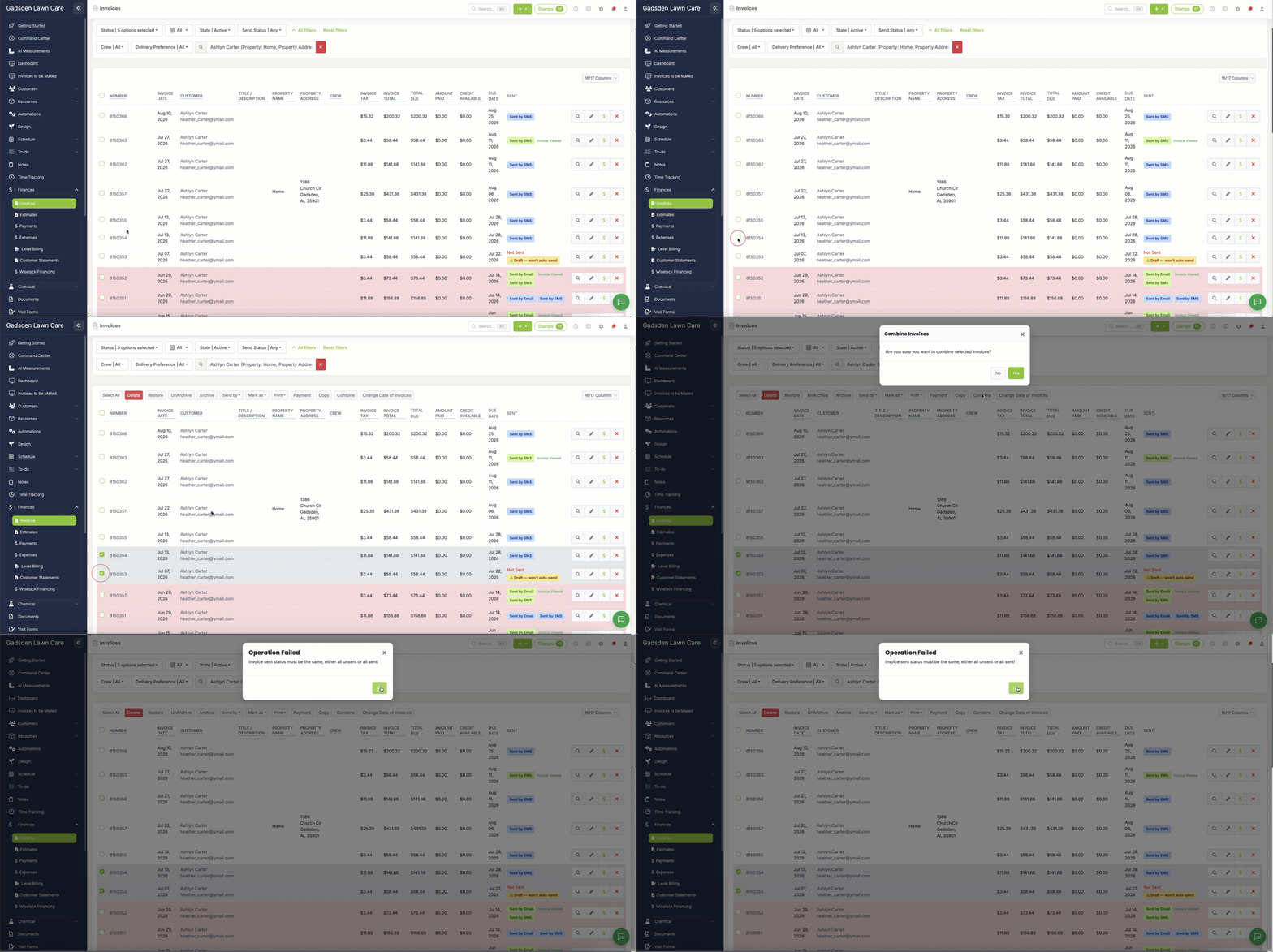
Tip: The invoice that stays (keeping its number) is the one highest in the list among those you checked, not the first one you clicked.). The others are folded into it.
Note: Combining replaces the notes on the surviving invoice with a short “combined invoice” message that lists the invoice numbers involved.
How to Uncombine an Invoice
If you combined invoices by mistake and the combined invoice is still unpaid:
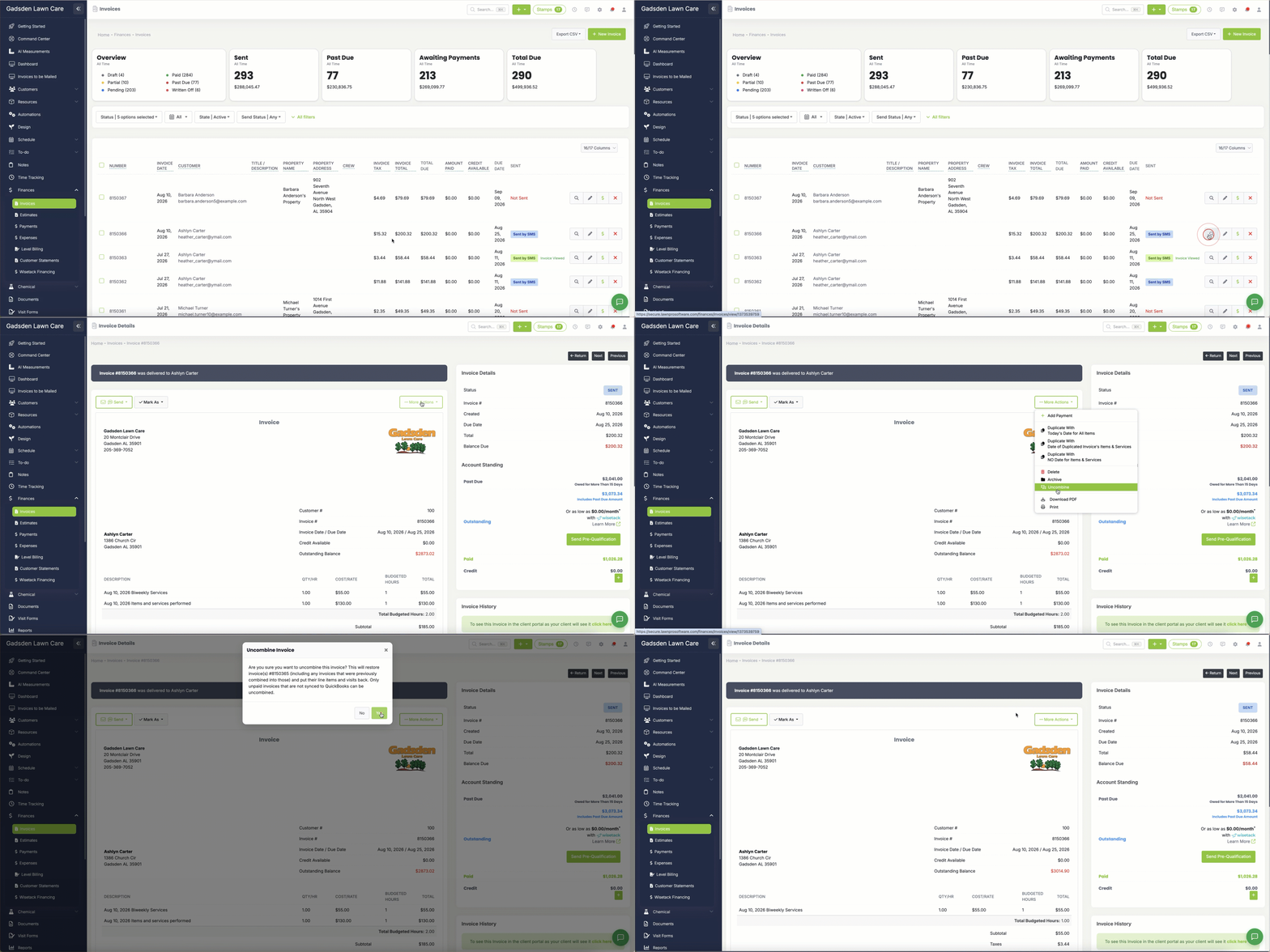
- Open the combined invoice
- Click More Actions
- Click Uncombine
- Confirm when asked
LawnPro restores the original invoices, puts their line items and visits back, and returns the combined invoice to how it looked before the combine.
When You Can Uncombine
Uncombine is available when all of these are true:
- The invoice was combined after uncombine support was added (older combines may not show the option)
- The combined invoice is unpaid (no payment applied)
- It is not written off
- It is not synced to QuickBooks
- The invoice wasn’t edited after combining in a way that removed or changed the combined line items
If Uncombine isn’t in More Actions, one of those conditions usually applies — or the invoice wasn’t created by a combine that can be undone automatically.
Important: If the customer was already emailed or texted the combined invoice, uncombining still works, but you may want to send the separate invoices again so they have the updated versions.
Frequently Asked Questions
What happens to the old invoices when I combine?
They are removed from your normal invoice list. The work and visits move onto the combined invoice. Soft-deleted invoices aren’t permanently destroyed.
Can I combine invoices for different customers?
No. All selected invoices must belong to the same customer.
Can I combine a paid invoice?
No. Paid or partially paid invoices can’t be combined or uncombined.
Can I uncombine after uploading to QuickBooks?
No. Once the combined invoice is synced to QuickBooks, uncombine is blocked so your books don’t get out of sync.
I combined invoices before Uncombine existed. Can I still undo it?
Not with the in-app Uncombine button. Contact support via help chat if you need help with an older combine.
Does combining affect visits on the schedule?
Visits that were linked to the invoices you combine are re-linked to the combined invoice. If you uncombine, those visit links are restored to the original invoices.