Setting a Tax Rate on an Item or Service
You can give an item or service its own tax rate, or mark it as never taxed.
Go to Resources > Items & Services. When adding a new item, scroll down to the Options section. On an existing item, use the Taxes card, where Tax 1, Tax 2 and Non-Taxable save as you change them.
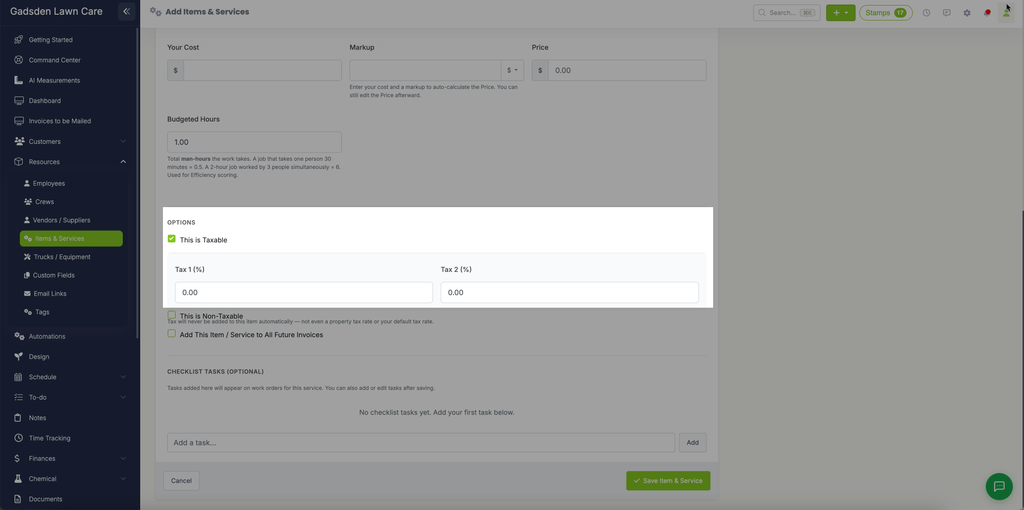
This is Taxable
Check the This is Taxable box if this item or service should be taxed. Once checked you can enter up to two tax rates:
- Tax 1 (%) — Enter your primary tax rate as a percentage
- Tax 2 (%) — Enter a secondary tax rate if applicable (for example a state tax and a county tax)
This is Non-Taxable
Check the This is Non-Taxable box if this item or service should never be taxed. When this is selected tax will never be added to this item automatically — not even a property tax rate or your default tax rate.
Which rate is used: LawnPro checks these in order and uses the first one that applies:
- The customer is tax exempt: no tax.
- The item is marked Non-Taxable: no tax.
- The property has a rate set for this item, or a property tax rate: the property’s rate.
- The item’s Tax 1 + Tax 2.
- Your default tax rate.
So an item’s own rate is only used when the property has no tax rate.