Table of Contents
Overview
You will want to add Items and Services to your account before scheduling visits with your clients. These are the Items and Services that you offer your clients and what you will use to invoice.
Add a New Item or Service
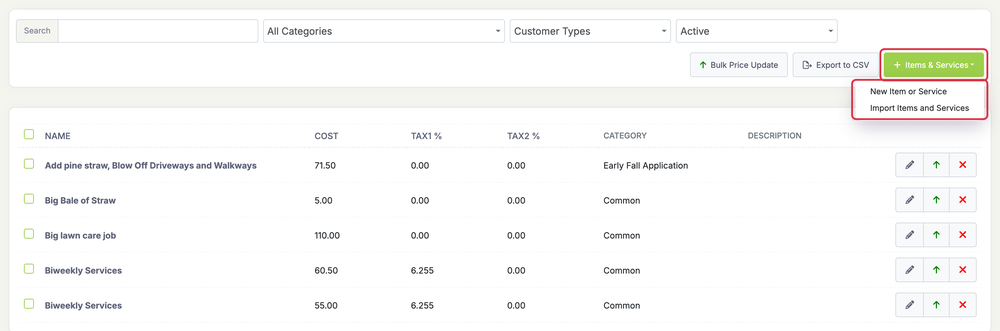
To add an item or service to LawnPro, from the lefthand menu click “Resources” then click “Items & Services“
Click the green + Items And Services button and choose New Item or Service.
The same menu has Import Items and Services.
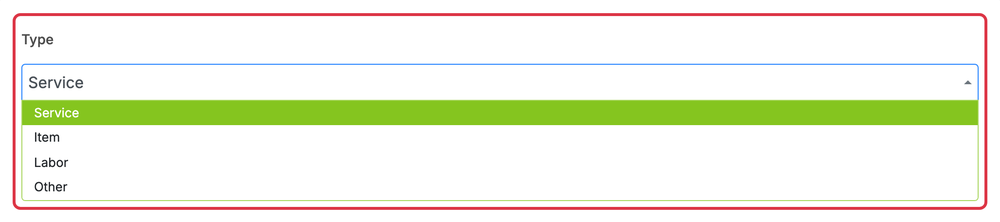
First, choose the “Type” which can be service, item, labor, or other.
Fill out the name of the new item or service. This will show up on the invoice.
You can also add an optional description here.
This description will show on an invoice, however you can edit and remove the description on the invoice.
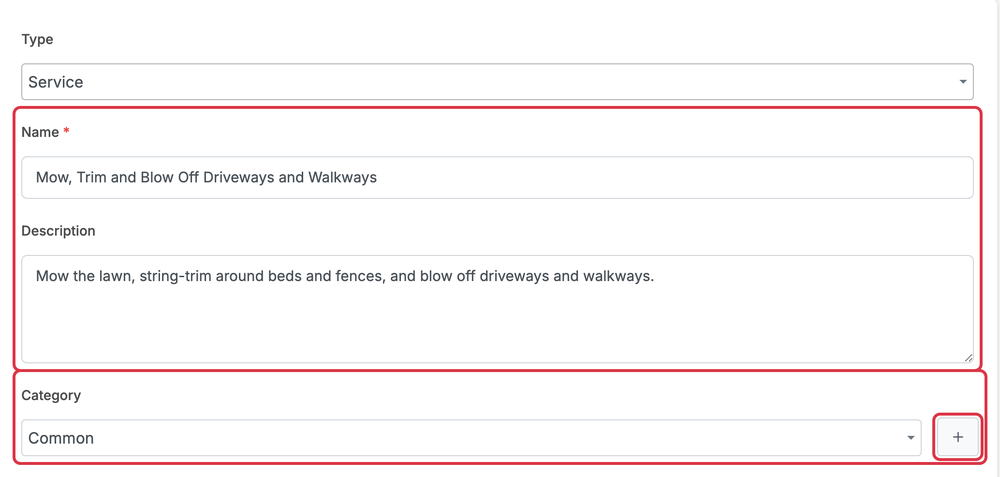
Next choose the category for the new Item/Service.
If you want to add a new Category, click the “+” beside the category dropdown.
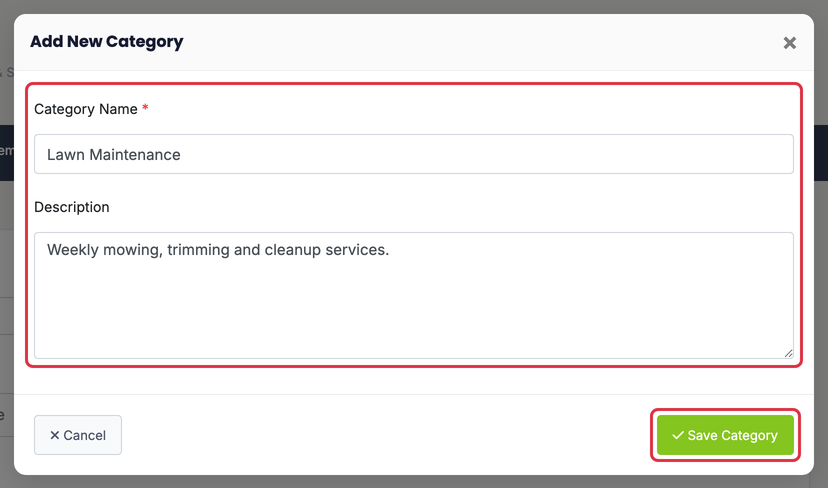
Name the new Category, add a description (optional) and click the “Save Category” button.
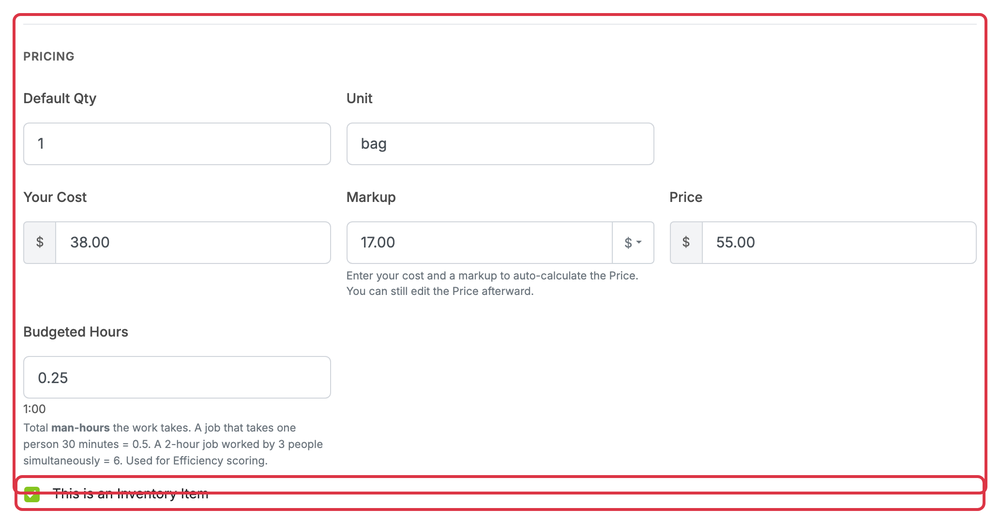
Under Pricing, enter the Default Qty, Unit, Your Cost, Markup and Price, plus Budgeted Hours (the time the job usually takes; it’s never shown to customers). If the Type is Item or Other, check This is an Inventory Item to track stock. See Inventory Items.
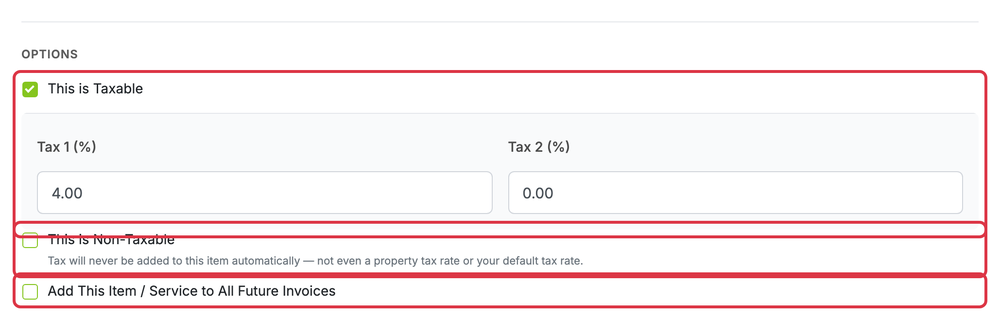
Under Options, check This is Taxable to enter Tax 1 (%) and Tax 2 (%), or This is Non-Taxable so it’s never taxed. Check Add This Item / Service to All Future Invoices for charges like a fuel surcharge.
Notes:
- This will not add it to any old or existing invoices.
- The new item will also not show on the visit. It will only appear once you create the invoice. This is intended for things such as fuel surcharge.
Add any Checklist Tasks (Optional). They appear on work orders that include this item or service. If the Type is Item, you can also add Photos.
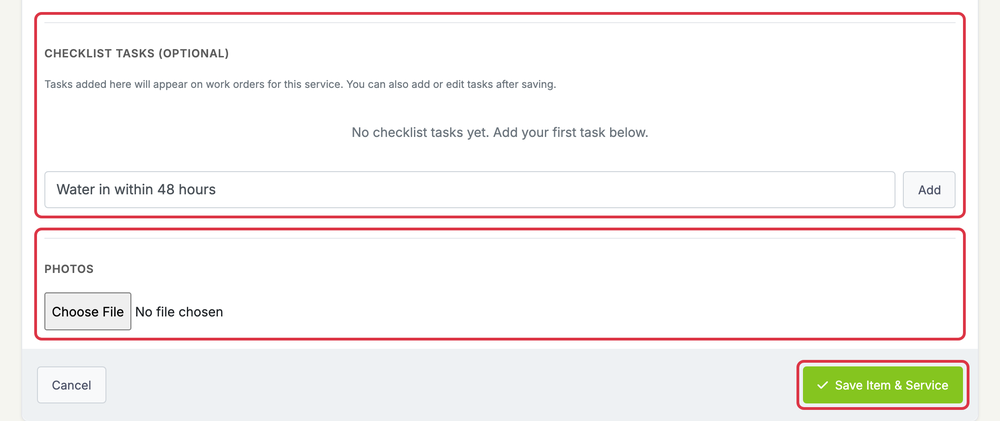
Click Save Items And Services.
Importing Items and Services
If you have a CSV file of your items and services, you can import them instead of adding them all manually.
To start the import process, click the green + Items And Services button and select Import Items and Services.
You can also import Items and Services by going to your settings gear icon at the top right of any screen and then clicking Import Customers, Invoices, Assets, Expenses, Items & Services.
Then click Import Items & Services.
Both ways take you to this screen, where you click Select File to Import.

Edit an Existing Item or Service
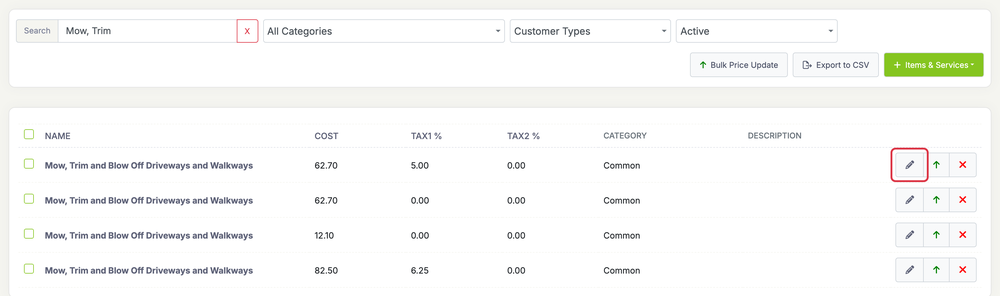
If you have an existing item or service you need to change, go to Resources > Items & Services.
Find the item or service you want to edit and click the pencil button. Changes on this page save as you make them. Click a value, change it, and it saves. There’s no Save button.
The first option you will see is the option to “Duplicate”
This will save you time because it allows you to copy the Service or Item and create a new one with a different price.
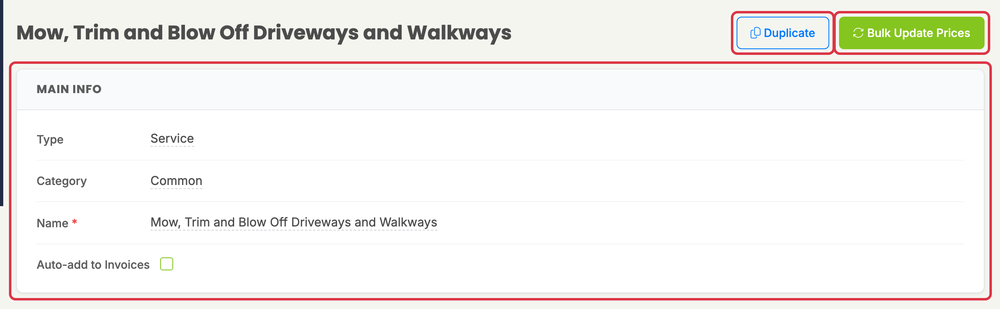
In Main Info, edit the Type, Category and Name, and turn Auto-add to Invoices on or off. For an Item or Other, you can also check Inventory Item.
Notes:
- This will not add it to any old or existing invoices.
- The new item will also not show on the visit. It will only appear once you create the invoice. This is intended for things such as fuel surcharge.
Click Bulk Update at the top to push a new price out to properties, visits, recurring visits and Quick Dispatch templates. Bulk Update is included on Startup and higher. See Bulk Price Update.
In the Taxes card, edit Tax 1 and Tax 2, or check Non-Taxable.
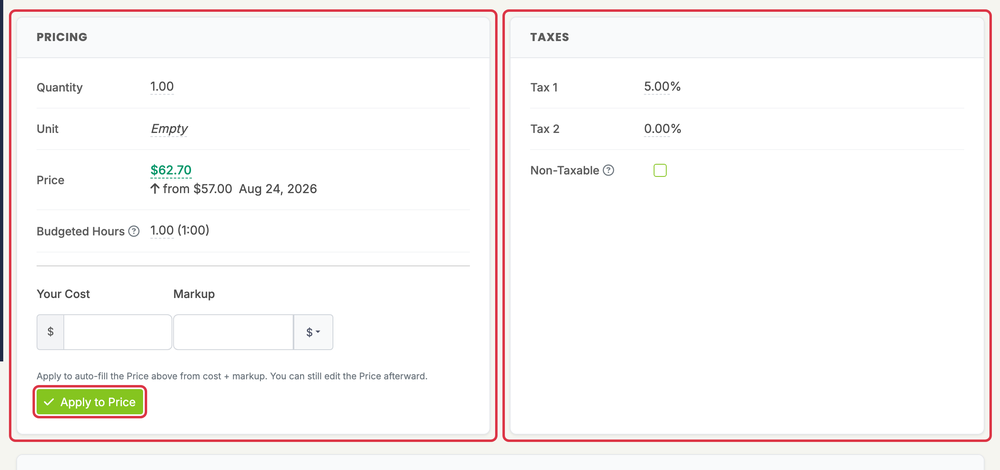
In Pricing, edit the Quantity, Unit, Price, Budgeted Hours, Your Cost and Markup. Click Apply to Price to fill in the price from your cost plus markup. When you change the price on a plan with Bulk Price Update, LawnPro tells you that customer properties, scheduled visits, recurring visits and Quick Dispatch templates still have the old price, and offers Review & Update Everywhere.
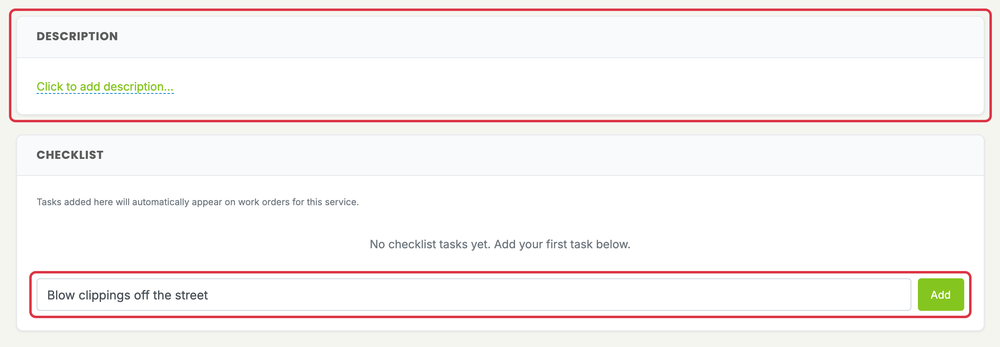
Below that, edit the Description and Checklist. Type a task and click Add. For items you can also add Photos, and for inventory items, update stock under Inventory Details.