Send a contract, agreement or any other document to your customer and have them sign it online from their phone or computer. They don’t need a login. LawnPro records who signed and when, and saves a signed PDF you can download any time.
Table of Contents
- Which plans include e-signatures
- Step 1: Create the document
- Step 2: Place the signature fields
- Step 3: Send it for signature
- What your customer sees
- Track, remind and void
- Common questions
Which plans include e-signatures
E-signatures are included on the Grow and Plus plans. Plus also lets you send one document to several customers, have them sign one at a time in order and add your own company countersignature after they sign.
Step 1: Create the document
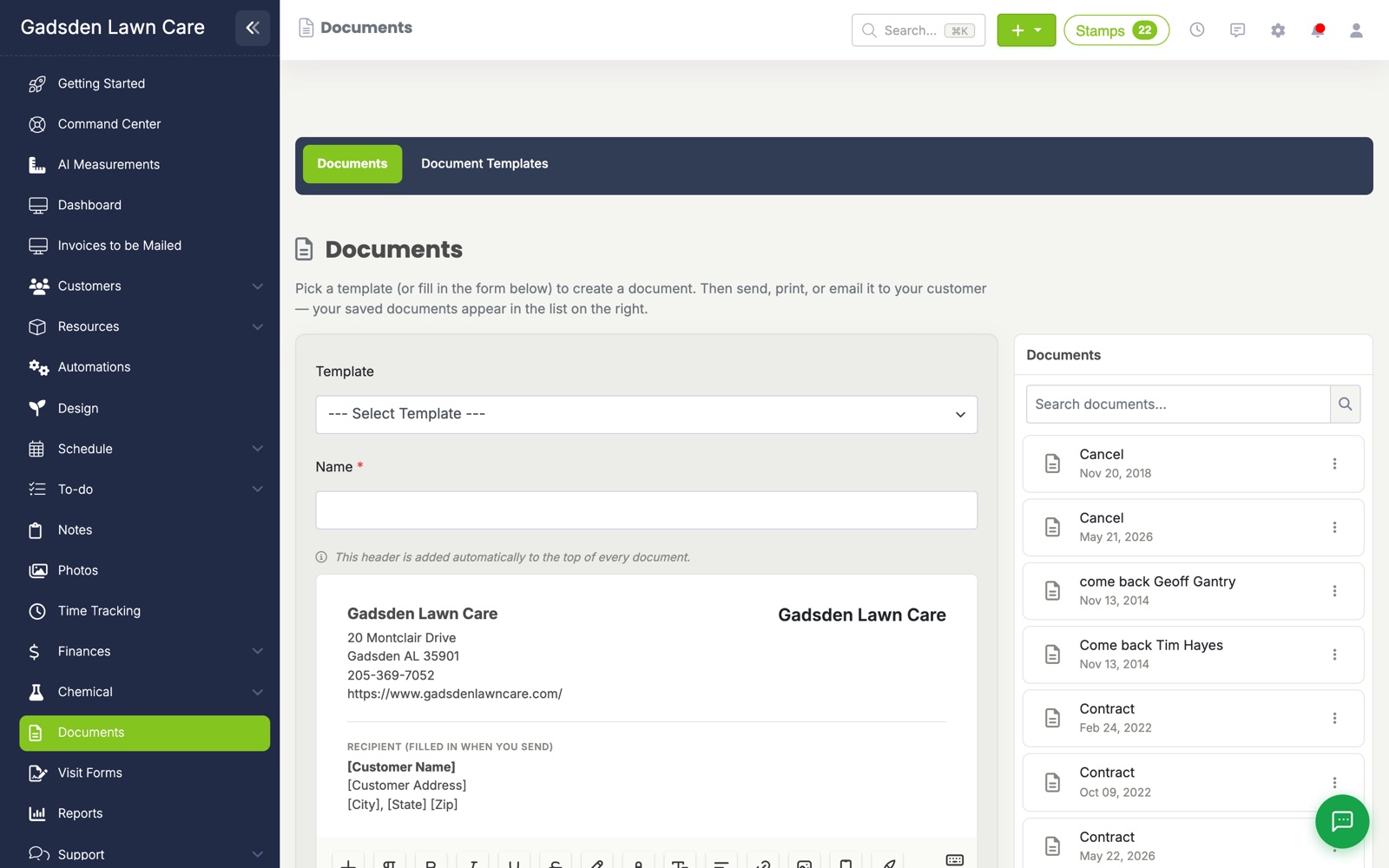
- In the left menu, click Documents.
- Pick a template or fill in the form to create a new document. Your saved documents show on the right.
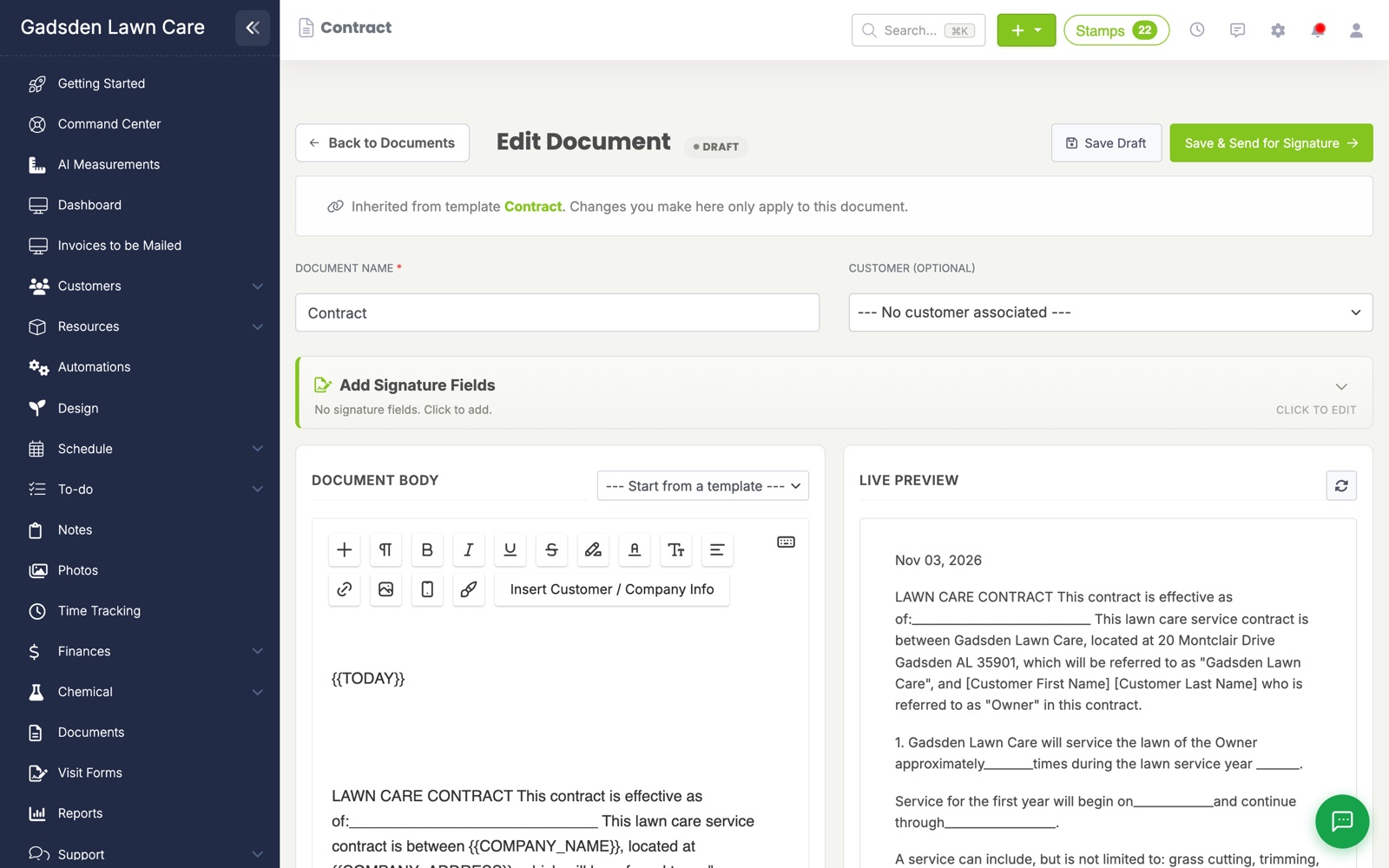
- Open a document to edit it. Type the document on the left and check the Live Preview on the right. Merge tags like the customer’s name fill in automatically.
- Click Add Signature Fields to choose where your customer signs.
Step 2: Place the signature fields
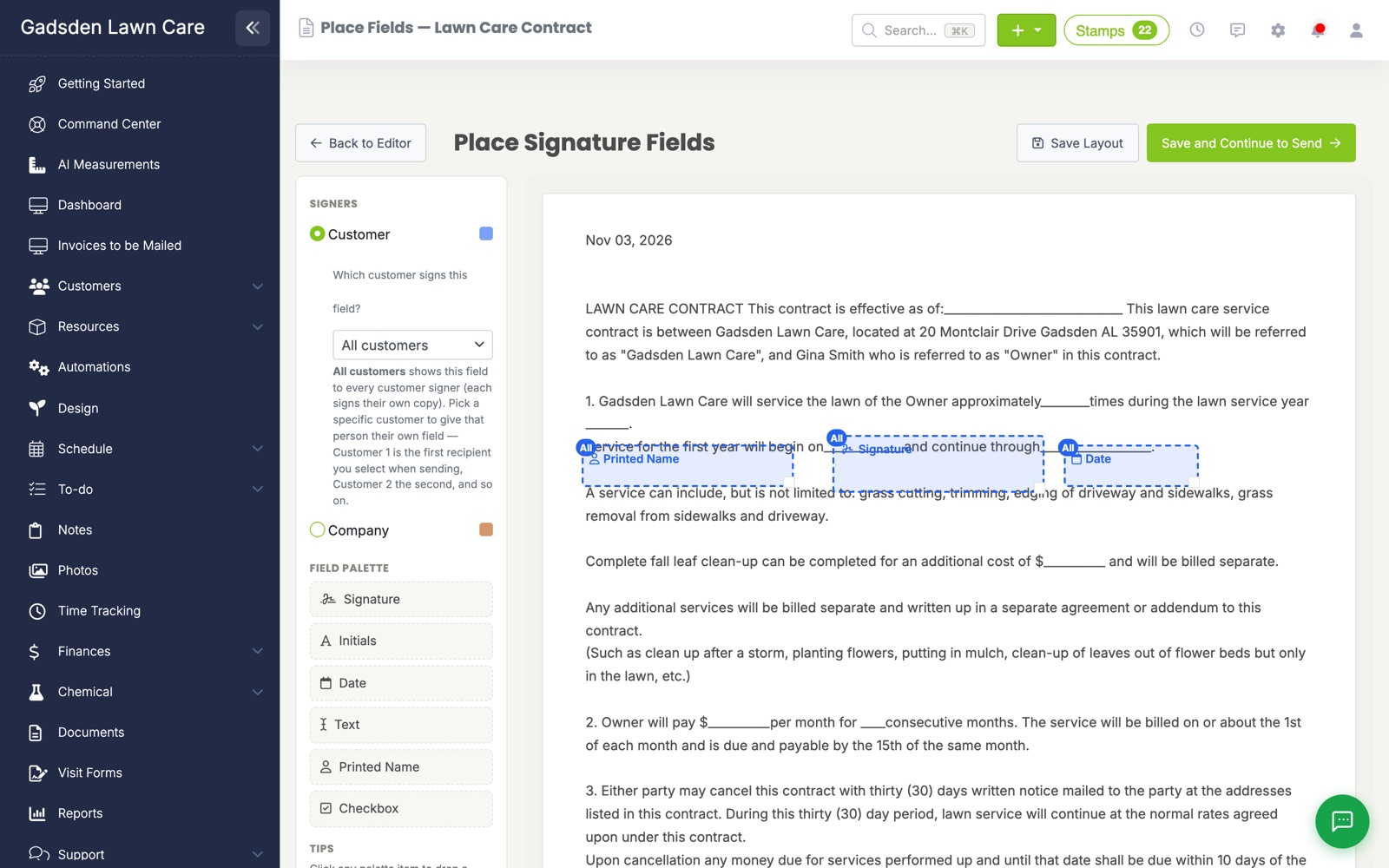
- Under Signers, choose who fills in the field: Customer (blue) or Company (orange, for your own countersignature).
- Click a field in the Field Palette: Signature, Initials, Date, Text, Printed Name or Checkbox. It’s added at the top of the page.
- Drag each field to where it belongs on the document. Click the x on a field to remove it.
- Click Save Layout, or Save and Continue to Send to send it now.
Step 3: Send it for signature
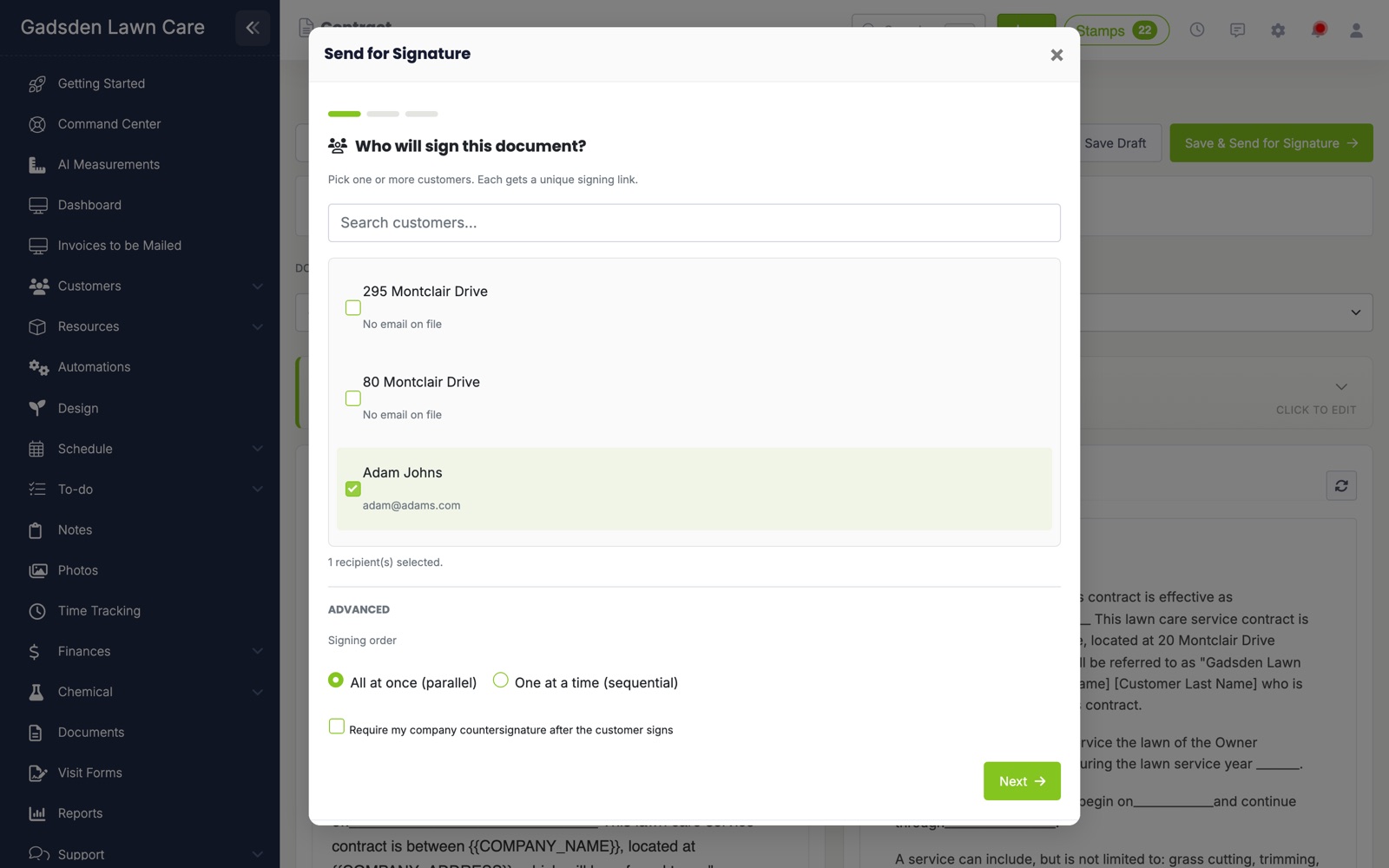
Click Save & Send for Signature. A short three-step window opens.
1. Choose who signs. Tick one or more customers. Each one gets their own secure signing link. On the Plus plan you can also choose All at once or One at a time and require your company’s countersignature.
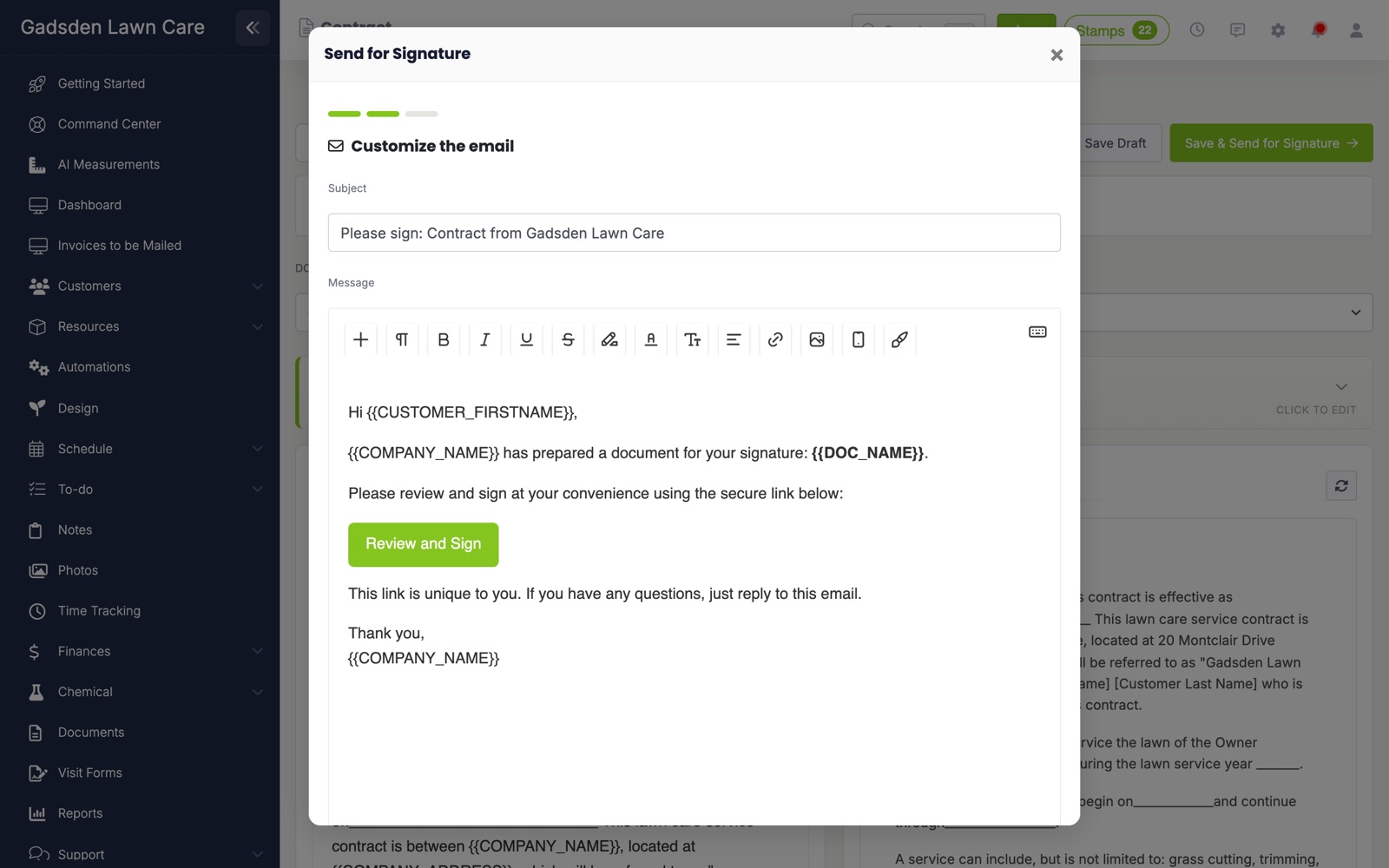
2. Customize the email. Edit the subject and message. The green Review and Sign button is your customer’s signing link, so leave it in. Set the date the link expires.
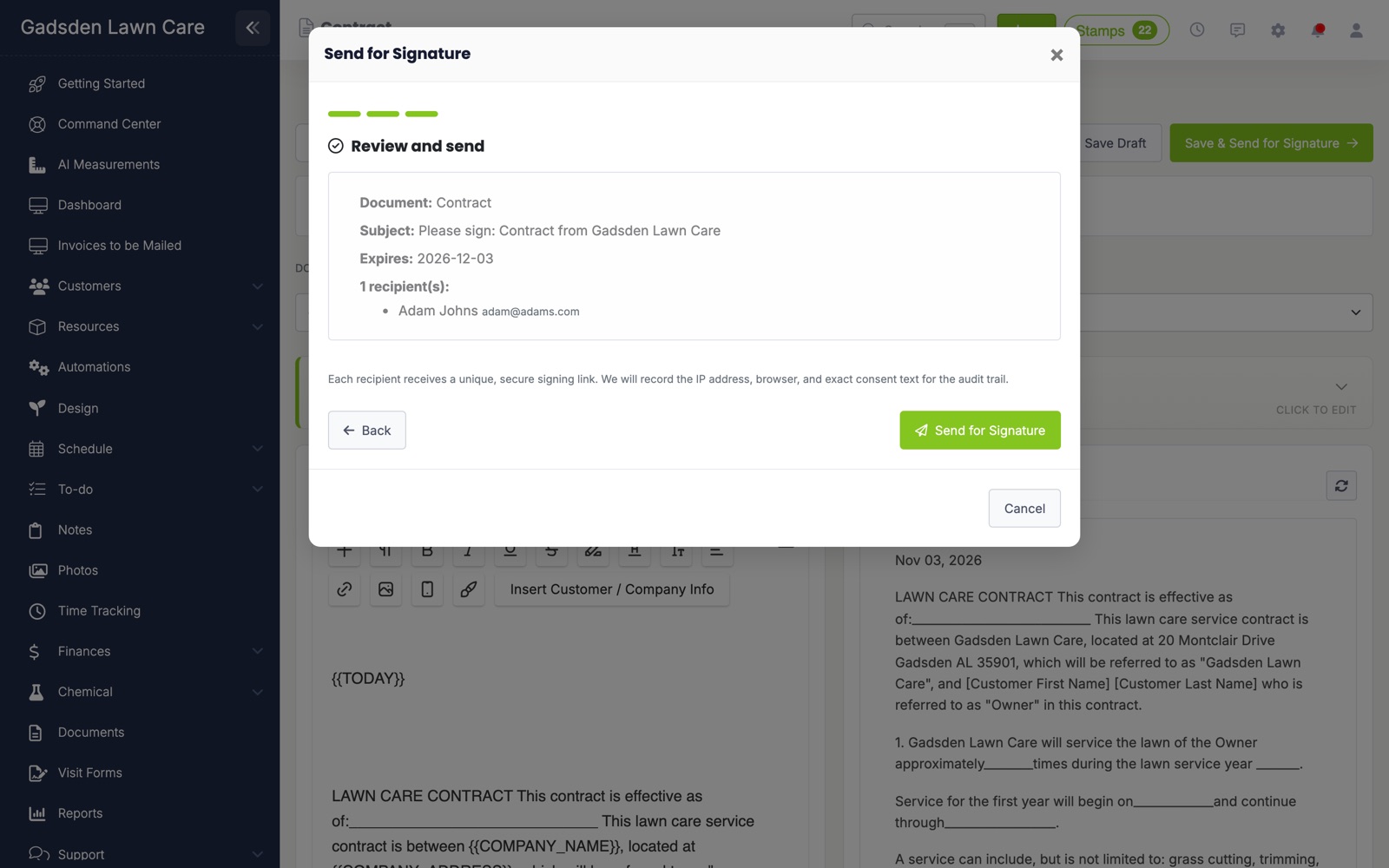
3. Review and send. Check the document, subject, expiration date and recipients, then click Send for Signature.
What your customer sees
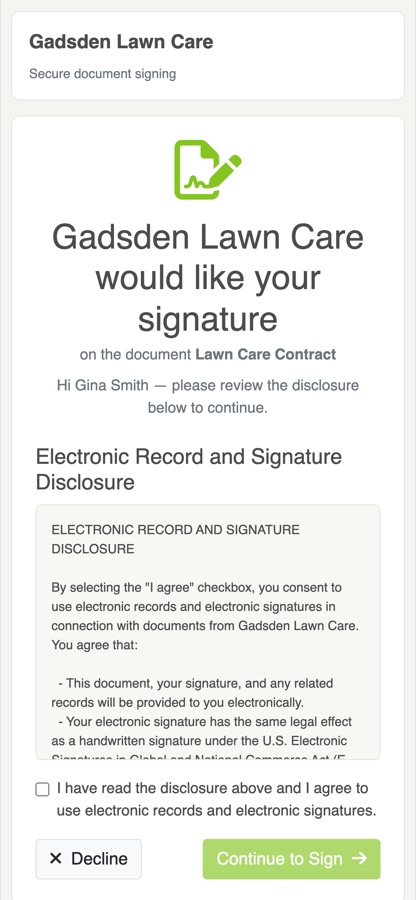
- Your customer opens the link in the email. They agree to sign electronically and tap Continue to Sign.
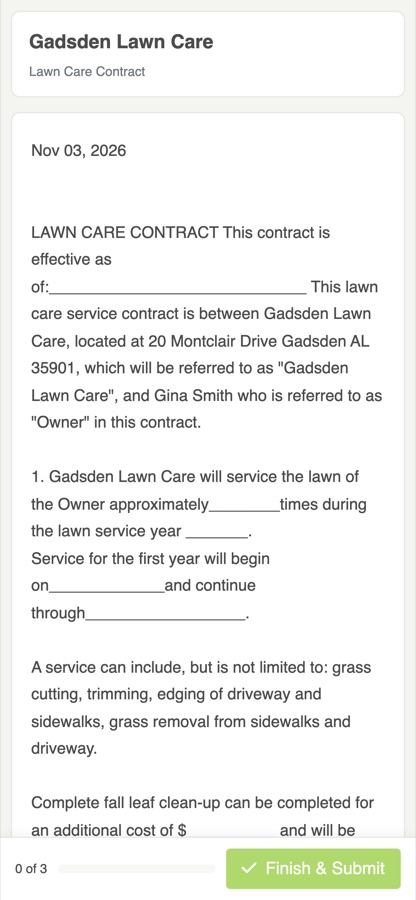
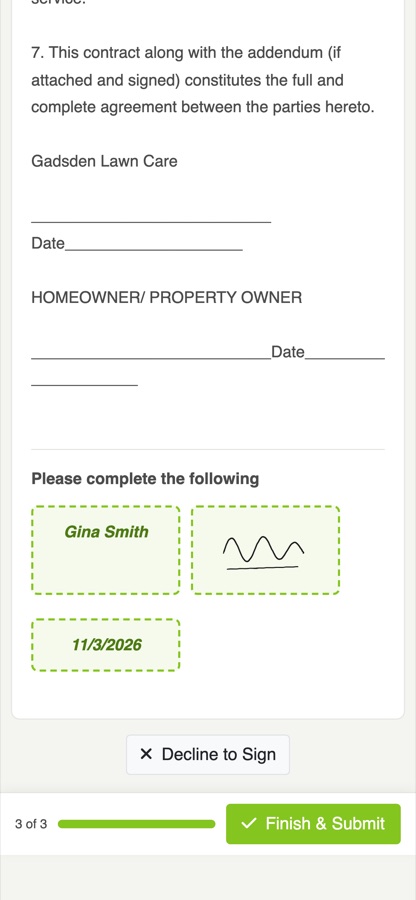
- They read the document. A bar at the bottom shows how many fields are left.
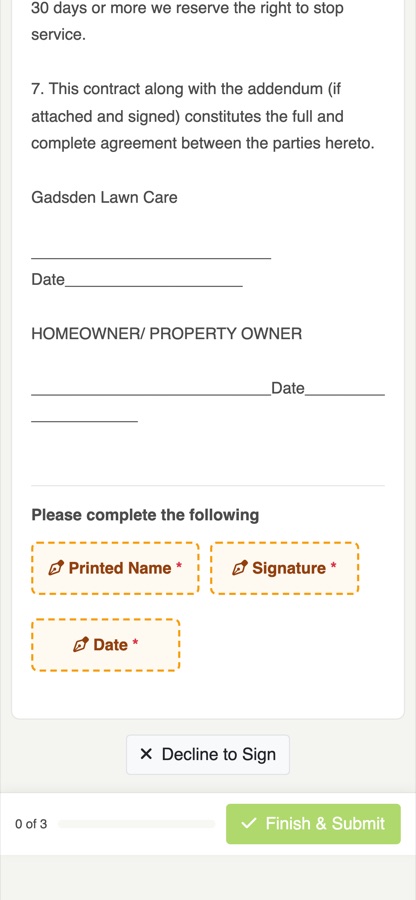
- At the end of the document they tap a signature field. They can also tap Decline to Sign.
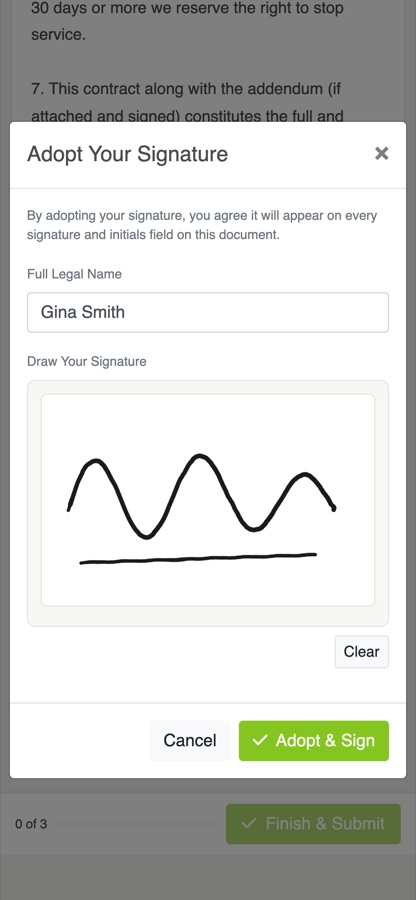
- They draw their signature once and tap Adopt & Sign. It fills in every signature and initials field on the document.
- When every field is filled in, they tap Finish & Submit.
Track, remind and void
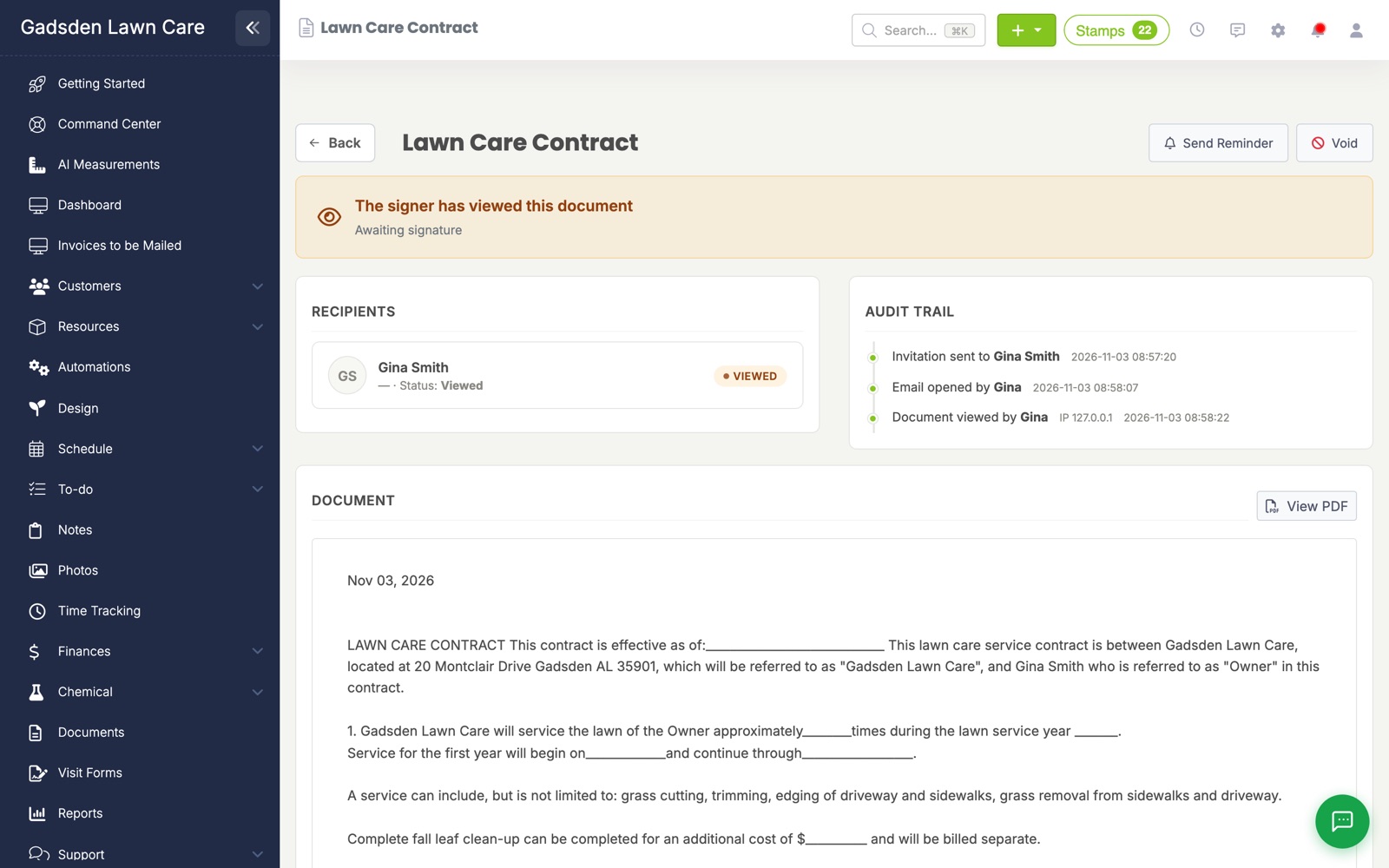
Open the document from Documents to see where it stands. The banner shows the status (sent, viewed, signed, declined or expired) and Recipients shows each signer. The Audit Trail lists when the invitation was sent, when the email was opened and when the document was viewed and signed.
- Send Reminder emails the signer their link again. LawnPro also sends automatic reminders while a document is waiting.
- Void cancels the document so the signing link stops working.
- Once it’s signed, download the signed PDF. It includes the signatures and a certificate page with the audit details.
Common questions
Does my customer need a LawnPro account?
No. They sign from the link in the email, on any phone or computer.
Is an electronic signature legally binding?
Your customer agrees to sign electronically before they sign, as the U.S. E-SIGN Act and UETA require. LawnPro records their name, signature, IP address, device and the time they signed.
What happens when the link expires?
The customer can no longer sign and the document shows as expired. Send the document again to give them a new link.
Can I add signatures to estimates?
Not yet. Today customers approve estimates online with the Approve button.