Table of Contents
- Overview
- Dragging a Single Visit
- Moving a Recurring Visit
- Moving a Visit Without Dragging
- Moving Several Visits at Once
Overview
The easiest way to reschedule a visit is to drag it to a new day right on your calendar. What happens next depends on whether the visit is a one-time visit or part of a recurring series.
Dragging a Single Visit
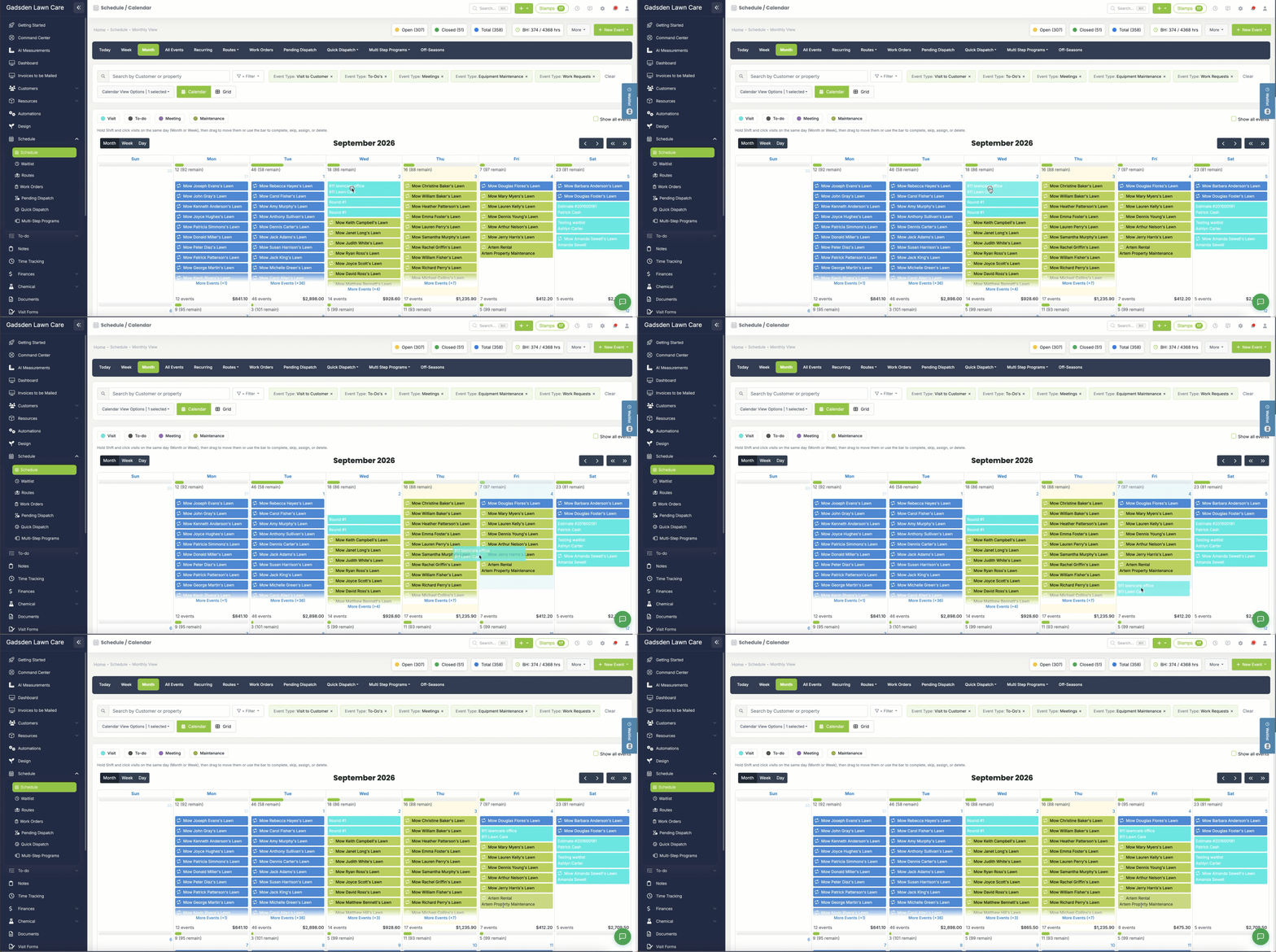
On the Schedule tab, in Month or Week view, click and drag the visit to the day you want to move it to.
If it’s a one-time (non-recurring) visit, that’s it — the visit moves to the new date immediately, no confirmation needed.
Moving a Recurring Visit
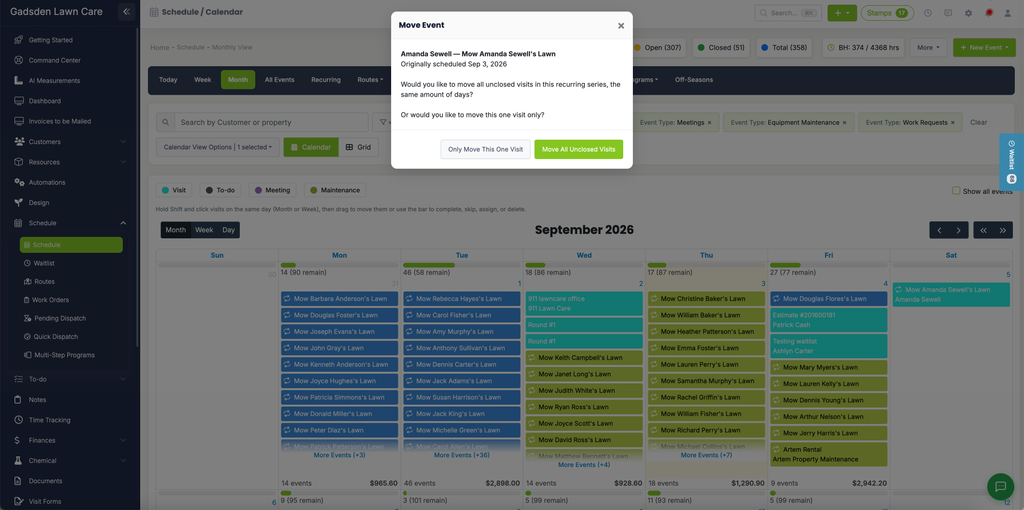
If the visit you drag is part of a recurring series, a “Move Event” popup will appear:
You’ll be asked:
Would you like to move all unclosed visits in this recurring series, the same amount of days? Or would you like to move this one visit only?
- Only Move This One Visit — moves just this occurrence to the new day; the rest of the series stays on its normal schedule
- Move All Unclosed Visits — shifts every remaining unclosed visit in the series forward or back by the same number of days
Moving a Visit Without Dragging
You don’t have to drag a visit to move it. In Month or Week view, hold Shift and click the visit to select it, then click “Move” in the toolbar that appears at the bottom of the screen.
This opens a “Move Selected Events” popup where you can type or pick the exact date instead of dragging:
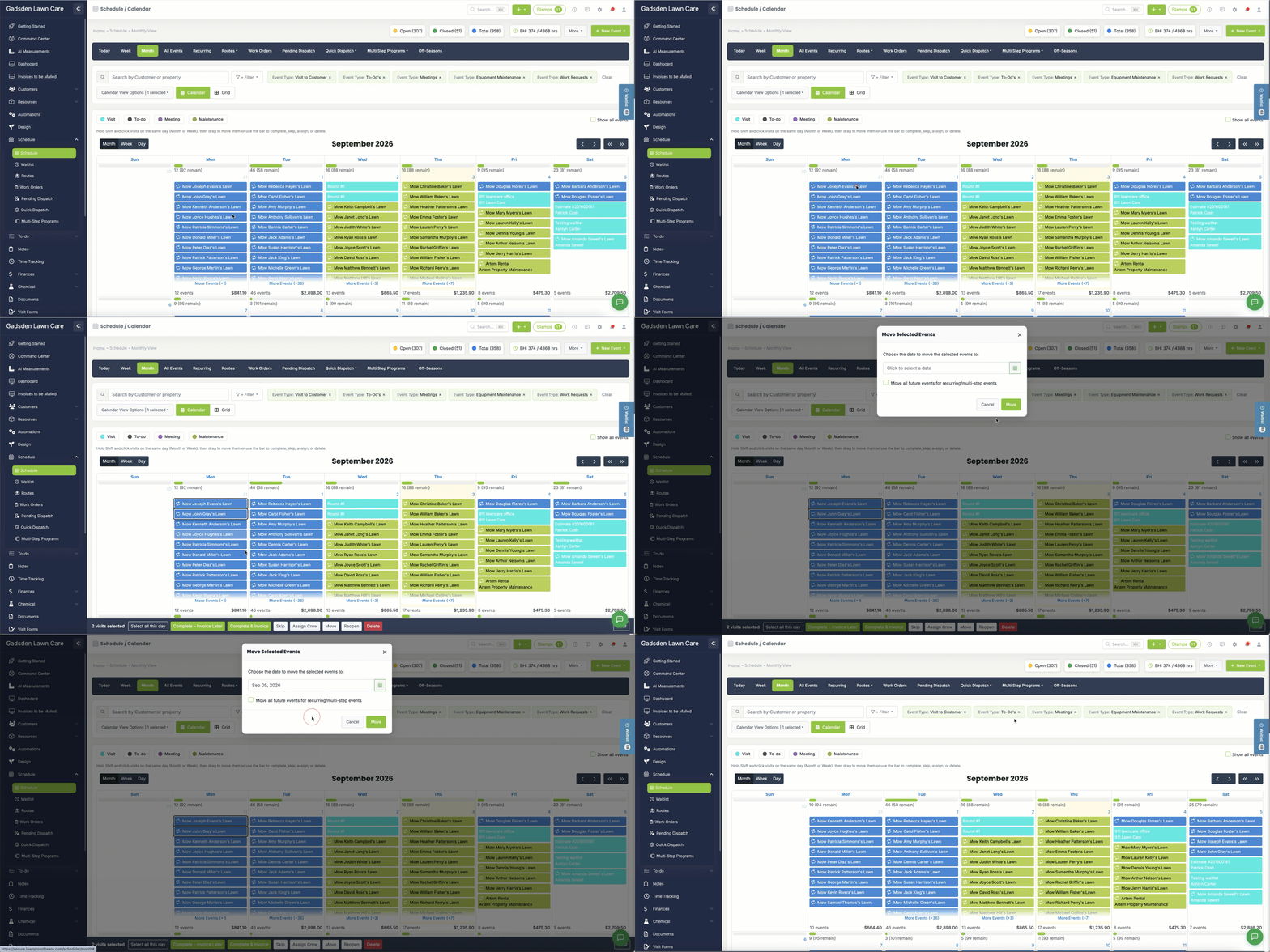
- Click the date field and choose the date you want to move the visit to.
- If the visit is part of a recurring or multi-step series, check “Move all future events for recurring/multi-step events” to shift the rest of the series along with it. Leave it unchecked to move just this one visit.
- Click the green “Move” button to confirm.
Moving Several Visits at Once
You can also select and move more than one visit at a time. In Month or Week view, hold Shift and click each visit you want to move (they must be on the same day). A toolbar appears at the bottom of the screen showing how many visits are selected, along with quick actions including Move, Skip, Complete – Invoice Later, Complete & Invoice, Assign Crew, Reopen, and Delete.
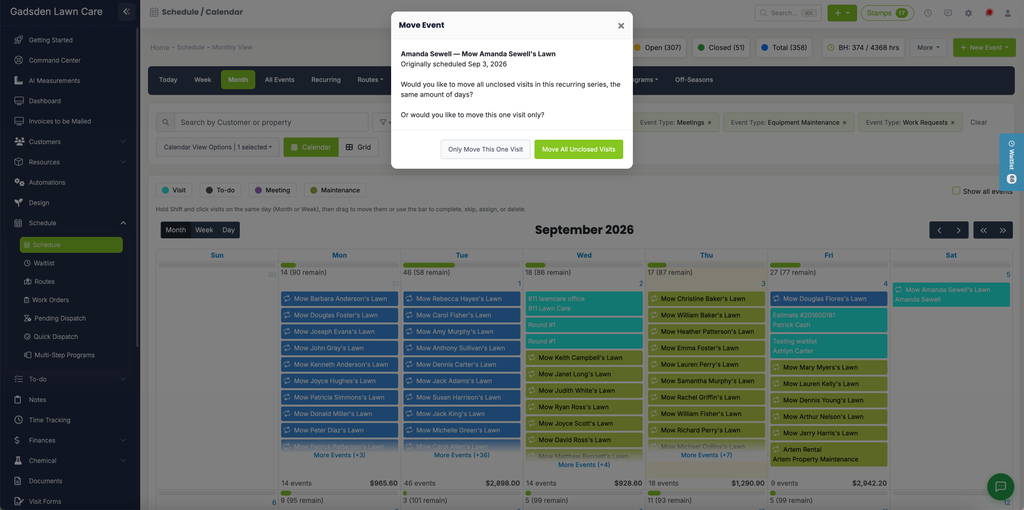
Drag any of the selected visits to a new day, and all of the selected visits move together. If one or more are part of a recurring series, you’ll see the Move Event popup for each of those visits in turn — for example, “Move Event (1 of 2)”, then “Move Event (2 of 2)” — so you can choose Only Move This One Visit or Move All Unclosed Visits individually for each one.
Or, instead of dragging, click “Move” in the toolbar. With multiple visits selected, the same Move Selected Events popup covers all of them at once — pick one date and, if needed, check “Move all future events for recurring/multi-step events” — rather than confirming each visit separately.