Table of Contents
- Overview
- Skipping a Single Visit from the Calendar
- Skipping Several Visits from the Calendar
- Skipping Visits from the All Events Page
- Skip vs. Not Serviced
Overview
Skipping a visit removes a single occurrence from your open schedule without completing it or marking it as not serviced. It’s useful when you already know ahead of time that a visit won’t be happening — for example, a customer asks to skip this round — but you want the rest of the recurring series to continue on its normal cadence.
LawnPro gives you a few different ways to skip a visit, whether you’re working with one visit at a time or several at once.
Skipping a Single Visit from the Calendar
Click the visit on your calendar to open the visit details panel. From here there are two ways to skip it:
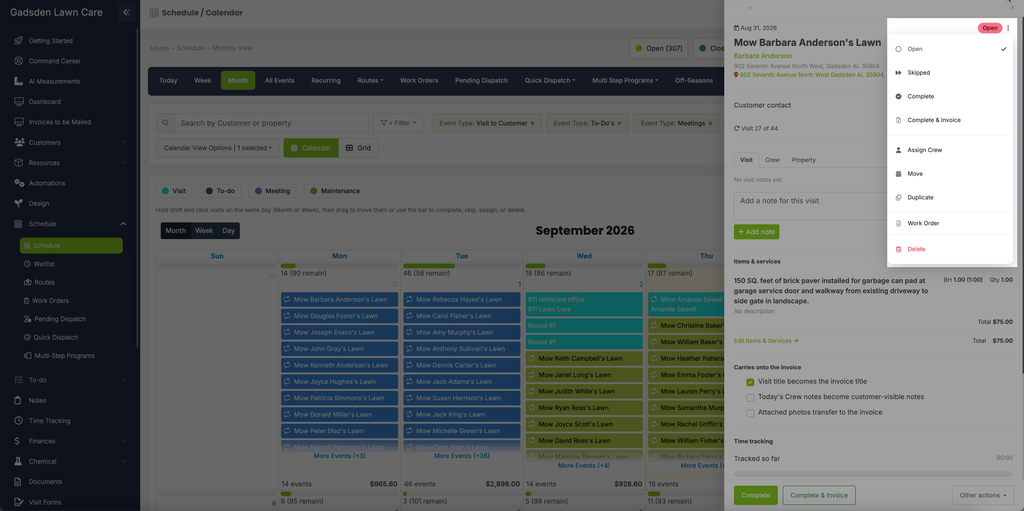
Option 1 — Status menu: Click the “⋮” menu next to the status badge (top right of the panel, beside “Open”). Choose “Skipped” from the list.
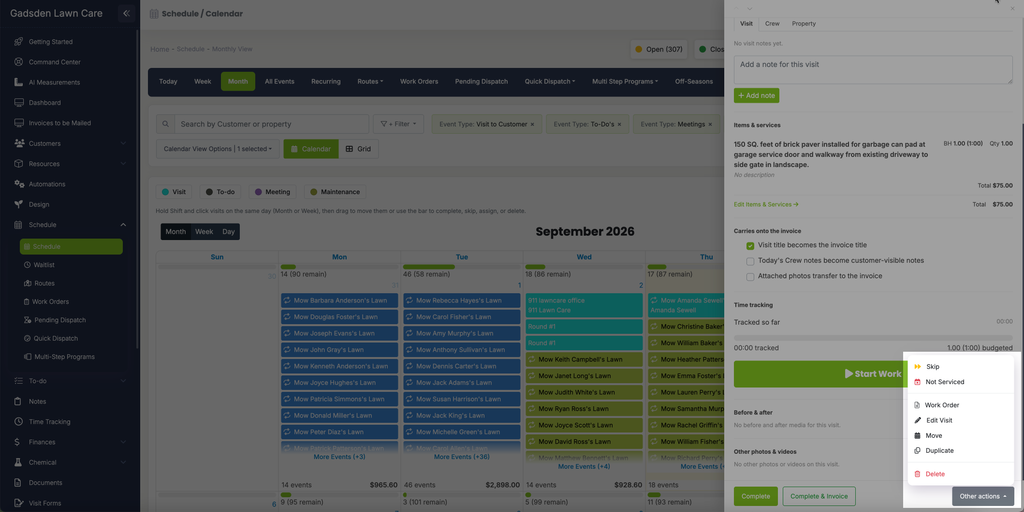
Option 2 — Other actions menu: Scroll down to the bottom of the visit panel and click “Other actions”. Choose “Skip” from the dropdown.
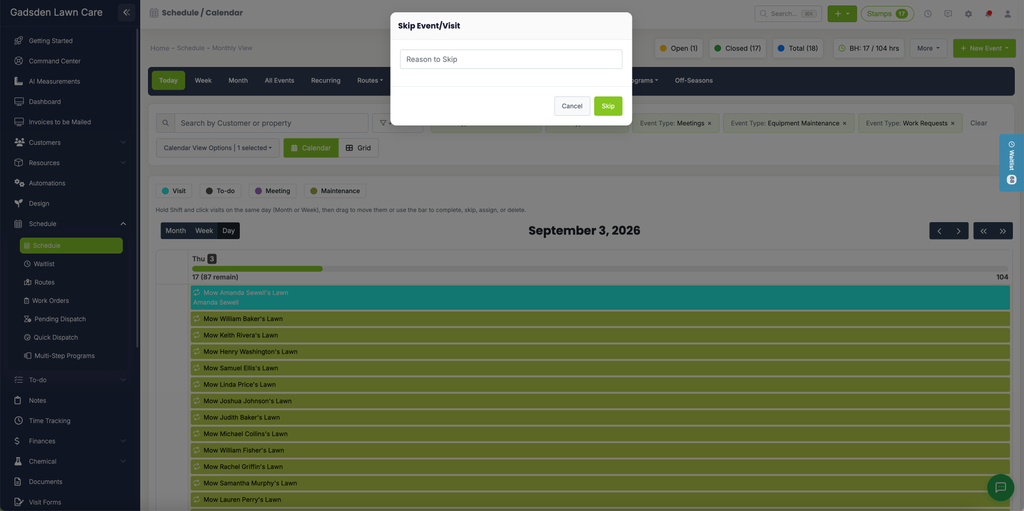
Either option opens a Skip Event/Visit popup. Enter a Reason to Skip, then click Skip.
Skipping Several Visits from the Calendar
You can also skip more than one visit at a time right from the calendar. In Month or Week view, hold Shift and click each visit you want to skip (they must be on the same day). A toolbar appears at the bottom of the screen with quick actions, including “Skip”.
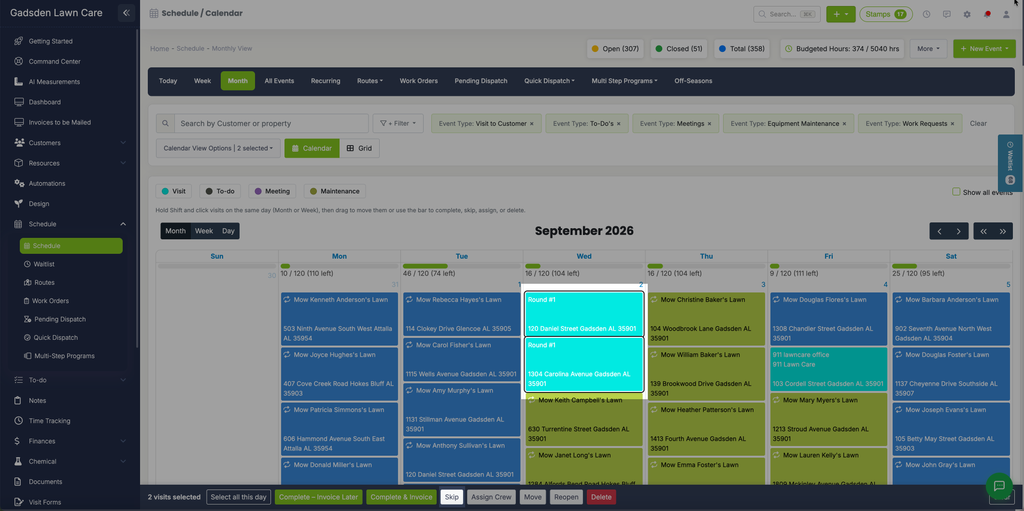
Click “Skip”, then enter a “Reason to Skip” and click the green “Yes” button to confirm.
Skipping Visits from the All Events Page
You can also skip visits from the All Events tab. To find one customer’s visits quickly, type their name in the Search by Customer or property box and pick them from the list. Check the box beside the visits you want to skip, click “More Actions”, then choose “Skip”.
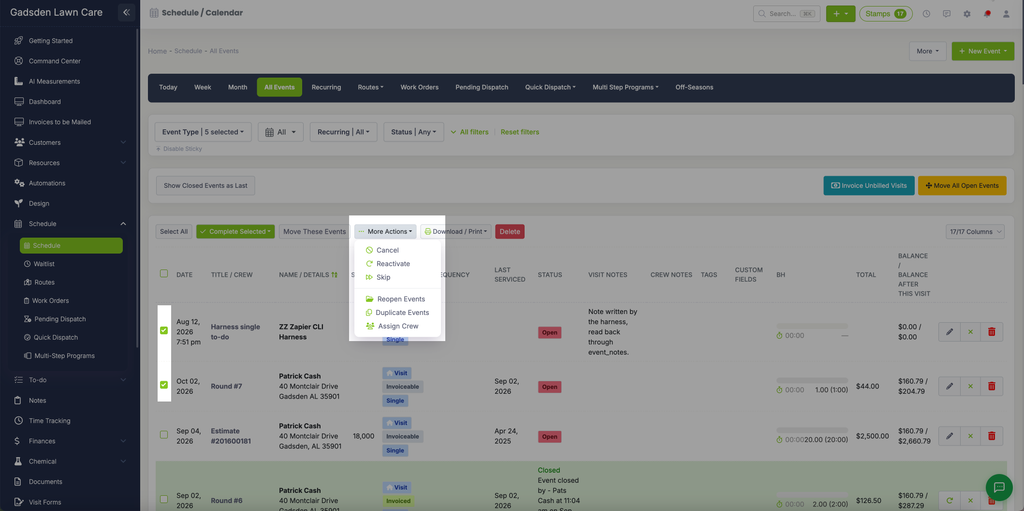
You’ll then see a “Skip Events” popup asking for a “Reason to Skip”. Enter a reason and click the green “Yes” button to confirm.
Skip vs. Not Serviced
Neither Skip nor Not Serviced invoices the visit. A skipped visit comes off your open list. A Not Serviced visit stays open and shows Undo Not Serviced, so you can still complete or reschedule it. They’re meant for different situations::
- Skip — for a visit you know in advance won’t be happening, such as a customer asking to skip this round
- Not Serviced — for a visit that was supposed to happen but didn’t (weather, a same-day cancellation, etc.), and can also notify the company owner, property owner, or employee automatically
Both let you enter a reason when you mark them.