Crews are how you group your employees together in LawnPro. Once you have your crews set up you can assign them to jobs on your schedule, filter your calendar by crew, and track who is doing what and where. Setting up your crews before you start scheduling will make managing your team much easier.
Before you set up your crew, you will want to add your employees.
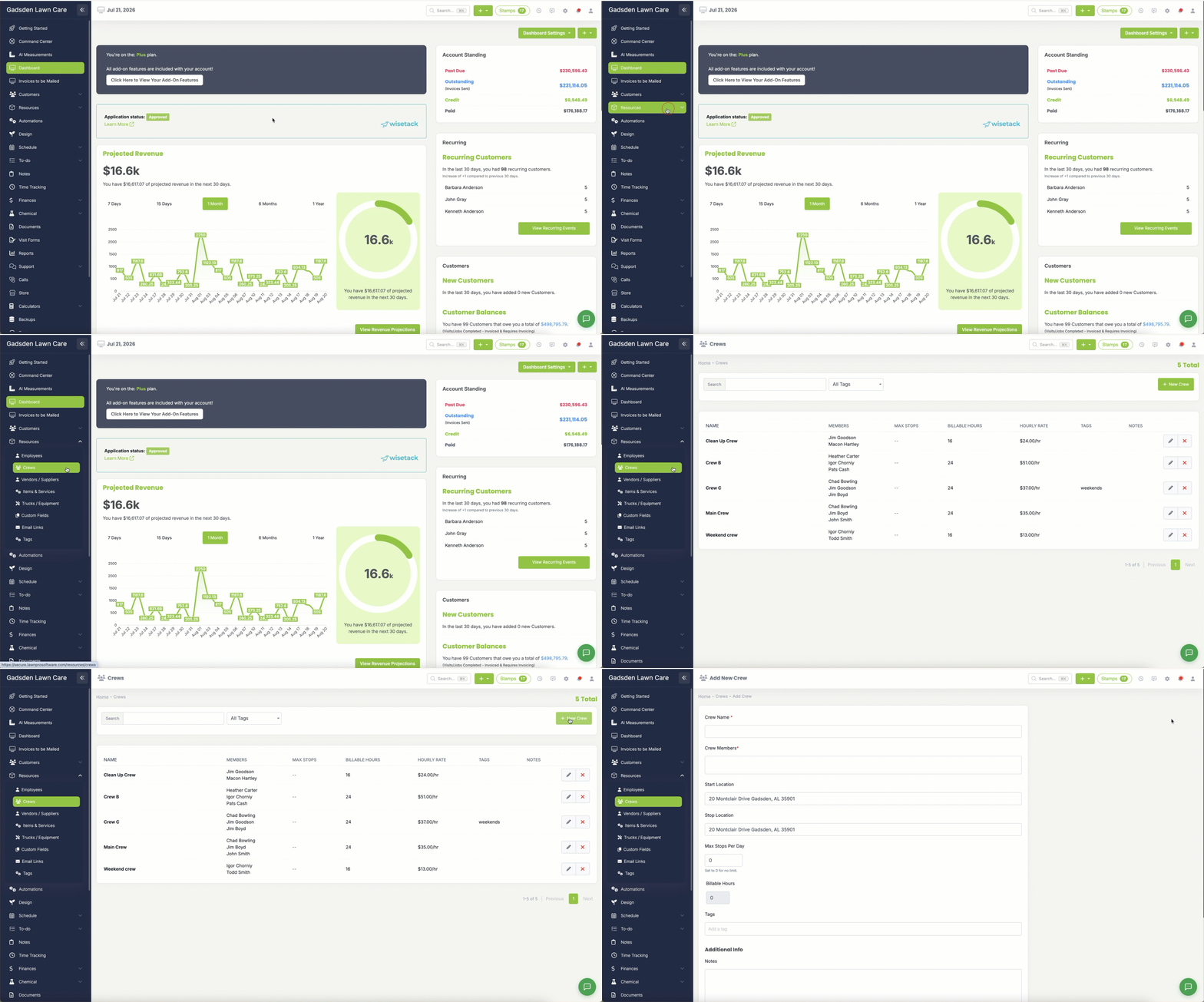
To create your crew find the “Resources” tab and select “Crews“
Next, you’ll click the green “New Crew” button
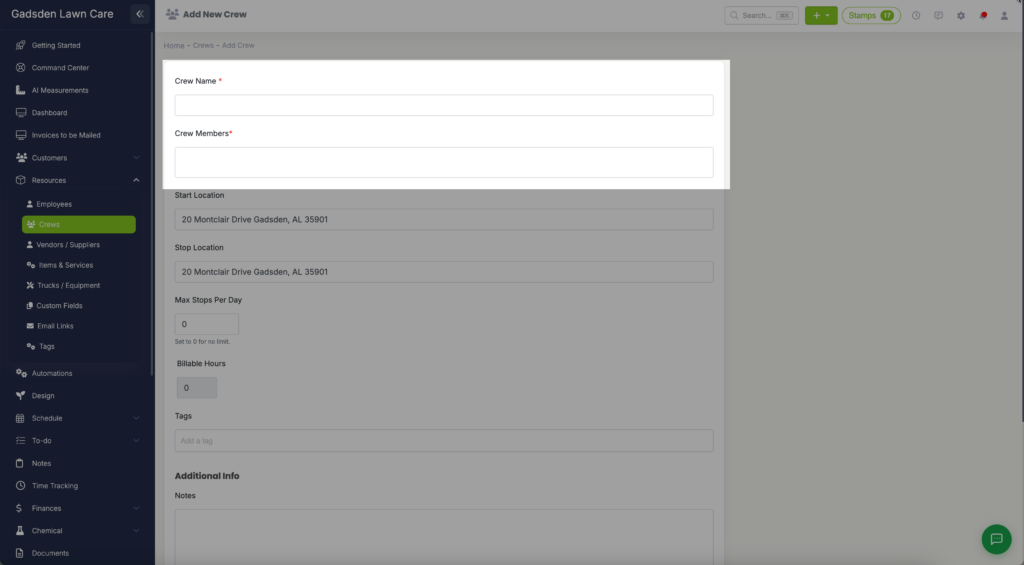
Enter a name for the crew, then enter or choose the employees you want to be part of this crew.
To add employees click in the “Crew Member” field and a drop down will appear with your employees. Click on the employee to add them to the crew. Continue doing this until all wanted employees are added. To remove one, click on the “x” beside their name.
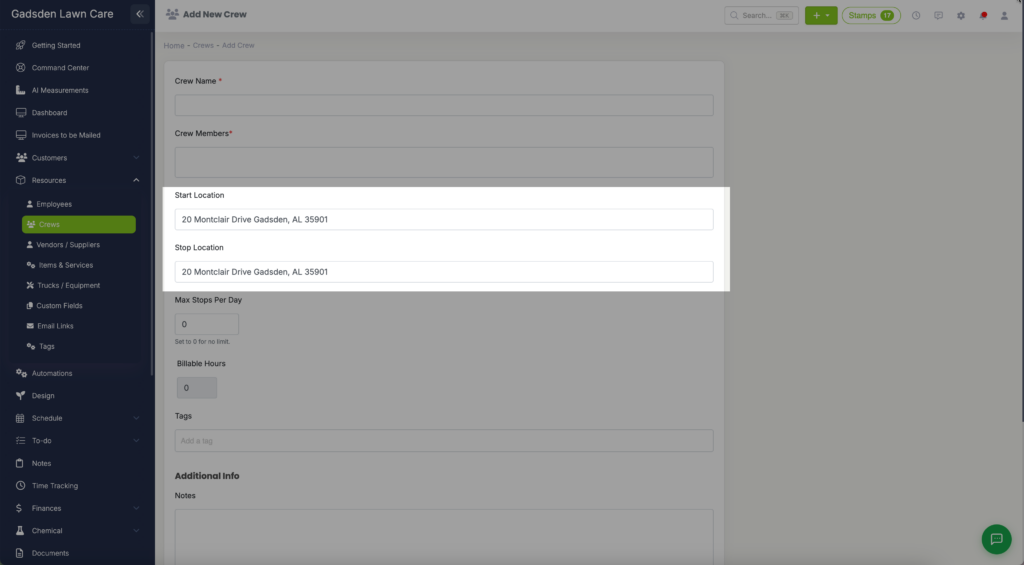
Next, set the crews start and stop location. It is set to your company address by default, but if this crew starts or stops their route from somewhere else you can change that address here.
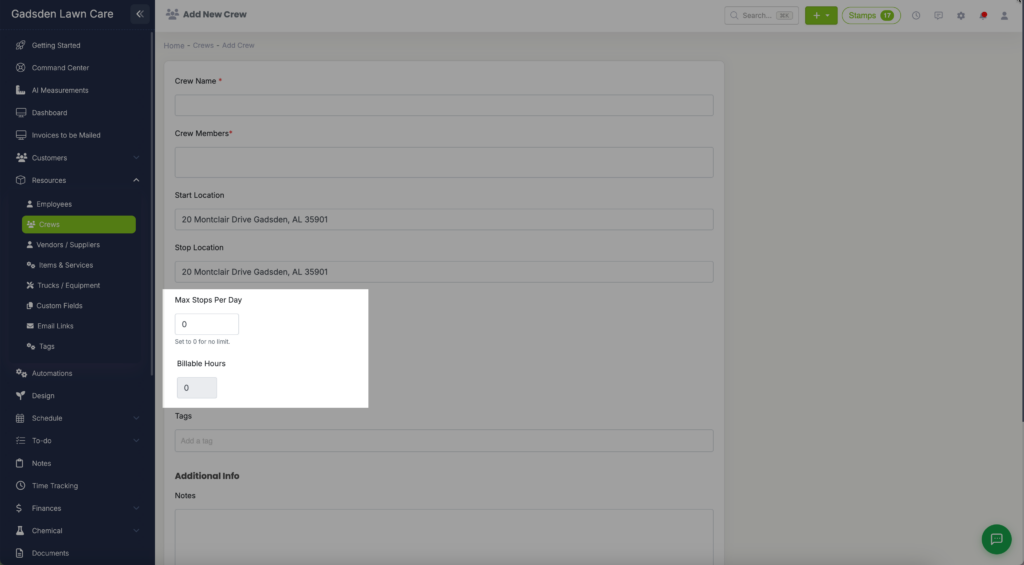
Next, you can add a limit for this crews stops per day and set their billable hours.
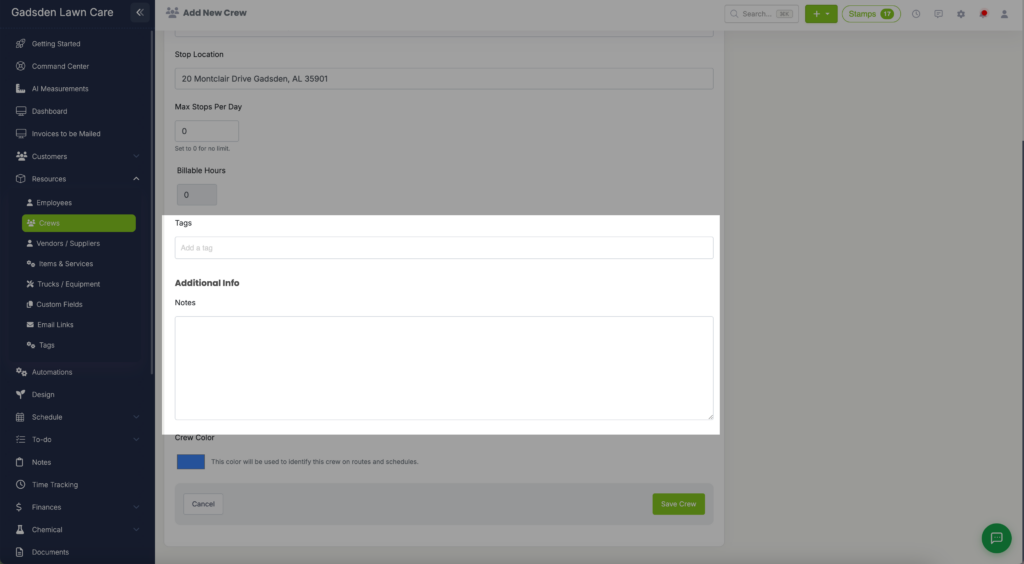
Add any tags or notes for the crew.
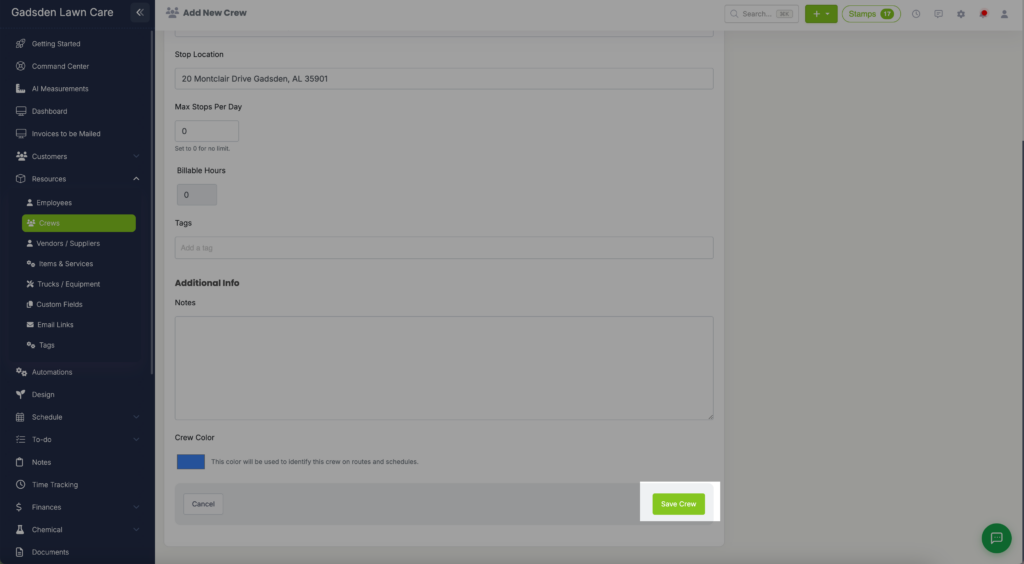
Choose a color for this crew. This is the color that will show on the schedule and route for visits assigned to this crew.
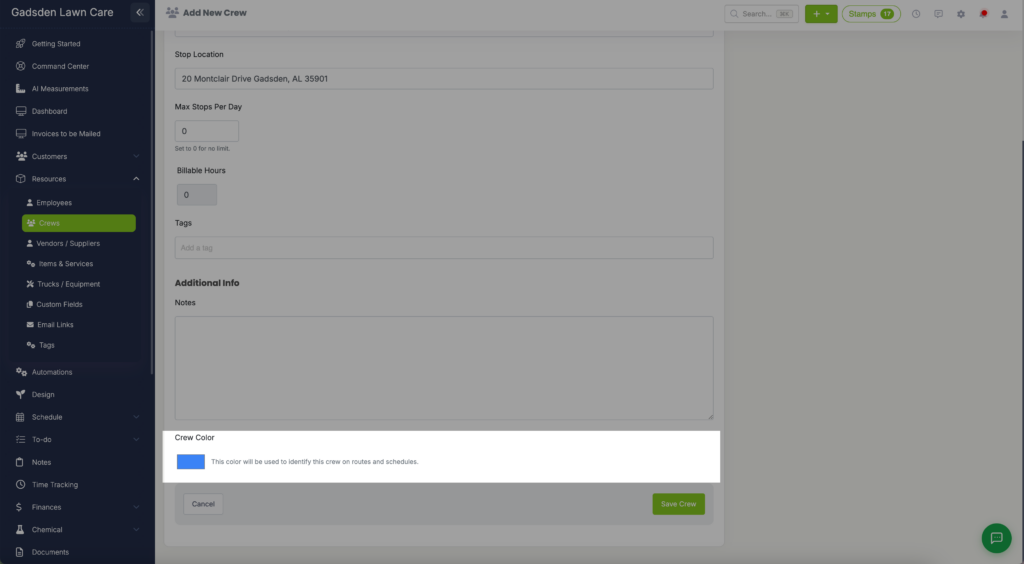
When finished, click the green “Save Crew” button