Preference Settings
To get to your Preferences Settings, click the gear icon at the top right of the screen and then find “Preferences” on the Settings Menu.
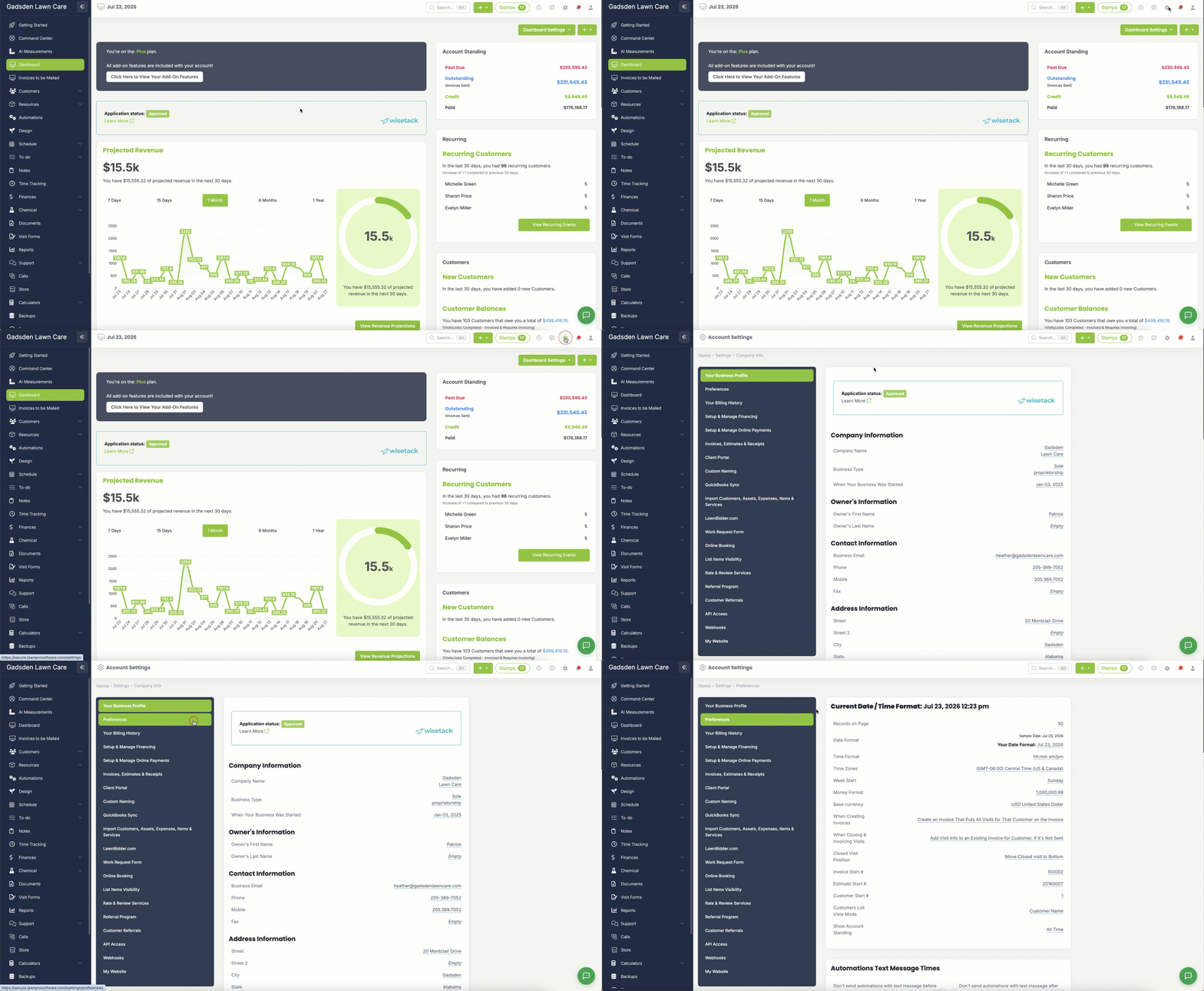
Settings You Will Find on This Page
Date & Time
- Records on Page — Choose how many records show on a page at one time (default is 30)
- Date Format — Choose how dates are displayed throughout LawnPro
- Time Format — Choose between 12 hour (hh:mm am/pm) or 24 hour time format
- Time Zone — Set your local time zone so your schedule and automations run at the right time
- Week Start — Choose whether your calendar week starts on Sunday or Monday
- Money Format — Choose how dollar amounts are displayed
- Base Currency — Set your default currency
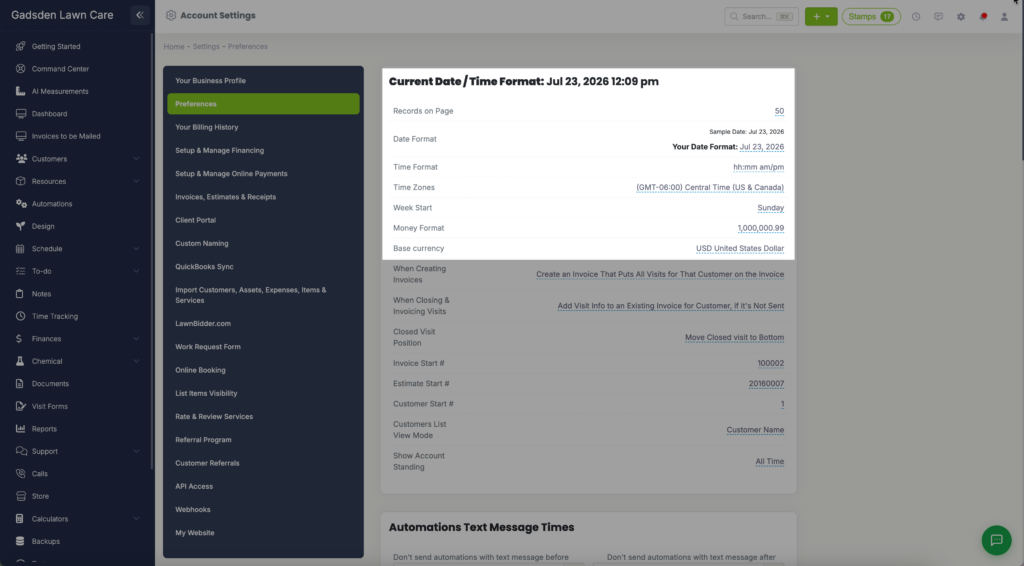
Invoicing Preferences
- When Creating Invoices — Choose whether LawnPro creates a new invoice for each visit or puts all visits for a customer on one invoice
- When Closing & Invoicing Visits — Choose whether closing a visit adds it to an existing unsent invoice for that customer or creates a new one
- Closed Visit Position — Choose whether completed visits move to the bottom of the invoice or stay in place
- Invoice Start # — Set the starting number for your invoices
- Estimate Start # — Set the starting number for your estimates
- Customer Start # — Set the starting number for your customers
- Customers List View Mode — Choose how your customer list is displayed
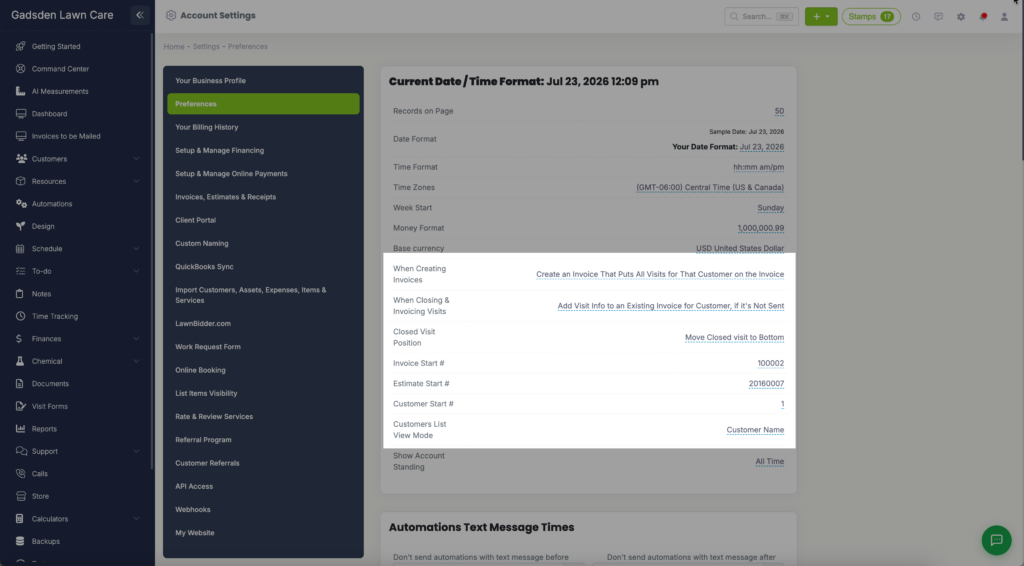
Account Standing
Show Account Standing — Choose the time period used to calculate and display customer account standings
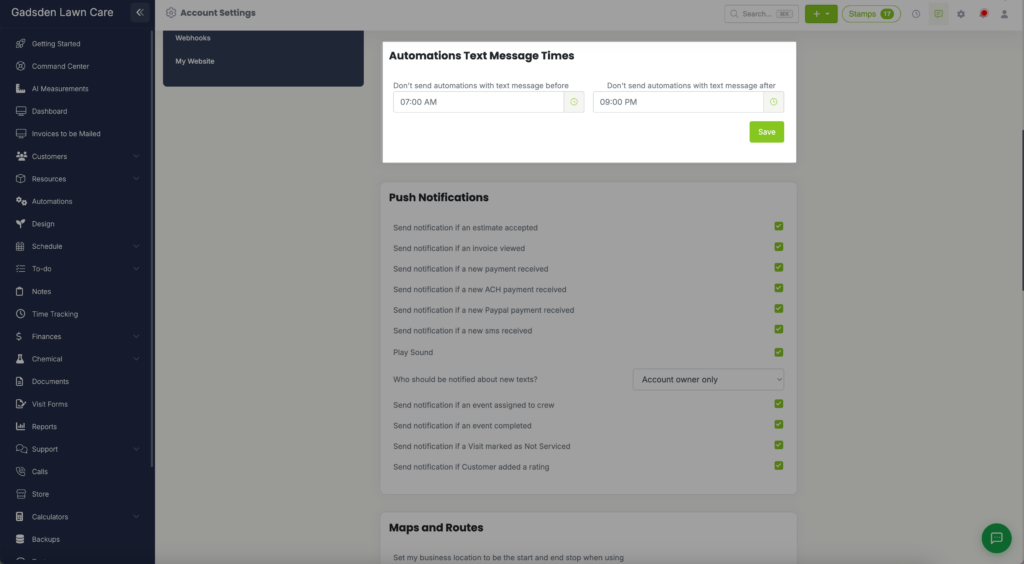
Automations Text Message Times
- Don’t Send Automations Before — Set the earliest time automated text messages can be sent to customers (default 7:00 AM)
- Don’t Send Automations After — Set the latest time automated text messages can be sent to customers (default 8:00 PM)
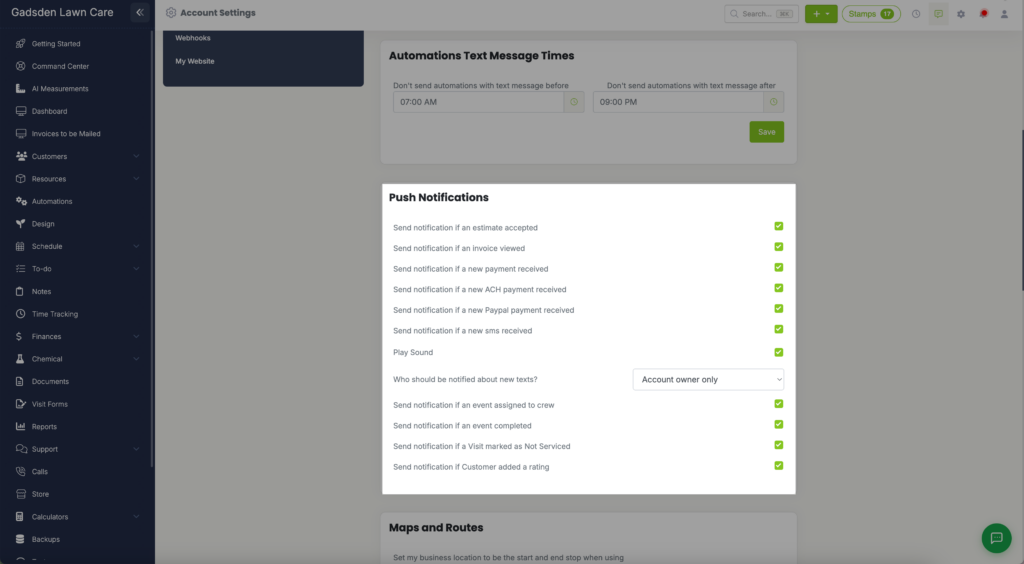
Push Notifications
Control which events trigger a push notification to your device:
- Send notification if an estimate is accepted
- Send notification if an invoice is viewed
- Send notification if a new payment is received
- Send notification if a new ACH payment is received
- Send notification if a new PayPal payment is received
- Send notification if a new SMS is received
- Play Sound when a notification arrives
- Who Should Be Notified About New Texts — Account owner only, Owner + the employee assigned to the customer, or Everyone with Text access
- Send notification if an event is assigned to a crew
- Send notification if an event is completed
- Send notification if a visit is marked as Not Serviced
- Send notification if a customer adds a rating
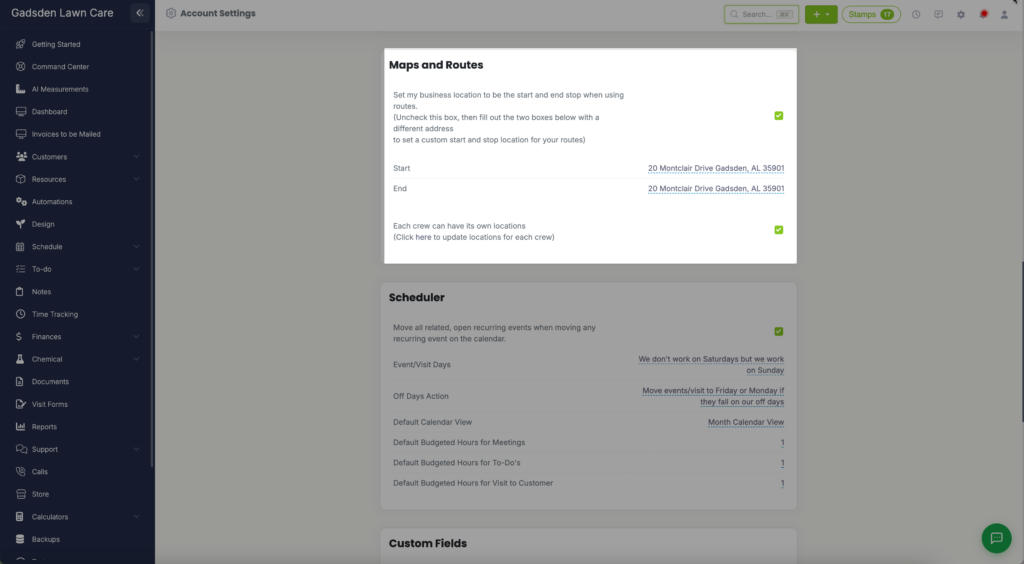
Maps and Routes
- Set My Business Location as Start and End — When enabled, your business address is used as the starting and ending point for your routes. Uncheck this to set a custom start and end address instead
- Start — Custom starting address for your routes
- End — Custom ending address for your routes
- Each Crew Can Have Its Own Locations — When enabled, each crew can have their own start and end location for routing
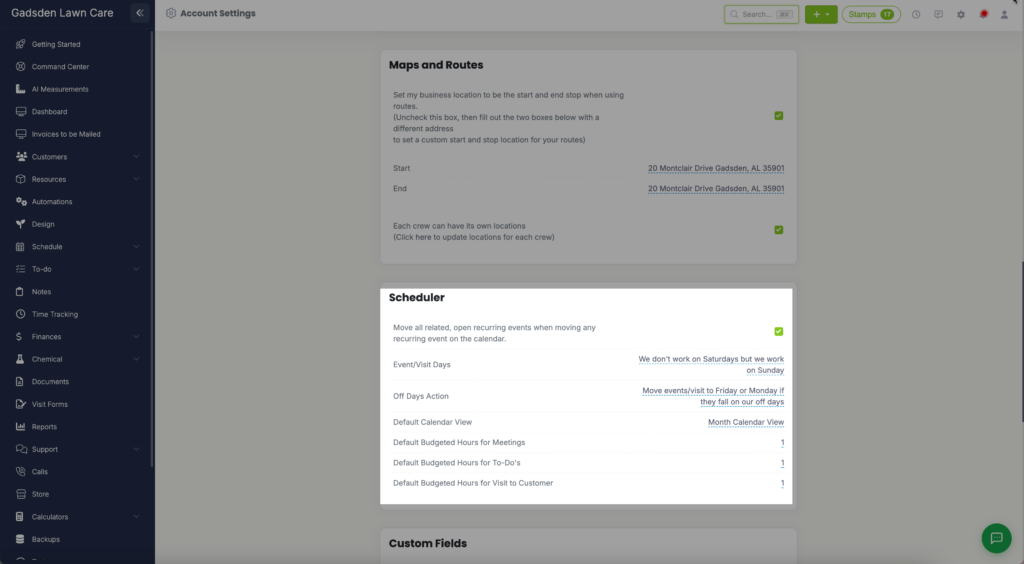
Scheduler
- Move All Related Open Recurring Events When Moving Any Recurring Event — When enabled, moving one visit in a recurring series will move all open visits in that series
- Event/Visit Days — Set which days of the week your team works
- Off Days Action — Choose what happens when a scheduled visit falls on a day off — skip it, move it to Friday, move it to Monday, or move it to Friday or Monday
- Default Calendar View — Today, Week or Month, as a calendar or a grid, or All Events Grid View
- Default Budgeted Hours for Meetings — Set the default estimated hours for meetings
- Default Budgeted Hours for To-Do’s — Set the default estimated hours for to-do items
- Default Budgeted Hours for Visit to Customer — Set the default estimated hours for customer visits
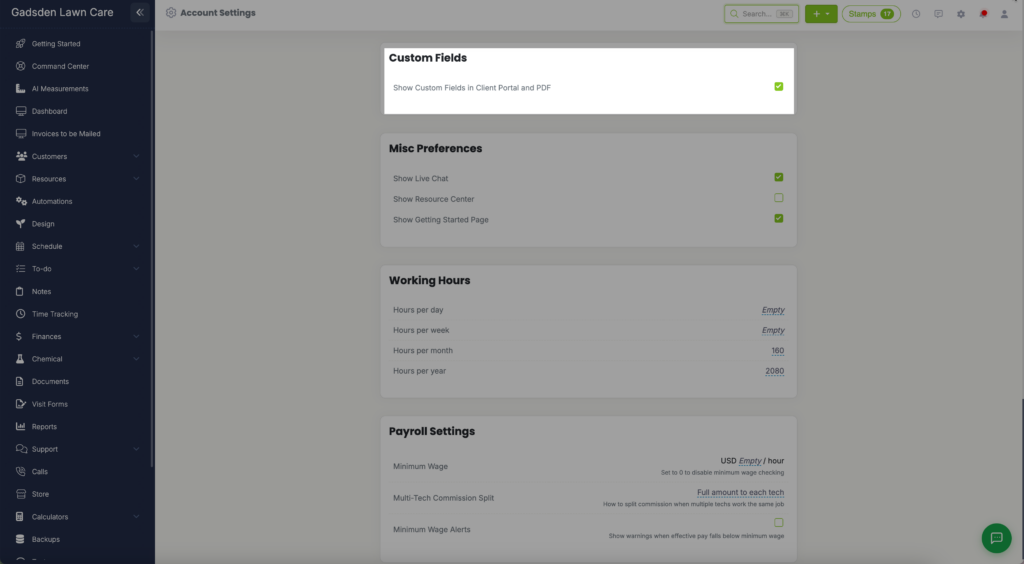
Custom Fields
- Show Custom Fields in Client Portal and PDF — When enabled, custom fields will be visible to customers in their portal and on PDFs
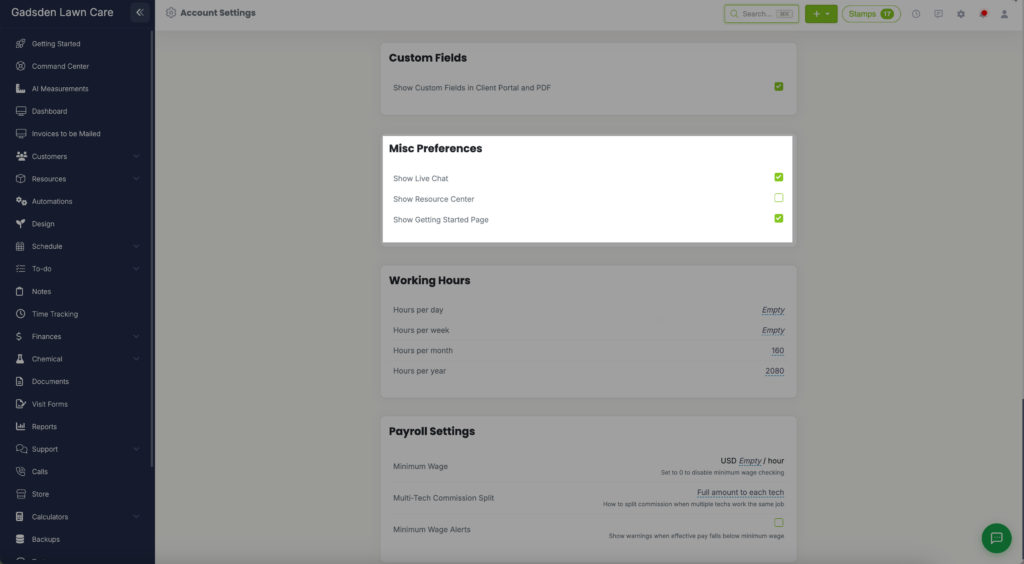
Misc Preferences
- Show Live Chat — When enabled, the green live chat button will be visible in your account
- Show Resource Center — When enabled, the resource center is accessible from your account
- Show Getting Started Page — When enabled, the Getting Started page is visible in your left navigation menu
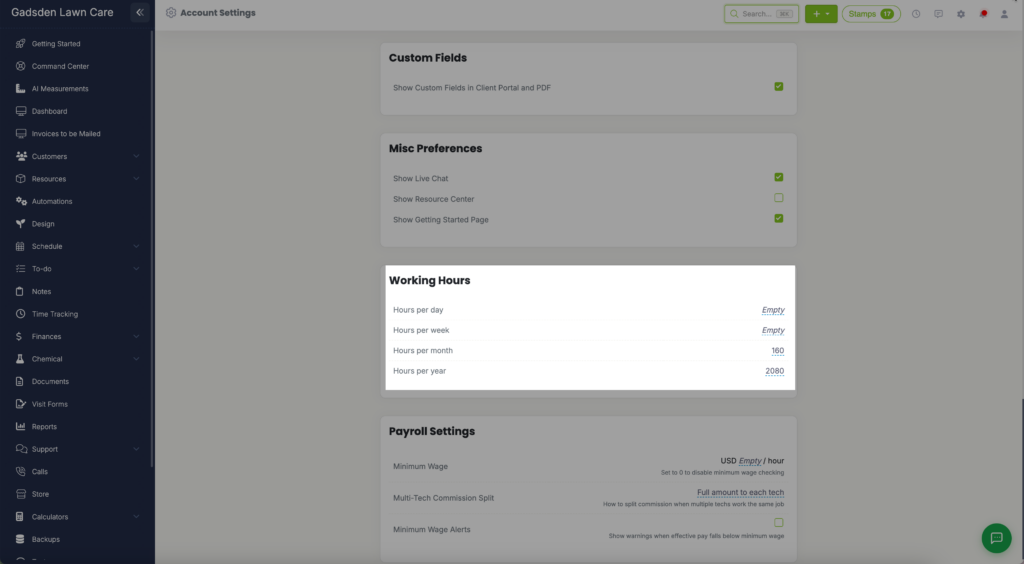
Working Hours
Set your standard working hours for payroll and reporting purposes:
- Hours per Day
- Hours per Week
- Hours per Month
- Hours per Year
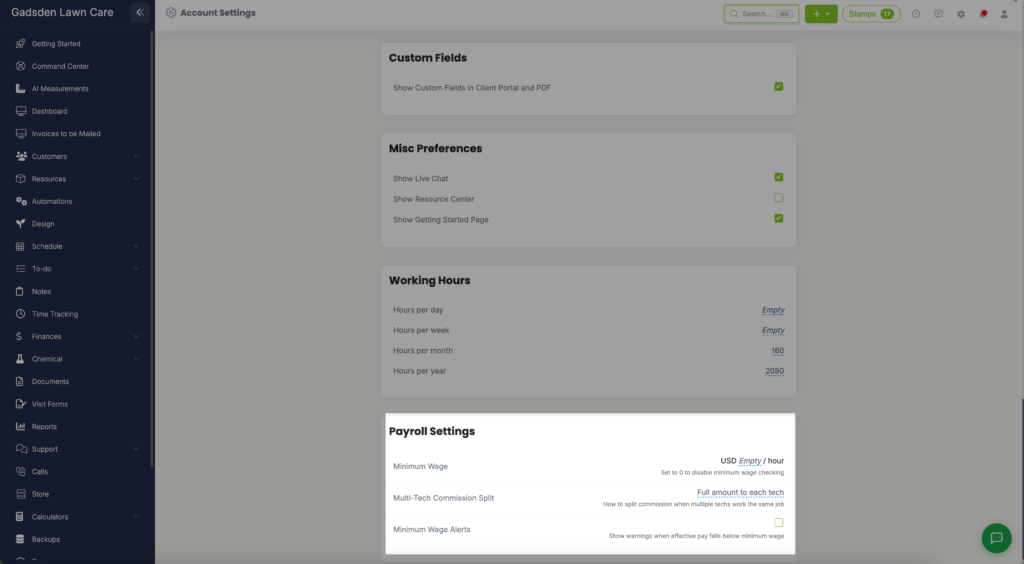
Payroll Settings
- Minimum Wage — Set your minimum wage per hour. Set to 0 to disable minimum wage checking
- Multi-Tech Commission Split — Choose how commissions are split when multiple technicians work the same job
- Minimum Wage Alerts — When enabled, LawnPro will show warnings when an employee’s effective pay falls below minimum wage
Customer Scoring
Settings for Customer Scores (Grow and Plus). See Customer Scores.