Pending Dispatch
Pending Dispatch allows you to quickly create one-time visits for multiple properties at once without having to add them one by one. This feature was originally designed for snow plowing — when a storm hits and you need to quickly schedule all of your snow removal customers at once — but it works great for any one-time job you need to dispatch across multiple customers quickly, like cleanups or treatments.
To access it go to Schedule → Pending Dispatch.
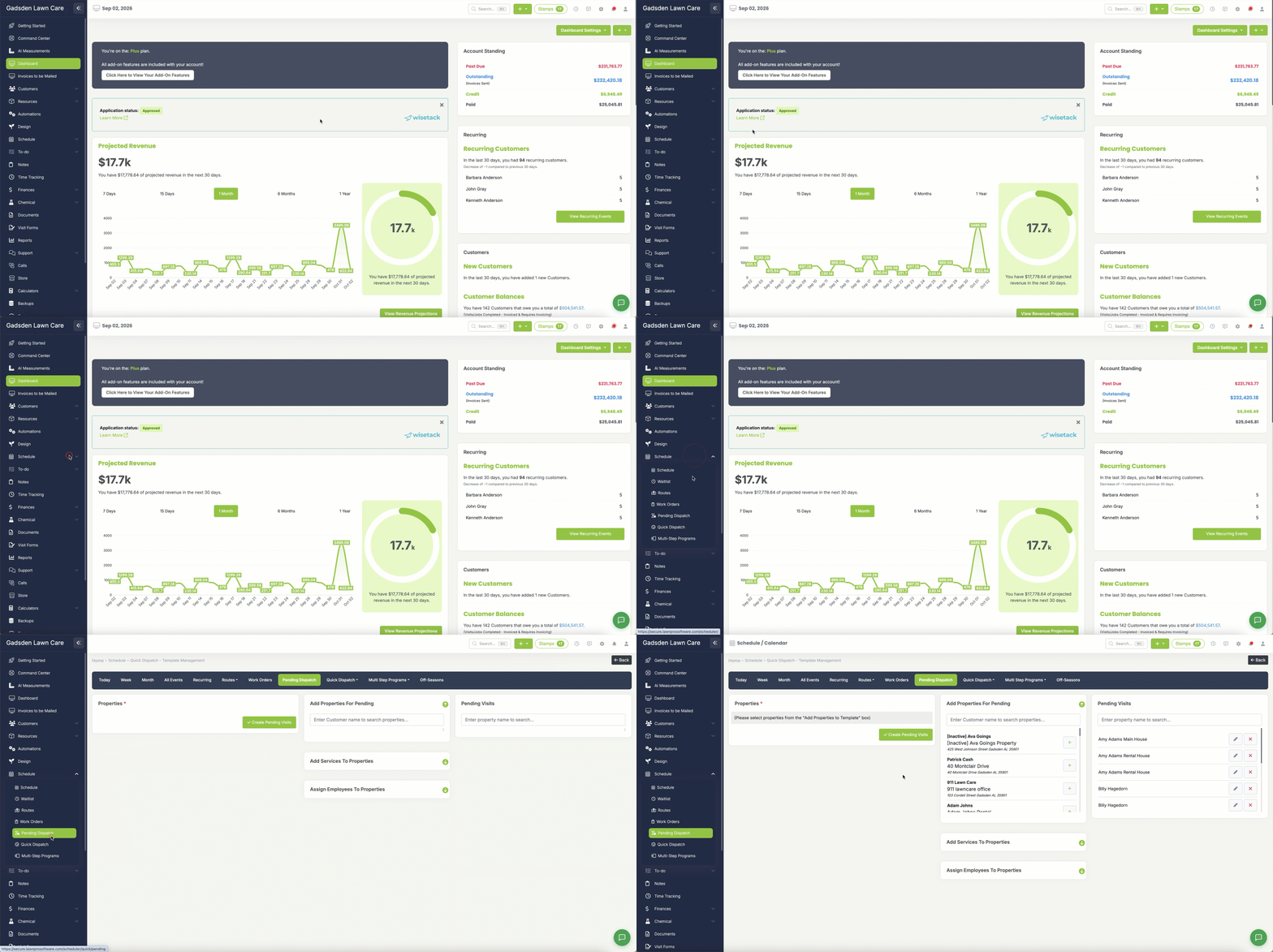
How Pending Dispatch Works
The page is divided into three sections:
- Properties — The left panel shows the properties you have selected for this dispatch
- Add Properties For Pending — The middle panel is where you search for and add properties
- Pending Visits — The right panel shows the visits that are already in your pending queue
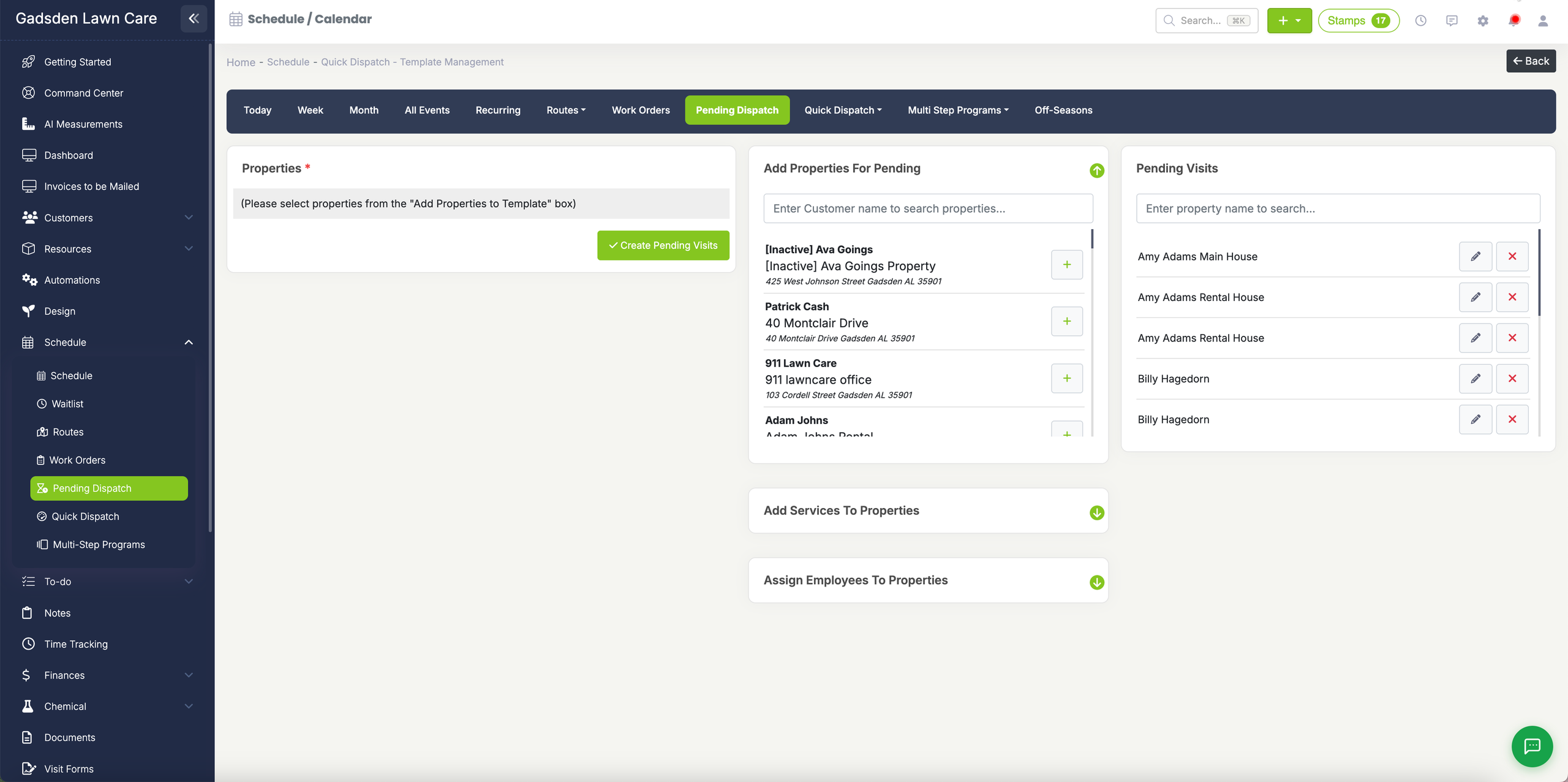
Step 1 — Add Properties
- In the Add Properties For Pending panel, search for a customer by name
- Your customers and their properties will appear in the list
- Click the green + button next to each property you want to add
- The property will move to the Properties panel on the left
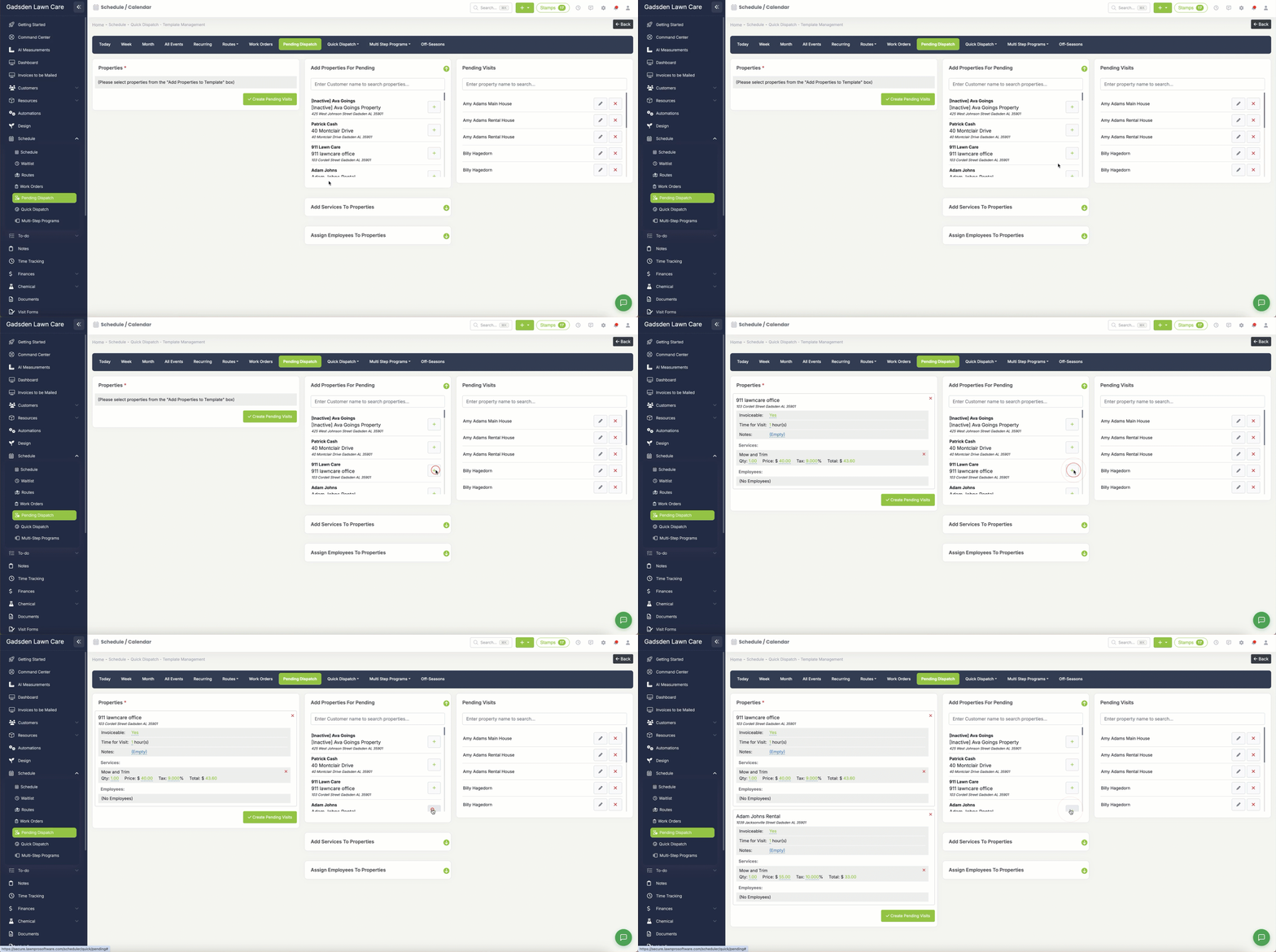
Step 2 — Add Services to Properties
- Click Add Services To Properties to expand that section
- Add the items and services you want to include for these visits
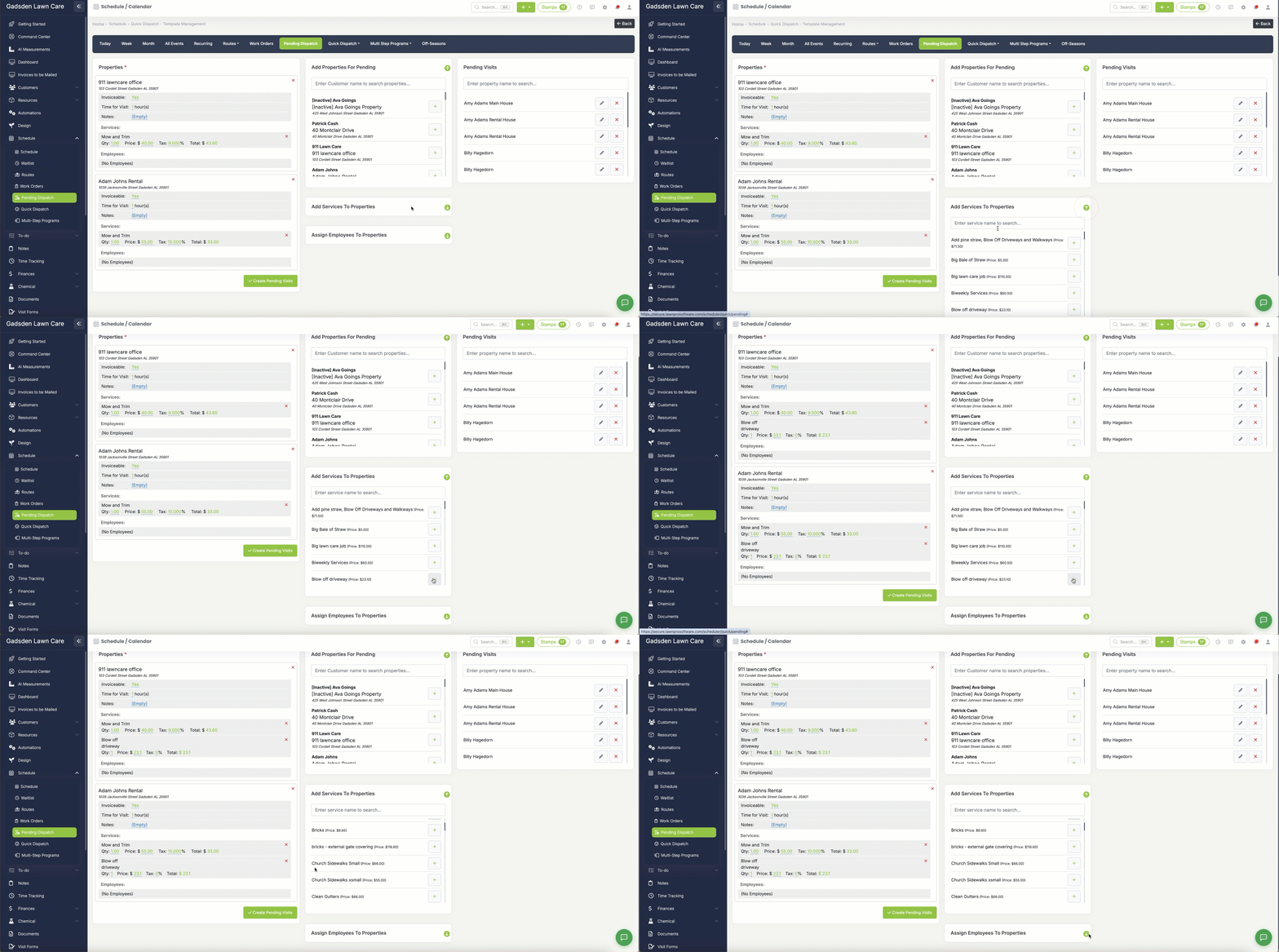
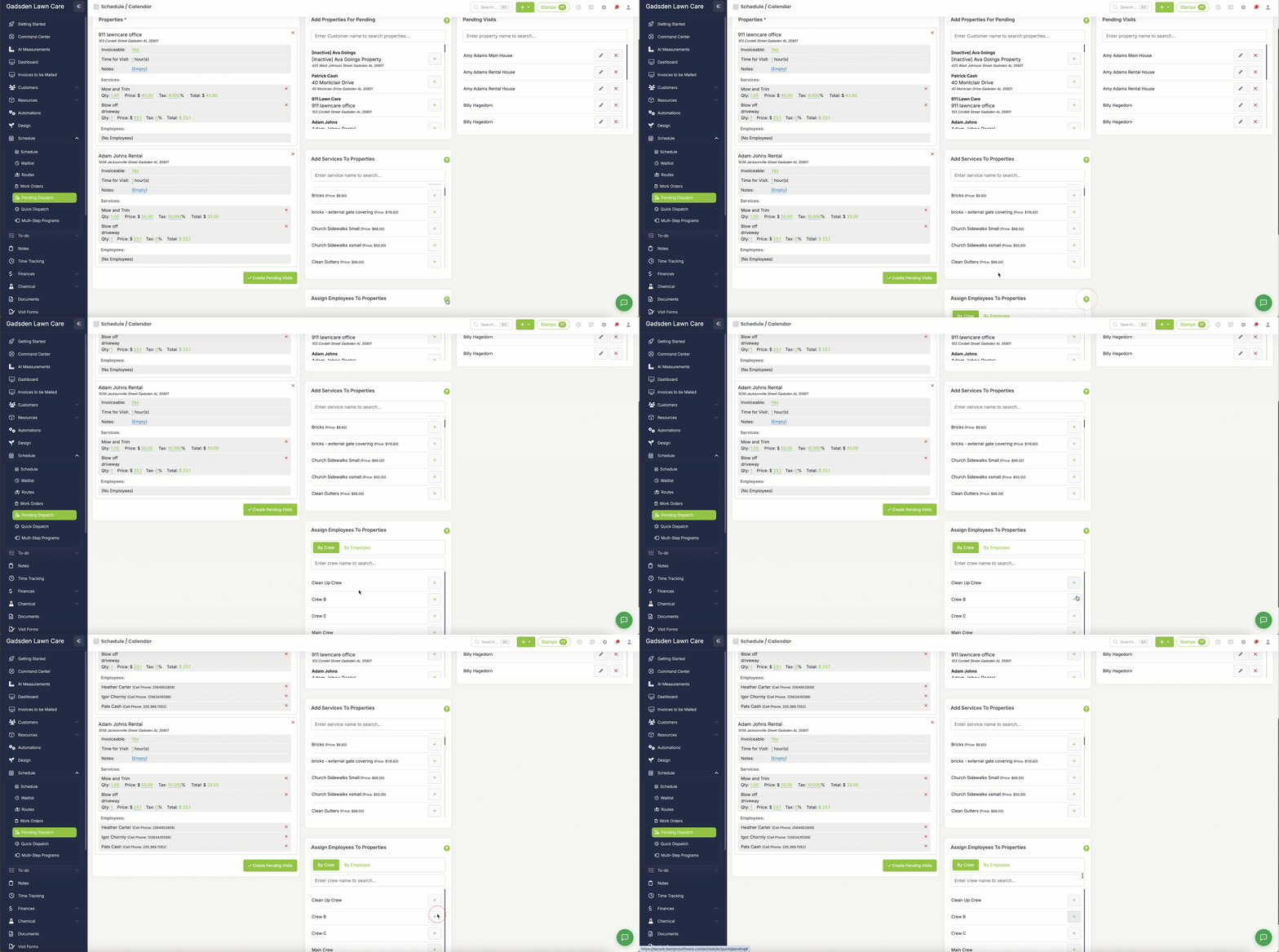
Step 3 — Assign Employees
- Click Assign Employees To Properties to expand that section
- Assign a crew or individual employees to the visits
Step 4 — Edit Individual Properties
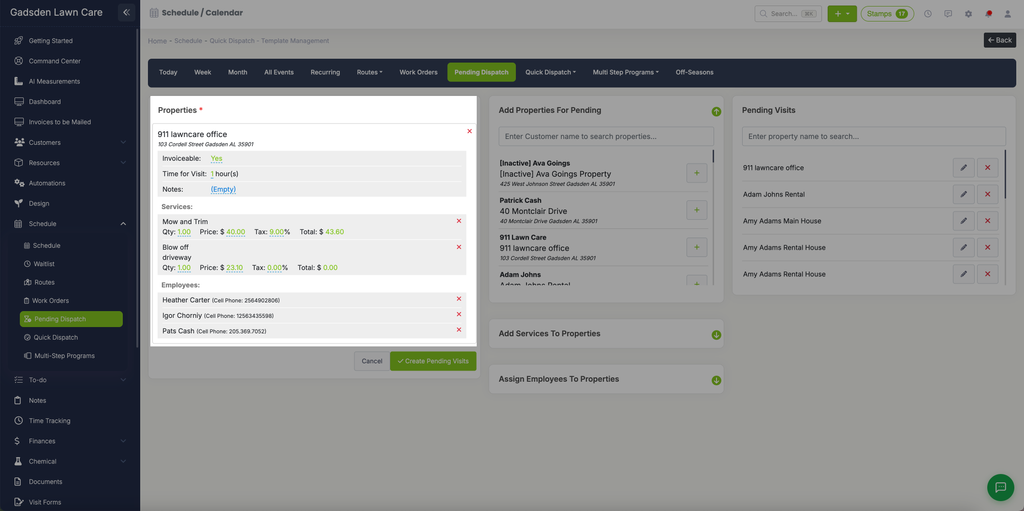
For each property in the left panel you can edit:
- Whether the visit is invoiceable
- The time for the visit
- Notes
- Quantity and prices for services
Click the pencil icon next to a property to edit it or the X to remove it.
Step 5 — Create the Pending Visits
When everything looks good click the green Create Pending Visits button. LawnPro will create the visits as pending — they are not added to your schedule yet. You can then dispatch them quickly from the Quick Dispatch page when you are ready.
Note: To dispatch your pending visits and add them to your schedule see our Using Quick Dispatch article.