Table of Contents
What it is
Protect existing plants lets you circle the trees and shrubs already in the yard that the customer wants to keep. Every design made from that photo keeps them exactly as they look in the photo and puts the new beds and plants around them.
This is part of LawnPro Design. To open it, go to Tools and then Design in LawnPro.
Circle the plants to keep
- In LawnPro, open Tools and click Design, then open the customer’s project.
- Under the yard photo, click Protect existing plants.
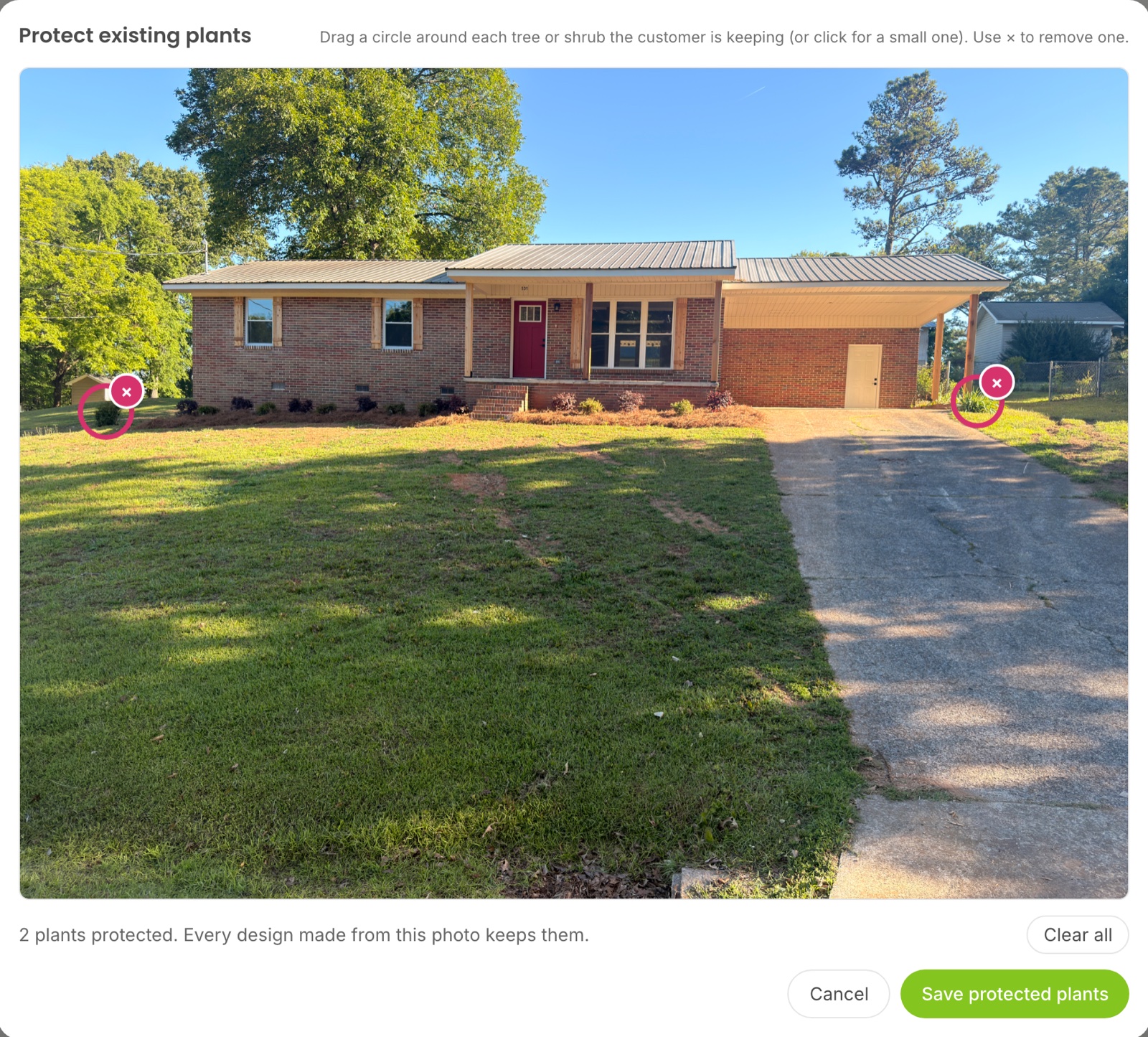
- Drag a circle around each tree or shrub the customer is keeping. For a small plant, just click it.
- To remove a circle, click its ×. To start over, click Clear all.
- Click Save protected plants.
What happens next
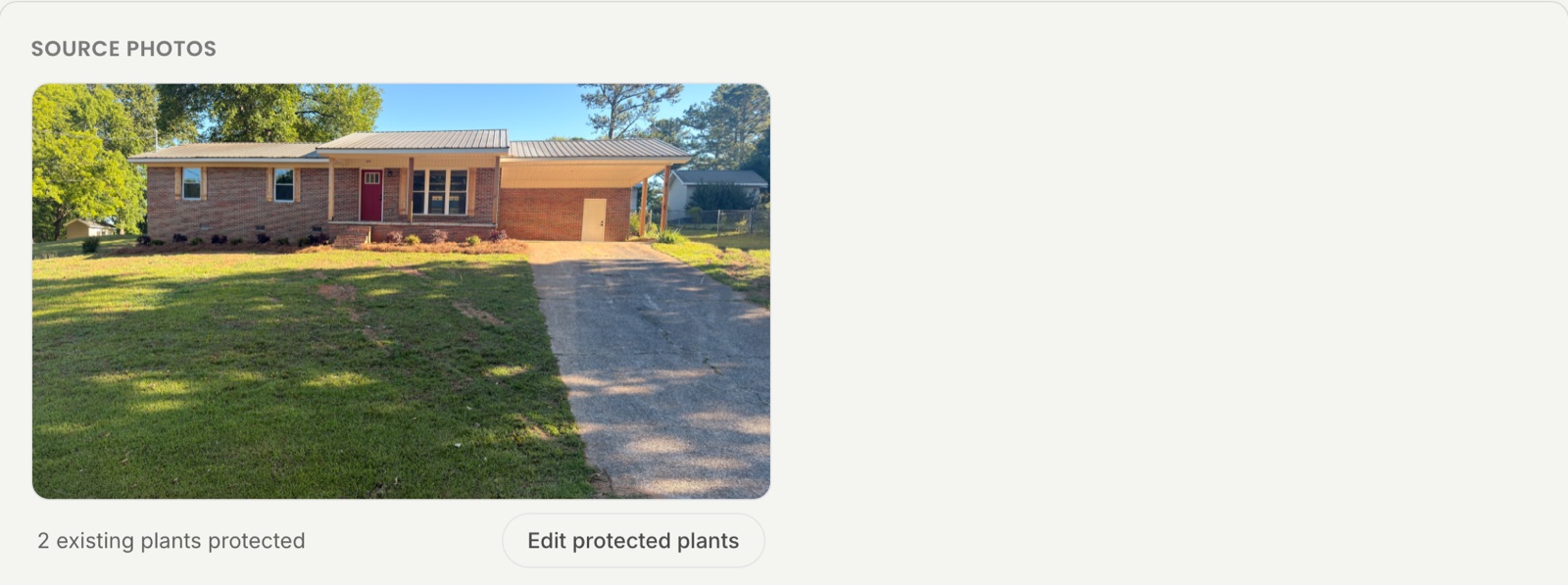
- Under the photo you’ll see how many plants are protected, for example 2 existing plants protected. Click Edit protected plants to change them.
- Every design you generate from that photo after you save, including Good / Better / Best, keeps those plants.
- Designs you made before you circled the plants don’t change.
Tips
- Draw the circle just around the plant, not the lawn around it.
- If the AI made the lawn a little greener than the photo, you may see a soft lighter patch around a protected plant when you zoom in.
- The plant & material list already skips plants that were in the yard, so protected plants aren’t priced.