Table of Contents
- What Pricing Rate does
- Find Pricing Rate
- Enter your numbers
- How your rate is worked out
- Turn it on for estimates
- Read the check on an estimate
- Tips
What Pricing Rate does
Pricing Rate works out the price you need to charge per man-hour so every job covers your crew pay, the time you pay for but can’t bill, your office overhead and your profit goal. You enter your numbers once. After that, each estimate shows whether its price covers that rate.
Pricing Rate never changes your prices. It only shows you how a price compares. Your customers never see it.
Pricing Rate is included on the Grow and Plus plans.
Find Pricing Rate
- Go to Settings.
- Choose Pricing Rate.
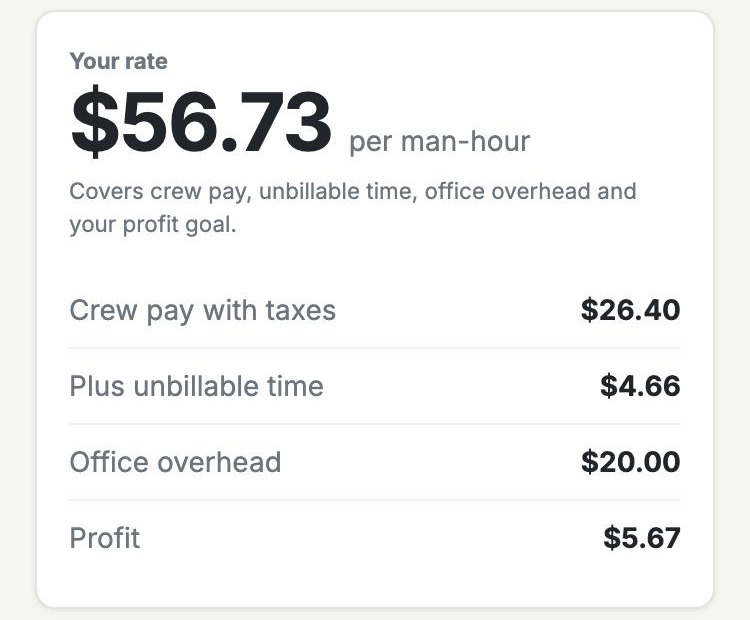
The top of the page shows Your rate per man-hour and what it is made of. It updates as you type.
Enter your numbers
Fill in each number under Your numbers. Under most fields LawnPro shows what your own last 12 months look like. Click Use this to copy it into the field, then adjust it if you need to.
- Office overhead per year: what it costs to run the business that you can’t put on an estimate line. Rent, office staff, your salary, insurance, software and marketing. Leave out crew pay, fuel and materials.
- Average crew pay: what you pay crew members per hour. The suggestion comes from the hourly rates on your time tracking.
- Payroll taxes and insurance: what you pay on top of wages, as a percent of pay. Payroll taxes, workers’ comp and similar costs. 15–25% is common.
- Billable crew hours this year: every crew member’s hours at jobs, added up. Your overhead is spread over these hours. The suggestion is the time tracked at visits over the last 12 months.
- Unbillable time: the share of paid crew time you can’t bill, like driving, breaks, loading up and shop time. The suggestion is the share of tracked time that was not at a visit.
- Profit goal: the profit you want, as a percent of the price.
- Typical crew size: how many people usually go to a job. Budgeted hours are time on site, so 1 hour with 2 people is 2 man-hours. You only see this field if your budgeted hours are set to mean time on site (Settings → Preferences).
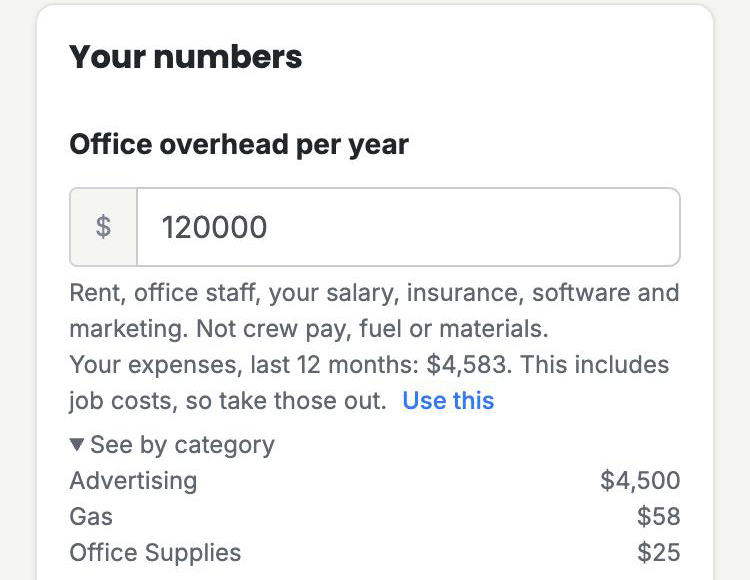
The overhead suggestion is the total of your expenses. Your expenses include job costs like fuel and materials, so click See by category and take those out before you save.
How your rate is worked out
Here is an example with $120,000 of office overhead, $22/hr crew pay, 20% payroll taxes and insurance, 6,000 billable hours, 15% unbillable time and a 10% profit goal.
- Crew pay with taxes: $22 plus 20% is $26.40 per hour.
- Plus unbillable time: only 85% of paid time is billed, so each billed hour has to cover $26.40 ÷ 0.85 = $31.06. That adds $4.66.
- Office overhead: $120,000 ÷ 6,000 hours = $20.00 per hour.
- Profit: costs are $51.06 per hour. For a 10% profit, $51.06 ÷ 0.90 = $56.73. That adds $5.67.
Your rate is $56.73 per man-hour.
Turn it on for estimates
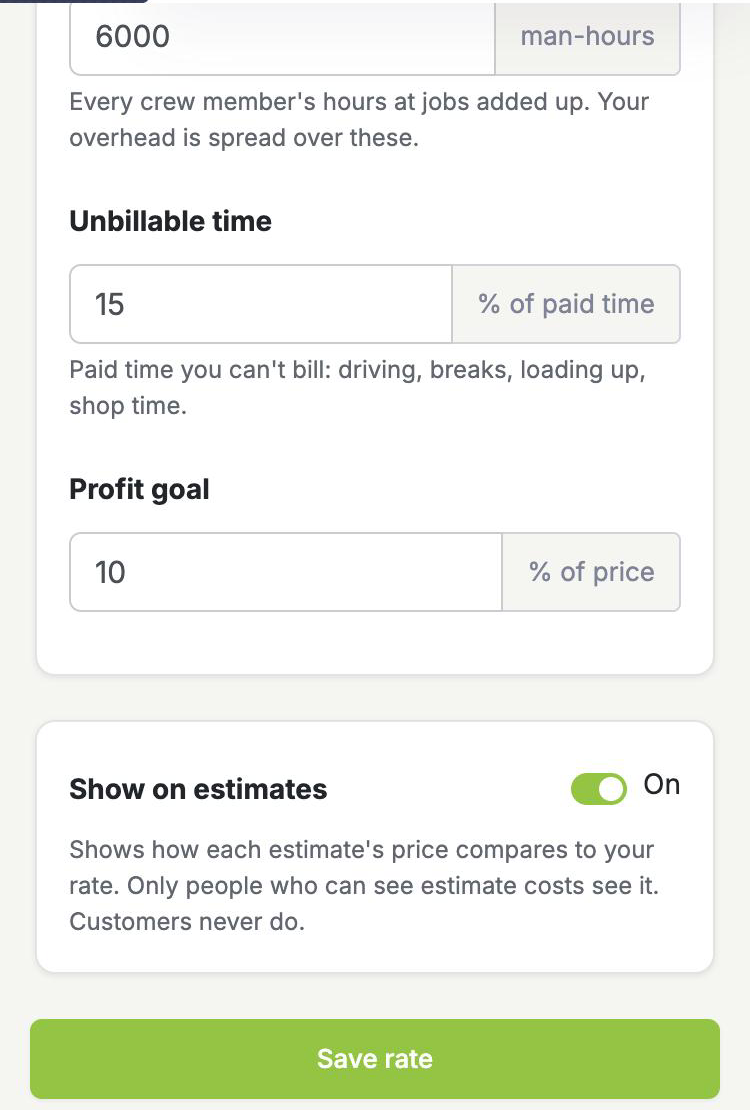
- Turn on Show on estimates.
- Click Save rate.
You need crew pay and billable hours filled in before you can turn it on.
Read the check on an estimate
Open a new or existing estimate. Under the total you will see Target at your rate.
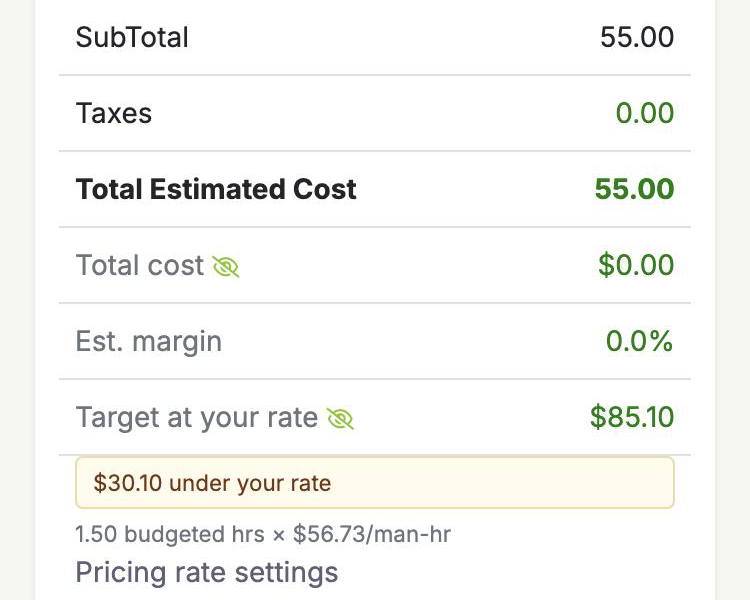
- Target at your rate is the budgeted hours on the estimate × your crew size × your rate, plus the costs entered on each line.
- A yellow message tells you how far the price is under your rate.
- A green message tells you how far it is over your rate, which means your costs and profit goal are covered.
- The line under it shows the math, so you can see where the target came from.
The check updates as you change prices, quantities, budgeted hours or the discount. Optional lines only count when they are preselected. Taxes are left out.
Tips
- Set budgeted hours on each estimate line. The target uses them, so a line left at the default of 1 hour counts as 1 hour.
- Enter the cost on lines that have materials (click Add costs on the line). The target adds those costs so materials are covered too.
- Only you and people allowed to see estimate costs see the check.
- Update your numbers when your pay rates or overhead change. The rate is worked out fresh every time, so estimates use your new rate right away.