Table of Contents
What it is
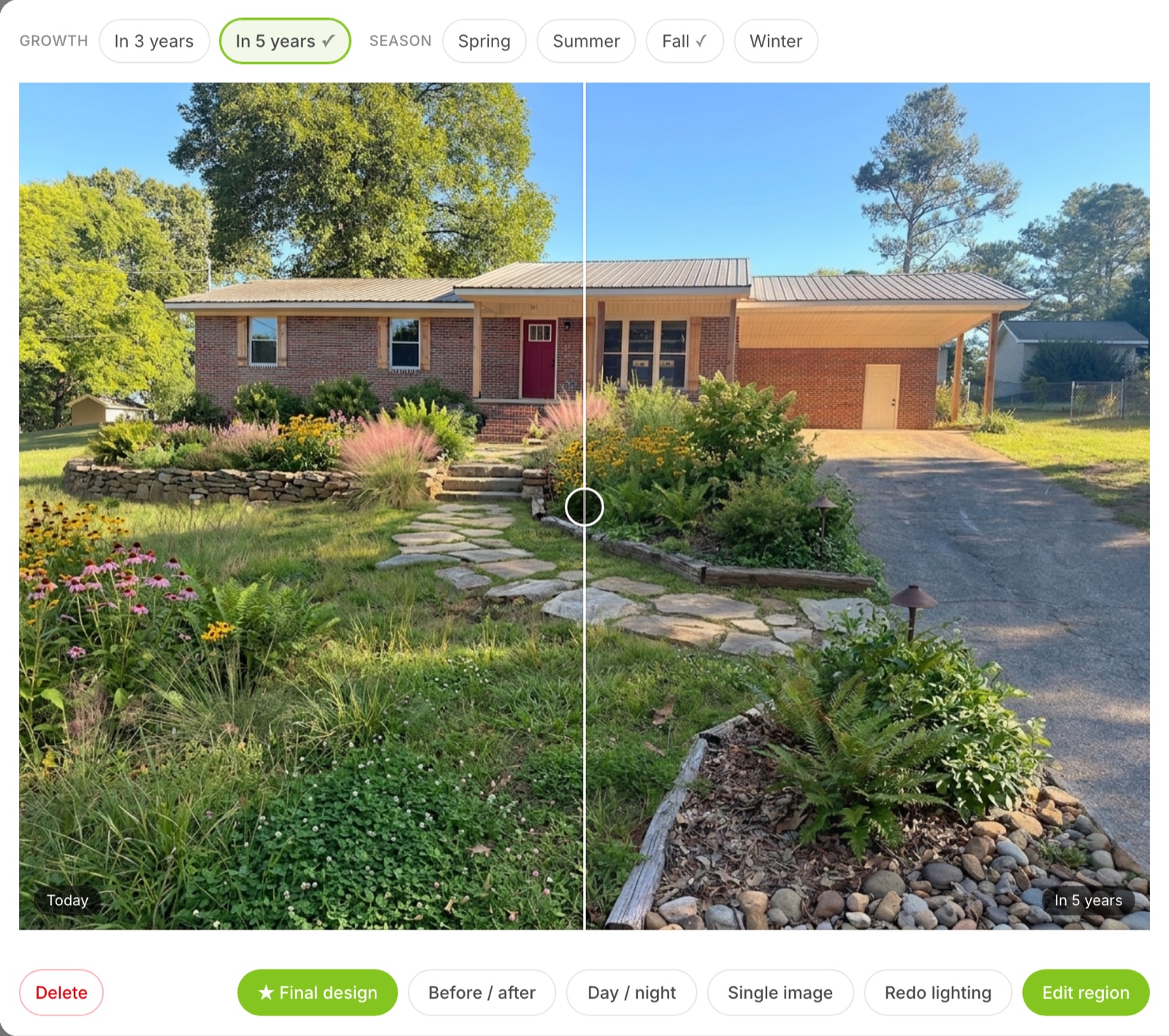
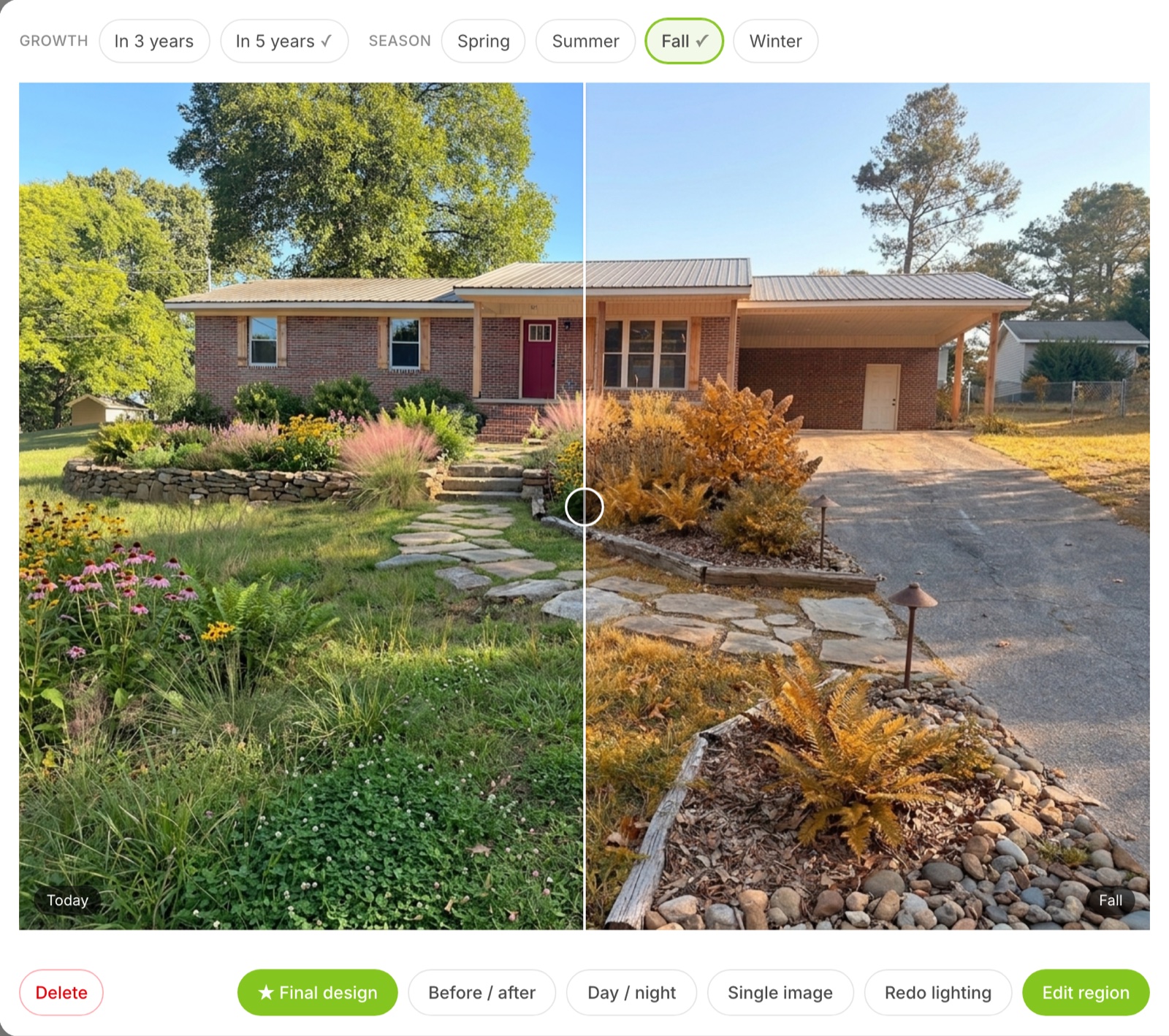
Growth & seasons shows the customer a design later on. Growth shows the same yard In 3 years or In 5 years as the plants fill in. Season shows it in Spring, Summer, Fall or Winter. A slider compares today with the later view.
This is part of LawnPro Design. To open it, go to Tools and then Design in LawnPro.
Make a view
- In LawnPro, open Tools and click Design, then open the customer’s project. Click a design on the canvas to open it.
- Click Growth & seasons under the photo.
- Click a view at the top, for example In 5 years or Fall.
- If that view hasn’t been made yet, click the button on the picture, for example Show it in 5 years. It takes about 20 to 40 seconds.
Compare with today
Drag the round handle across the photo. Today is on the left and the view you picked is on the right. Views you’ve already made have a ✓ next to their name, so you can switch between them without waiting.
Good to know
- Each view is made once and saved with the design. Make it again and the newest one replaces the old one.
- Views stay with their design. They don’t show up as separate designs on the canvas, and they’re deleted if you delete the design.
- Views don’t change the plant & material list.