After you save a chemical application you can email your customer a PDF record of it. You can also pull every application in a date range into one report for your state records. Nothing is emailed on its own. You send each record yourself.
Before you start
- Record the application first. Add it from Chemical > Chemical Application > New Chemical Application (see Add New Chemical Application, 2727). Or your crew can fill in the Chemical applications section of an open visit and then click Complete or Complete & Invoice. The record is saved when the visit is completed.
- Enter a Vendor Price Unit on each chemical (see Add New Chemical, 736). The usage report uses it to work out cost.
Email the record to your customer
- Go to Chemical > Chemical Application.
- Find the application. Use All or Date Range, Search or Search Customer to narrow the list.
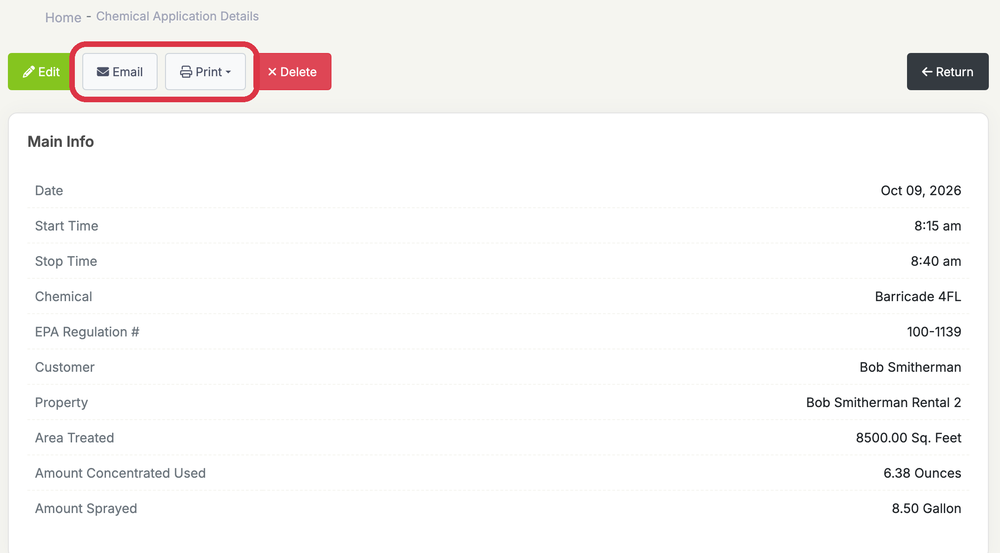
- Click the magnifying glass on the row. On a phone, open the row menu and tap View. The Chemical Application Details page opens.
- Click Email. The Email Chemical Record window opens.
- Pick an Email Template. Your default template is already selected.
- Check the Email address. It comes from the customer’s record. The CC box fills in with the customer’s CC addresses. Separate up to three addresses with a semicolon.
- Change the Subject and Message if you like. Click Insert Tags to add merge tags to the subject.
- Tick Attach PDF to email to include the PDF. You can also tick Attach notes to email or Attach images to email.
- Click Send.
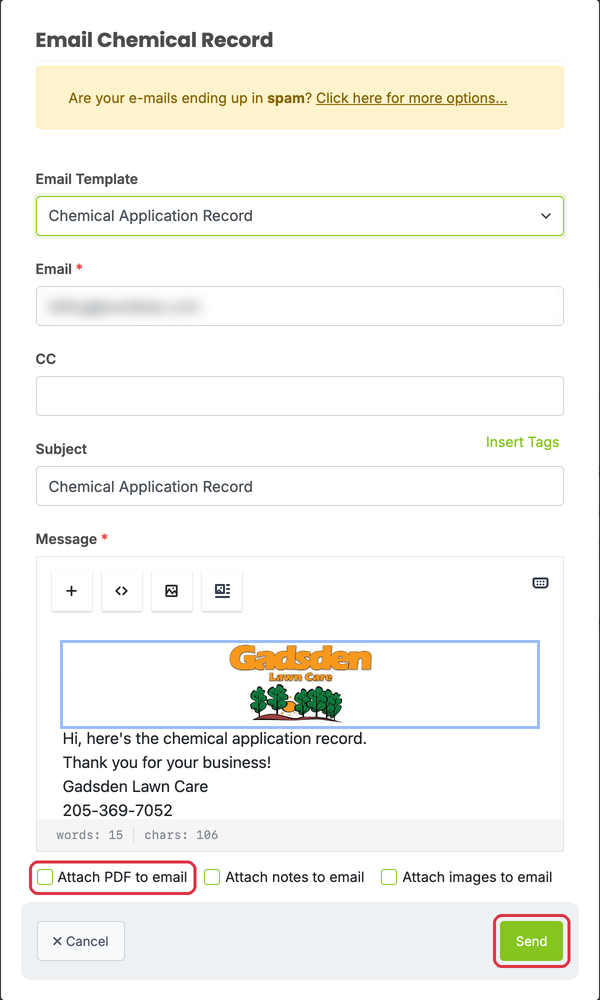
You’ll see “Email has been sent successfully.” The email only goes to the addresses in the window.
New trial accounts can’t send email for their first 3 days.
Download or print the PDF
- On Chemical Application Details, click Print.
- Choose Download PDF or Print.
To put several records in one PDF, tick them on the Chemical Application list and click Print above the list. If you don’t tick any, every record on the page is included.
Set your email defaults
- Go to Settings > Invoices, Estimates & Receipts.
- Under Default Chemical Application Email Settings, choose a Default Chemical Application Email Template.
- Turn on Attach PDF of Chemical Application to Email to tick the PDF box for you each time.
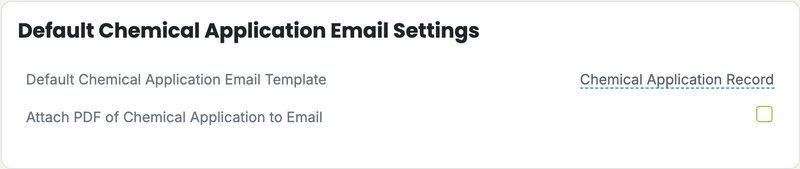
If you have no default, LawnPro adds a template named Chemical Application Record and uses it.
Run the Chemical Usage report
- Click Reports in the left menu.
- Under Routes & Jobs Reports, click Chemical Usage.
- Click the date range to change it. It starts on January 1 of this year and ends today.
- Pick one product from All Chemicals or one person from All Employees if you need to.
- Click Export, then Excel or CSV.
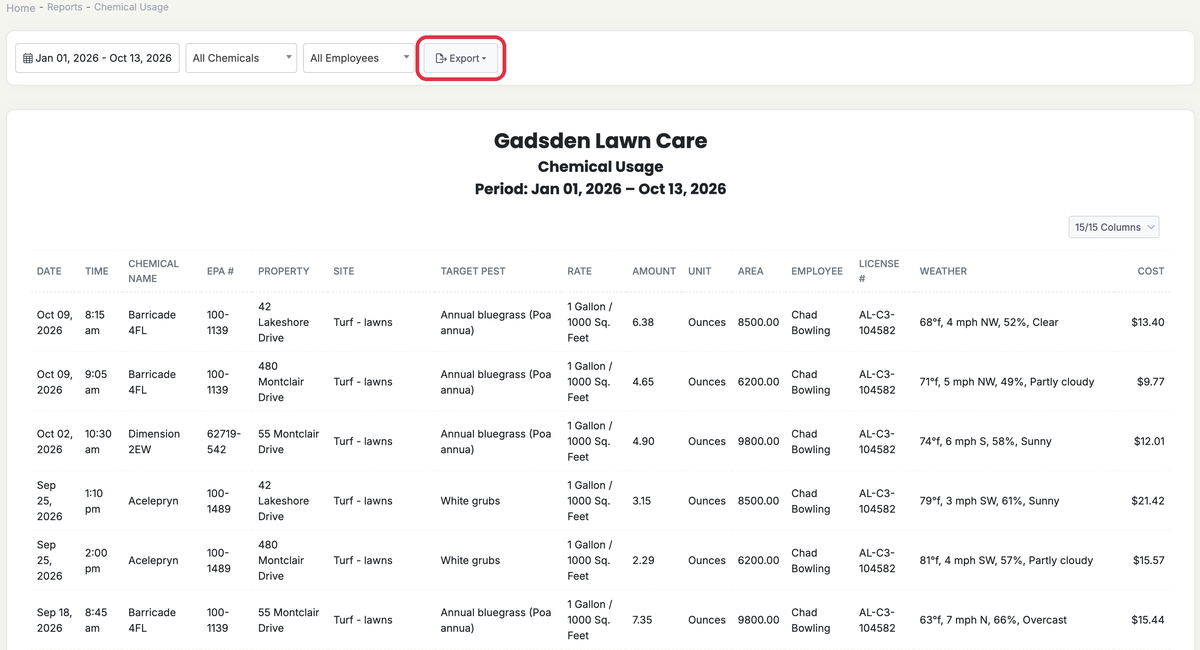
The newest applications are listed first. The columns are Date, Time, Chemical Name, EPA #, Property, Site, Target Pest, Rate, Amount, Unit, Area, Employee, License #, Weather and Cost.
- Cost is the amount used times the chemical’s Vendor Price Unit.
- License # is the employee’s current license number. It isn’t a copy saved with the application.
- The last row shows the total number of applications and the total cost.
Who can use this
- Account owners can do all of it.
- Employees need Chemical Application access in their privileges. To open a record and email it they need Edit or higher. The report needs Reports access. See Set / Edit Employee Privileges.