Setting a Tax Rate on a Property
Setting a tax rate on a property ensures the correct tax is automatically applied every time you create an invoice or estimate for that location. This is especially useful if you service properties in different counties or states with different tax rates.
Note: A property’s tax rate is used instead of your default tax rate and instead of the rates set on items and services. It doesn’t apply to customers marked tax exempt, or to items marked Non-Taxable.
Setting a Tax Rate When Adding a New Property
- Go to Customers > Properties and click Add New Property.
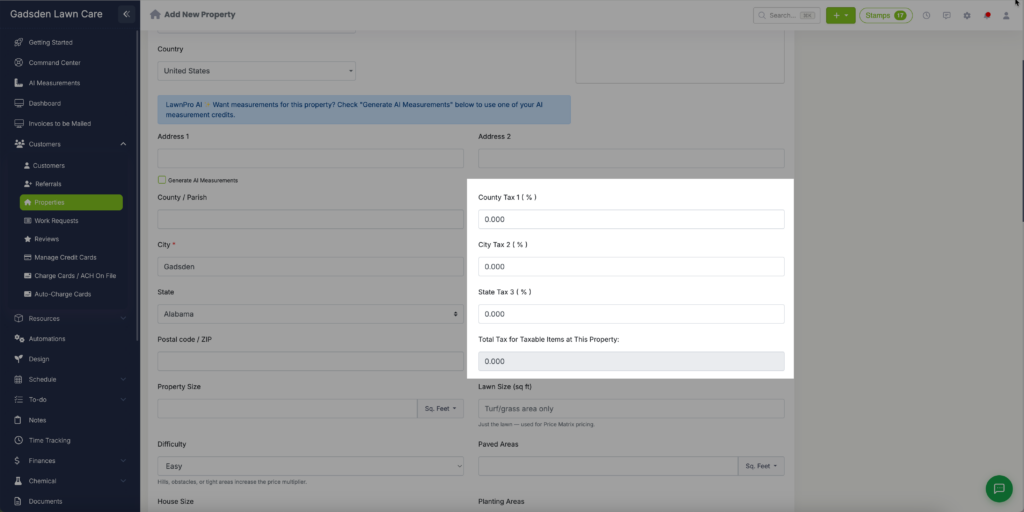
- Enter the property address. When you enter the ZIP code, LawnPro fills in County Tax 1 (%), City Tax 2 (%) and State Tax 3 (%) for that location.
- Check the rates and change any that are wrong. Total Tax for Taxable Items at This Property shows the combined rate.
- Click Save Property.
Setting a Tax Rate on an Existing Property
- Go to Customers > Properties and click the pencil icon on the property.
- In the Taxes card, click a rate to change it. Each one saves when you click out of the field, and the total updates.
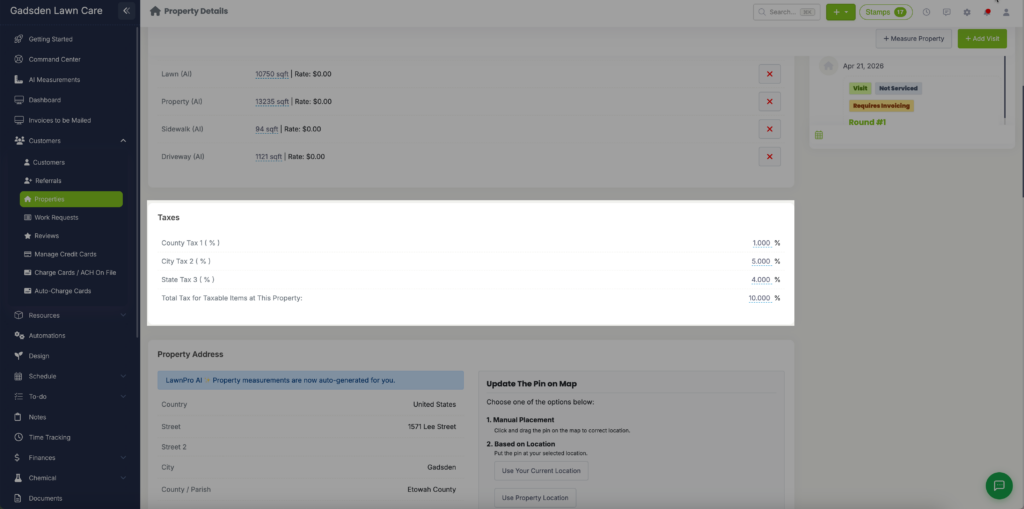
LawnPro uses this rate on taxable items in new invoices and estimates for this property. Invoices and estimates you’ve already created don’t change.