Table of Contents
- Overview
- Merge Duplicate Customers
- What Moves and What Stays
- Merge Duplicate Properties
- Common Questions
Overview
Ended up with the same customer or property in LawnPro twice? Merge them. Everything from the duplicate moves onto the one you keep, then the duplicate is deleted.
This is common after importing customers or when a customer books online with a slightly different name or email.
Merge Duplicate Customers
Start on the customer you want to keep.
- Open the customer and click More Actions.
- Click Merge Duplicate.
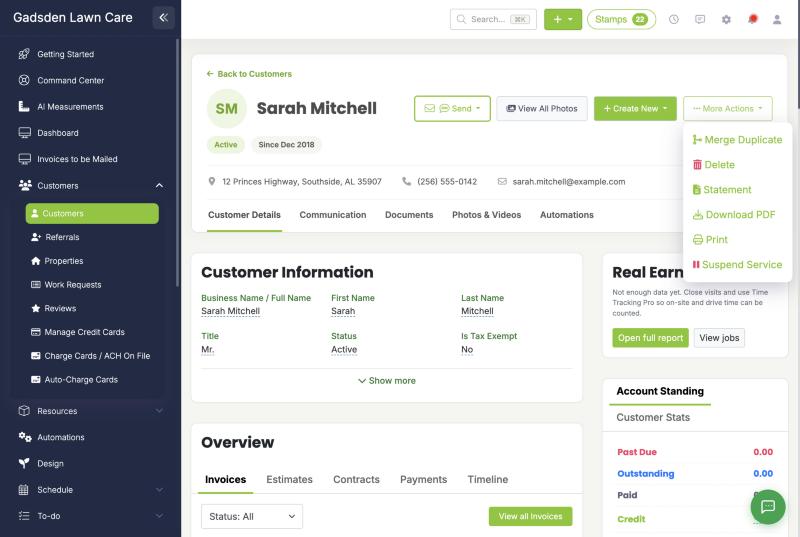
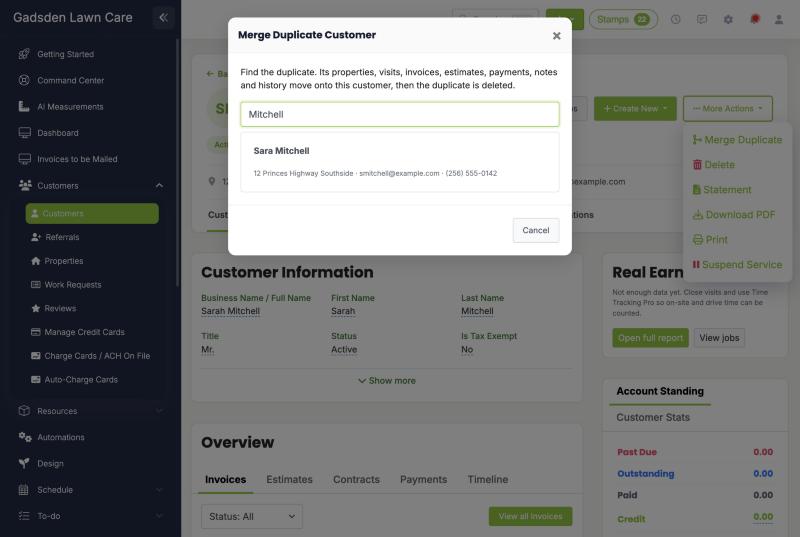
- Search for the duplicate by name, email, phone or address, then click it.
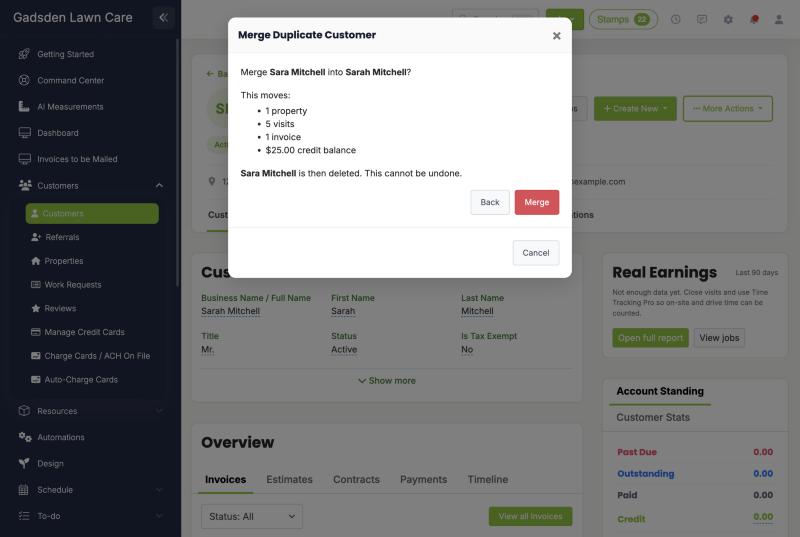
- Check the summary. It shows how many properties, visits, invoices, estimates and payments will move, plus any credit balance.
- Click Merge.
The page reloads with everything on one customer. If anyone opens an old link to the duplicate, LawnPro takes them to the customer you kept.
What Moves and What Stays
| Moves to the customer you keep | Stays with the deleted duplicate |
|---|---|
| Properties | Card or bank account on file |
| Visits and recurring jobs | Auto-charge settings |
| Invoices and payments | Client portal login |
| Estimates and Level Billing contracts | Automation on/off settings for that customer |
| Chemical records | Referral program records |
| Photos, documents and signed forms | |
| Texts, emails and notes | |
| Tags and email/text group lists | |
| Credit balance (added to the kept customer’s) |
The customer you keep also keeps their own name, address, email and QuickBooks link. Nothing on their record is overwritten.
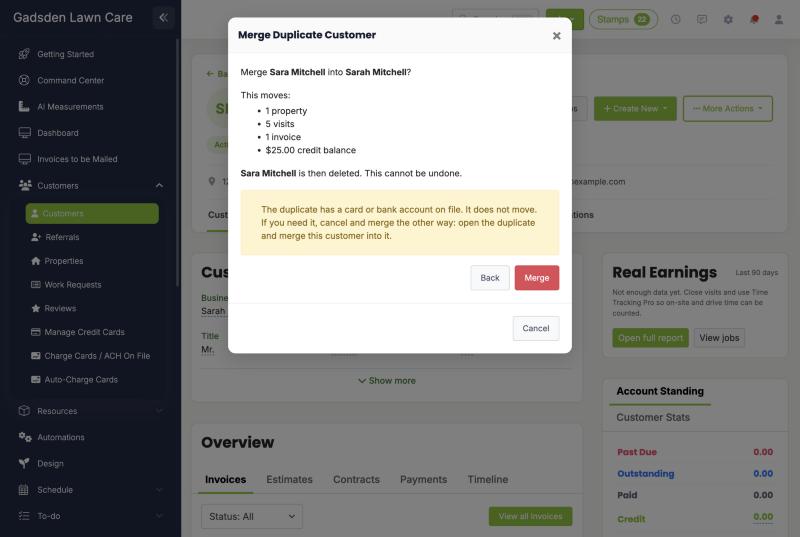
Card on file: a saved card or bank account cannot move between customers. If the duplicate has one, LawnPro warns you before you merge. To keep that card, click Cancel, open the duplicate instead and merge the other customer into it.
Merge Duplicate Properties
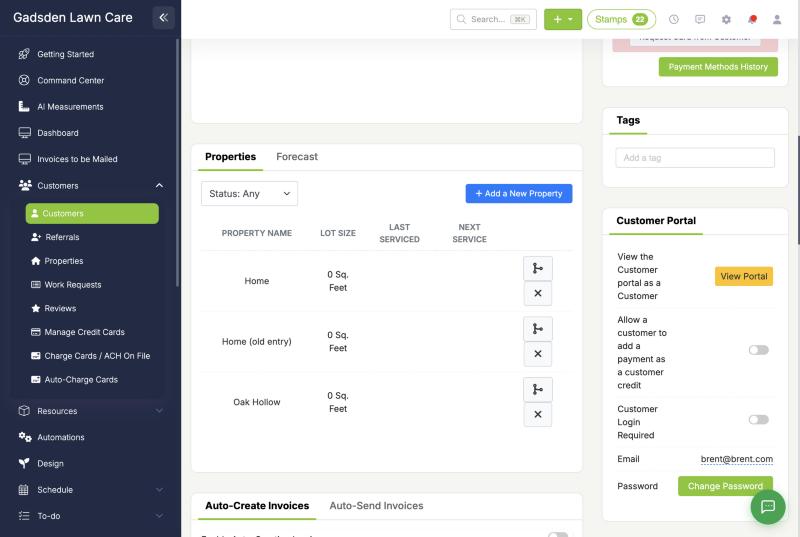
Use this when one customer has the same property entered more than once. You can merge up to 10 at a time.
- Open the customer and scroll to Properties.
- On the property you want to keep, click the merge icon.
- Tick the duplicates.
- Click Merge.
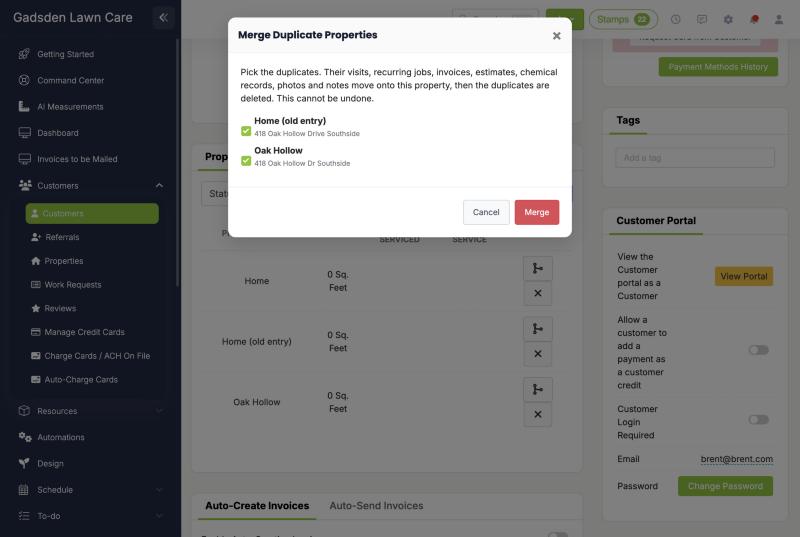
Their visits, recurring jobs, invoices, estimates, chemical records, photos and notes move onto the property you kept, and the duplicates are deleted.
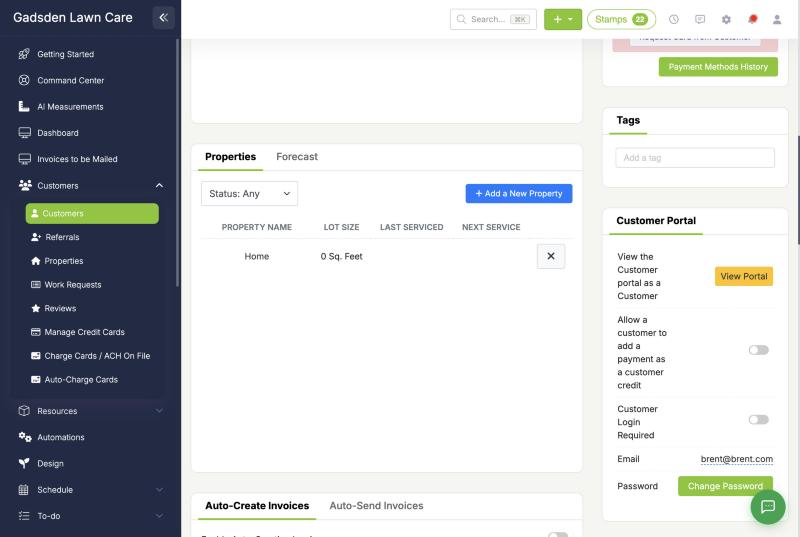
The kept property keeps its own service prices, crew and lawn measurements. Those are not copied from the duplicates.
Only properties of the same customer can be merged. To move a property to a different customer, use Move to another customer on the property instead.
Common Questions
Can I undo a merge?
No. Check the summary before you click Merge.
Who can merge?
The account owner and employees who are allowed to delete customers (or delete properties, for property merges).
Which customer should I keep?
The one with the card on file, if only one has a card. Otherwise keep the one with the correct name, address and email.
What about QuickBooks?
The kept customer’s QuickBooks link stays. Invoices that already synced under the duplicate stay under that QuickBooks customer until they sync again.
Will my customer get any emails or texts?
No. Merging sends nothing. Any automations that were waiting to send to the duplicate customer are cancelled.