Once you have Text Messaging set up (Click here to learn how to do that.)
You will click Text in the left menu, then the Send Text Message tab.
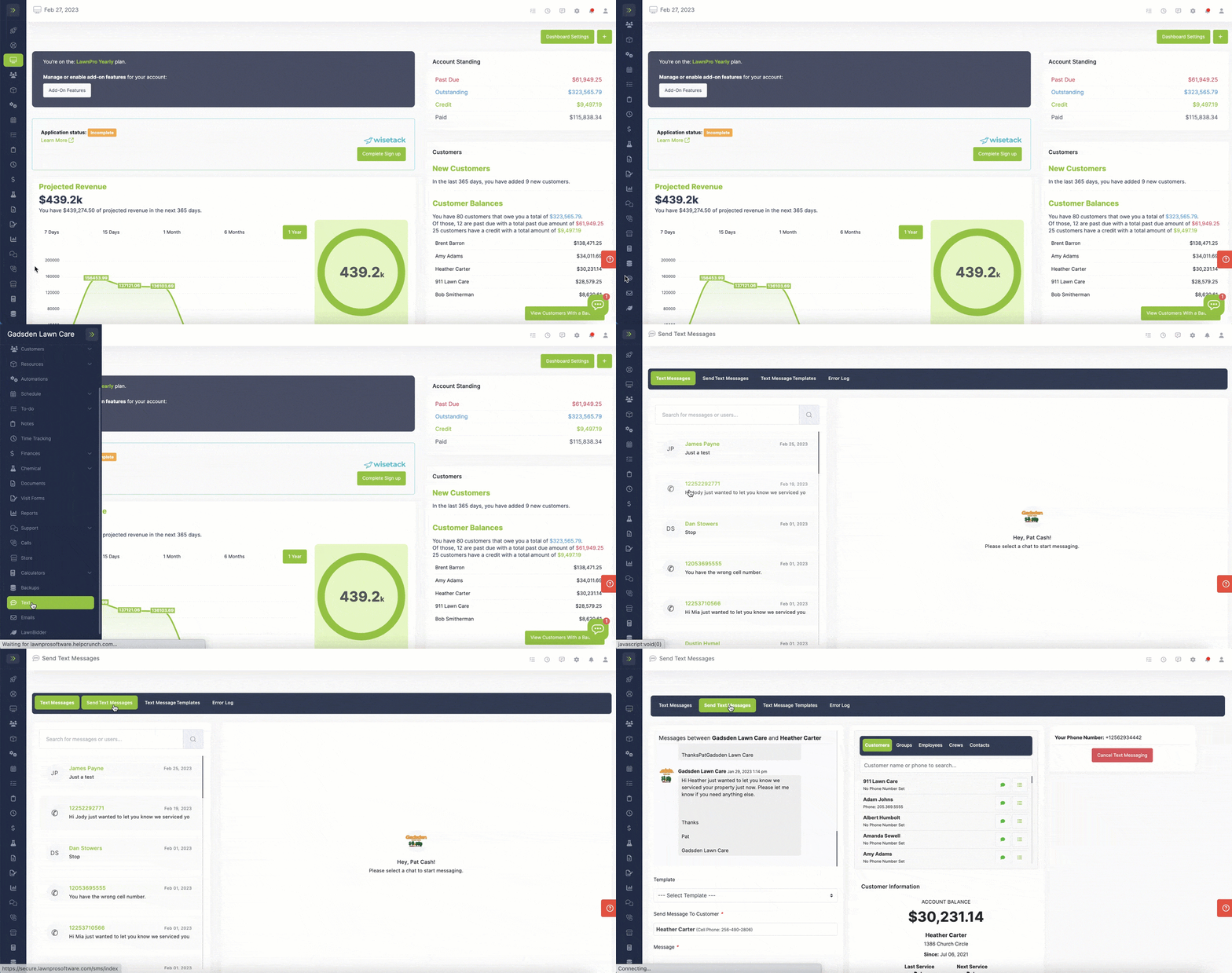
First you will select the customer(s) the text message is going to.
You can select one or multiple customers.
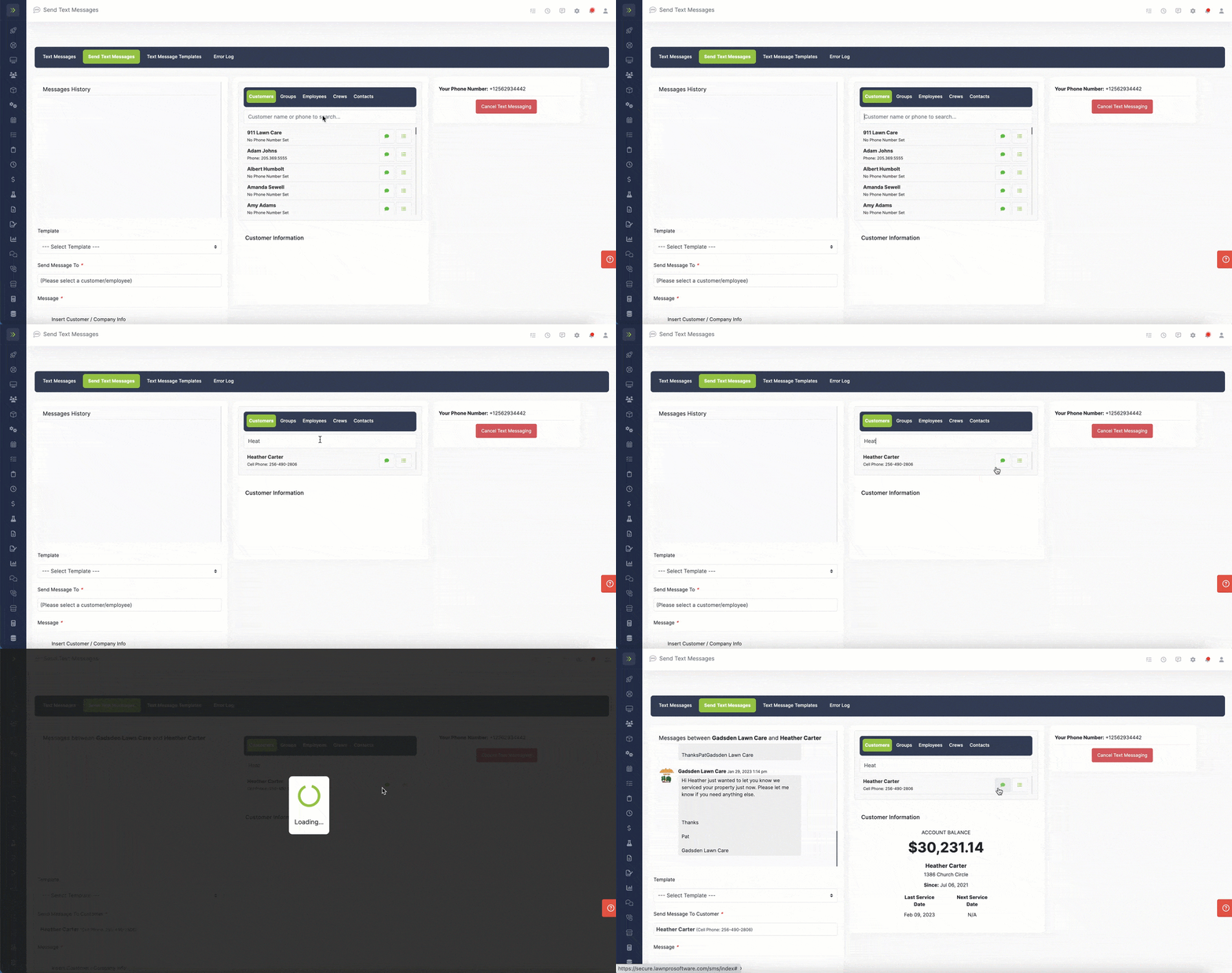
Use the tabs to send to a Customer, a Group, Employees, Crews or Contacts.
When you text a customer, the text goes to every phone number on their profile that has Receives text messages turned on. Each number counts as its own text. To change which numbers get texts, open the customer and click Edit next to Phone Numbers.
Next you can type the message you want to send or you can choose from a text template.
If you are creating the text now, you can add customer/company info tags that will fill when you send the text.

Once you are done creating your message, click the green “Send” button.