Property Notes
Property notes allow you to store important information about a service location that your team needs to know. Notes added to a property will appear on visits for that property so your crew always has the information they need before arriving on site.
Note: Property notes are for internal use only and are not visible to your customers on invoices, estimates, or in their client portal.
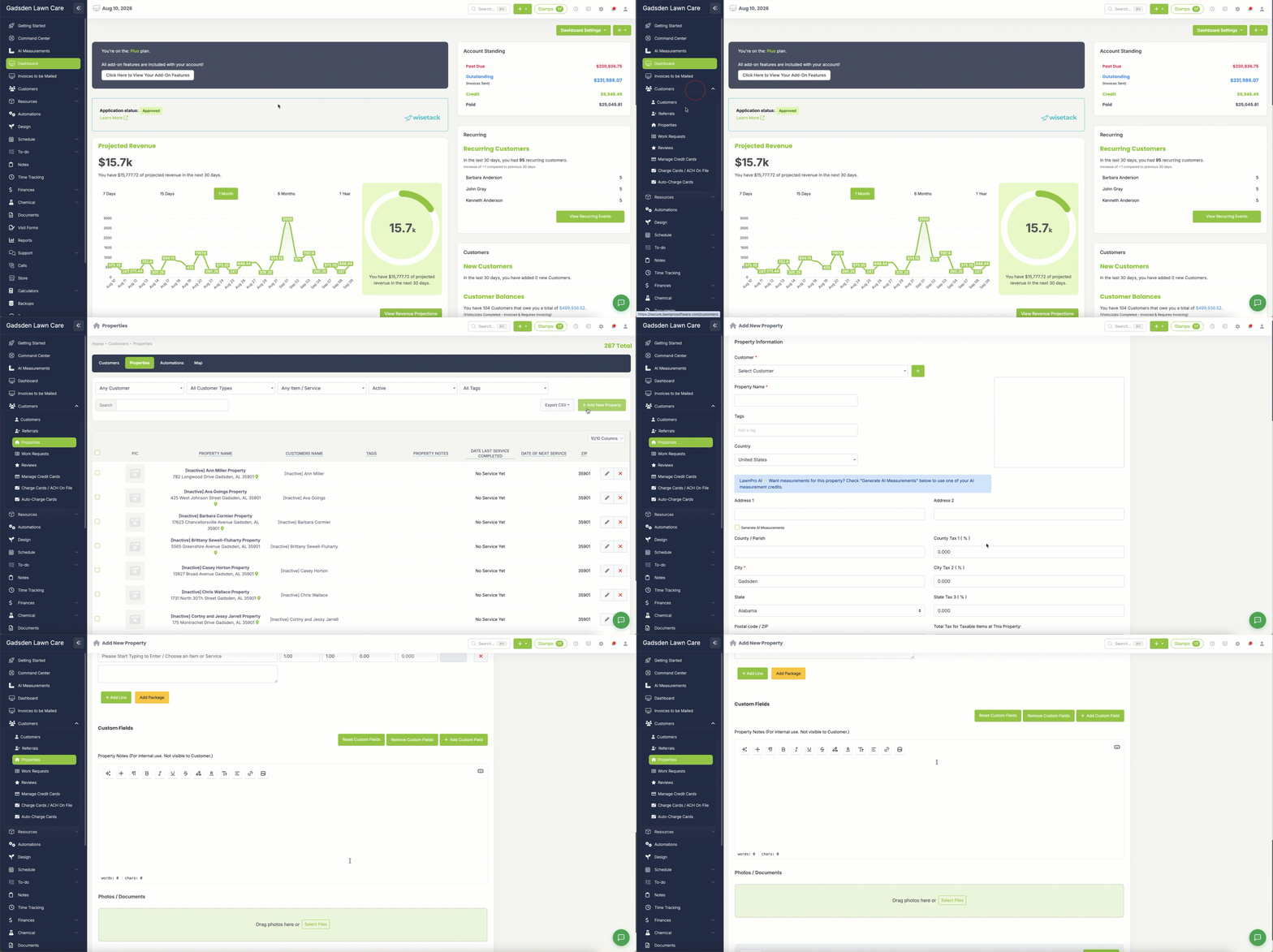
Adding a Note to a New Property
- Go to Customers > Properties.
- Click Add New Property.
- Fill in the property details.
- Type your note in Property Notes (For internal use. Not visible to customer.).
- Click Save Property.
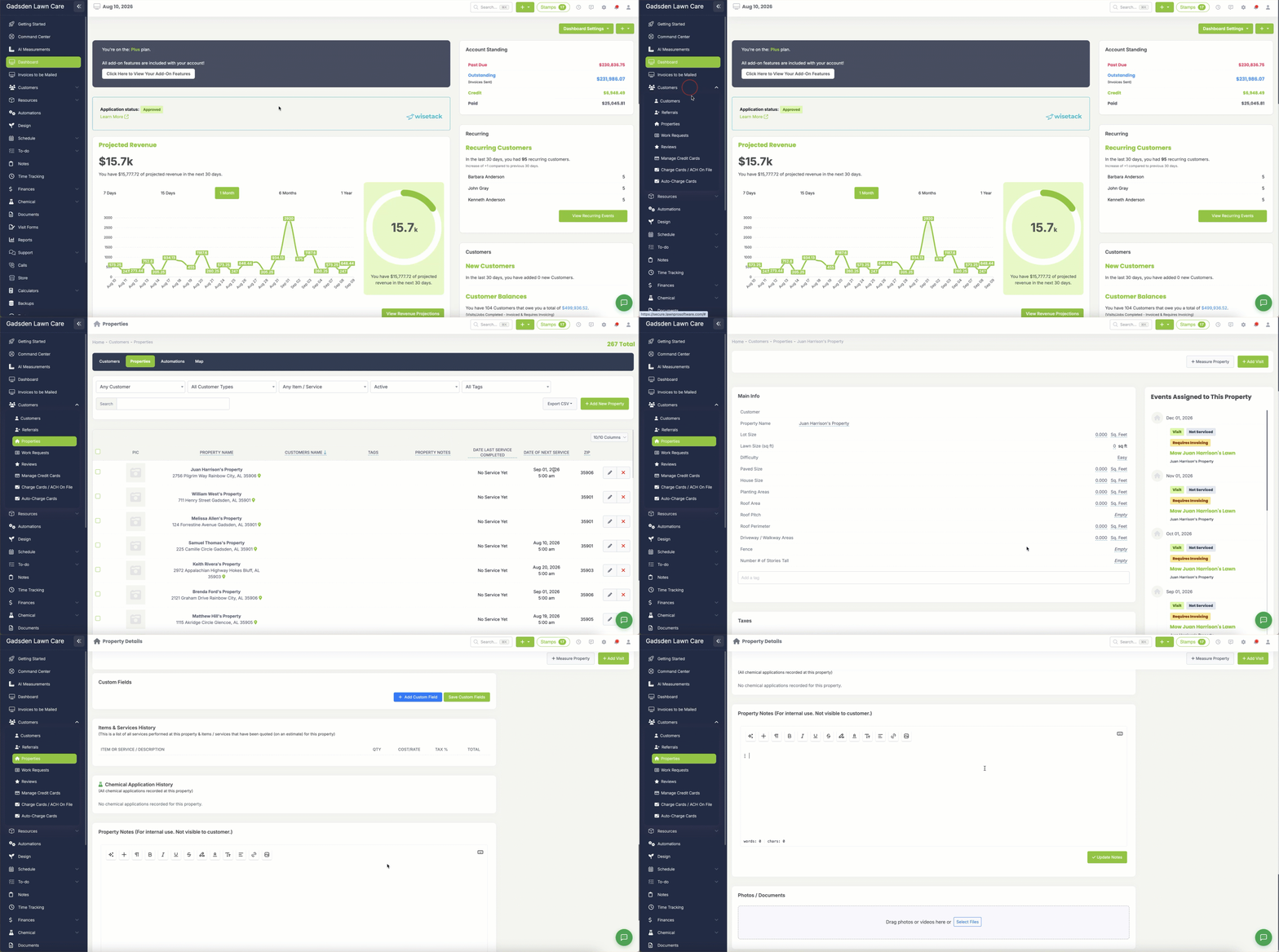
Adding or Editing a Note on an Existing Property
- Go to Customers > Properties.
- Find the property and click the pencil icon to open it.
- Scroll to the Property Notes card and type or change your note.
- Click Update Notes. Your note isn’t saved until you click this button.
Where your crew sees it: property notes show on every visit for that property, in the visit panel on the schedule and on work orders.