Multi-Step Program Templates
Multi-Step Programs are used when you perform a different service on each visit and the time between visits may vary. A great example is a fertilization program where you apply different treatments at different intervals throughout the season.
Templates allow you to set up your multi-step program once and reuse it for different customers over and over again.
To access Multi-Step Program Templates go to Schedule → Multi Step Programs → Templates.
Creating a New Template
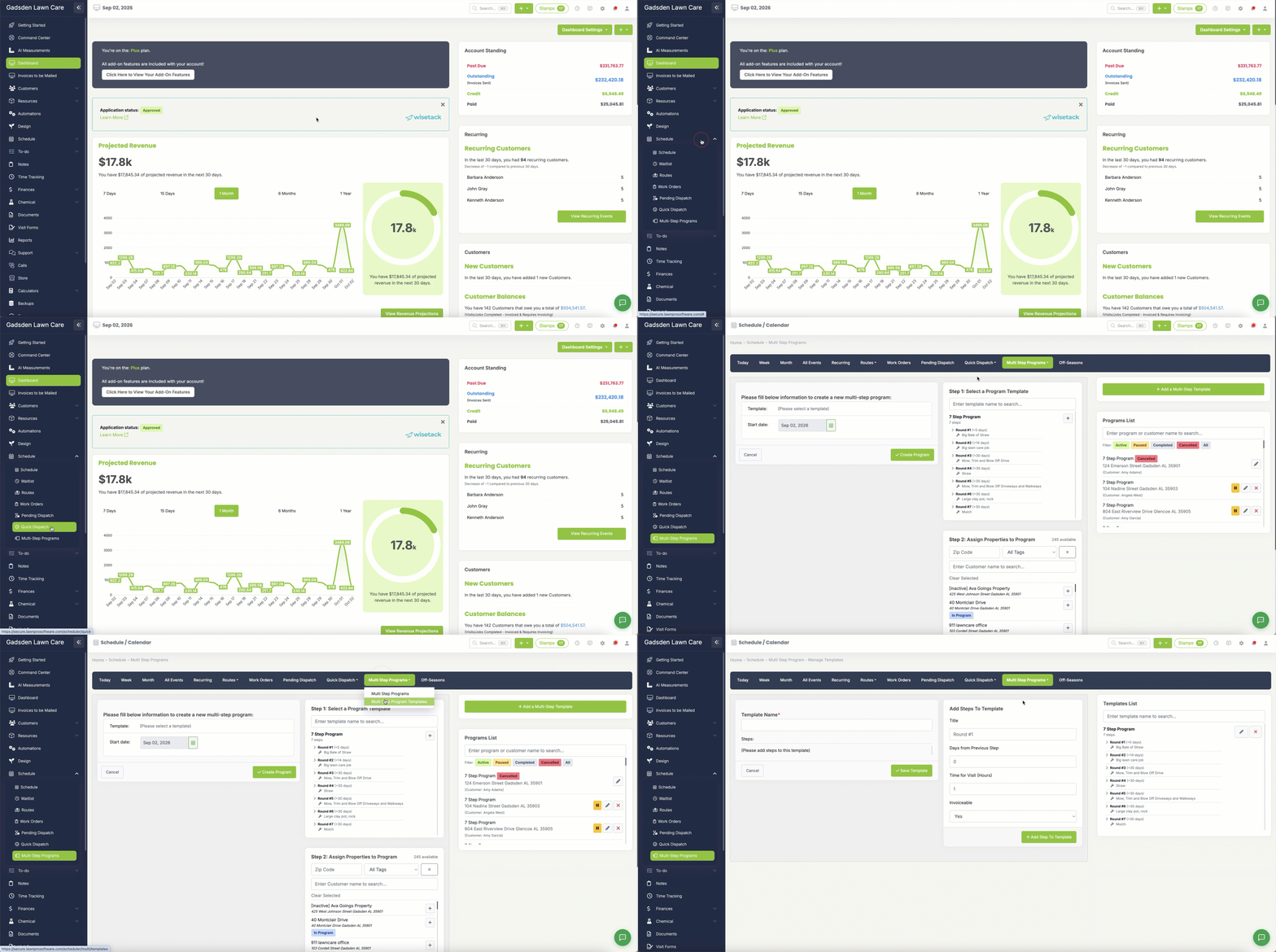
Step 1 — Name Your Template
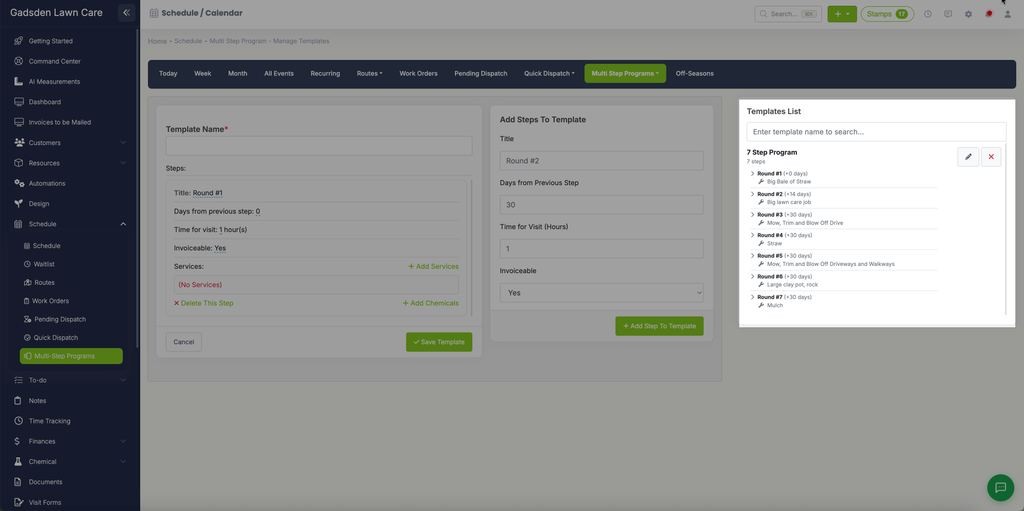
Enter a name for your template in the Template Name field on the left side of the screen.
Step 2 — Add Steps to the Template
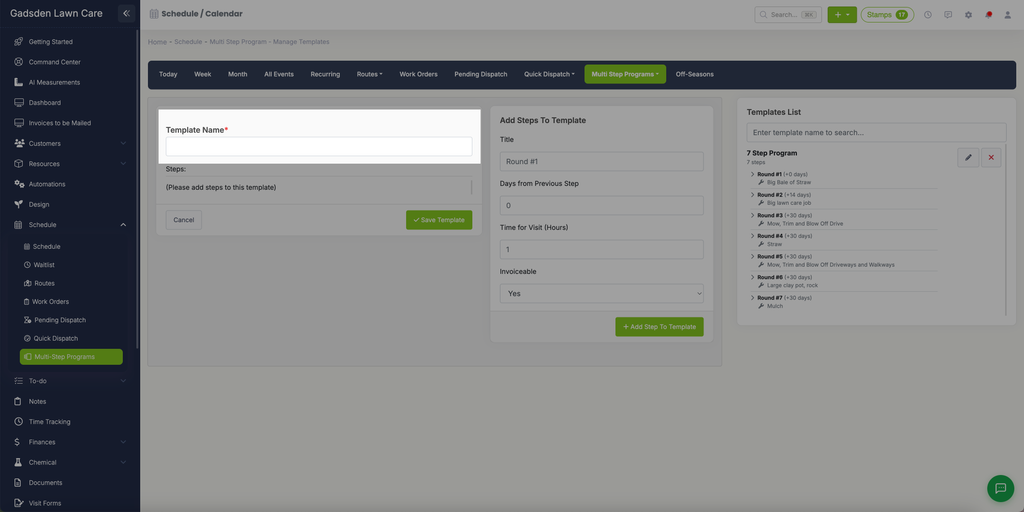
In the Add Steps To Template panel in the middle of the screen, fill in the details for each step:
- Title — The name of this step (for example Round #1, Round #2, etc.)
- Days from Previous Step — How many days after the previous step this visit should occur. Enter 0 for the first step
- Time for Visit (Hours) — The estimated time this visit will take
- Invoiceable — Choose whether this visit should be invoiced
Click Add Step To Template to add the step. It will appear in the Steps panel on the left and in the Templates List on the right.
Step 3 — Add Services and Chemicals to Each Step
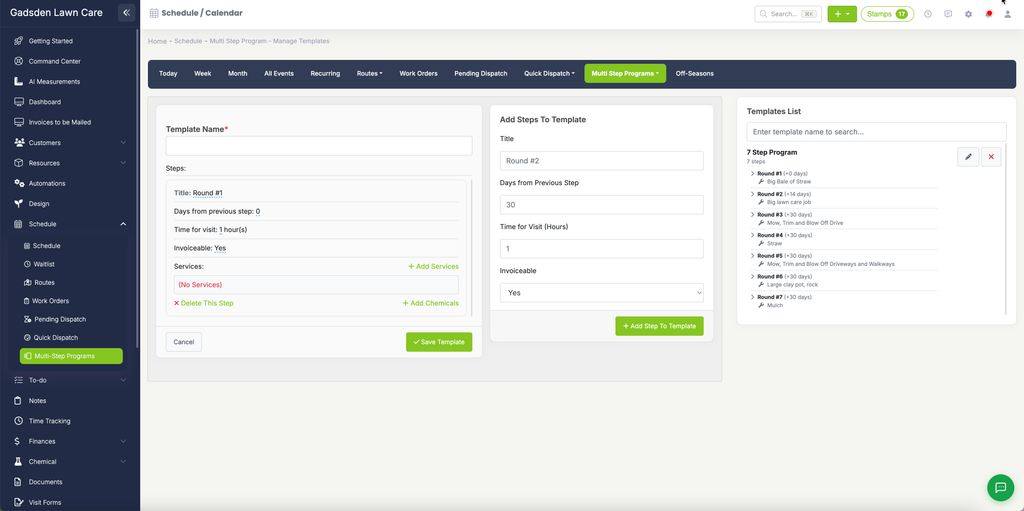
Once a step is added you can click on it in the Steps panel to expand it and add:
- Services — Click Add Services to add the items and services for this step
- Chemicals — Click Add Chemicals to add any chemical applications for this step
To remove a step click Delete This Step.
Step 4 — Repeat for Each Step
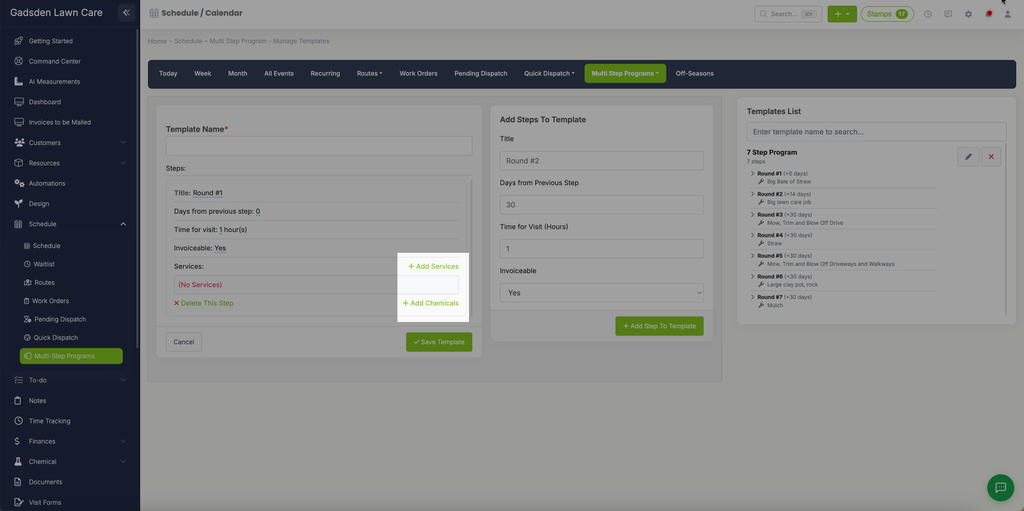
Repeat this process for each step in your program. You can add as many steps as you need. The Templates List on the right will show all your steps with their titles, days, and services at a glance.
Step 5 — Save the Template
When all your steps are added click the green Save Template button.
Managing Your Templates
Your saved templates appear in the Templates List on the right side of the screen. From here you can:
- Click the pencil icon to edit a template
- Click the X button to delete a template
- Search for a template by name using the search box at the top
Next Step
Once your template is saved you can apply it to a customer from the Multi-Step Programs page. See our Multi-Step Programs article for step by step instructions.