Table of Contents
Overview
If you’re sending more than one crew out on the same day, you can split your stops between them right on the Routes page. Use Split View when your visits are already assigned to crews and you just want to see each crew’s stops side by side. Use Auto-Split when they aren’t assigned yet and you want LawnPro to help figure out which crew should take which jobs.
Split View
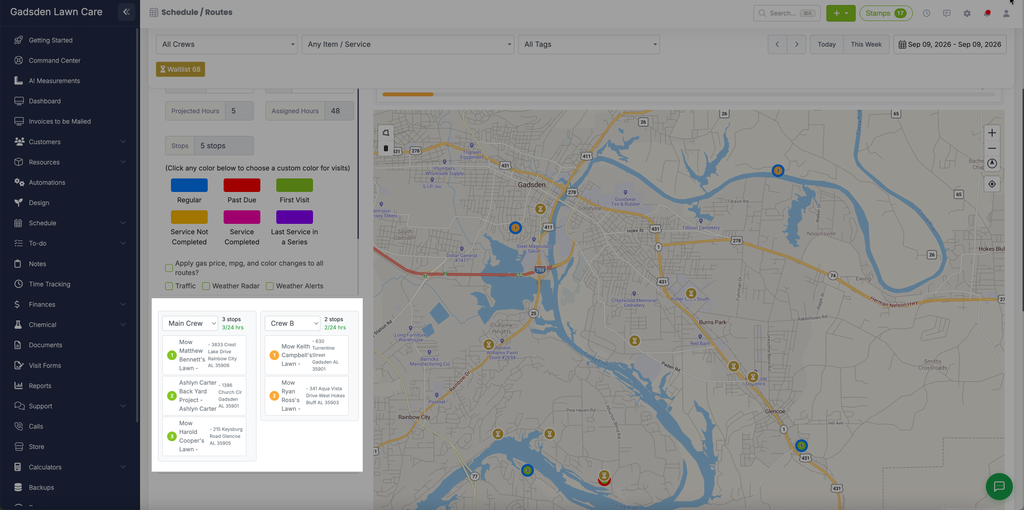
Split View is for visits that are already assigned to crews — it just lays them out so you can see each crew’s day at a glance. Go to Schedule > Routes and click “Split View.” Your stop list breaks into a separate column for each crew, with a crew picker, stop count, and hours at the top of each column.
Auto-Split
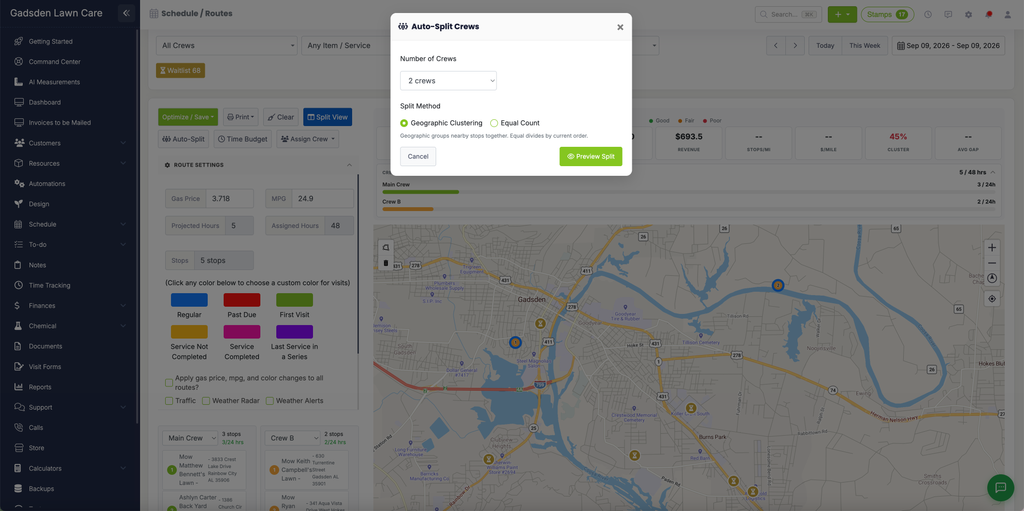
If your visits aren’t assigned to crews yet, click “Auto-Split” to have LawnPro figure out the split for you. This opens the Auto-Split Crews popup:
- Number of Crews — choose how many crews to split the stops across.
- Split Method — choose Geographic Clustering to group nearby stops together, or Equal Count to divide the stops evenly by their current order.
Click “Preview Split” to see the result. The groups are shown color-coded on a map, with a card for each group below it — pick which crew each group goes to from the dropdown, and review the stops and mileage assigned to that group.
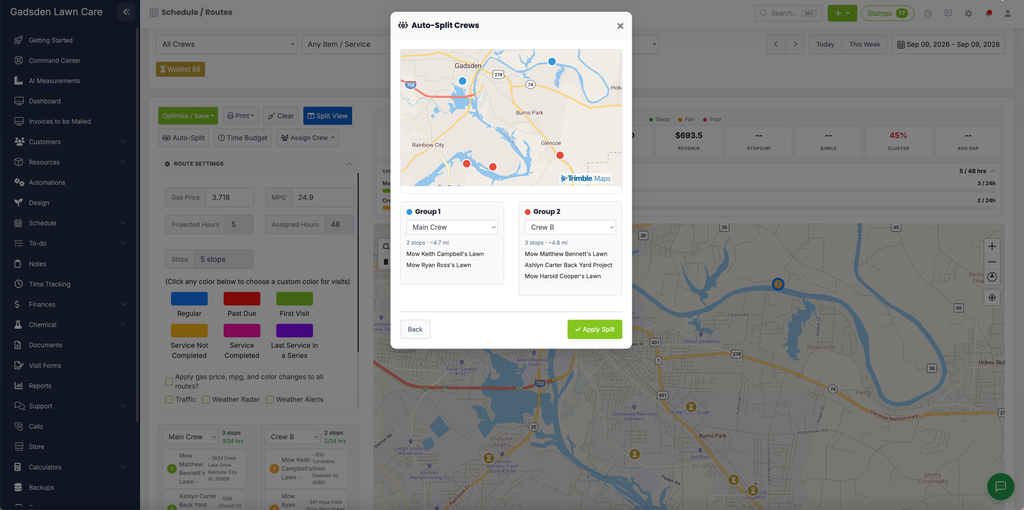
Click “Back” to adjust the number of crews or split method, or “Apply Split” to confirm.
If any of the stops are part of a recurring series, an “Apply Crew Assignments” popup asks whether to apply the crew assignments to this date only, or to all future unclosed visits in each recurring series.
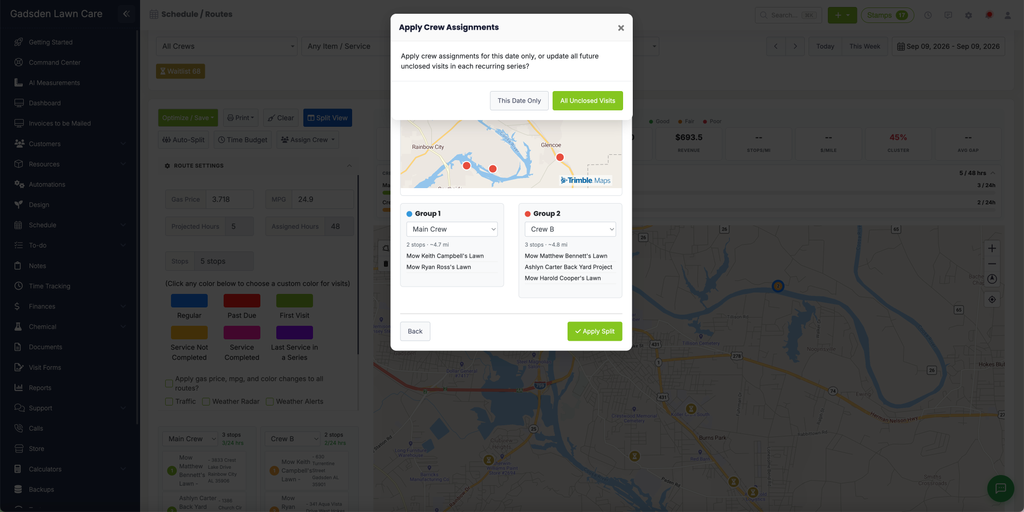
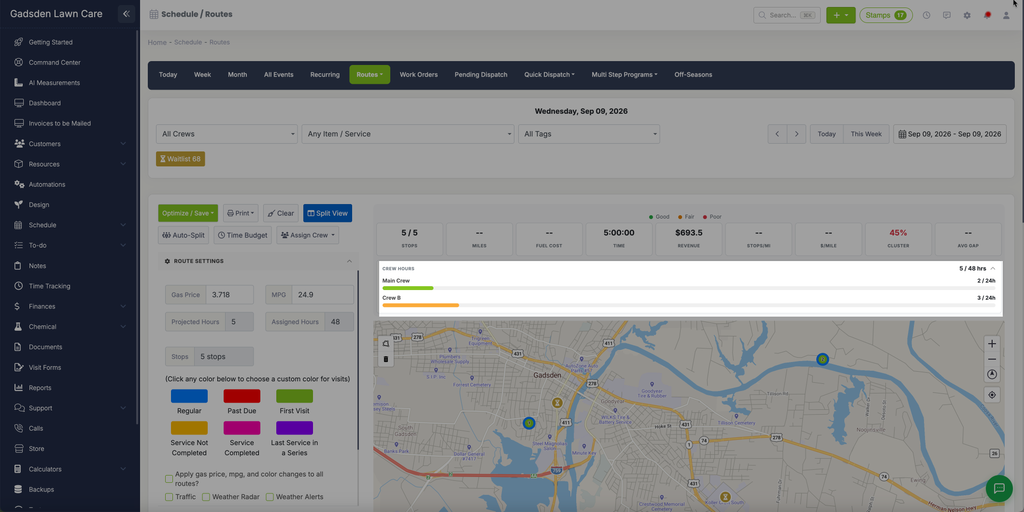
Choose “This Date Only” or “All Unclosed Visits.” Each crew then gets its own bar under Crew Hours, showing how many hours of work they’ve been assigned.