Overview
Connect ChatGPT to LawnPro and you can ask about your real customers, invoices and schedule in plain English. It can also do office work for you, like texting a customer or creating an invoice.
What you need:
- A LawnPro Startup, Grow or Plus plan. Trial accounts can’t connect.
- To be the LawnPro account owner.
- A paid ChatGPT plan. On a Business workspace, a workspace admin or owner does the setup, in a desktop browser.
No API key needed. The address you connect to is always https://secure.lawnprosoftware.com/mcp
Tip: Claude is quicker to set up. See Connect an AI Assistant.
ChatGPT Business (browser)
- In ChatGPT, open your workspace menu > Workspace settings > Plugins. If you see Apps instead, open it and click Open Plugins.
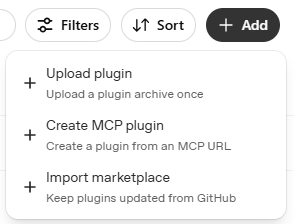
- Click Add > Create MCP plugin. Make sure you’re in your business workspace, not Personal.
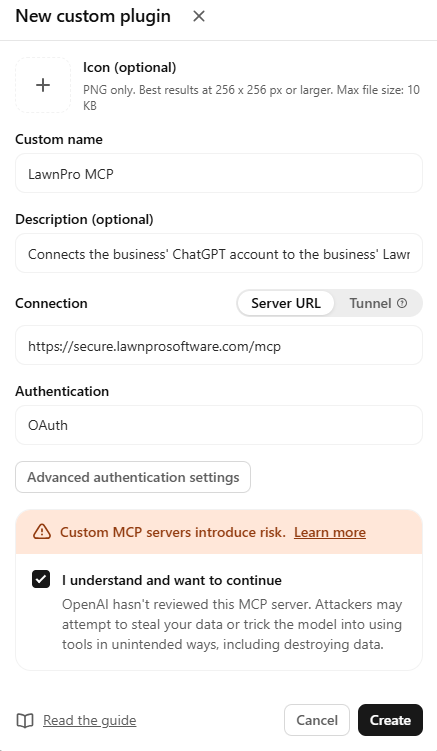
- Fill in the form:
- Custom name: LawnPro
- Connection: Server URL, then paste https://secure.lawnprosoftware.com/mcp
- Authentication: OAuth
- Tick I understand and want to continue, then click Create.
- A LawnPro sign-in opens. Sign in as the account owner and click Allow.
- Back in Plugins, find LawnPro. If it says Disabled, click Enable plugin, then Configure.
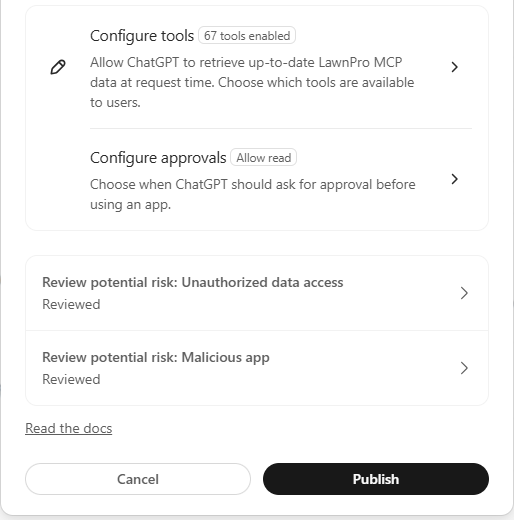
- Click Configure tools. Read tools let ChatGPT look things up. Write tools let it ask to do work, like sending a text or creating an invoice. Turn on the ones you want, choose what happens with new tools, then click Continue.
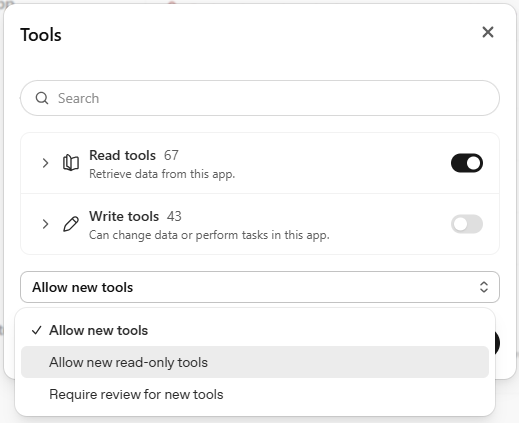
Turning on write tools doesn’t let ChatGPT change anything by itself. LawnPro still asks you to click Allow first (see Changes and approvals below).
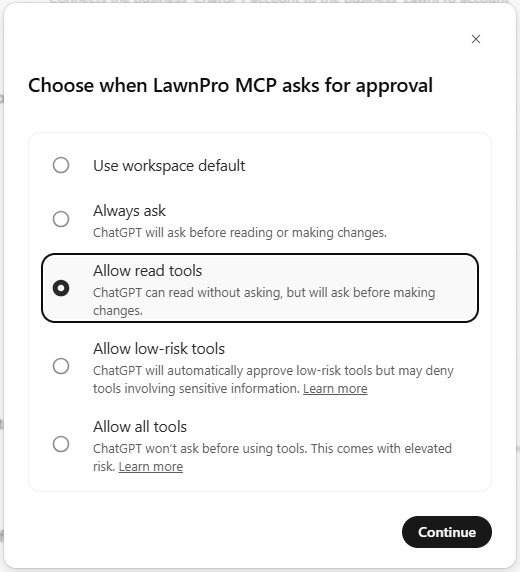
- Click Configure approvals and choose when ChatGPT asks before using LawnPro. Allow read tools is a good start: it looks things up without asking and asks before any change. Click Continue.
- Open both risk reviews (Unauthorized data access and Malicious app), read them and check them off. When both say Reviewed, click Publish.
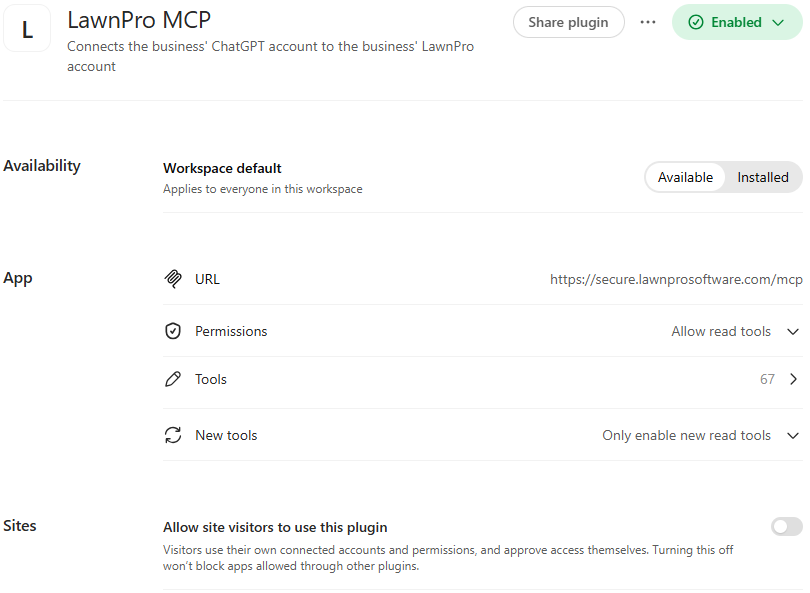
- LawnPro now shows as Enabled. Leave Allow site visitors to use this plugin off.
- Start a new chat, type @, pick LawnPro and ask: “How many active customers do I have?”
ChatGPT desktop app
- Open Settings > Plugins > MCPs tab.
- Click Add > Add MCP server. For Type, choose Streamable HTTP (not STDIO).
- Name it LawnPro, paste https://secure.lawnprosoftware.com/mcp and save.
- Find LawnPro in the list and click Authenticate. This step is easy to miss. Without it, ChatGPT can’t see your account.
- Sign in to LawnPro as the account owner and click Allow.
- Ask: “How many active customers do I have?”
Check it’s connected
In LawnPro, go to Settings > MCP, API & Integrations. ChatGPT shows under Connected MCP.
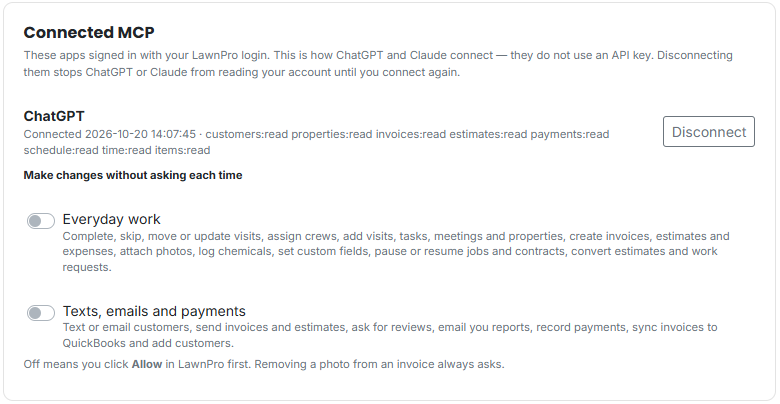
If ChatGPT isn’t listed, the sign-in never finished. Go back to the LawnPro sign-in step.
Changes and approvals
When ChatGPT wants to change something, like sending a text or creating an invoice, it gives you a LawnPro link. Open it while signed in as the owner and click Allow or Deny. Nothing changes until you click Allow.
Don’t want to click Allow every time? Under Connected MCP, turn on:
- Everyday work: visits, crews, invoices, estimates, photos and more.
- Texts, emails and payments: texting and emailing customers, sending invoices and estimates, recording payments and adding customers.
Both start off. Removing a photo from an invoice always asks.
Common problems
- No Plugins or Create MCP plugin option. You’re not a workspace admin, or you’re in Personal. Ask your workspace admin.
- It says Disabled. Click Enable plugin, then finish the configure and publish steps.
- It can’t look anything up. Start a new chat and pick LawnPro with @ first. Check ChatGPT is listed under Connected MCP in LawnPro.
- It can’t make changes. Turn on Write tools in ChatGPT (step 7).
- The menus look different. ChatGPT renames these screens often. Give us a call and we’ll walk you through it.
Turn it off
Go to Settings > MCP, API & Integrations and click Disconnect next to ChatGPT. It stops right away.