You can hook Claude or ChatGPT straight up to your LawnPro account, so it can answer real questions about your business and help with the office work — texts, invoices, estimates, payments, visits — instead of guessing. Ask “who still owes me money from May?” or “text the Smiths that we’re running late,” and it looks at your actual customers, invoices, and schedule.
Good to know: Looking things up happens right away. Sending a text, creating an invoice, recording a payment, completing a visit, or adding a customer does not — the assistant gives you a LawnPro link, you review it, and you click Allow. Until you do, nothing changes.
Included on Startup, Grow, and Plus. Trial accounts do not get it.
This is new. Looking things up is ready to use. Sending texts and creating invoices still wait for your Allow click unless you trust that connection.
This is separate from the LawnPro API (a developer key for your own apps) and from Webhooks (instant notifications to another web address).
Want the honest gap list? See AI Assistant — Known Limitations & What’s Coming.
In This Article
- What you can ask (money, schedule, estimates, customers, chemicals)
- Custom fields (read and set)
- Work it can do after you click Allow
- Scenario playbooks (Monday briefing, rain day, quotes, leads)
- How to connect it
- Trust this connection
- Is my information safe?
- Frequently asked questions
What you can ask
Once it’s connected, you just talk in plain English. You don’t need the exact wording below — these are examples of what it can look up right away.
The real win is the follow-up. Ask “who owes me money?”, then “which of those are commercial?”, then “draft a friendly reminder for the top three” — and it keeps up, because it’s looking at your live data the whole time.
Money
- “Which customers have an unpaid balance over $500?”
- “How much am I owed, and how far behind is it?”
- “What did we collect in July?”
- “What did we spend on fuel last month?”
- “What did we finish last week that hasn’t been invoiced?”
- “Who are my best customers this year?”
- “Which level-billing contracts are active?”
How “late” is counted: from each invoice’s due date, using that customer’s payment terms. Work that isn’t due yet is kept separate, so it doesn’t look overdue. The total matches what it tells you when you ask who owes you money.
Schedule
- “How many visits do I have scheduled next week?”
- “Who’s on the Miller job tomorrow?”
- “What’s on Thursday with nobody on it yet?”
- “Which standing jobs aren’t on the calendar?”
- “What recurring work is coming up?”
- “Show me the photos from Tuesday’s visit at 12 Oak”
- “How many hours did the crew work last week?”
Paused jobs and off-season work are marked as such, not listed as problems. Every visit it reads names the crew and the people on it.
Estimates
- “Which estimates has nobody answered?”
- “What’s my biggest open estimate, and how much is sitting in the pipeline?”
- “What did we lose last month, and why?”
Open estimates are split the way your Estimates list splits them: drafts, ones out with customers, and accepted ones you haven’t invoiced yet. Archived estimates are left out. A decline reason only exists when the customer turned it down from their own estimate link — one you declined in the office has none.
Customers and properties
- “Tell me about Mrs. Alvarez — visits, invoices, anything unpaid”
- “Which customers haven’t we been out to in three months?”
- “Which customers aren’t worth the drive?”
- “How many active customers do I have in Birmingham?”
- “Who’s on the aeration program?”
- “Which program customers haven’t been serviced in 45 days?”
- “What work requests came in this week?”
- “What’s the gate code on the Smith property?”
The win-back list leaves off anyone already booked. Profit per truck hour is how a far, cheap property shows up. Gate codes, PO numbers, and other notes come through when you store them in custom fields on the customer, property, visit, invoice, or estimate.
Custom fields
If you use custom fields in LawnPro (gate codes, program flags, PO numbers, and similar), the assistant can work with them:
Read right away
- “What’s the gate code on customer Smith?”
- “Does invoice 1042 have a PO number saved?”
- “Show custom fields on estimate 8812”
Set after you click Allow (customer, property, or visit only)
- “Set the gate code on customer Smith to 5678”
- “Mark the Johnson property sprinkler system field as yes”
- “Add crew note ‘Watch the dog’ to tomorrow’s visit at 12 Oak”
Invoice and estimate custom fields are read-only through the assistant for now — change those in LawnPro. If a field was never filled in before, tell the assistant the exact field name from Settings; only fields with saved values show up on a prior read.
For the full behavior list (types, scopes, limits), see Known Limitations — Custom fields.
Chemicals and equipment
- “What did we spray at 12 Oak this season?”
- “Which equipment is due for maintenance?”
How LawnPro itself works
- “How do I set up auto-charge?”
- “Show me a video on recurring visits”
It searches LawnPro help articles and official how-to videos instead of guessing the click path.
Work it can do after you click Allow
These do not happen on their own. The assistant gives you a LawnPro link, you review it, and you click Allow — unless you turned on Trust this connection for that app.
Texts, emails, and reports
- “Text the Johnsons that we’ll be there between 2 and 4” — sends to the cell number on their file.
- “Email the Johnsons about Thursday” — sends to the email on their file, not an address you type in chat.
- “Email me a summary of July revenue” — a one-shot summary to the account owner, not a standing weekly schedule.
Visits and the calendar
- “Complete today’s visit for 12 Oak and invoice it”
- “Close out today’s route” — completes the day’s visits. It does not invoice them (same as Complete Selected – Invoice Later in Schedule). To invoice while completing, ask for one visit at a time.
- “We got rained out — skip everything on Thursday and say ‘rain'” — one approval for the whole day. If even one visit can’t be skipped, it names it and changes nothing.
- “Rain today — move Crew B’s Thursday stops to Friday” — one approval to reschedule up to 50 visits to the same new date.
- “Put the Backup Crew on the Miller job tomorrow” — won’t change a visit that’s already complete.
- “Move the Miller job from Thursday to Friday at 9”
- “Schedule a weekly mow at 12 Oak starting Monday” — a single visit, or a recurring series (daily, weekly, or biweekly).
- “Schedule a crew meeting Tuesday at 8am”
- “Add a todo: call supplier about mulch” — meetings and tasks are single events, not recurring series.
- “Reopen yesterday’s visit at 12 Oak” — refused if that visit already has an invoice.
Invoices, estimates, and payments
- “Invoice the Johnsons $150 for the extra cleanup”
- “Email invoice 1042 to the Johnsons”
- “The Smiths handed me a $150 check for invoice 1042” — writes the payment down. It never charges a card or touches a bank account. Anything over the balance becomes credit on the customer’s account.
- “Quote the Johnsons $450 for aeration and send it” — saved as a draft first; sending is a second approval.
- “The Johnsons accepted — turn that estimate into an invoice”
- “Push invoice 1042 to QuickBooks” — only if QuickBooks is already connected.
Photos, customers, and properties
- “Attach this photo to today’s visit at 12 Oak” — one file, a before-and-after pair, or up to ten files on one visit.
- “Add a lead: Pat Smith, 205-555-0100, wants a spring cleanup quote”
- “Add a property for the Johnsons at 12 Oak with weekly mowing”
- “Set the gate code on customer Smith to 5678” — saves a custom field on that customer, property, or visit (same Allow flow).
- “Convert work request 881 into a property for that lead” — online request inbox.
- “Log 2 gallons of prod X on the Johnson property today” — weed-control application record.
- “Record a $85 fuel expense for yesterday”
- “Pause the Smith level-billing contract for winter”
- “Text a review request for yesterday’s visit at 12 Oak”
Scenario playbooks
These are conversation patterns owners use every week — you can paste them almost verbatim:
Monday morning briefing
“Give me my morning briefing — what’s past due, what’s on the schedule this week, uninvoiced work from last week, and stale estimates.”
Uses get_daily_briefing, get_invoice_aging, get_employee_schedule, find_uninvoiced_visits, and find_stale_estimates.
Rain day
- “List Thursday’s open visits for Crew A.” (
find_visit/list_visits) - “Skip all of them — rain.” (
propose_bulk_skip_visits) - “Move those same visits to Friday.” (
propose_bulk_move_visits)
End-of-week cash sweep
“Who owes over 60 days? Text the top three a friendly reminder.” Then “Record a check payment from the Smiths on invoice 1042.”
Quote follow-up Friday
“Which estimates over 30 days haven’t been answered?” → “Send estimate 881 again by email.”
New lead from a phone call
“Add lead Pat Smith 205-555-0100, add property at 12 Oak, quote $450 aeration, send the estimate.”
Work request inbox
“Show new work requests this week.” → “Convert work request 42 and add the property.”
Ask the assistant what it can do
Once connected, try What can you do in LawnPro right now?
It answers from its live tool list — not from memory — including reads (customers, money, schedule, reports, custom fields on customers/properties/visits/invoices/estimates, visit photos) and writes that queue until you click Allow (texts, invoices, estimates, payments, visits, crew changes, bulk day actions, move visit, meetings and tasks, report email to you, photo attach including before/after and multi-file, new customers, properties, single visits, and custom field saves on customers/properties/visits). It will also say what it cannot do (charge cards, text random numbers, delete records, run SQL). For the honest gap list, see Known Limitations.
What you’ll need
- A paid plan. Startup, Grow, or Plus. You’ll see MCP under Settings > MCP, API & Integrations.
- You must be the account owner. Only the owner can connect an assistant or approve the actions it queues.
- Claude or ChatGPT. Those are the ones merchants use. Cursor works too if you already have an API key, but you don’t need one for Claude or ChatGPT.
How to connect it
Claude or ChatGPT (web or phone)
No API key. No settings file.
- In Claude or ChatGPT, add a custom connector.
- Paste this URL exactly:
https://secure.lawnprosoftware.com/mcp - Sign in to LawnPro as the account owner and click Allow.
- Ask it something like “how many active customers do I have?” to make sure it’s working.
You can disconnect it later from Settings > MCP, API & Integrations.
When it wants to change something
When the assistant wants to send a text or email, create or send an invoice or estimate, record a payment, complete or skip a visit, move a visit, attach a photo, email you a report summary, add a customer or property, schedule a visit, meeting, or task, or set a custom field, it will give you a LawnPro link. Open that link while you’re logged in as the owner.
You’ll see a short summary of what it wants to do, then Allow or Deny.
- Allow does the work — the text goes out, the invoice is created, the payment is written down, the visit is completed.
- Deny leaves everything as it was.
- Opening the same link again after you’ve already decided will tell you it was already handled.
That click is the safety catch. The assistant cannot fake it.
Trust this connection
If you are the account owner and you do not want to click Allow every time, go to Settings > MCP, API & Integrations, find the connection under Connected MCP, and click Trust this connection. LawnPro warns you first: that assistant can then send texts, email customers (address on file), create and send invoices, create and send estimates, record payments you have already collected, complete, skip or reopen visits — including a whole day of them at once — change who is on a visit, move visits, attach photos (including before/after pairs and multi-file attach), email you report summaries, add customers, schedule visits (including recurring series), meetings, and tasks, and set custom fields on customers, properties, and visits without another click. Recording a payment only writes it down in your books, the way you would after a customer hands you a check: it does not charge a card or move any money.
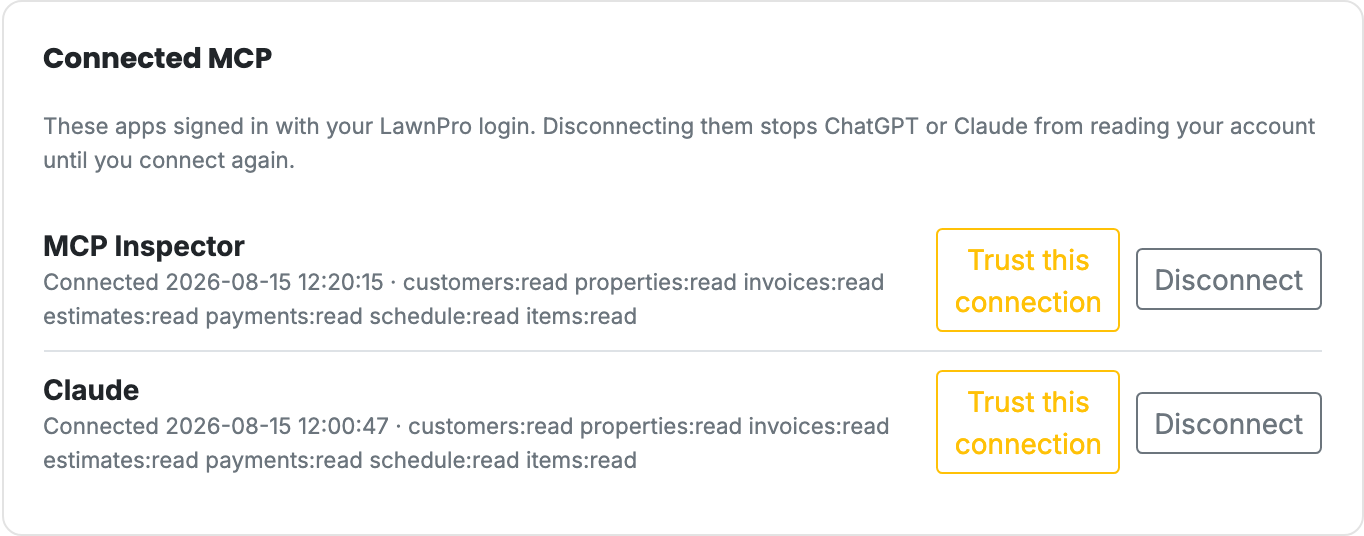
This applies only to that connection. Stop trusting puts the Allow click back. Disconnect turns it off too. Cursor API keys cannot skip Allow.
Cursor and Claude Code
These still use an API key from Settings > MCP, API & Integrations. See LawnPro API for how to request a key, then point the assistant at https://secure.lawnprosoftware.com/mcp.
Your API key is like a house key. Anyone who has it can read the information you gave it access to. Keep it somewhere safe. Writes still wait for you to click Allow in LawnPro — the key alone cannot send a text or create an invoice.
Disconnecting
Go to Settings > MCP, API & Integrations. Under Connected MCP, click Disconnect next to the one you want to turn off. It stops reading your account until you connect again.
Is my information safe?
A few things worth knowing, because “connect an AI to my business data” deserves a straight answer:
- Lookups are immediate. Changes wait for you — unless you trusted the connection. The assistant cannot send a text, create an invoice, or complete a visit until you open a LawnPro page and click Allow, or until you turn on Trust this connection for that app. It cannot fake the Allow click.
- It only sees your account. The connection opens your company and nothing else. It cannot see another company’s customers, and no one else’s connection can see yours.
- Texts go to the number on file. It cannot type in a random phone number. If a customer has no cell on their profile, the text won’t queue.
- You can shut it off instantly. Disconnect from Settings > MCP, API & Integrations, or call us and we’ll revoke it.
- We don’t store your conversations. We keep a record that your assistant asked for, say, your customer list at 9:14am — the same kind of record we keep for any app connected to your account. We don’t store the question you typed.
One honest caution: the assistant runs on someone else’s service — Anthropic or OpenAI — so your business information travels there to be read. That’s true of anything you paste into an AI tool today; the difference here is it happens through a permission-limited connection, and nothing in your account changes until you approve it. If your business handles information you’d rather not share with an outside AI service, this feature may not be for you, and that’s a perfectly reasonable call.
Frequently asked questions
Do I need to be a developer? No. For Claude and ChatGPT you paste one URL and sign in to LawnPro.
Can I use it on my phone? Yes — Claude and ChatGPT on the phone use the same custom connector URL.
Does it cost extra? Not from us — it’s included on Startup, Grow, and Plus. Your AI assistant may have its own subscription, which is between you and them.
Can it accidentally change something? Not by itself, unless you turned on Trust this connection. Otherwise it can ask to send a text or create an invoice, and you still have to open the LawnPro link and click Allow. Read that page before you click — that’s the safety catch.
Can it see my customers’ credit card numbers? No. Card details are never exposed — not to this connection, and not to our own API.
Why can’t I use Gemini? Google’s connector needs a different kind of sign-in than we support today. Claude and ChatGPT are the ones we built this for.
How do I turn it off? Settings > MCP, API & Integrations, or give us a call. We can disconnect that assistant or switch the whole feature off. Either takes effect immediately.
It says it can’t see my invoices (or customers, or schedule). If you’re on a Cursor API key, that part probably wasn’t included when the key was set up. Give us a call and we’ll add it. Claude and ChatGPT connections can already look those up.
Why does it sometimes give me a slightly different number than a report? The assistant answers from the same data your reports use, but it’s writing a sentence, not running your report. For anything you’re going to act on financially, check it against the matching report in LawnPro.