Table of Contents
Linking Your Quickbooks Account to Lawnpro
Please note: QuickBooks Sync only works with the online version of Quickbooks and we can only support QuickBooks Sync in the US at this time.
To get to your QuickBooks Sync Settings click the gear icon on the top right of the screen then click “QuickBooks Sync“
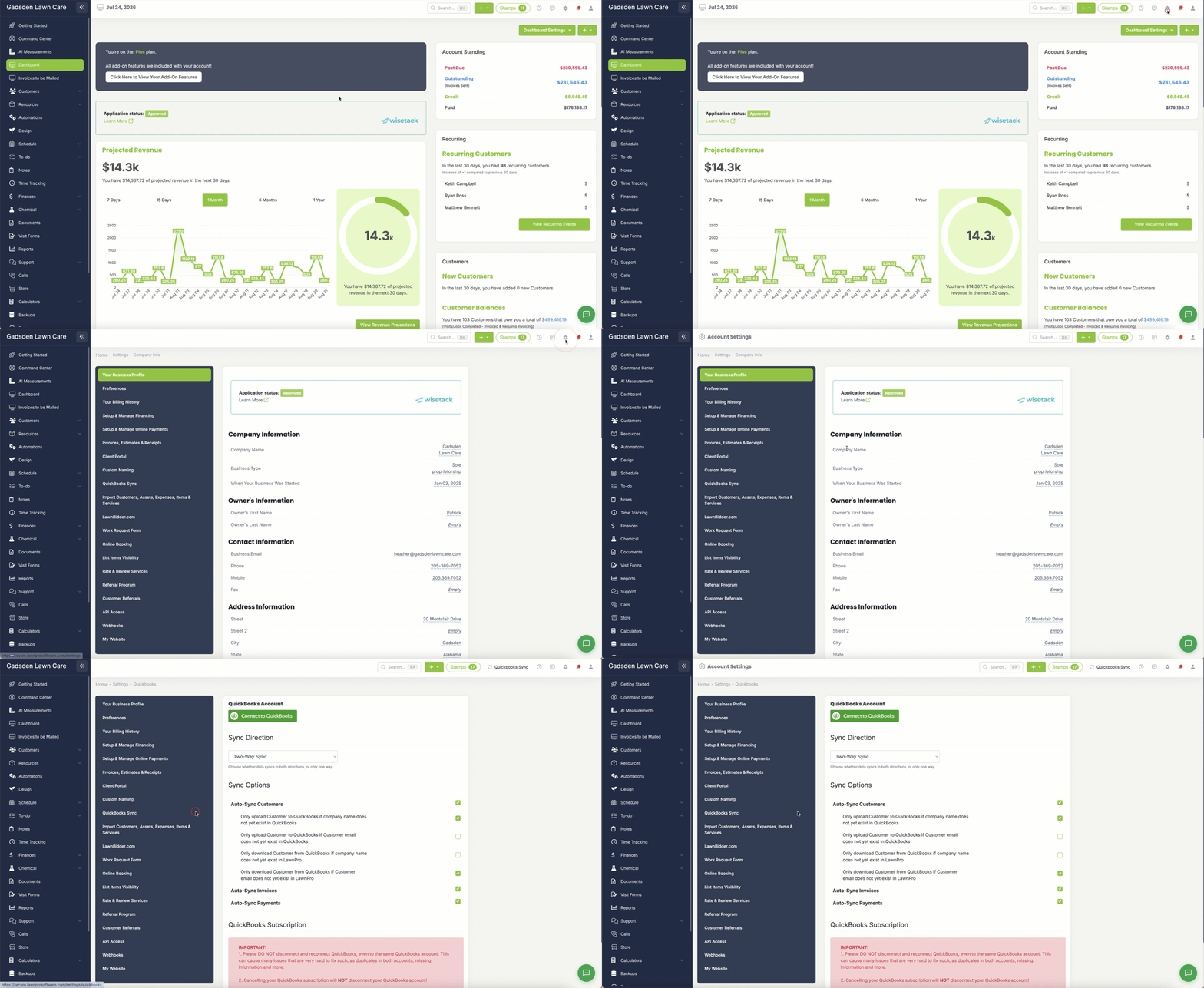
If your plan does not include Quickbooks Sync and you have not signed up for you will see the option to do so.
To sign up, click the green “Enable QuickBooks Sync” button.
If you have a card on file you will automatically be charged for $29 to add on Quickbooks Sync and it will create a monthly subscription.
If you do not have a card on file, a popup will appear for payment.
If you have already signed up for QuickBooks Sync you will see the settings.
If you haven’t connected to your QuickBooks Account, click the green “Connect to Quickbooks” button.
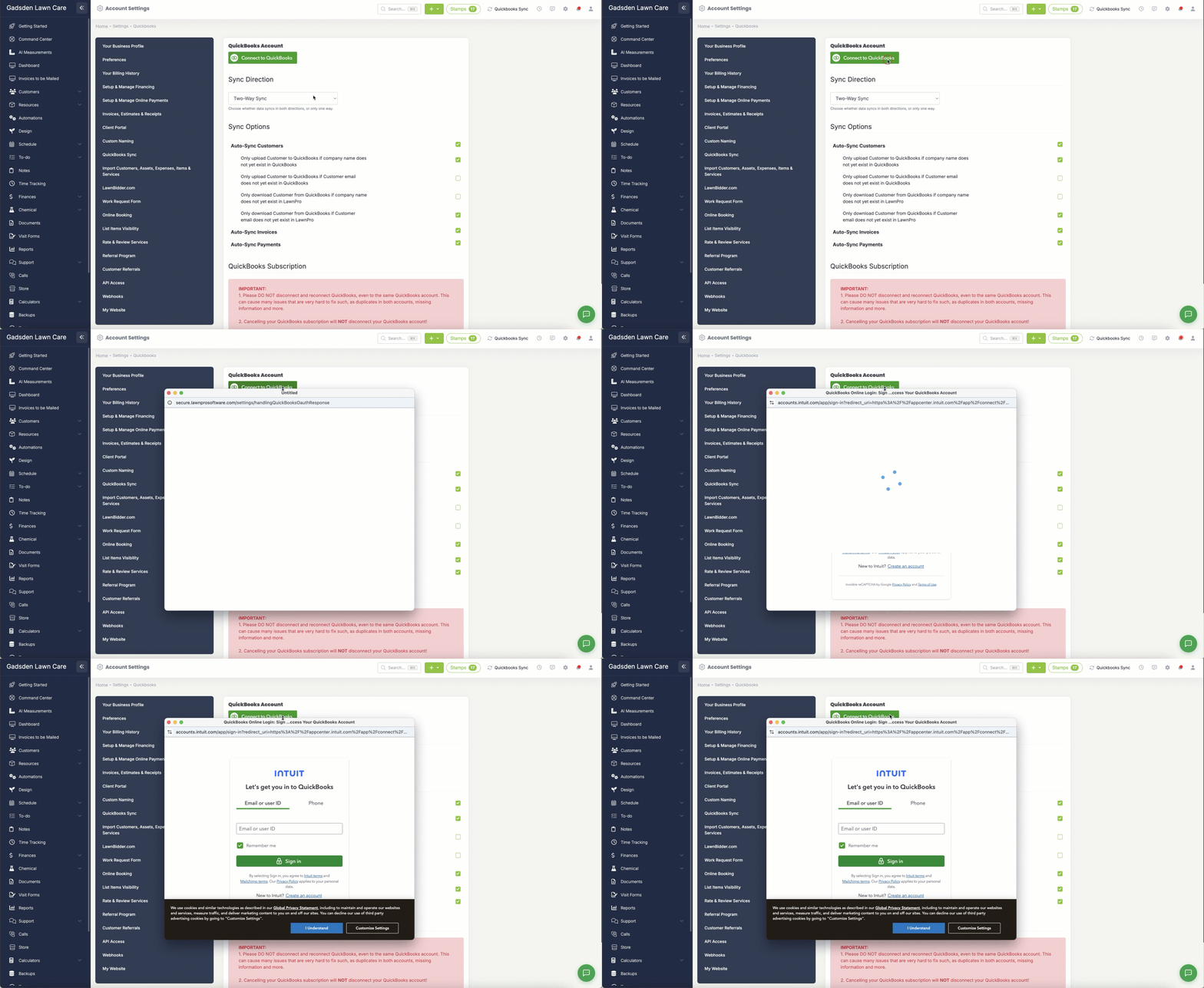
Next you will set your Quickbooks Sync settings.
Sync Options
To access your QuickBooks Sync settings go to the gear icon in the top right corner → QuickBooks Sync.
Connecting Your QuickBooks Account
Click the Connect to QuickBooks button to link your QuickBooks account to LawnPro. Once connected your data will begin syncing based on the options you have selected below.
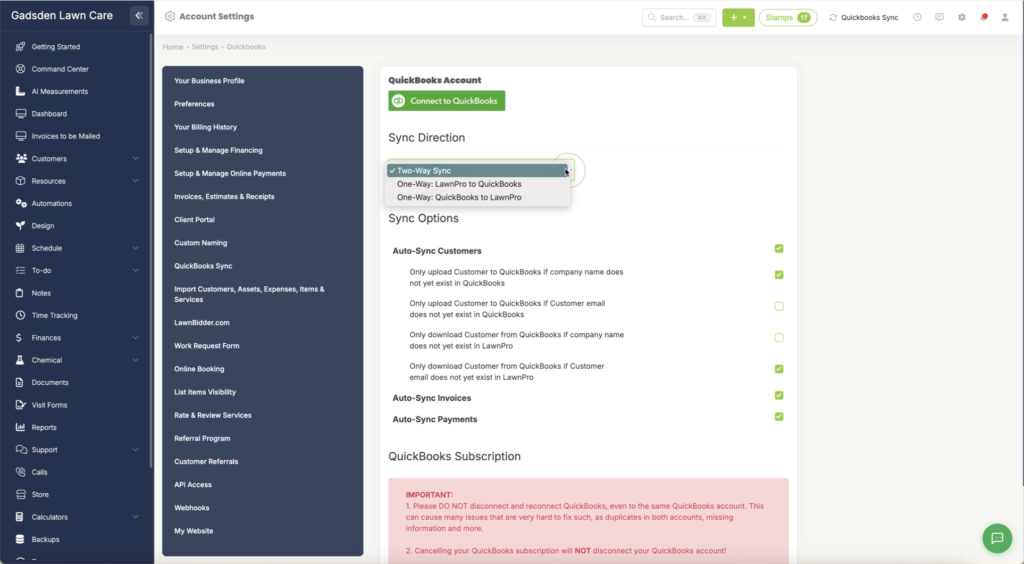
Sync Direction
Choose how data flows between LawnPro and QuickBooks:
- Two-Way Sync — Data syncs in both directions between LawnPro and QuickBooks
- One-Way: LawnPro to QuickBooks — Data only syncs from LawnPro to QuickBooks
- One-Way: QuickBooks to LawnPro — Data only syncs from QuickBooks to LawnPro
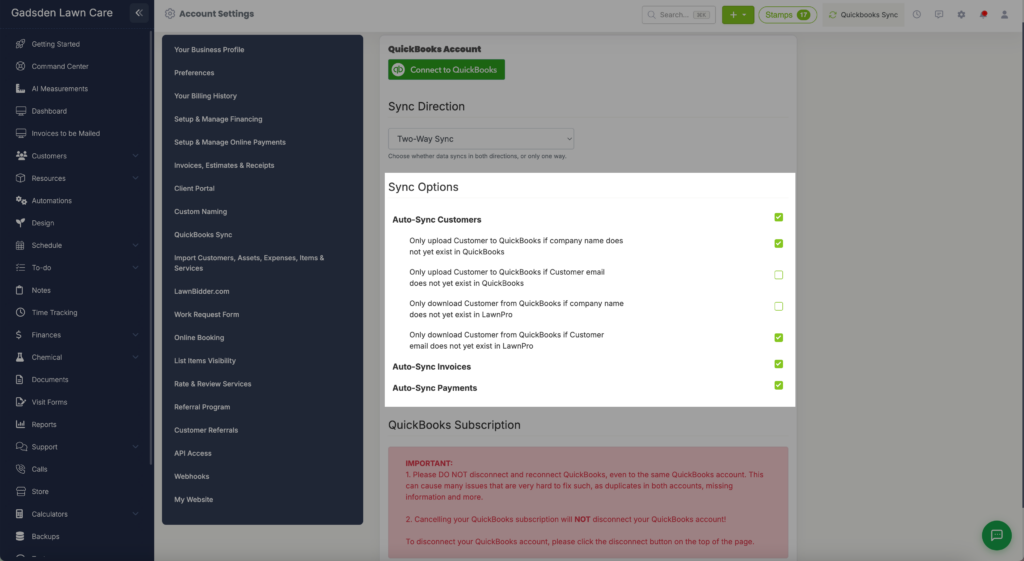
Sync Options
Auto-Sync Customers — When enabled, customers will automatically sync between LawnPro and QuickBooks. You can fine tune this with the following options:
- Only upload customer to QuickBooks if company name does not yet exist in QuickBooks — Prevents duplicate customers from being created in QuickBooks based on company name
- Only upload customer to QuickBooks if customer email does not yet exist in QuickBooks — Prevents duplicate customers from being created in QuickBooks based on email address
- Only download customer from QuickBooks if company name does not yet exist in LawnPro — Prevents duplicate customers from being created in LawnPro based on company name
- Only download customer from QuickBooks if customer email does not yet exist in LawnPro — Prevents duplicate customers from being created in LawnPro based on email address
Auto-Sync Invoices — When enabled, invoices will automatically sync between LawnPro and QuickBooks
Auto-Sync Payments — When enabled, payments will automatically sync between LawnPro and QuickBooks
QuickBooks Subscription
⚠️ Important Notes:
Cancelling your QuickBooks subscription will NOT disconnect your QuickBooks account. To disconnect your QuickBooks account you must click the disconnect button at the top of the page
Do NOT disconnect and reconnect QuickBooks, even to the same QuickBooks account. This can cause serious issues including duplicates in both accounts and missing information