Multi-Step Programs
Once you have a Multi-Step Program Template created you can apply it to customers and properties. If you haven’t created a template yet see our Multi-Step Program Templates article first.
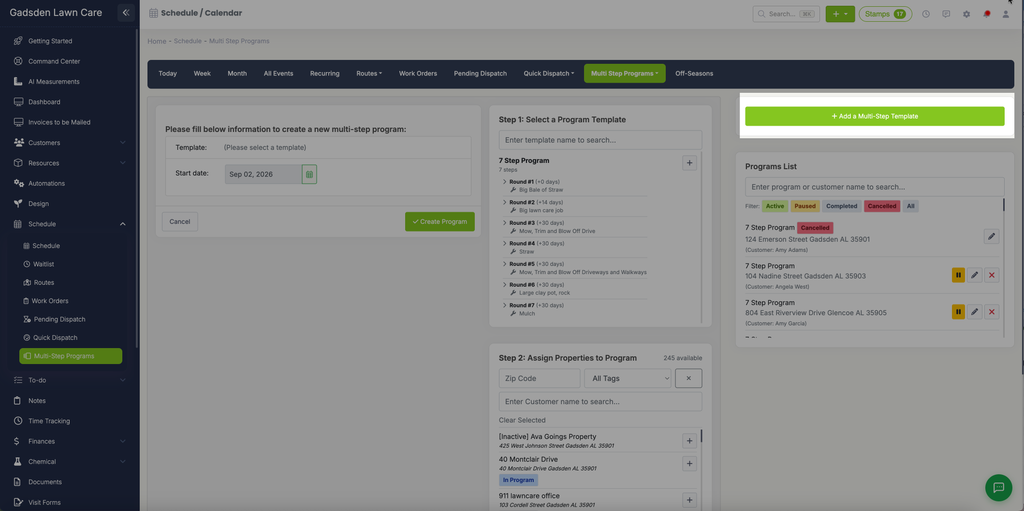
To access Multi-Step Programs go to Schedule → Multi Step Programs.
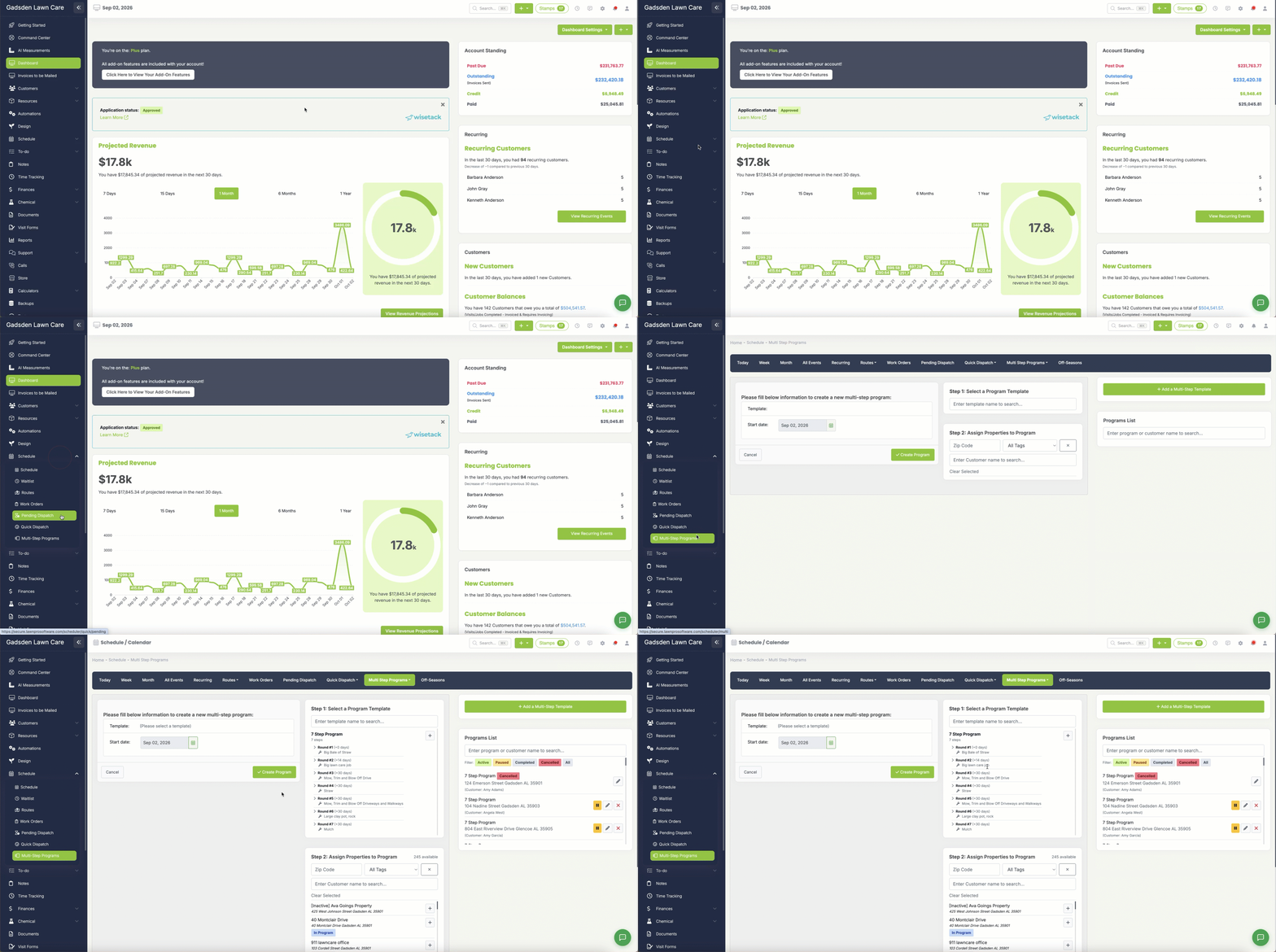
Creating a New Multi-Step Program
Step 1 — Select a Program Template
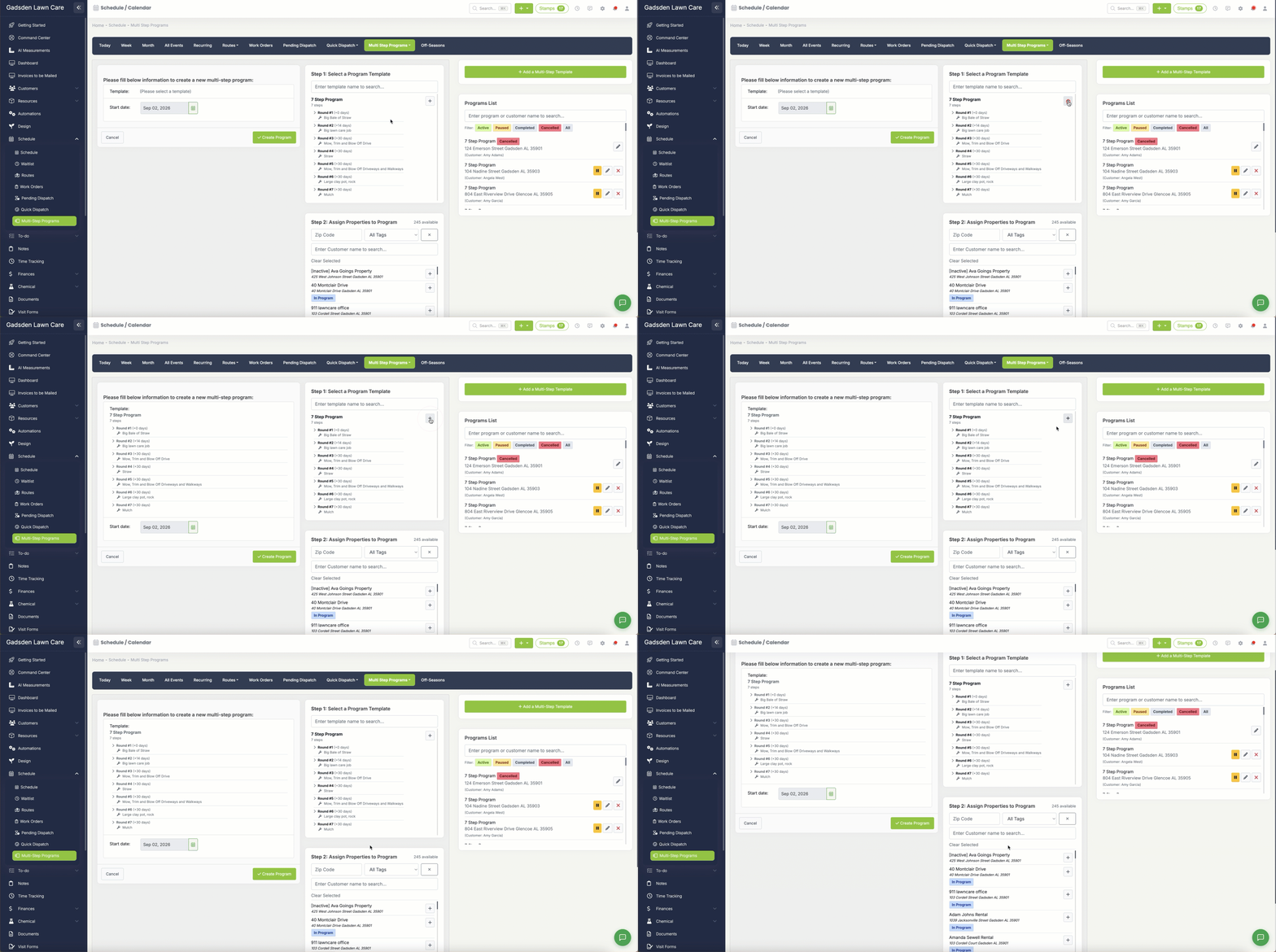
In the middle panel select the template you want to use. You can search for a template by name or scroll through the list. Click the + button next to the template to select it. The template will expand to show all of its steps, days between each step, and the services included in each round.
You will also need to set a Start Date for the program in the left panel. This is the date the first step will be scheduled.
Step 2 — Assign Properties to Program
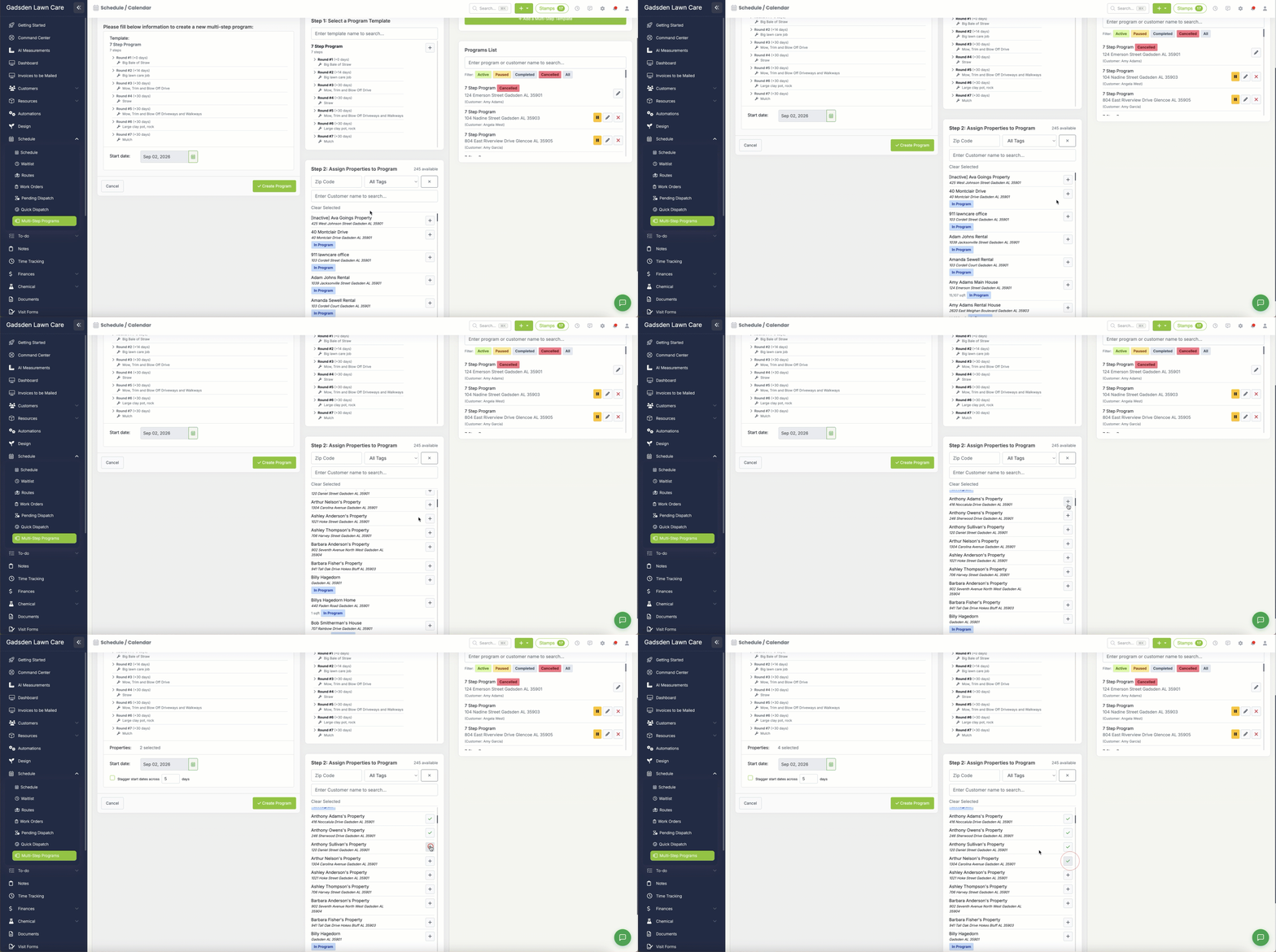
Below the template selection you will see Step 2: Assign Properties to Program. This is where you choose which properties you want to enroll in this multi-step program. You can filter by:
- Zip Code — Filter properties by zip code
- All Tags — Filter properties by tag
Search for a customer by name and click the + button next to each property you want to add to the program. Properties that are already enrolled in a program will show an In Program badge.
Step 3 — Create the Program
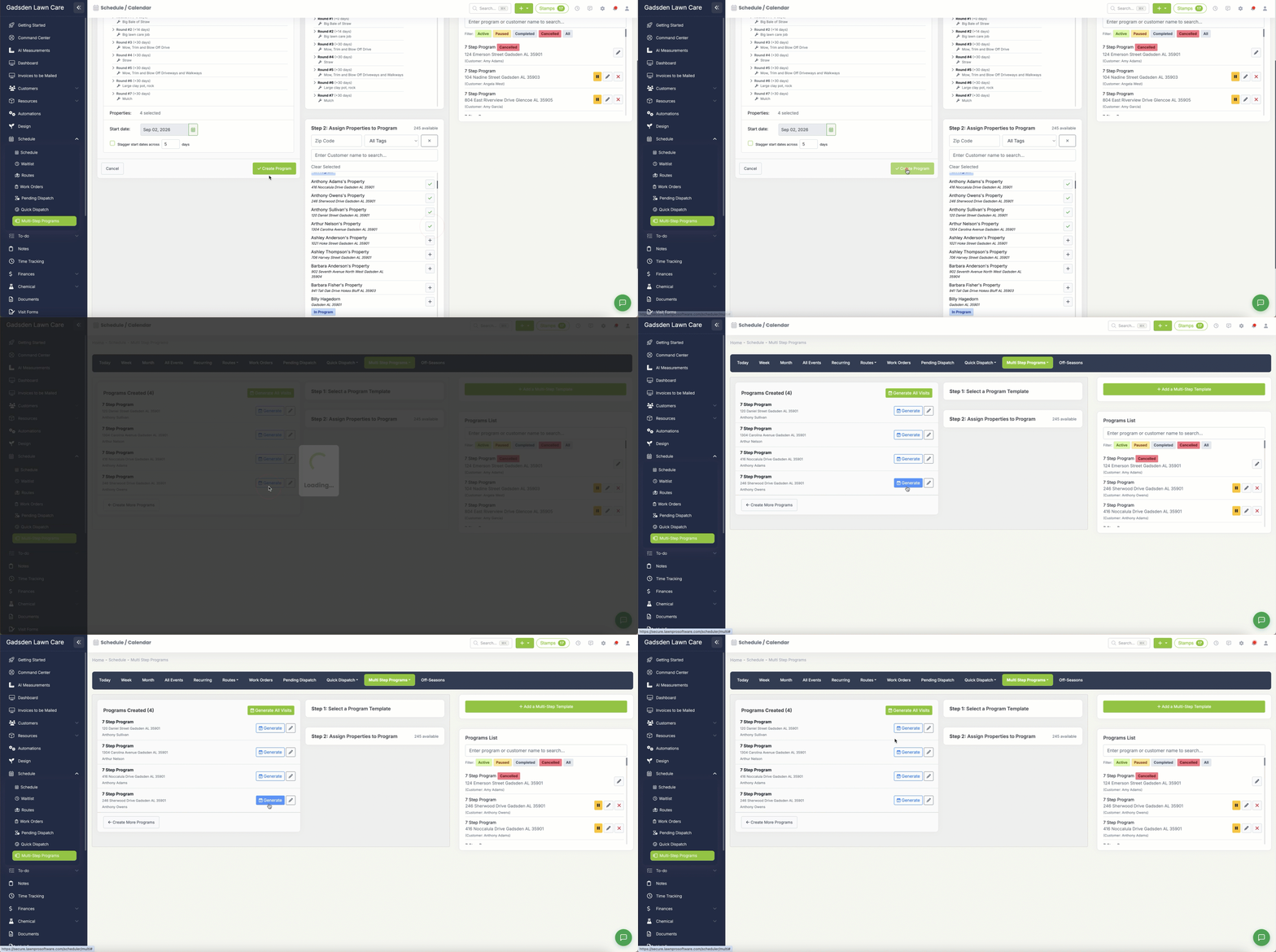
Once you have selected your template and assigned your properties click the green Create Program button. LawnPro will generate the program and add all the visits to your schedule based on the template’s step intervals.
Generating Visits From Program
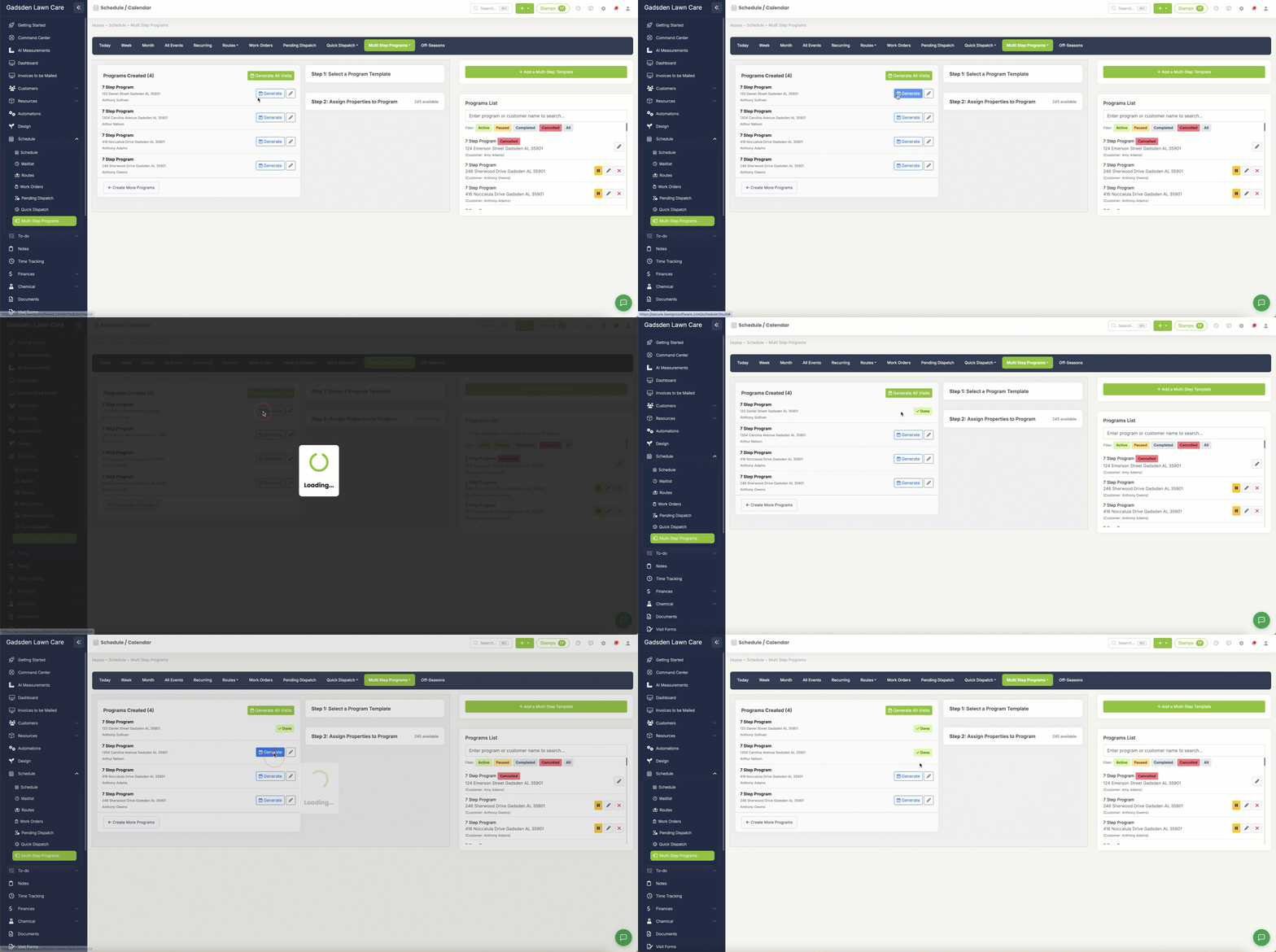
Once you have saved your new program you will see a blue “Generate” button. This button will put the visits for the program for the customer onto your schedule.
Managing Your Programs
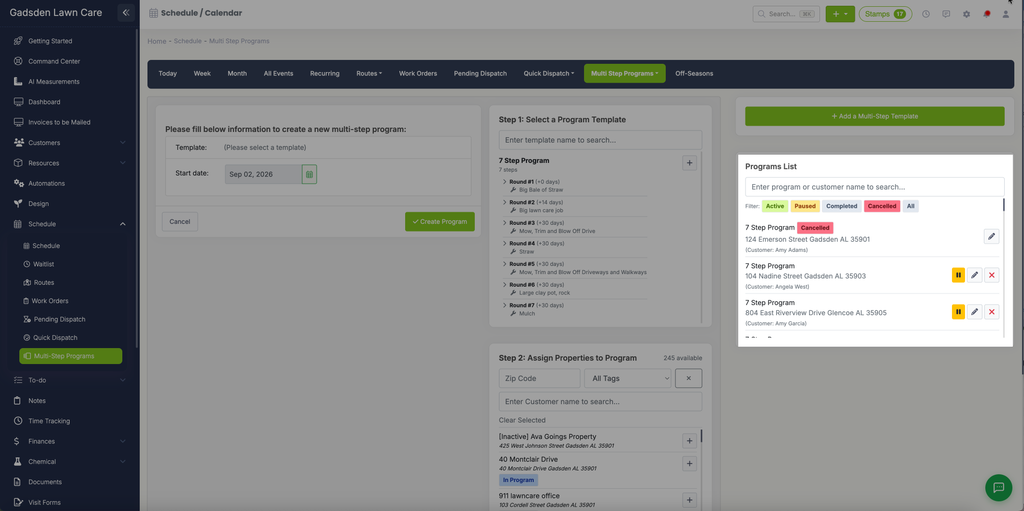
The Programs List on the right side of the screen shows all of your existing multi-step programs. You can filter by:
- Active — Programs currently in progress
- Paused — Programs that have been paused
- Completed — Programs that have been completed
- Cancelled — Programs that have been cancelled
- All — Show all programs regardless of status
For each program in the list you can:
- Click the pause icon to pause the program
- Click the pencil icon to edit the program
- Click the X button to cancel the program
Add a Multi-Step Template
Click the green Add a Multi-Step Template button in the top right corner to create a new template. See our Multi-Step Program Templates article for step by step instructions.